> ## Documentation Index
> Fetch the complete documentation index at: https://help.reevo.ai/llms.txt
> Use this file to discover all available pages before exploring further.
# Contacts
> Contacts represent the individual people your team interacts with, such as prospects, customers, or partners. Each contact record stores personal and professional details, helping you understand who you're engaging with and how they connect to the broader organization.
# Understanding Contacts in Reevo
## What Contacts Are Used For
Contacts help your team:
* Track communication history (emails, meetings, calls) with each person
* Understand role, seniority, and influence within their company
* Personalize outreach and relationship management
* Identify key stakeholders involved in active deals or accounts
## How Contacts Relate to Accounts and Opportunities
* Every **Contact** is typically linked to an **Account**, representing the company they work for.
* Contacts can also be associated with one or more **Opportunities**, showing their involvement in a specific deal or sales cycle.
* This connection helps sales, marketing, and success teams collaborate with full context across all touchpoints.
## Standard and Custom Fields
Reevo includes standard fields on every Contact (e.g., First Name, Last Name, Title, Email, Phone). You can also **configure custom fields** to capture additional context that supports your GTM process.
See [Create and Manage Custom Fields](https://help.reevo.ai/CRM-configurations/Custom-Fields) to learn how to add or edit contact-specific attributes.
***
# Creating Contacts
### **Manual Contact Creation:**
1. Go to **Contacts** in Reevo.
2. Click **Create** or **+**.
3. Fill in required fields: **First Name**, **Last Name**, and (recommended) **Email** or **Phone**.
4. Optionally add **Title**, **Department**, **LinkedIn**, or **Primary Account**.
5. Assign an **Owner** (defaults to you).
6. Click **Create** to save.
The contact is now available in your system and can be linked to accounts, opportunities, and meetings.
### **Automatic Contact Creation:**
Reevo can automatically create contact records based on your email and meeting activity. Configure this behavior in **Settings** under [**Record Creation .**](https://app.reevo.ai/settings/record-creation) For additional information on these setting refer to the [Onboarding](https://help.reevo.ai/getting-started/Onboarding) article.
***
# Multi-Email and Multi-Phone Support
Reevo supports multiple emails and phone numbers per contact because people often work with more than one company or use different contact details for different business contexts. This ensures your team can always reach someone using the right email or phone number for the specific account they're associated with.
## **How to Add or Manage Multiple Emails**
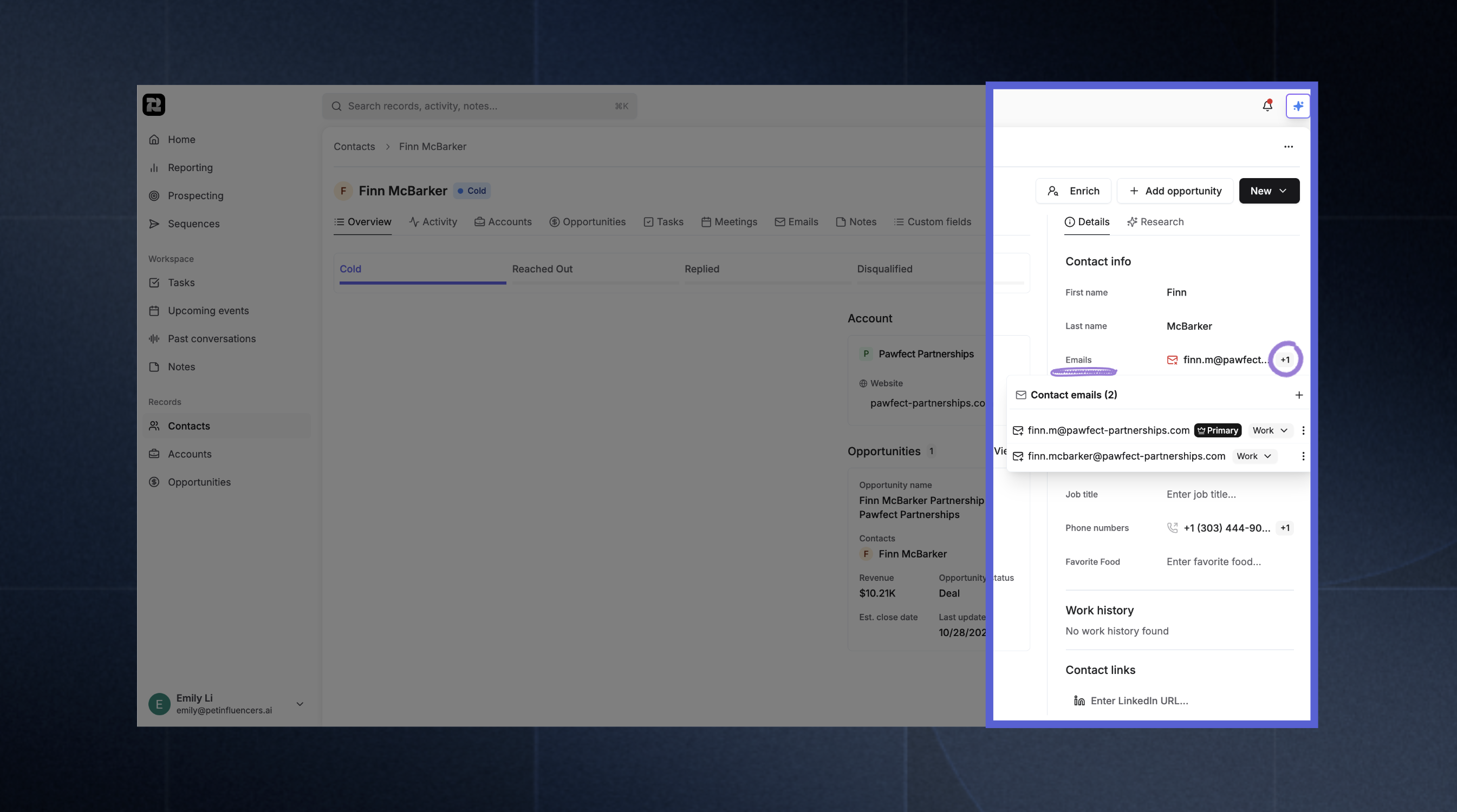 1. Navigate to the **Contacts** section in Reevo
2. Select a contact to open their details in the side pane
3. Click the **+** icon to add another email address
4. Use the dropdown to label each entry (e.g., **Work, Personal)**
5. Mark one as **Primary** to set the default for communication. You can do this by clicking on the ellipsis (…).
## **How to Add or Manage Multiple Phone Numbers**
1. Navigate to the **Contacts** section in Reevo
2. Select a contact to open their details in the side pane
3. Click the **+** icon to add another email address
4. Use the dropdown to label each entry (e.g., **Work, Personal)**
5. Mark one as **Primary** to set the default for communication. You can do this by clicking on the ellipsis (…).
## **How to Add or Manage Multiple Phone Numbers**
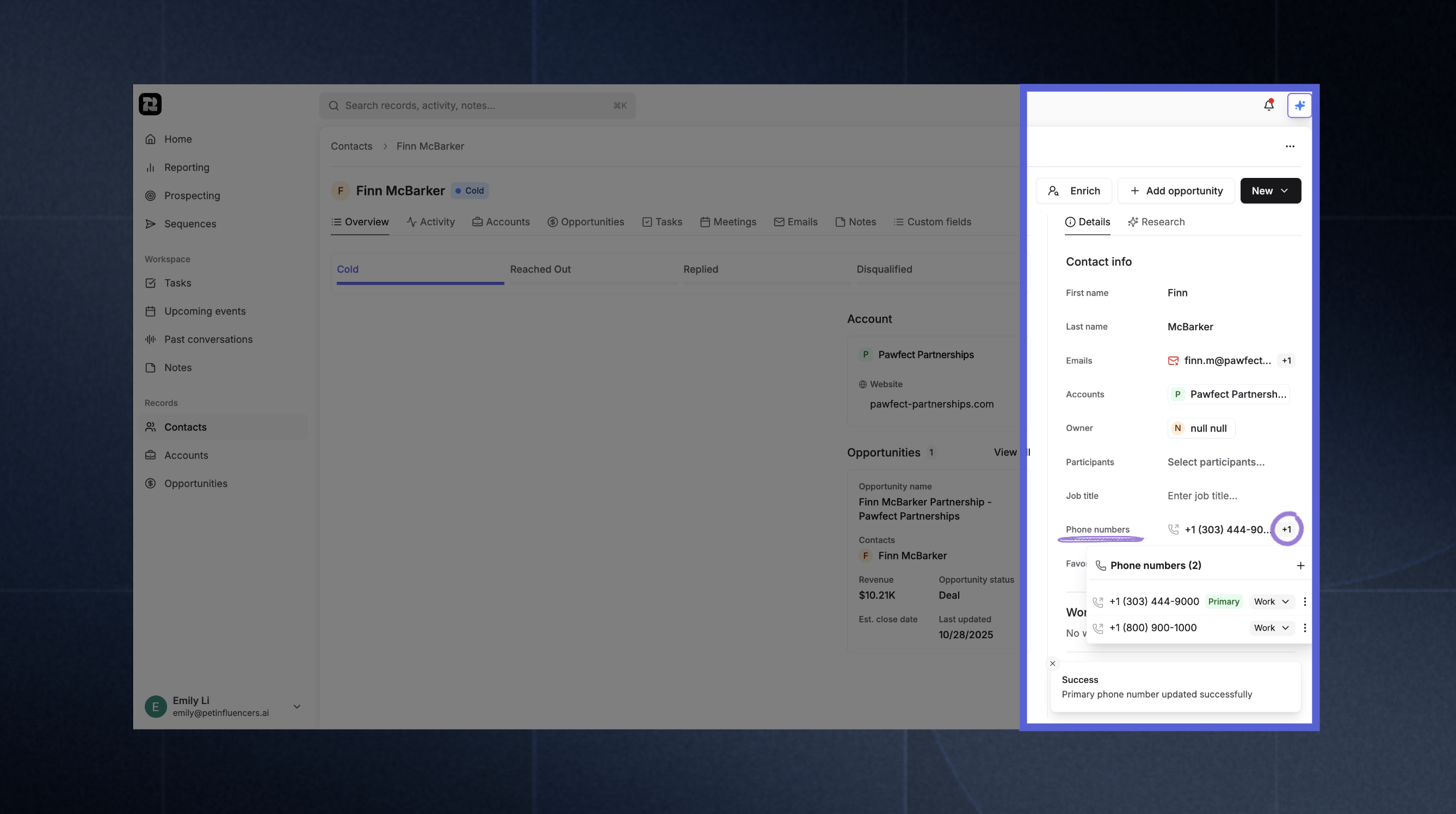 1. Navigate to the **Contacts** section in Reevo
2. Select a contact to open their details in the side pane
3. Click the **+** icon to add another phone number
4. Use the dropdown to label each entry (e.g., **Work, Personal)**
5. Mark one as **Primary** to set the default for communication. You can do this by clicking on the ellipsis (…).
***
# Activity Timestamps
Reevo automatically tracks the last time your team reached out to a contact — and the last time a contact engaged back. These timestamps appear in the **Activity timestamps** section of the contact's Overview tab and update automatically as activity is logged.
1. Navigate to the **Contacts** section in Reevo
2. Select a contact to open their details in the side pane
3. Click the **+** icon to add another phone number
4. Use the dropdown to label each entry (e.g., **Work, Personal)**
5. Mark one as **Primary** to set the default for communication. You can do this by clicking on the ellipsis (…).
***
# Activity Timestamps
Reevo automatically tracks the last time your team reached out to a contact — and the last time a contact engaged back. These timestamps appear in the **Activity timestamps** section of the contact's Overview tab and update automatically as activity is logged.
 There are 8 fields in total, split into two groups.
**Engagement fields** reflect activity initiated by the contact:
| Field | What it tracks |
| -------------------- | --------------------------------------------------------------------------------------------- |
| Last engaged at | The most recent timestamp across the three engagement fields below |
| Last engaged meeting | Last time the contact set a meeting with a user, or attended a meeting a user invited them to |
| Last inbound call | Last time the contact called a user and the user picked up |
| Last inbound email | Last time the contact sent an email to a user |
**Outreach fields** reflect activity initiated by your team:
| Field | What it tracks |
| ---------------------- | -------------------------------------------------------------------------------------------------------------------------- |
| Last outreach at | The most recent timestamp across the three outreach fields below |
| Last attempted meeting | Last time a user set a meeting with the contact |
| Last outbound call | Last time a user called the contact and the call went through — includes voicemails, but not unanswered or failed attempts |
| Last outbound email | Last time a user sent an email to the contact that was successfully delivered |
***
# Multi-Account Associations
There are 8 fields in total, split into two groups.
**Engagement fields** reflect activity initiated by the contact:
| Field | What it tracks |
| -------------------- | --------------------------------------------------------------------------------------------- |
| Last engaged at | The most recent timestamp across the three engagement fields below |
| Last engaged meeting | Last time the contact set a meeting with a user, or attended a meeting a user invited them to |
| Last inbound call | Last time the contact called a user and the user picked up |
| Last inbound email | Last time the contact sent an email to a user |
**Outreach fields** reflect activity initiated by your team:
| Field | What it tracks |
| ---------------------- | -------------------------------------------------------------------------------------------------------------------------- |
| Last outreach at | The most recent timestamp across the three outreach fields below |
| Last attempted meeting | Last time a user set a meeting with the contact |
| Last outbound call | Last time a user called the contact and the call went through — includes voicemails, but not unanswered or failed attempts |
| Last outbound email | Last time a user sent an email to the contact that was successfully delivered |
***
# Multi-Account Associations
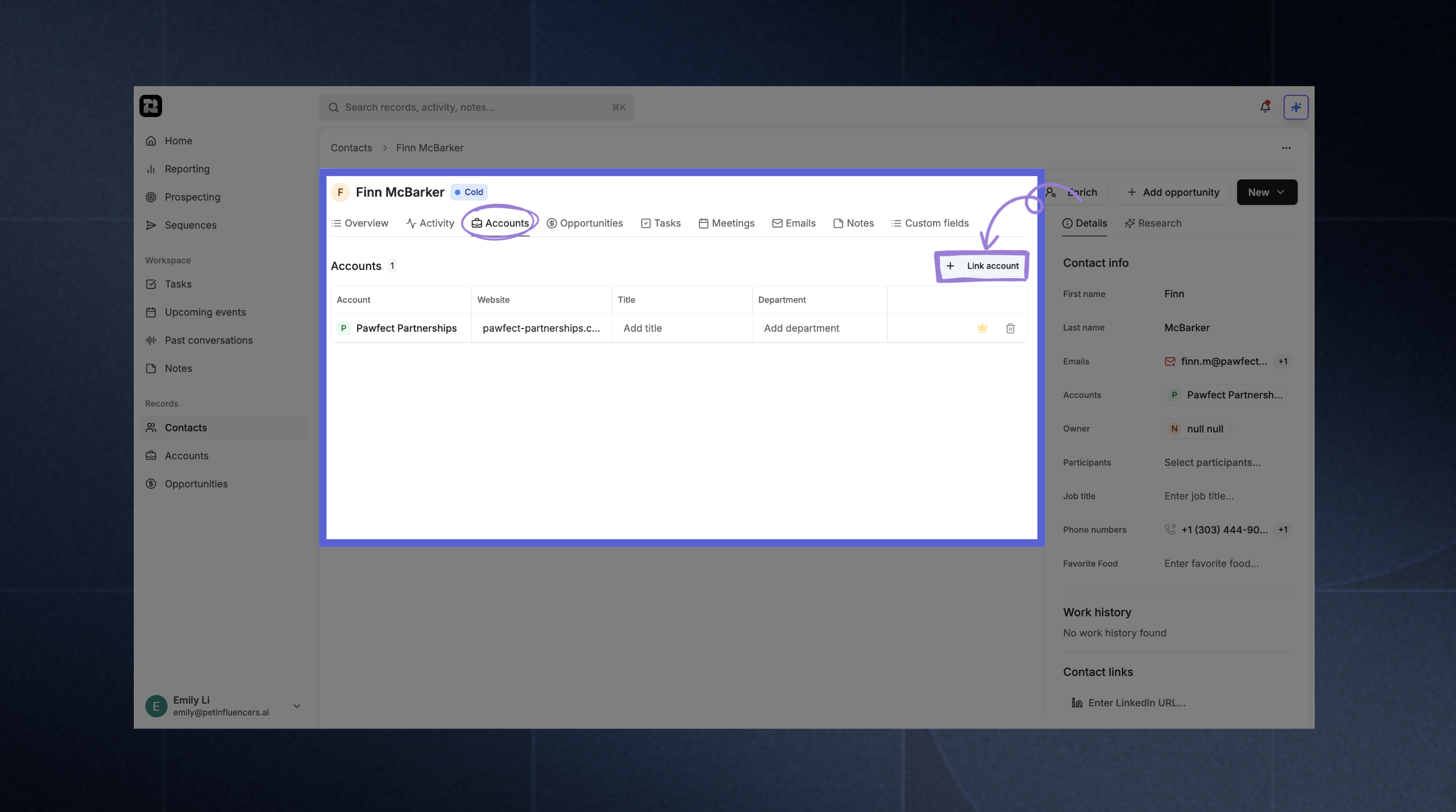 Reevo supports a flexible, many-to-many relationship between **Contacts** (individuals) and **Accounts** (companies or organizations). This means a single contact can be associated with multiple accounts at once.
## How It Works
Each contact has one **Primary Account**, representing their main employer or affiliation, and can also be linked to one or more **Secondary Accounts** for other professional relationships.
This structure helps preserve important business context during CRM operations, like account merges, contact ownership changes, or relationship tracking, without losing visibility into prior or parallel associations.
## **How to Add Multiple Accounts**
1. Navigate to the **Contacts** section in Reevo
2. Open a contact record
3. Click the **Accounts** tab in the contact view
4. Select **Link Account**
5. In the **Link account to contact** modal, choose the following:
* **Account:** Select the company to associate
* **Title:** Enter the contact's role at that company (e.g., Director, Consultant)
* **Department:** Add the department or team name (e.g., Sales, Engineering)
* **Contact Emails:** Choose which of the contact's email addresses should link to this account
* **Contact Phone Numbers:** Select which phone numbers to associate
6. Click **Link account** to save
The contact will now display multiple associated accounts with one marked as the **Primary Account** (indicated by the crown icon 👑) and others as secondary relationships.
***
# Troubleshooting / FAQs
Accounts represent companies or organizations, while contacts represent individual people. Contacts are linked to accounts to show which company they work for. This structure helps you track both organizational relationships and individual stakeholders.
Yes. You can ask Ask Reevo questions in natural language like "What meetings do I have with contacts at Acme Corp?" or "Show me all contacts without email addresses." Ask Reevo will search your data and provide formatted responses with clickable links.
Yes. Ask Reevo can create and update contact records through natural language requests. Simply ask questions like "Create a contact for John Smith at Acme Corp" or "Update Sarah's title to VP of Sales." Ask Reevo will validate the information and confirm before making changes.
Yes. When creating or editing custom fields, use the **Pin** option to keep important fields visible on the contact's primary details page.
Yes. Org admins can customize which fields appear in the quick-create form via **Settings - Contacts - Record Creation** tab. Click the **+** button to add fields, then click **Publish** to apply. Changes apply org-wide.
When contacts are merged or archived, Reevo preserves the relationships and history. Account associations are maintained, and activity history remains accessible. The system uses archive-only operations to ensure data integrity. To combine two duplicate contacts, see [Merging Records](/CRM-configurations/Merging-Records).
By default, Users can only edit contacts they own. Admins have full access to edit any contact. If you need to edit a contact owned by someone else, contact your Admin to reassign ownership or request Admin permissions.
Use the **Blocked Domains & Emails** setting under **Record Auto-Creation Settings**. Add domains like personal email providers or sensitive company domains to prevent automatic contact creation while still allowing manual creation when needed.
Email addresses must be unique within your organization. If you attempt to create a contact with an existing email, the system will detect the conflict and provide details about the existing contact. You can then either update the existing contact or use a different email address.
Yes. Navigate to **Settings** and select **My Record Creation**. This lets you disable automatic contact creation for your individual account even if your organization has it enabled globally. This is useful if you handle confidential communications or prefer to manage contacts manually.
Contact visibility follows your organization's sharing rules and ownership permissions. You may not see contacts owned by other team members unless your Admin has granted broader access. Additionally, check that you have permission to view the data in Reevo and try refining your search with more specific details like names or company names.
No. Contacts cannot be enrolled in multiple sequences simultaneously. This prevents conflicting outreach and ensures a coordinated communication strategy. You must wait for a contact to complete or be removed from their current sequence before enrolling them in another.
Disconnecting integrations stops automatic data capture and contact creation for your account. Existing contact records and their history remain in Reevo, but new activity won't sync until you reconnect. Your teammates' integrations continue working independently.
The system uses the **Primary** email or phone number marked on the contact record for all outreach activities. You can change which email or phone is primary by clicking the ellipsis (…) next to any entry and selecting it as primary.
Yes. You can link contacts to multiple accounts through the **Accounts** tab on the contact record. However, you cannot change account associations through the update process; you must use the **Link Account** feature to add or modify account relationships.
The system validates several requirements before allowing sequence enrollment. The contact must have an email address for email sequences, a phone number for call sequences, a LinkedIn URL for LinkedIn sequences, an associated account, and an assigned owner. Check that all required fields are populated for your specific sequence type.
The system runs duplicate detection against email, phone, and name combinations during contact creation. If a potential duplicate is found, you'll receive a warning with details about the existing contact. You can then decide whether to proceed with creating a new contact or update the existing one. This check happens at creation time. To combine two contacts that already exist in your CRM, see [Merging Records](/CRM-configurations/Merging-Records).
These fields track activity from opposite directions. Last Engaged At reflects the last time the contact initiated activity toward your team — a signal of interest or intent. Last Outreach At reflects the last time your team successfully reached the contact — confirming the contact info is still valid and reachable. Together they give a complete picture of two-way communication.
Yes. An outbound call counts if its status is Completed or Voicemail Left — both indicate the call successfully reached the contact. Calls that result in No Answer, Busy, Canceled, or Failed are not counted.
No. Only emails actually sent by the contact to a user are counted. Opens and clicks are not included.
Last Engaged Meeting updates when the contact booked the meeting themselves, or when the contact attended a meeting a user invited them to. Last Attempted Meeting updates when a user scheduled the meeting, regardless of whether the contact attended.
Yes. All 8 activity timestamp fields are available as filter and sort options in contact list views. For example, sort by Last Engaged At to surface contacts who most recently interacted with your team, or filter for contacts where Last Outreach At is older than 30 days to identify who needs follow-up.
> Still have questions? [Sign in](https://reevo.ai/) and use AskReevo for instant answers or to raise a support ticket.
Reevo supports a flexible, many-to-many relationship between **Contacts** (individuals) and **Accounts** (companies or organizations). This means a single contact can be associated with multiple accounts at once.
## How It Works
Each contact has one **Primary Account**, representing their main employer or affiliation, and can also be linked to one or more **Secondary Accounts** for other professional relationships.
This structure helps preserve important business context during CRM operations, like account merges, contact ownership changes, or relationship tracking, without losing visibility into prior or parallel associations.
## **How to Add Multiple Accounts**
1. Navigate to the **Contacts** section in Reevo
2. Open a contact record
3. Click the **Accounts** tab in the contact view
4. Select **Link Account**
5. In the **Link account to contact** modal, choose the following:
* **Account:** Select the company to associate
* **Title:** Enter the contact's role at that company (e.g., Director, Consultant)
* **Department:** Add the department or team name (e.g., Sales, Engineering)
* **Contact Emails:** Choose which of the contact's email addresses should link to this account
* **Contact Phone Numbers:** Select which phone numbers to associate
6. Click **Link account** to save
The contact will now display multiple associated accounts with one marked as the **Primary Account** (indicated by the crown icon 👑) and others as secondary relationships.
***
# Troubleshooting / FAQs
Accounts represent companies or organizations, while contacts represent individual people. Contacts are linked to accounts to show which company they work for. This structure helps you track both organizational relationships and individual stakeholders.
Yes. You can ask Ask Reevo questions in natural language like "What meetings do I have with contacts at Acme Corp?" or "Show me all contacts without email addresses." Ask Reevo will search your data and provide formatted responses with clickable links.
Yes. Ask Reevo can create and update contact records through natural language requests. Simply ask questions like "Create a contact for John Smith at Acme Corp" or "Update Sarah's title to VP of Sales." Ask Reevo will validate the information and confirm before making changes.
Yes. When creating or editing custom fields, use the **Pin** option to keep important fields visible on the contact's primary details page.
Yes. Org admins can customize which fields appear in the quick-create form via **Settings - Contacts - Record Creation** tab. Click the **+** button to add fields, then click **Publish** to apply. Changes apply org-wide.
When contacts are merged or archived, Reevo preserves the relationships and history. Account associations are maintained, and activity history remains accessible. The system uses archive-only operations to ensure data integrity. To combine two duplicate contacts, see [Merging Records](/CRM-configurations/Merging-Records).
By default, Users can only edit contacts they own. Admins have full access to edit any contact. If you need to edit a contact owned by someone else, contact your Admin to reassign ownership or request Admin permissions.
Use the **Blocked Domains & Emails** setting under **Record Auto-Creation Settings**. Add domains like personal email providers or sensitive company domains to prevent automatic contact creation while still allowing manual creation when needed.
Email addresses must be unique within your organization. If you attempt to create a contact with an existing email, the system will detect the conflict and provide details about the existing contact. You can then either update the existing contact or use a different email address.
Yes. Navigate to **Settings** and select **My Record Creation**. This lets you disable automatic contact creation for your individual account even if your organization has it enabled globally. This is useful if you handle confidential communications or prefer to manage contacts manually.
Contact visibility follows your organization's sharing rules and ownership permissions. You may not see contacts owned by other team members unless your Admin has granted broader access. Additionally, check that you have permission to view the data in Reevo and try refining your search with more specific details like names or company names.
No. Contacts cannot be enrolled in multiple sequences simultaneously. This prevents conflicting outreach and ensures a coordinated communication strategy. You must wait for a contact to complete or be removed from their current sequence before enrolling them in another.
Disconnecting integrations stops automatic data capture and contact creation for your account. Existing contact records and their history remain in Reevo, but new activity won't sync until you reconnect. Your teammates' integrations continue working independently.
The system uses the **Primary** email or phone number marked on the contact record for all outreach activities. You can change which email or phone is primary by clicking the ellipsis (…) next to any entry and selecting it as primary.
Yes. You can link contacts to multiple accounts through the **Accounts** tab on the contact record. However, you cannot change account associations through the update process; you must use the **Link Account** feature to add or modify account relationships.
The system validates several requirements before allowing sequence enrollment. The contact must have an email address for email sequences, a phone number for call sequences, a LinkedIn URL for LinkedIn sequences, an associated account, and an assigned owner. Check that all required fields are populated for your specific sequence type.
The system runs duplicate detection against email, phone, and name combinations during contact creation. If a potential duplicate is found, you'll receive a warning with details about the existing contact. You can then decide whether to proceed with creating a new contact or update the existing one. This check happens at creation time. To combine two contacts that already exist in your CRM, see [Merging Records](/CRM-configurations/Merging-Records).
These fields track activity from opposite directions. Last Engaged At reflects the last time the contact initiated activity toward your team — a signal of interest or intent. Last Outreach At reflects the last time your team successfully reached the contact — confirming the contact info is still valid and reachable. Together they give a complete picture of two-way communication.
Yes. An outbound call counts if its status is Completed or Voicemail Left — both indicate the call successfully reached the contact. Calls that result in No Answer, Busy, Canceled, or Failed are not counted.
No. Only emails actually sent by the contact to a user are counted. Opens and clicks are not included.
Last Engaged Meeting updates when the contact booked the meeting themselves, or when the contact attended a meeting a user invited them to. Last Attempted Meeting updates when a user scheduled the meeting, regardless of whether the contact attended.
Yes. All 8 activity timestamp fields are available as filter and sort options in contact list views. For example, sort by Last Engaged At to surface contacts who most recently interacted with your team, or filter for contacts where Last Outreach At is older than 30 days to identify who needs follow-up.
> Still have questions? [Sign in](https://reevo.ai/) and use AskReevo for instant answers or to raise a support ticket.