> ## Documentation Index
> Fetch the complete documentation index at: https://help.reevo.ai/llms.txt
> Use this file to discover all available pages before exploring further.
# Custom Fields
> Custom fields in Reevo let you extend your CRM data model to fit your business. You can add, edit, or remove fields across core objects—such as Accounts, Contacts, and Opportunities—to track the information that matters most to your team.
# Accessing Custom Fields
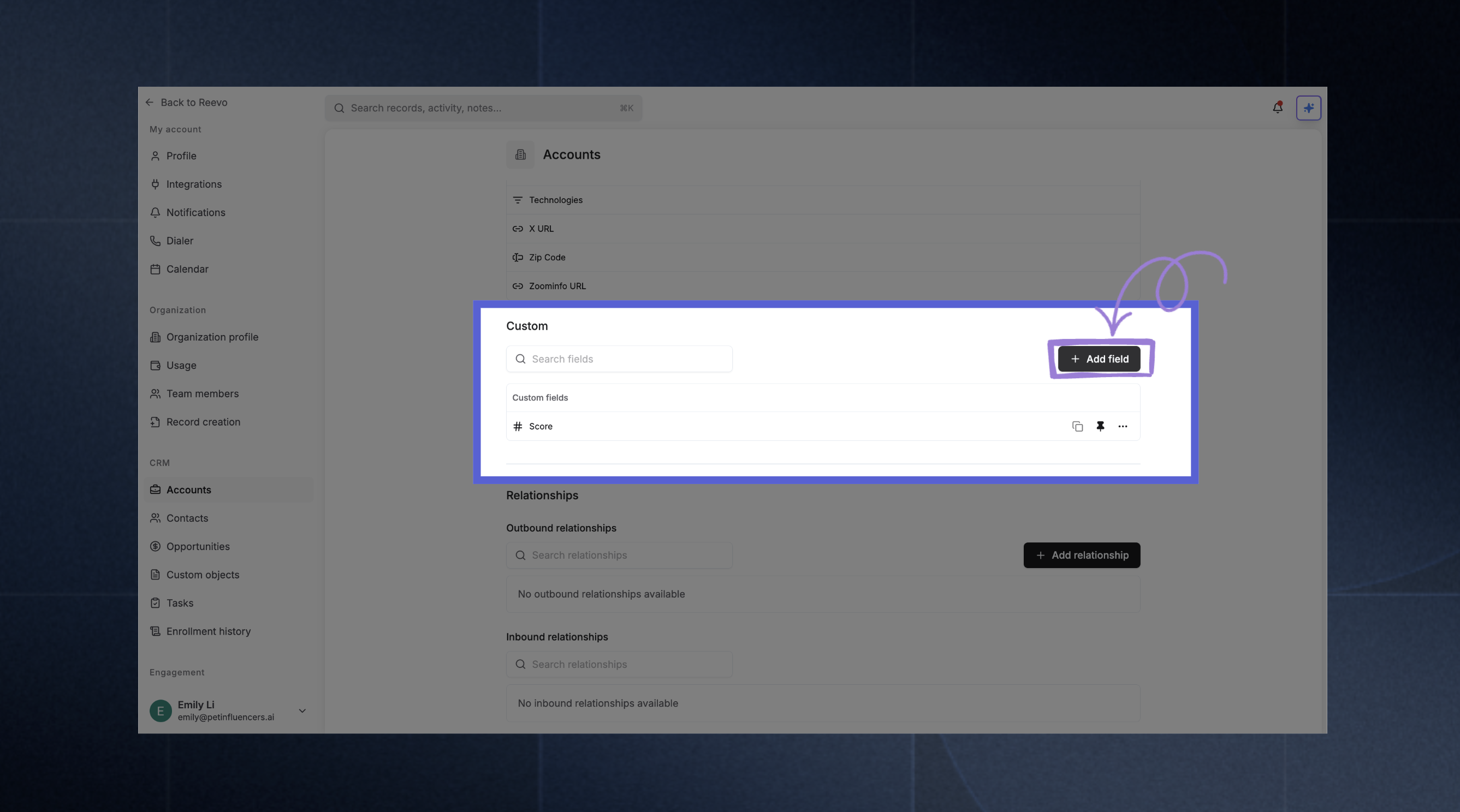 1. Log in to [**Reevo**](https://app.reevo.ai/)
2. Click **Settings** ⚙️ in the left sidebar
3. In **CRM** section, select the object you want to configure, e.g.
1. [Accounts](https://app.reevo.ai/settings/accounts)
2. [Contacts](https://app.reevo.ai/settings/contacts)
3. [Opportunities](https://app.reevo.ai/settings/opportunities)
4. Under **Custom Fields**, click **Add Field**
Each custom field can be defined with a **display name**, **description**, and **field type**. Some field types allow pre-defined options, such as single- or multi-select dropdowns.
***
## Supported Field Types
1. Log in to [**Reevo**](https://app.reevo.ai/)
2. Click **Settings** ⚙️ in the left sidebar
3. In **CRM** section, select the object you want to configure, e.g.
1. [Accounts](https://app.reevo.ai/settings/accounts)
2. [Contacts](https://app.reevo.ai/settings/contacts)
3. [Opportunities](https://app.reevo.ai/settings/opportunities)
4. Under **Custom Fields**, click **Add Field**
Each custom field can be defined with a **display name**, **description**, and **field type**. Some field types allow pre-defined options, such as single- or multi-select dropdowns.
***
## Supported Field Types
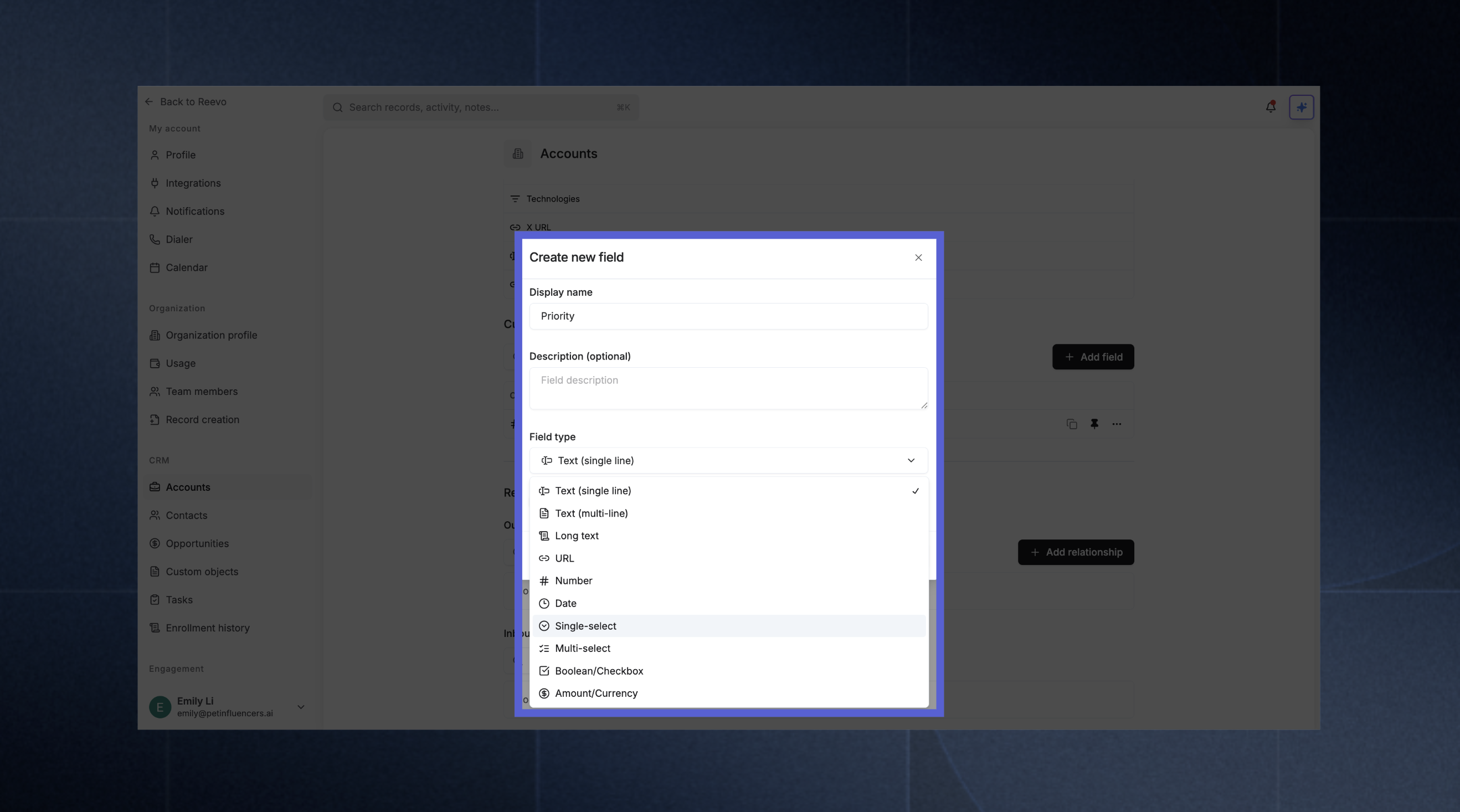 | **Type** | **Description** | **Examples** |
| :----------------- | :------------------------------------------------------ | :---------------------------------------------- |
| Text (single line) | Short free-form text input (max \~255 chars). | Account region, campaign code |
| Text (multi-line) | Longer text input supporting line breaks. | Campaign description |
| Long text | Extended text area for detailed input. | Internal notes, call summaries |
| URL | Validated web link. | Document link |
| Number | Numeric input that can be used for filters or formulas. | Account score |
| Date | Calendar picker for date values. | Signup date, follow-up date |
| Single-select | Dropdown list allowing one predefined choice. | Priority (High / Medium / Low), Lifecycle Stage |
| Multi-select | Dropdown list allowing multiple predefined choices. | Product interests, regions covered |
| Boolean / Checkbox | True/False toggle. | Active account, Nurture contact, NDA signed |
| Amount / Currency | Numeric field formatted as currency. | Average deal size, Annual Revenue |
***
## Managing Fields
* **Edit or Rename:** Click the **ellipsis (…)** icon next to an existing field to edit its name, type, or options.
* **Pin:** Keep this field visible on the object's primary details page.
* **Remove:** From the same menu, select **Delete Field** and confirm when prompted.
***
# **Troubleshooting / FAQs**
Only admins can create and manage custom fields. Check with your organization admin if you need this capability.
Changing field types after data has been entered may cause data loss or formatting issues. It's best to plan your field types carefully before use. Contact support if you need to modify an existing field with data.
There is no hard limit on the number of custom fields per object. You can create as many as your organization needs across Contacts, Accounts, and Opportunities. If you run into any issues adding fields, contact support.
Yes, you can map custom fields during CSV import. The import process will show both standard and custom fields for mapping.
Yes, Ask Reevo has full access to custom field data. You can ask questions like "Show me all contacts where Priority Tags includes VIP" or create records with custom field values through conversation.
Deleting a custom field removes it from all records. This action cannot be undone, so make sure you no longer need the data before deleting.
> Still have questions? [Sign in](https://reevo.ai/) and use AskReevo for instant answers or to raise a support ticket.
| **Type** | **Description** | **Examples** |
| :----------------- | :------------------------------------------------------ | :---------------------------------------------- |
| Text (single line) | Short free-form text input (max \~255 chars). | Account region, campaign code |
| Text (multi-line) | Longer text input supporting line breaks. | Campaign description |
| Long text | Extended text area for detailed input. | Internal notes, call summaries |
| URL | Validated web link. | Document link |
| Number | Numeric input that can be used for filters or formulas. | Account score |
| Date | Calendar picker for date values. | Signup date, follow-up date |
| Single-select | Dropdown list allowing one predefined choice. | Priority (High / Medium / Low), Lifecycle Stage |
| Multi-select | Dropdown list allowing multiple predefined choices. | Product interests, regions covered |
| Boolean / Checkbox | True/False toggle. | Active account, Nurture contact, NDA signed |
| Amount / Currency | Numeric field formatted as currency. | Average deal size, Annual Revenue |
***
## Managing Fields
* **Edit or Rename:** Click the **ellipsis (…)** icon next to an existing field to edit its name, type, or options.
* **Pin:** Keep this field visible on the object's primary details page.
* **Remove:** From the same menu, select **Delete Field** and confirm when prompted.
***
# **Troubleshooting / FAQs**
Only admins can create and manage custom fields. Check with your organization admin if you need this capability.
Changing field types after data has been entered may cause data loss or formatting issues. It's best to plan your field types carefully before use. Contact support if you need to modify an existing field with data.
There is no hard limit on the number of custom fields per object. You can create as many as your organization needs across Contacts, Accounts, and Opportunities. If you run into any issues adding fields, contact support.
Yes, you can map custom fields during CSV import. The import process will show both standard and custom fields for mapping.
Yes, Ask Reevo has full access to custom field data. You can ask questions like "Show me all contacts where Priority Tags includes VIP" or create records with custom field values through conversation.
Deleting a custom field removes it from all records. This action cannot be undone, so make sure you no longer need the data before deleting.
> Still have questions? [Sign in](https://reevo.ai/) and use AskReevo for instant answers or to raise a support ticket.