> ## Documentation Index
> Fetch the complete documentation index at: https://help.reevo.ai/llms.txt
> Use this file to discover all available pages before exploring further.
# Dialer
> The Reevo Dialer is a built-in calling system that lets you make outbound calls directly from the platform without switching to a separate phone or app. It helps sales teams connect with prospects faster by streamlining the calling workflow and automatically logging call activity to your CRM.
# **Overview**
The dialer integrates with other Reevo features like sequences, tasks, and meeting scheduling to create a complete sales engagement workflow. All calling activity automatically updates your CRM, eliminating manual logging and ensuring accurate pipeline reporting. The phone number you select becomes your dedicated line for all Reevo calling activity, and all calls are automatically recorded and logged to contact records.
For organization-wide dialer configuration (admin only), additional settings are available in the [Dialer Settings](https://app.reevo.ai/settings/voice) page to manage team-wide calling preferences and compliance requirements.
# **Setting Up Your Dialer**
Before making calls, complete the one-time dialer setup to provision your dedicated phone number.
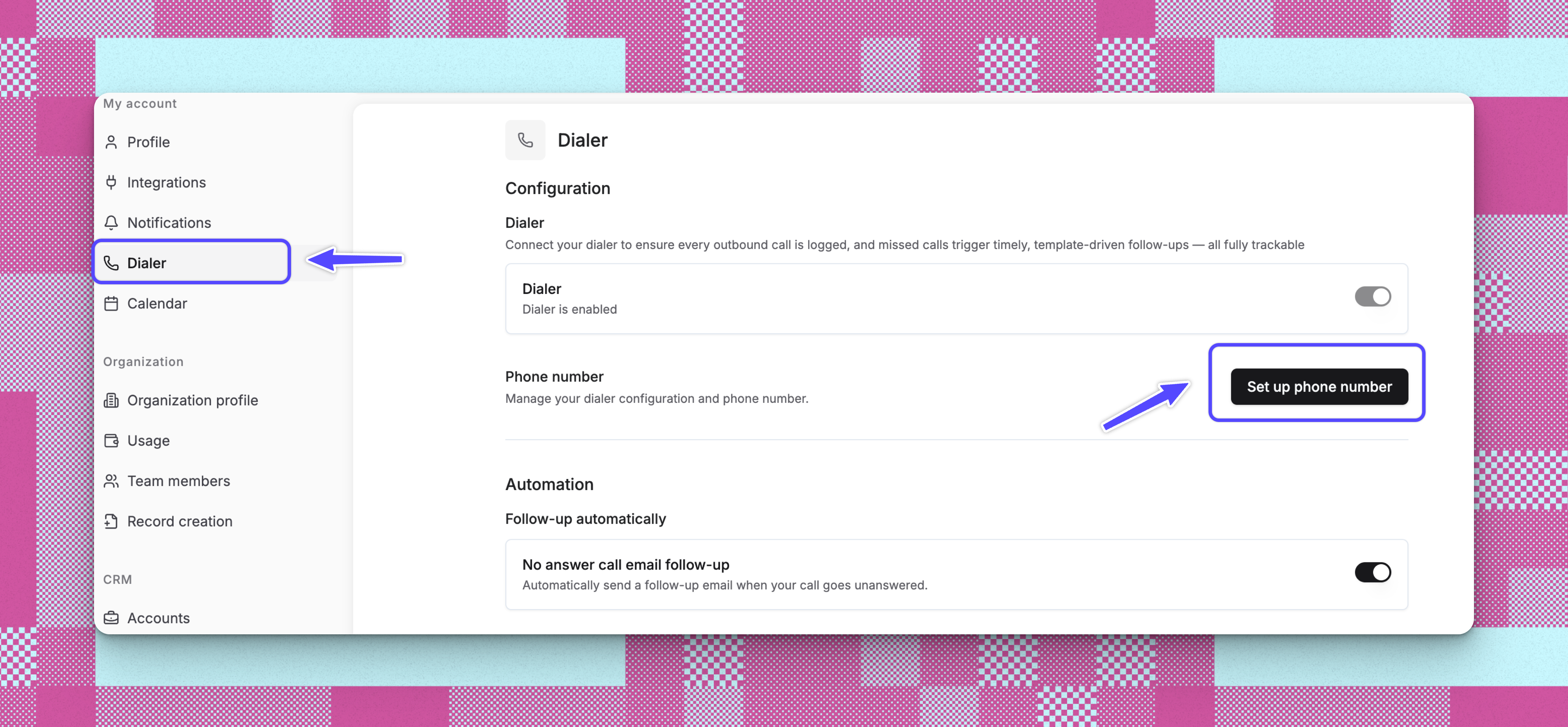
1. Navigate to \*\*Settings > My Account > \*\*[**Dialer**](https://app.reevo.ai/settings/voice) by clicking your name in the lower left corner
2. Click **Set up phone number** to begin the configuration wizard
 ## **Selecting Your Phone Number**
You can choose your phone number using two methods:
### **Option 1: Search by Area Code**
1. Enter a three-digit area code (e.g., 415 for San Francisco)
2. Click **Search** to view available numbers in that area code
3. Browse the list of available phone numbers
4. Select your preferred number from the results
### **Option 2: Search by Location**
1. Switch to the **Location** tab
2. Enter a city or address
3. The system searches for numbers within 25 miles of that location
4. Review available numbers and suggested area codes for that region
5. Select your preferred number
### **Completing Setup**
1. After selecting a number, review your choice
2. Click **Complete setup** to provision the phone number
3. The system assigns the number to your account (this takes a few moments)
4. Once complete, your phone number appears in [**Dialer Settings**](https://app.reevo.ai/settings/voice)
### **Configuring Additional Settings**
After your phone number is set up, configure these optional features:
* **Voicemail Setup:** Record a custom voicemail greeting or use the default message, configure voicemail notifications, and set up automatic follow-up tasks for voicemails
* **Call Forwarding:** Enable call forwarding to receive calls on your personal device and configure when forwarding should be active
* **Caller ID Display:** Toggle whether your Reevo number displays as the caller ID when making outbound calls from your phone
* **Call Recording:** Enable automatic call recording for compliance and review
***
# Ways to Use Dialer
### **Making a Single Call**
1. Navigate to a contact record in your **Contacts** list
2. Click the phone icon next to the contact's phone number
3. The dialer interface opens and automatically initiates the call
4. During the call, you can:
* View contact details and recent activity
* Take notes that save automatically to the contact record
5. After the call ends, the system creates a call record in your CRM automatically
### **Automatic Sequence Calling Using Power Dialer Mode**
**Prerequisites:**
1. Create a sequence with **Call Task** steps (navigate to **Sequences** and add call task steps)
2. Enroll contacts into your sequence to generate call tasks
**Launching the Power Dialer:**
1. Open your sequence and click the **Dialer** tab
2. Click **Start power dialer** to begin your calling session
**How It Works:**
1. **Pre-Call (15-second timer)**: Review contact details, opportunities, and history. Click **Call now** to dial immediately, **Skip** to move to next contact, or **Pause** for more review time.
2. **Active Call**: Take notes during the call that automatically save to the contact record.
3. **Post-Call (15-second timer)**: Select an outcome (Interested, No answer, Left voicemail, etc.) and the dialer auto-advances to the next contact. Click **Mark as done** to advance immediately or **Pause** for more time.
***
# **Logging Call Outcomes**
Logging call outcomes is only supported when the call is initiated from a Sequence-created call task. After each call, you'll select an outcome:
| Outcome | Description | Trigger (Default) |
| :-------------------- | :----------------------------------------- | :---------------------- |
| **Interested** | Prospect showed interest | Terminates the sequence |
| **Not Interested** | Prospect explicitly declined | Terminates the sequence |
| **Call Back Later** | Prospect requested to be called back later | Pauses the sequence |
| **Wrong Number** | The number was incorrect | Pauses the sequence |
| **Meeting Scheduled** | A meeting was successfully scheduled | Terminates the sequence |
| **No Answer** | Call was not answered | Continues to next step |
| **Left Voicemail** | Voicemail was left for the prospect | Continues to next step |
These flow control actions are configurable per sequence step, so you can customize what happens after each outcome.
***
# **Voicemail and Missed Call Automation**
The dialer can automatically create follow-up tasks when calls go to voicemail or aren't answered. This ensures no prospect falls through the cracks.
Configure these automations in **Settings** > **Dialer**
***
# **Call Intelligence and Analysis**
## Meeting Prep
When a call is initiated through a contact page, the dialer provides meeting prep materials to help you prepare for the conversation. It includes:
* **Quick notes** from previous interactions
* **Contact context** - Contact related Accounts and Opportunities details
* **Meeting history** - Past meetings with this contact
## Post-Call Intelligence
When a call is recorded, Reevo automatically processes it through the meeting intelligence system to generate insights:
* **Transcription**: The call is transcribed so you can search and reference specific moments
* **AI-Generated Insights**: The system analyzes the conversation to extract key topics, action items, and sentiment
* **Meeting Summary**: You'll see a summary of what was discussed, similar to video meeting intelligence
These insights appear alongside the recording when you access it from either the contact page or the recordings view.
***
# Managing Call Recordings
### **Where Call Recordings Are Stored**
After you complete a call through the Reevo Dialer, the recording and transcript are automatically saved and can be accessed in two main places:
**1. Within the Contact or Opportunity Context**
Call recordings appear chronologically alongside other interactions (meetings, emails) when you view a contact or opportunity. This gives you a complete timeline of all touchpoints with that prospect or customer.
You can find these recordings in the **Activity** or **Events** section of the contact record.
**2. In the Global Recordings View**
There's also a dedicated recordings page where calls and video meetings are organized separately by type. This view is optimized for reviewing and referencing past calls without needing to navigate to specific contacts.
### **Sharing Call Recordings**
You can share call recordings with team members or external stakeholders. When shared, recipients receive a link that includes:
* Meeting overview with title and duration
* AI-generated insights
* Participant information
* Direct access to the recording and transcrips
## **Notes**
The call intelligence system treats phone calls as a type of meeting, which means they benefit from the same AI analysis capabilities as video meetings. This unified approach ensures consistent conversation intelligence across all communication channels.
All call recordings integrate with Ask Reevo, so you can query information from past calls using natural language questions.
***
# Troubleshooting/FAQs
Yes, but you can only change your phone number once per month. Navigate to **Dialer Settings** and click **Change phone number**. Note that changing your number means you won't receive callbacks on your previous number.
The system will suggest alternative area codes near your selected location. You can also try searching by a nearby city or different area code.
No, each user gets exactly one dedicated phone number. This ensures clear ownership of inbound calls and proper call tracking.
You won't be able to make or receive calls through the dialer until setup is complete. The system will prompt you to set up your phone number when you attempt to use calling features.
Check your internet connection stability first. If issues persist, your IT team may need to configure firewall settings to allow the dialer's voice traffic. Contact support for specific firewall configuration requirements.
Call recordings and notes are automatically saved to the contact record under the **Activity** or **Events** section. You can access them anytime from the contact's profile.
The system prevents calls to numbers marked as Do Not Call to ensure compliance. You'll see a warning if you attempt to dial a restricted number.
Yes, call tasks within sequences can be completed using the dialer. When a sequence includes a call step, you'll see the option to dial directly from the sequence task.
Phone numbers are provisioned as part of your Reevo subscription. Contact your account manager for specific pricing details related to calling minutes and phone line usage.
Dialer setup must be completed through the main Reevo web application at **Settings** > **Dialer**. Once configured, you can use the dialer across all platforms.
> Still have questions? [Sign in](https://reevo.ai/) and use AskReevo for instant answers or to raise a support ticket.
## **Selecting Your Phone Number**
You can choose your phone number using two methods:
### **Option 1: Search by Area Code**
1. Enter a three-digit area code (e.g., 415 for San Francisco)
2. Click **Search** to view available numbers in that area code
3. Browse the list of available phone numbers
4. Select your preferred number from the results
### **Option 2: Search by Location**
1. Switch to the **Location** tab
2. Enter a city or address
3. The system searches for numbers within 25 miles of that location
4. Review available numbers and suggested area codes for that region
5. Select your preferred number
### **Completing Setup**
1. After selecting a number, review your choice
2. Click **Complete setup** to provision the phone number
3. The system assigns the number to your account (this takes a few moments)
4. Once complete, your phone number appears in [**Dialer Settings**](https://app.reevo.ai/settings/voice)
### **Configuring Additional Settings**
After your phone number is set up, configure these optional features:
* **Voicemail Setup:** Record a custom voicemail greeting or use the default message, configure voicemail notifications, and set up automatic follow-up tasks for voicemails
* **Call Forwarding:** Enable call forwarding to receive calls on your personal device and configure when forwarding should be active
* **Caller ID Display:** Toggle whether your Reevo number displays as the caller ID when making outbound calls from your phone
* **Call Recording:** Enable automatic call recording for compliance and review
***
# Ways to Use Dialer
### **Making a Single Call**
1. Navigate to a contact record in your **Contacts** list
2. Click the phone icon next to the contact's phone number
3. The dialer interface opens and automatically initiates the call
4. During the call, you can:
* View contact details and recent activity
* Take notes that save automatically to the contact record
5. After the call ends, the system creates a call record in your CRM automatically
### **Automatic Sequence Calling Using Power Dialer Mode**
**Prerequisites:**
1. Create a sequence with **Call Task** steps (navigate to **Sequences** and add call task steps)
2. Enroll contacts into your sequence to generate call tasks
**Launching the Power Dialer:**
1. Open your sequence and click the **Dialer** tab
2. Click **Start power dialer** to begin your calling session
**How It Works:**
1. **Pre-Call (15-second timer)**: Review contact details, opportunities, and history. Click **Call now** to dial immediately, **Skip** to move to next contact, or **Pause** for more review time.
2. **Active Call**: Take notes during the call that automatically save to the contact record.
3. **Post-Call (15-second timer)**: Select an outcome (Interested, No answer, Left voicemail, etc.) and the dialer auto-advances to the next contact. Click **Mark as done** to advance immediately or **Pause** for more time.
***
# **Logging Call Outcomes**
Logging call outcomes is only supported when the call is initiated from a Sequence-created call task. After each call, you'll select an outcome:
| Outcome | Description | Trigger (Default) |
| :-------------------- | :----------------------------------------- | :---------------------- |
| **Interested** | Prospect showed interest | Terminates the sequence |
| **Not Interested** | Prospect explicitly declined | Terminates the sequence |
| **Call Back Later** | Prospect requested to be called back later | Pauses the sequence |
| **Wrong Number** | The number was incorrect | Pauses the sequence |
| **Meeting Scheduled** | A meeting was successfully scheduled | Terminates the sequence |
| **No Answer** | Call was not answered | Continues to next step |
| **Left Voicemail** | Voicemail was left for the prospect | Continues to next step |
These flow control actions are configurable per sequence step, so you can customize what happens after each outcome.
***
# **Voicemail and Missed Call Automation**
The dialer can automatically create follow-up tasks when calls go to voicemail or aren't answered. This ensures no prospect falls through the cracks.
Configure these automations in **Settings** > **Dialer**
***
# **Call Intelligence and Analysis**
## Meeting Prep
When a call is initiated through a contact page, the dialer provides meeting prep materials to help you prepare for the conversation. It includes:
* **Quick notes** from previous interactions
* **Contact context** - Contact related Accounts and Opportunities details
* **Meeting history** - Past meetings with this contact
## Post-Call Intelligence
When a call is recorded, Reevo automatically processes it through the meeting intelligence system to generate insights:
* **Transcription**: The call is transcribed so you can search and reference specific moments
* **AI-Generated Insights**: The system analyzes the conversation to extract key topics, action items, and sentiment
* **Meeting Summary**: You'll see a summary of what was discussed, similar to video meeting intelligence
These insights appear alongside the recording when you access it from either the contact page or the recordings view.
***
# Managing Call Recordings
### **Where Call Recordings Are Stored**
After you complete a call through the Reevo Dialer, the recording and transcript are automatically saved and can be accessed in two main places:
**1. Within the Contact or Opportunity Context**
Call recordings appear chronologically alongside other interactions (meetings, emails) when you view a contact or opportunity. This gives you a complete timeline of all touchpoints with that prospect or customer.
You can find these recordings in the **Activity** or **Events** section of the contact record.
**2. In the Global Recordings View**
There's also a dedicated recordings page where calls and video meetings are organized separately by type. This view is optimized for reviewing and referencing past calls without needing to navigate to specific contacts.
### **Sharing Call Recordings**
You can share call recordings with team members or external stakeholders. When shared, recipients receive a link that includes:
* Meeting overview with title and duration
* AI-generated insights
* Participant information
* Direct access to the recording and transcrips
## **Notes**
The call intelligence system treats phone calls as a type of meeting, which means they benefit from the same AI analysis capabilities as video meetings. This unified approach ensures consistent conversation intelligence across all communication channels.
All call recordings integrate with Ask Reevo, so you can query information from past calls using natural language questions.
***
# Troubleshooting/FAQs
Yes, but you can only change your phone number once per month. Navigate to **Dialer Settings** and click **Change phone number**. Note that changing your number means you won't receive callbacks on your previous number.
The system will suggest alternative area codes near your selected location. You can also try searching by a nearby city or different area code.
No, each user gets exactly one dedicated phone number. This ensures clear ownership of inbound calls and proper call tracking.
You won't be able to make or receive calls through the dialer until setup is complete. The system will prompt you to set up your phone number when you attempt to use calling features.
Check your internet connection stability first. If issues persist, your IT team may need to configure firewall settings to allow the dialer's voice traffic. Contact support for specific firewall configuration requirements.
Call recordings and notes are automatically saved to the contact record under the **Activity** or **Events** section. You can access them anytime from the contact's profile.
The system prevents calls to numbers marked as Do Not Call to ensure compliance. You'll see a warning if you attempt to dial a restricted number.
Yes, call tasks within sequences can be completed using the dialer. When a sequence includes a call step, you'll see the option to dial directly from the sequence task.
Phone numbers are provisioned as part of your Reevo subscription. Contact your account manager for specific pricing details related to calling minutes and phone line usage.
Dialer setup must be completed through the main Reevo web application at **Settings** > **Dialer**. Once configured, you can use the dialer across all platforms.
> Still have questions? [Sign in](https://reevo.ai/) and use AskReevo for instant answers or to raise a support ticket.