> ## Documentation Index
> Fetch the complete documentation index at: https://help.reevo.ai/llms.txt
> Use this file to discover all available pages before exploring further.
# Managing Recordings
> Reevo automatically records and transcribes your meetings and calls, creating a searchable archive of all customer conversations. Recordings capture both video meetings and phone calls made through the dialer, giving your team a complete view of every customer interaction.
## Overview
Recordings help sales teams by providing conversation analytics, enabling coaching opportunities, and ensuring no important details are lost. You can review past conversations, extract action items, and analyze sentiment to improve your sales approach.
Reevo organizes recordings in two ways: chronologically within each opportunity (showing the full buyer-seller interaction timeline) and globally by type (separating video meetings from phone calls for easy reference).
Before managing recordings, ensure you have:
* **Connected your calendar**: Link your Google Calendar or Zoom account so Reevo can automatically join and record scheduled meetings.
* **Configured recording settings**: Set your recording preferences in **Settings > Meetings** to control when recordings start automatically.
* **Set up your dialer** (for call recordings): Configure your phone number to enable call recording through Reevo's dialer.
### **Accessing Your Recordings**
**View recordings by opportunity:**
1. Navigate to any **Account** or **Opportunity** page
2. Scroll to the activity timeline
3. All recordings (meetings and calls) appear chronologically, showing the complete interaction history with that customer
**View all recordings globally:**
1. Go to the **Past Conversations** page in your navigation menu
2. Use the **Recorded** and **Not recorded** tabs to filter by recording status
3. By default, the page shows only your own meetings. To view your entire team's meetings, use the **My meetings / All meetings** toggle in the top-right corner of the page
4. Your toggle preference is saved automatically - Reevo will remember it the next time you visit the page
### **Configuring Recording Settings**
Recording behavior (which meeting types to record, the bot's name, default privacy, blocked domains) is controlled from [Meetings & Notetaker Bot Settings](/Conversations/Meetings-and-Bot-Settings).
### **Allowing or Blocking the Recording Bot**
The full setup for adding the bot automatically vs. manually lives in [Notetaker Bot](/Conversations/Notetaker-Bot). For an individual meeting, you can also control recording on the fly:
* Open the meeting in Reevo.
* Use the **Record meeting** toggle to enable or disable the bot for that one event.
* The bot status shows whether it's enabled, disabled, joining, or actively recording.
Adding the notetaker bot to a meeting will create contacts and record the meeting regardless of your recording settings. Meetings booked via Reevo Scheduler also always create contacts.
### **Controlling Recording During Live Meetings**
Once the bot has joined a meeting, you can control recording in real-time:
**Pause recording:**
* The bot will announce "I have paused recording" in the meeting chat
* Recording can be paused if you need to discuss sensitive information
**Resume recording:**
* The bot will announce "I have resumed recording" when you restart
* If recording was never started, the bot will announce "I have started recording"
**Bot status indicators:**
* **Enabled/Disabled**: Shows whether recording is active
* **Bot is waiting to join the meeting**: Bot is in queue
* **Bot is in the meeting and recording**: Active recording in progress
### **Creating Recorded Meetings**
**Schedule a new meeting:**
1. Go to the **Meetings** page
2. Click **New meeting**
3. Select your meeting platform (Zoom, Google Meet, etc.)
4. Choose **Meet now** for instant meetings or **Schedule** for future meetings
5. The Reevo notetaker bot will join automatically based on your recording settings
**Share scheduling links:**
1. On the **Meetings** page, click **Share availability**
2. Click the **+** icon to create a new calendar link
3. Configure your settings and select your conferencing platform
4. Copy and share the link with prospects
5. When someone books through your link, the meeting appears in Reevo with recording enabled
### **Working with Transcripts**
Reevo automatically transcribes all recordings, making conversations searchable.
* **Search transcript content**: Use Ask Reevo to find specific topics or quotes across all your recordings
* **Review conversation details**: Click into any recording to see the full transcript with speaker labels and timestamps
* **Extract insights**: Reevo analyzes transcripts for action items, sentiment, and key topics automatically
### **Managing Call Recordings**
Phone calls made through Reevo's dialer are automatically recorded and stored alongside meeting recordings.
**Inbound call recordings:**
* Calls from known contacts are routed to the contact owner and recorded
* Unknown numbers go to voicemail, which is also recorded and transcribed
**Outbound call recordings:**
* All outbound calls are automatically recorded when you dial through Reevo
* Recordings appear in both the global recordings view and the associated opportunity timeline
### **Sharing Recordings**
Reevo lets you share recorded meetings two ways: with teammates inside your organization using an **internal link**, or with anyone outside your organization (prospects, partners, executives) using a secure **external link**. External links give you granular control over who can view the recording, what portion of it they see, whether AI-generated insights are included, and when the link expires. Recipients can watch the video, read the transcript, and review the summary and outline directly in their browser without needing a Reevo account.
Sharing recordings is valuable for deal reviews, coaching sessions, cross-functional alignment, and keeping stakeholders in the loop on customer conversations.
**Prerequisites**
* The meeting must have been **recorded**. You cannot share a meeting that was not recorded. If the **Share** button is disabled, a tooltip will confirm: "Meeting was not recorded."
* Your organization's plan must include the **Meeting sharing** capability. If sharing is gated by your plan, the **Share** button will be disabled and a tooltip will prompt you to upgrade or resolve the issue before you can share.
* You need read access to the meeting you want to share.
**Opening the Share panel**
 1. Navigate to the meeting detail page for a recorded meeting.
2. Click the **Share** button in the top-right area of the page.
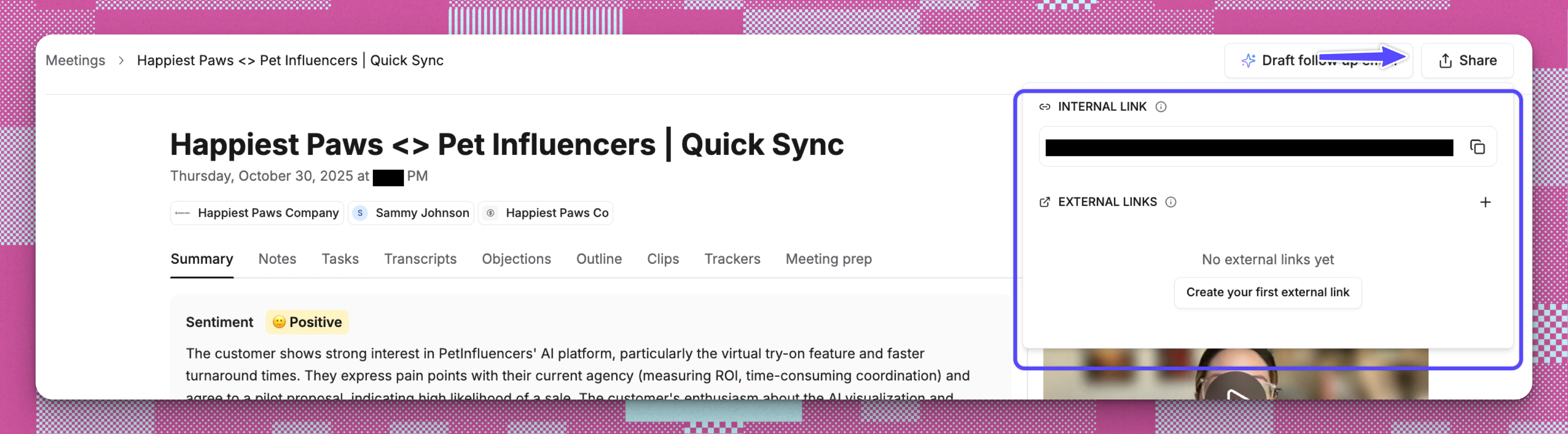
3. A popover opens with two sections: **INTERNAL LINK** and **EXTERNAL LINKS**.
### **Sharing within your organization (Internal links):**
1. In the **INTERNAL LINK** section, you will see the current page URL.
2. Click the **Copy** icon to copy the link to your clipboard.
3. Send this link to any Reevo user in your organization. They will see the full meeting details when they open it, subject to their existing permissions.
* All recordings are automatically accessible to users in your organization based on their permissions
* Team members can view recordings from the **Meetings** page or within the relevant **Account** or **Opportunity** timeline
* Recording access follows your organization's permission settings for accounts and opportunities
### **Sharing outside your organization (External links):**
1. In the **EXTERNAL LINKS** section, click the **+** button or, if no links exist yet, click **Create your first external link**.
2. Configure the following options:
1. Navigate to the meeting detail page for a recorded meeting.
2. Click the **Share** button in the top-right area of the page.
3. A popover opens with two sections: **INTERNAL LINK** and **EXTERNAL LINKS**.
### **Sharing within your organization (Internal links):**
1. In the **INTERNAL LINK** section, you will see the current page URL.
2. Click the **Copy** icon to copy the link to your clipboard.
3. Send this link to any Reevo user in your organization. They will see the full meeting details when they open it, subject to their existing permissions.
* All recordings are automatically accessible to users in your organization based on their permissions
* Team members can view recordings from the **Meetings** page or within the relevant **Account** or **Opportunity** timeline
* Recording access follows your organization's permission settings for accounts and opportunities
### **Sharing outside your organization (External links):**
1. In the **EXTERNAL LINKS** section, click the **+** button or, if no links exist yet, click **Create your first external link**.
2. Configure the following options:
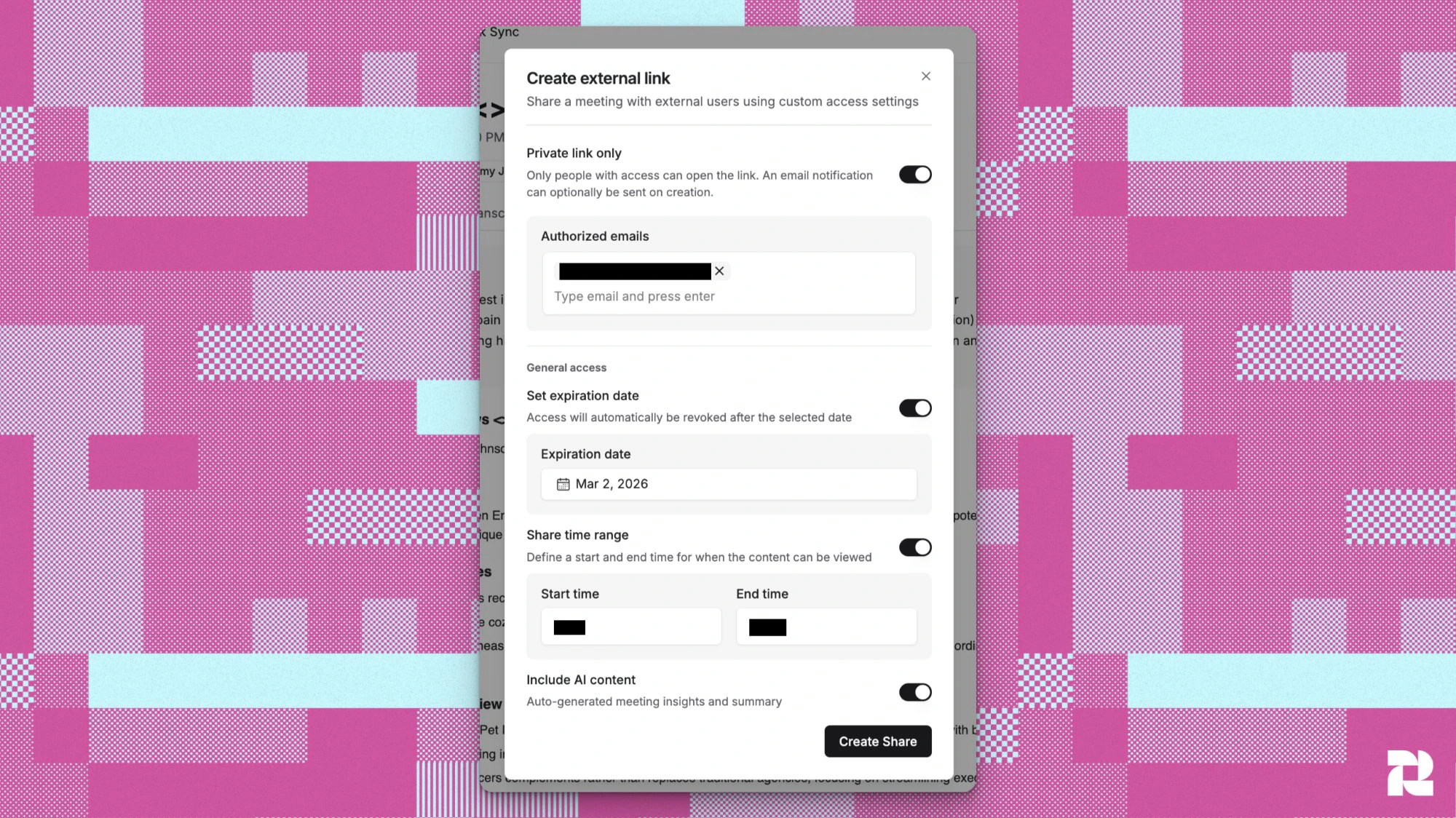 * **Private link only**: When enabled, only people whose email addresses you specify can open the link. When disabled, the link is public and anyone with it can view the recording.
* **Authorized emails** (shown when Private link only is on): At least one email is required for private links.
* **Set expiration date**: When enabled, access is automatically revoked after the date you choose (up to 180 days from today).
* **Share time range**: When enabled, you can define a **Start time** and **End time** so recipients only see a specific clip of the recording, not the entire meeting.
* **Include AI content** (On by default): When enabled, the shared page includes the AI-generated meeting summary, outline, and insights. Turn this off to share only the recording and transcript.
* **Private link verification**: When a private link is enabled, recipients must enter their authorized email address to verify their identity before they can view the recording. No Reevo account is required.
3. Click **Create Share**.
4. **For private links only**: A confirmation dialog appears asking "Would you like to notify all recipients about this shared meeting link?" You have three choices:
* **Notify all**: Sends an email to every authorized recipient with the recording link, meeting title, date, participants, and (if AI content is included) a summary and next steps.
* **Don't notify**: Creates the link without sending any emails.
* **Back to Edit**: Returns to the form to make changes.
5. The link is automatically copied to your clipboard, and a confirmation toast appears: "Meeting share link has been created and copied to clipboard."
### **Managing existing external links:**
After creating an external link, you can update or revoke it at any time from the **Share** panel.
**To edit a link:**
1. Open the **Share** panel on the meeting detail page.
2. Find the link you want to change and click the **Edit** (pencil) icon.
3. Update any of the link settings: authorized emails, expiration date, time range, or AI content toggle.
4. Save your changes. The link URL stays the same — only the access rules change.
**To delete a link:**
1. Open the **Share** panel on the meeting detail page.
2. Click the **Delete** (trash) icon next to the link you want to revoke.
3. The link is immediately deactivated — anyone who tries to open it will no longer have access.
**What recipients see:**
When someone opens a shared recording link, they see a playback page with:
* The meeting recording (full or clipped, depending on your time range setting)
* The full transcript with speaker labels and timestamps
* The AI-generated meeting summary, outline, and next steps (if **Include AI content** is enabled)
Recipients do not need a Reevo account. Private link recipients must verify their email address before gaining access.
**About notification emails:**
When you choose **Notify all** for a private link, each authorized recipient receives an email from Reevo with the recording link, meeting title, date, participants, and (if AI content is on) a summary and next steps. Replies to that email go directly to you, the person who shared the recording.
***
## **Troubleshooting / FAQs**
* Verify your recording settings are enabled in **Settings > Meetings**
* Ensure your calendar is connected and the Reevo bot was invited to the meeting
* Check that you selected the correct conferencing platform when creating the meeting
* If the bot is stuck in the waiting room, ask the host to admit it
All recordings are permanently stored and accessible through either the global **Past Conversations** page or the activity timeline on relevant **Account** and **Opportunity** pages. Use filters to narrow down by date or type.
By default, **Past Conversations** shows only meetings you were personally invited to. To see meetings across your team, use the **My meetings / All meetings** toggle in the top-right corner of the page and switch it to **All meetings**. Your preference is saved automatically.
Transcription processing begins as soon as the meeting ends. Most recordings and transcripts are available within a few minutes, though longer meetings may take additional time to process.
Recordings and transcripts are viewable within Reevo. Contact your Reevo representative for information about exporting options.
Recording access follows your organization's permission settings. Contact your admin to adjust user roles and recording visibility.
Yes, you can add domains to the blocked list in **Settings > Meetings**. Meetings with participants from blocked domains won't be recorded automatically, but you can still manually enable recording if needed.
Yes. Open the **Share** panel on any recorded meeting, then use the edit (pencil) icon to update a link's settings or the delete (trash) icon to revoke access immediately.
Recipients see a browser-based playback page with the recording, the full transcript, and — if you've enabled **Include AI content** — the AI-generated meeting summary and next steps. No Reevo account is needed.
Private links require email verification to confirm the recipient's identity matches one of the authorized email addresses you specified. This prevents anyone who stumbles across the link from viewing the recording.
The Share button is disabled if the meeting was not recorded. Hovering over it will show a tooltip confirming the reason. If you believe the meeting should have been recorded, check that your bot recording settings were enabled and the bot was admitted to the meeting.
* **Private link only**: When enabled, only people whose email addresses you specify can open the link. When disabled, the link is public and anyone with it can view the recording.
* **Authorized emails** (shown when Private link only is on): At least one email is required for private links.
* **Set expiration date**: When enabled, access is automatically revoked after the date you choose (up to 180 days from today).
* **Share time range**: When enabled, you can define a **Start time** and **End time** so recipients only see a specific clip of the recording, not the entire meeting.
* **Include AI content** (On by default): When enabled, the shared page includes the AI-generated meeting summary, outline, and insights. Turn this off to share only the recording and transcript.
* **Private link verification**: When a private link is enabled, recipients must enter their authorized email address to verify their identity before they can view the recording. No Reevo account is required.
3. Click **Create Share**.
4. **For private links only**: A confirmation dialog appears asking "Would you like to notify all recipients about this shared meeting link?" You have three choices:
* **Notify all**: Sends an email to every authorized recipient with the recording link, meeting title, date, participants, and (if AI content is included) a summary and next steps.
* **Don't notify**: Creates the link without sending any emails.
* **Back to Edit**: Returns to the form to make changes.
5. The link is automatically copied to your clipboard, and a confirmation toast appears: "Meeting share link has been created and copied to clipboard."
### **Managing existing external links:**
After creating an external link, you can update or revoke it at any time from the **Share** panel.
**To edit a link:**
1. Open the **Share** panel on the meeting detail page.
2. Find the link you want to change and click the **Edit** (pencil) icon.
3. Update any of the link settings: authorized emails, expiration date, time range, or AI content toggle.
4. Save your changes. The link URL stays the same — only the access rules change.
**To delete a link:**
1. Open the **Share** panel on the meeting detail page.
2. Click the **Delete** (trash) icon next to the link you want to revoke.
3. The link is immediately deactivated — anyone who tries to open it will no longer have access.
**What recipients see:**
When someone opens a shared recording link, they see a playback page with:
* The meeting recording (full or clipped, depending on your time range setting)
* The full transcript with speaker labels and timestamps
* The AI-generated meeting summary, outline, and next steps (if **Include AI content** is enabled)
Recipients do not need a Reevo account. Private link recipients must verify their email address before gaining access.
**About notification emails:**
When you choose **Notify all** for a private link, each authorized recipient receives an email from Reevo with the recording link, meeting title, date, participants, and (if AI content is on) a summary and next steps. Replies to that email go directly to you, the person who shared the recording.
***
## **Troubleshooting / FAQs**
* Verify your recording settings are enabled in **Settings > Meetings**
* Ensure your calendar is connected and the Reevo bot was invited to the meeting
* Check that you selected the correct conferencing platform when creating the meeting
* If the bot is stuck in the waiting room, ask the host to admit it
All recordings are permanently stored and accessible through either the global **Past Conversations** page or the activity timeline on relevant **Account** and **Opportunity** pages. Use filters to narrow down by date or type.
By default, **Past Conversations** shows only meetings you were personally invited to. To see meetings across your team, use the **My meetings / All meetings** toggle in the top-right corner of the page and switch it to **All meetings**. Your preference is saved automatically.
Transcription processing begins as soon as the meeting ends. Most recordings and transcripts are available within a few minutes, though longer meetings may take additional time to process.
Recordings and transcripts are viewable within Reevo. Contact your Reevo representative for information about exporting options.
Recording access follows your organization's permission settings. Contact your admin to adjust user roles and recording visibility.
Yes, you can add domains to the blocked list in **Settings > Meetings**. Meetings with participants from blocked domains won't be recorded automatically, but you can still manually enable recording if needed.
Yes. Open the **Share** panel on any recorded meeting, then use the edit (pencil) icon to update a link's settings or the delete (trash) icon to revoke access immediately.
Recipients see a browser-based playback page with the recording, the full transcript, and — if you've enabled **Include AI content** — the AI-generated meeting summary and next steps. No Reevo account is needed.
Private links require email verification to confirm the recipient's identity matches one of the authorized email addresses you specified. This prevents anyone who stumbles across the link from viewing the recording.
The Share button is disabled if the meeting was not recorded. Hovering over it will show a tooltip confirming the reason. If you believe the meeting should have been recorded, check that your bot recording settings were enabled and the bot was admitted to the meeting.