> ## Documentation Index
> Fetch the complete documentation index at: https://help.reevo.ai/llms.txt
> Use this file to discover all available pages before exploring further.
# Reevo Desktop App
> The Reevo Desktop App lets you record and transcribe meetings directly from your Mac, without sending a bot into the call. It captures your microphone and system audio natively, transcribes the conversation, and syncs everything to Reevo so you get the same summaries, insights, and CRM context as bot-recorded meetings.
## Prerequisites
* A Mac running macOS (the desktop app is currently available for macOS only).
* An active Reevo account.
* An [active calendar integration](https://app.reevo.ai/settings/integrations) (i.e. Google Calendar) connected to your account, if you want to record scheduled meetings.
* macOS permissions for Microphone and Screen & System Audio Recording (you will be prompted during setup).
Recording laws vary by region. Before recording any conversation, review [Understanding Recording Consent](/Conversations/Understanding-Recording-Consent) and make sure you have the consent you need.
***
## Why Use the Desktop App
The desktop app records meetings natively on your computer instead of sending a Notetaker Bot into the call. This is useful when:
* Bots feel intrusive to your meeting participants.
* The meeting platform or host settings block bots from joining.
* You want to capture an in-person conversation or a call that has no meeting link.
Recordings made in the desktop app appear in Reevo alongside your other conversations, with the same transcripts, summaries, and meeting intelligence.
***
## Choosing Between the Bot and Desktop Recording
Both capture your meeting and produce the same transcripts, summaries, and insights in Reevo. They differ in what is captured and what participants see:
| | Notetaker Bot | Desktop App |
| :--------------------------------------- | :------------------------------------ | :------------------------------------ |
| **Captures** | Audio, video, and transcript | Audio and transcript only (no video) |
| **Visible in the meeting** | Yes, joins the call as a participant | No, nothing joins the call |
| **Starts from** | Web app or desktop app | Desktop app only (macOS) |
| **Joins automatically** | Yes, based on your recording settings | No, you start each recording yourself |
| **Works when bots are blocked** | No | Yes |
| **In-person or link-free conversations** | No | Yes, use ad-hoc recording |
**Use the Notetaker Bot when** you need video playback, want scheduled meetings recorded automatically without opening an app, or start recordings from the web app. Recording started in the web app always uses the bot.
**Use the desktop app when** you want nothing visible in the call, the meeting platform or host blocks bots, or the conversation has no meeting link. Keep in mind that desktop recordings have no video.
### Recommended Recording Settings
Recording settings live in **Settings > Meetings** in both the web app and the desktop app. Two toggles control when the bot joins automatically: **Sales Meetings** (meetings with customers and prospects who exist in Reevo) and **Internal Meetings**. Set them based on how you want to record:
* **Bot for everything (default)**: leave both toggles on. The bot joins your meetings automatically and you get video recordings.
* **Desktop only, no bot ever**: turn both toggles off on the **User** tab, then start each recording yourself from the desktop app. If your admin has locked these settings on the Organization tab, the lock takes priority and you cannot override it.
* **Mixed**: for example, keep Sales Meetings on so customer calls get video, and turn Internal Meetings off, recording internal calls with the desktop app when you need them. You can also toggle the bot off for a single meeting from the Upcoming Events page.
If both the bot and the desktop app record the same meeting, the bot's transcript takes priority. See [If a Bot Is Also Recording the Meeting](#if-a-bot-is-also-recording-the-meeting).
***
## Installing and Setting Up
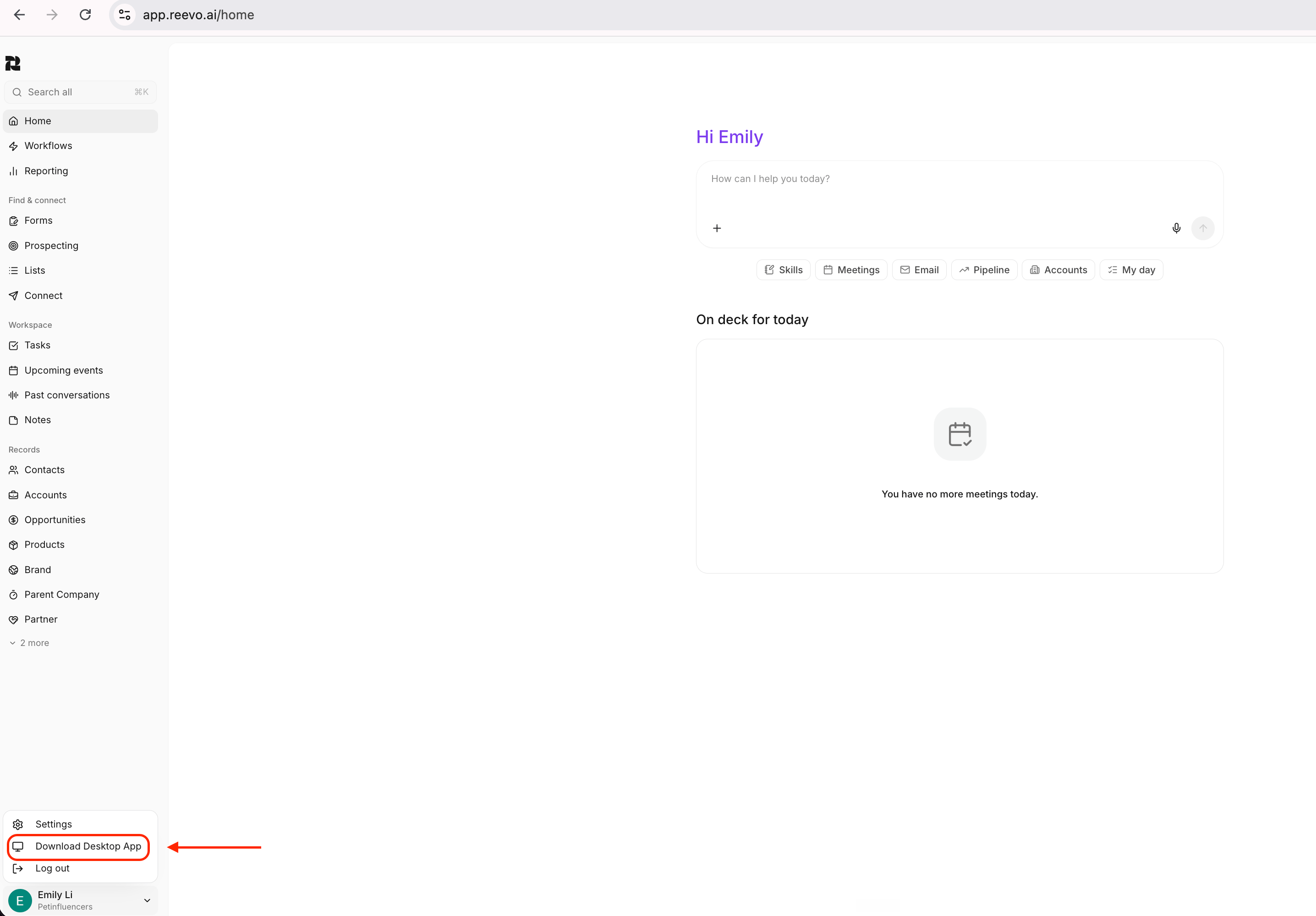
1. In the Reevo web app, click your profile in the bottom left corner of the sidebar and select **Download Desktop App**. This option appears when you are on a Mac.
 2. Open the downloaded DMG file and drag Reevo into your Applications folder.
3. Open the Reevo Desktop App. You will be prompted to sign in through your browser.
4. After signing in, grant the requested macOS permissions:
* **Microphone**: captures your side of the conversation for transcription.
* **Screen and system audio recording**: captures what other participants say.
5. Turn on notifications for the desktop app so you receive meeting reminders.
6. Once setup is complete, you will land on the Upcoming Events page.
You can review or change permissions at any time in **Settings > General** inside the desktop app. If a permission was denied, the row links you directly to the right macOS System Settings pane. Restart the app after granting a permission.
***
## Recording Scheduled Meetings
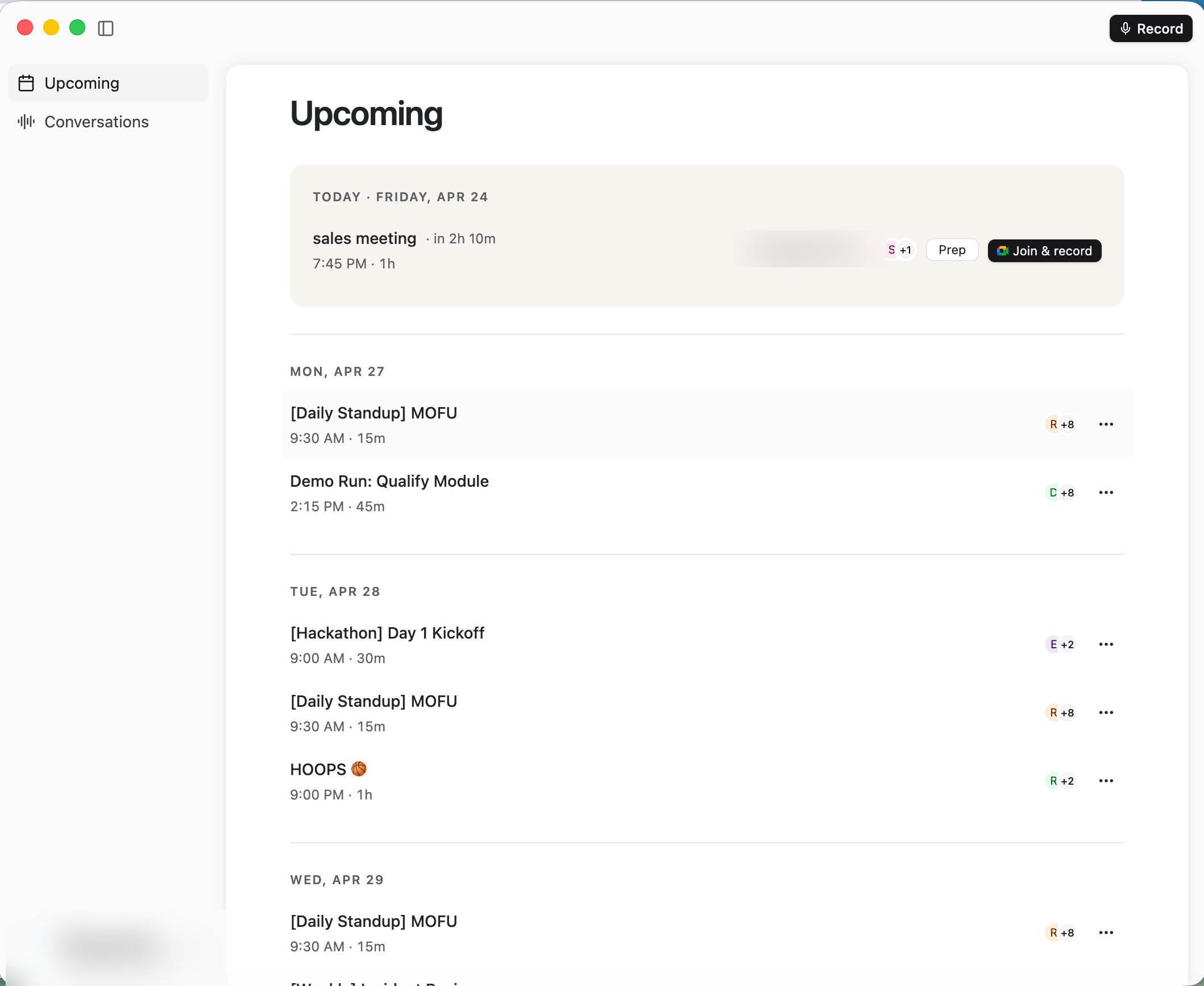
1. When a meeting on your calendar is about to start, the desktop app sends a notification. Click **Join & Record** from the notification, or from the meeting on the Upcoming Events page.
2. This opens the meeting link and starts recording on your computer.
3. While recording, a floating recording control shows the status and lets you stop the recording.
2. Open the downloaded DMG file and drag Reevo into your Applications folder.
3. Open the Reevo Desktop App. You will be prompted to sign in through your browser.
4. After signing in, grant the requested macOS permissions:
* **Microphone**: captures your side of the conversation for transcription.
* **Screen and system audio recording**: captures what other participants say.
5. Turn on notifications for the desktop app so you receive meeting reminders.
6. Once setup is complete, you will land on the Upcoming Events page.
You can review or change permissions at any time in **Settings > General** inside the desktop app. If a permission was denied, the row links you directly to the right macOS System Settings pane. Restart the app after granting a permission.
***
## Recording Scheduled Meetings
1. When a meeting on your calendar is about to start, the desktop app sends a notification. Click **Join & Record** from the notification, or from the meeting on the Upcoming Events page.
2. This opens the meeting link and starts recording on your computer.
3. While recording, a floating recording control shows the status and lets you stop the recording.
 ### If a Bot Is Also Recording the Meeting
You can record a meeting with the desktop app even if the Reevo Notetaker Bot is also in the call. In that case:
* If the bot recorded the meeting and was not removed from the call, the bot's transcript is used as the final transcript for the meeting. Your desktop recording still completes as usual, but the bot's transcript takes priority.
* If the bot was removed from the meeting or never recorded, your desktop recording's transcript is used.
### If Multiple Participants Record the Same Meeting
If several people record the same meeting with the desktop app, each recording completes as usual, and Reevo uses the transcript from the person who recorded the longest as the final transcript for the meeting.
***
## Recording Ad-hoc Meetings
Ad-hoc meetings are in-person conversations or calls that are not synced to your Reevo calendar.
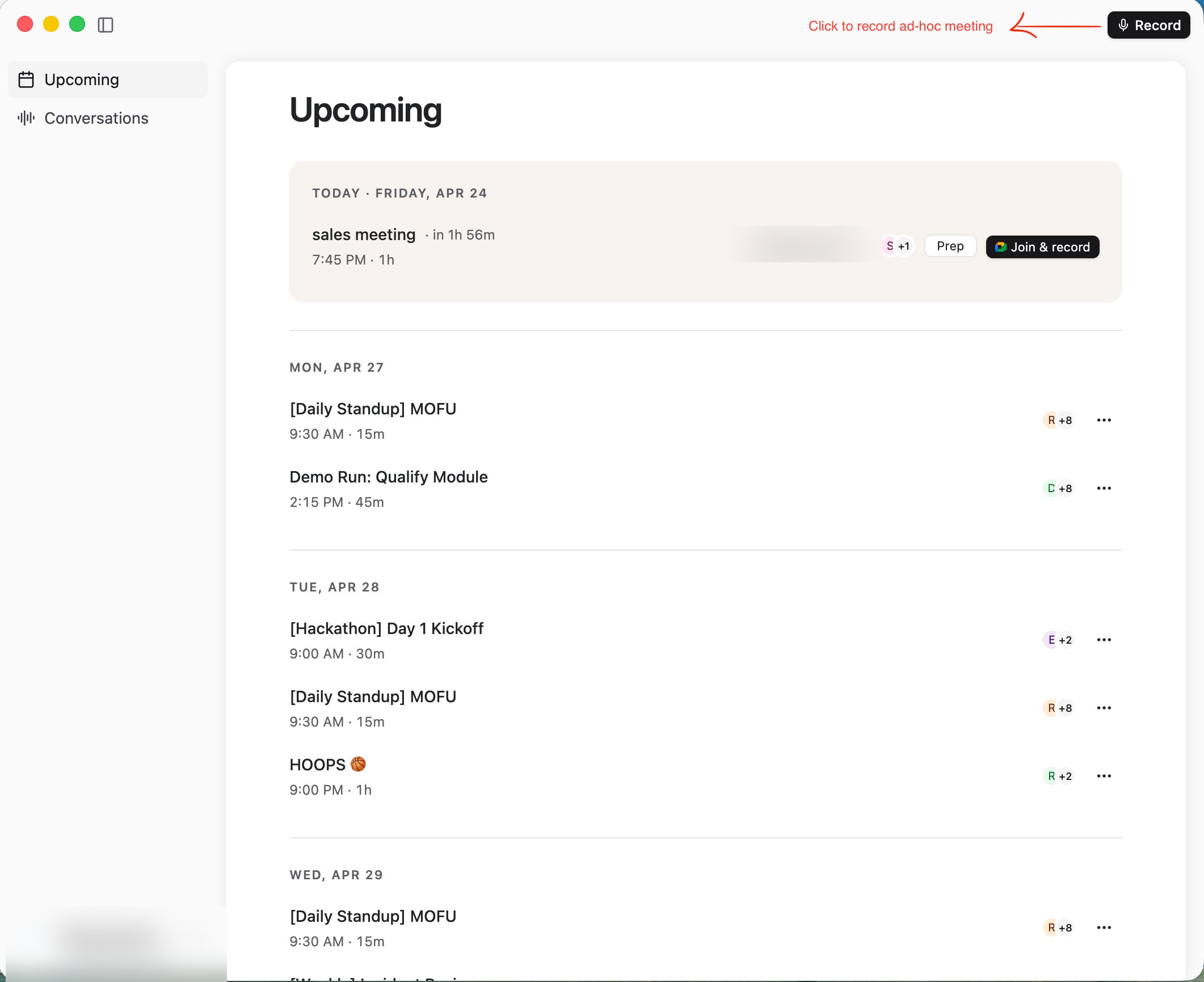
1. Click the **Record** button in the top right of the desktop app to start capturing right away.
2. If a calendar meeting is already in progress, the ad-hoc record option moves under the ellipsis (**...**) menu.
### If a Bot Is Also Recording the Meeting
You can record a meeting with the desktop app even if the Reevo Notetaker Bot is also in the call. In that case:
* If the bot recorded the meeting and was not removed from the call, the bot's transcript is used as the final transcript for the meeting. Your desktop recording still completes as usual, but the bot's transcript takes priority.
* If the bot was removed from the meeting or never recorded, your desktop recording's transcript is used.
### If Multiple Participants Record the Same Meeting
If several people record the same meeting with the desktop app, each recording completes as usual, and Reevo uses the transcript from the person who recorded the longest as the final transcript for the meeting.
***
## Recording Ad-hoc Meetings
Ad-hoc meetings are in-person conversations or calls that are not synced to your Reevo calendar.
1. Click the **Record** button in the top right of the desktop app to start capturing right away.
2. If a calendar meeting is already in progress, the ad-hoc record option moves under the ellipsis (**...**) menu.
 ### Sending a Bot Instead
You can also use the desktop app to send the Notetaker Bot to a meeting. Open the record menu, choose **Capture with Reevo Bot**, and paste the meeting URL. The bot joins the call and records audio, video, and the transcript, exactly as described in [Notetaker Bot](/Conversations/Notetaker-Bot).
***
## Automatic Recording Safeguards
The desktop app protects you from runaway or forgotten recordings:
* **Silence detection**: if no speech is detected for 15 minutes, the recording ends automatically and you receive a notification.
* **Maximum duration**: recordings automatically end after 90 minutes, with a notification.
* **Interrupted recordings**: if your laptop dies, loses internet, or the app closes mid-recording, the desktop app surfaces the interrupted recording when you return so the captured audio is not lost.
In all cases, the completed meeting appears on your past conversations page.
***
## Reviewing Your Meetings
Recorded meetings appear in the desktop app's Conversations view and sync to Reevo, so you will also find them in the web app. Each meeting page includes:
* The full transcript and recording playback.
* AI-generated summaries and insights (see [Post-Meeting Summary](/Conversations/Meeting-Intelligence/Post-Meeting-Summary)).
* Meeting notes you can edit, tied to the meeting.
* Pre-meeting prep for upcoming events (see [Pre-Meeting Prep](/Conversations/Meeting-Intelligence/Pre-Meeting-Prep)).
* Associations to the relevant accounts, contacts, and opportunities in your CRM.
***
## Settings
Open **Settings** in the desktop app to manage:
* **General**: macOS permission status for Microphone and Screen & System Audio Recording, plus notification preferences for scheduled meeting reminders.
* **Meetings**: your personal and organization-level meeting recording settings, including bot name and notetaker preferences. These are the same settings described in [Meetings and Bot Settings](/Conversations/Meetings-and-Bot-Settings), so changes here apply across Reevo.
***
## Keeping the App Updated
The desktop app updates itself automatically. When a new version has downloaded, you will see a prompt to restart the app to apply it. No manual reinstall is needed.
***
## Troubleshooting / FAQs
Press Command + R to reload, or quit and reopen the app. If you still cannot get past the loading screen, sign out and back in through your browser.
The desktop app needs the macOS **Screen and system audio recording** permission to capture what other participants say, including when you listen to the meeting through Bluetooth headphones or other external audio devices. Check **Settings > General** in the desktop app; if the permission shows as denied, grant it in macOS System Settings and restart the app.
If the Notetaker Bot was in the call, recorded, and was not removed, its transcript takes priority over your desktop recording. This is expected behavior.
Recordings end automatically after 15 minutes of silence or after 90 minutes of total duration. You receive a notification in both cases, and the meeting is available on your past conversations page.
Not yet. The desktop app is currently available for macOS only.
From the Reevo web app: click your profile in the bottom left of the sidebar and select **Download Desktop App**. The option appears when you are browsing from a Mac.
### Sending a Bot Instead
You can also use the desktop app to send the Notetaker Bot to a meeting. Open the record menu, choose **Capture with Reevo Bot**, and paste the meeting URL. The bot joins the call and records audio, video, and the transcript, exactly as described in [Notetaker Bot](/Conversations/Notetaker-Bot).
***
## Automatic Recording Safeguards
The desktop app protects you from runaway or forgotten recordings:
* **Silence detection**: if no speech is detected for 15 minutes, the recording ends automatically and you receive a notification.
* **Maximum duration**: recordings automatically end after 90 minutes, with a notification.
* **Interrupted recordings**: if your laptop dies, loses internet, or the app closes mid-recording, the desktop app surfaces the interrupted recording when you return so the captured audio is not lost.
In all cases, the completed meeting appears on your past conversations page.
***
## Reviewing Your Meetings
Recorded meetings appear in the desktop app's Conversations view and sync to Reevo, so you will also find them in the web app. Each meeting page includes:
* The full transcript and recording playback.
* AI-generated summaries and insights (see [Post-Meeting Summary](/Conversations/Meeting-Intelligence/Post-Meeting-Summary)).
* Meeting notes you can edit, tied to the meeting.
* Pre-meeting prep for upcoming events (see [Pre-Meeting Prep](/Conversations/Meeting-Intelligence/Pre-Meeting-Prep)).
* Associations to the relevant accounts, contacts, and opportunities in your CRM.
***
## Settings
Open **Settings** in the desktop app to manage:
* **General**: macOS permission status for Microphone and Screen & System Audio Recording, plus notification preferences for scheduled meeting reminders.
* **Meetings**: your personal and organization-level meeting recording settings, including bot name and notetaker preferences. These are the same settings described in [Meetings and Bot Settings](/Conversations/Meetings-and-Bot-Settings), so changes here apply across Reevo.
***
## Keeping the App Updated
The desktop app updates itself automatically. When a new version has downloaded, you will see a prompt to restart the app to apply it. No manual reinstall is needed.
***
## Troubleshooting / FAQs
Press Command + R to reload, or quit and reopen the app. If you still cannot get past the loading screen, sign out and back in through your browser.
The desktop app needs the macOS **Screen and system audio recording** permission to capture what other participants say, including when you listen to the meeting through Bluetooth headphones or other external audio devices. Check **Settings > General** in the desktop app; if the permission shows as denied, grant it in macOS System Settings and restart the app.
If the Notetaker Bot was in the call, recorded, and was not removed, its transcript takes priority over your desktop recording. This is expected behavior.
Recordings end automatically after 15 minutes of silence or after 90 minutes of total duration. You receive a notification in both cases, and the meeting is available on your past conversations page.
Not yet. The desktop app is currently available for macOS only.
From the Reevo web app: click your profile in the bottom left of the sidebar and select **Download Desktop App**. The option appears when you are browsing from a Mac.