> ## Documentation Index
> Fetch the complete documentation index at: https://help.reevo.ai/llms.txt
> Use this file to discover all available pages before exploring further.
# Scheduling Links
> A scheduling link is a shareable booking page built directly into Reevo so you can work faster without switching tools. It shows your real-time availability so prospects or customers can pick a time that works for them. Once they book, the meeting is automatically added to your calendar with conferencing details included and Reevo creates the meeting and adds them to your CRM so you never miss inbound interest.
## Why are customers able to book appointments during times when I’m unavailableScheduling Made Simple
* **Eliminates back-and-forth emails** to find meeting times, speeding up your sales cycle and getting you in front of prospects faster
* **Keeps your team efficient** - scheduling links live inside Reevo and can be inserted into emails with one click making it **easy to share the right meeting type** for each situation (different sales cycle stages, durations, hosts, or team routing)
* **It's integrated and creates context** - Streamlines how prospects flow into your existing Reevo CRM. Meetings are linked to contacts/accounts so reps have full history.
# **Creating Scheduling Links**
1. Navigate to the [**Upcoming events**](https://app.reevo.ai/events) page in Reevo
2. Click **Scheduling Links** in the top right corner
3. Click the **+** icon to create a new calendar link
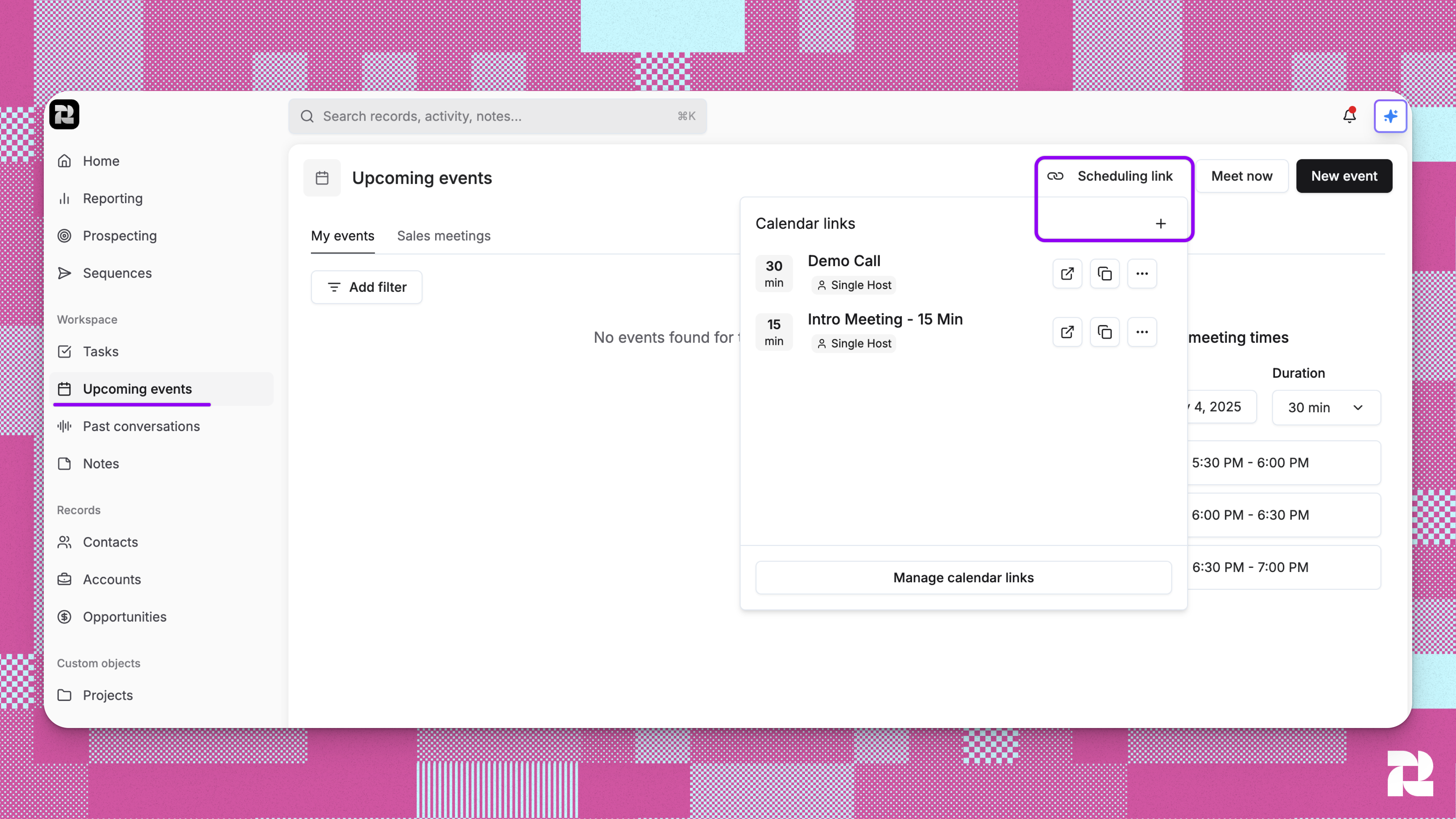 4. Configure your link settings:
* Meeting **duration, time slot frequency and time alignment** (15 min, 30 min, 60 min, etc.)
* Choose how [**hosts**](\(#Key-Capabilities\)) are assigned (certain host formats unlock different capabilities. Click here for additional details.
* Choose your format carefully up front—you can't switch from single host to round robin or vice versa after the link is created. You can create a new link to make host changes.
* **Privacy Setting:**
* *Private Meetings:* The meeting and everything associated with it (notes, recordings, transcripts, etc.) can only be seen by the people who are actually on the meeting
* *Recording:* Automatically records the meeting when someone books through this scheduling link. The recording captures audio, video, and generates a transcript that's saved to the meeting record in Reevo.
* *Calendar Visibility:*
* Public: The meeting details are visible on your calendar to anyone who can see your calendar
* Private: Other people who can see your calendar will see you're busy during that time, but they won't see the meeting title, attendee names, or other details. This is useful when you want to block time on your calendar without revealing what the meeting is about to colleagues who share calendar visibility with you.
* **Guest booking form fields:** Customize what information guests need to provide when booking
* Set your conferencing type, timezone, availability windows, scheduling time limits and booking buffer times
Edit anytime via **"Edit calendar link"** or delete when prompted.
# **Share the Link**
## Watch: How to Share Your Scheduling Links
Two ways to share:
* **Copy it directly**: Click copy to get **"Link copied to clipboard"**
* **Insert into emails**: Click **"Insert calendar link"** when composing in Reevo
Recipients click the link, choose a time, and the meeting is automatically scheduled.
## **Key Capabilities**
**Multiple Host Formats**
* **Single host**: One host (you)
* **Round robin**: Distribute meetings evenly across your team. It shows times when at least one host from the pool is available; the system assigns the most appropriate host based on your settings
* **Availability methods:**
* "Max availability:” Shows all available time slots, prioritizing hosts who haven't been booked recently."
* Max fairness: Excludes the 50% most recently booked hosts to distribute meetings more evenly.
* **CRM routing:** Route meetings to the calendar of the contact or account owner when available.I f the person booking is already in your CRM with an assigned owner, the meeting goes to that owner's calendar (if they're in the host pool and available). Otherwise, it follows normal round robin rules. This ensures customers always meet with their assigned rep.
* **Multi-host**: Multiple team members on the same meeting. Shows only times when all selected hosts are available at the same time (everyone must be free)
* Multi-host may require plan access. If it's not available in your plan, you'll see a lock icon and an upgrade prompt.
**Flexible Availability:**
* Set specific working hours and days
* Add buffer time so meetings don't stack back-to-back
* Choose different durations for different types of meetings
**One-Click Sharing:**
* **"Scheduling link"** button accessible throughout the app
* **"Insert calendar link"** in the email composer for instant insertion
* Copy and paste anywhere (emails, LinkedIn, text messages)
## **Troubleshooting / FAQs**
Yes. Existing events stay as‑is; new bookings follow the updated settings.
That host’s slots disappear until the connection is restored.
With Auto‑record enabled, the call is recorded in Zoom or Google Meet and automatically attached to the Reevo session.
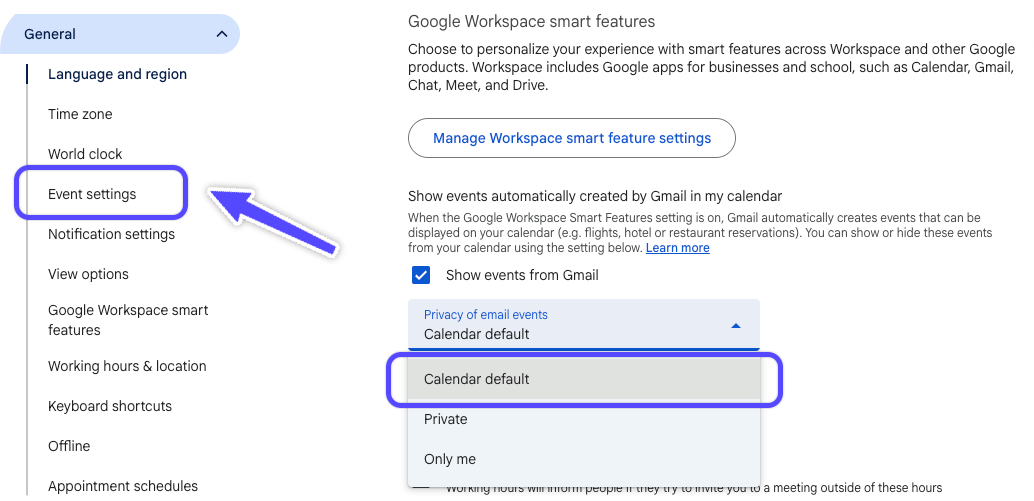
This can happen because Gmail automatically creates certain events (like flights or hotel reservations) and adds them to your Google Calendar. These events are shown by default with the visibility set to “Only me,” which means the Reevo scheduling system treats them as available and allows customers to book over them. To ensure these events block your schedule, change the default visibility for Gmail-created events in your[ Google Calendar settings to](https://calendar.google.com/calendar/u/0/r/settings) “Calendar default.”
4. Configure your link settings:
* Meeting **duration, time slot frequency and time alignment** (15 min, 30 min, 60 min, etc.)
* Choose how [**hosts**](\(#Key-Capabilities\)) are assigned (certain host formats unlock different capabilities. Click here for additional details.
* Choose your format carefully up front—you can't switch from single host to round robin or vice versa after the link is created. You can create a new link to make host changes.
* **Privacy Setting:**
* *Private Meetings:* The meeting and everything associated with it (notes, recordings, transcripts, etc.) can only be seen by the people who are actually on the meeting
* *Recording:* Automatically records the meeting when someone books through this scheduling link. The recording captures audio, video, and generates a transcript that's saved to the meeting record in Reevo.
* *Calendar Visibility:*
* Public: The meeting details are visible on your calendar to anyone who can see your calendar
* Private: Other people who can see your calendar will see you're busy during that time, but they won't see the meeting title, attendee names, or other details. This is useful when you want to block time on your calendar without revealing what the meeting is about to colleagues who share calendar visibility with you.
* **Guest booking form fields:** Customize what information guests need to provide when booking
* Set your conferencing type, timezone, availability windows, scheduling time limits and booking buffer times
Edit anytime via **"Edit calendar link"** or delete when prompted.
# **Share the Link**
## Watch: How to Share Your Scheduling Links
Two ways to share:
* **Copy it directly**: Click copy to get **"Link copied to clipboard"**
* **Insert into emails**: Click **"Insert calendar link"** when composing in Reevo
Recipients click the link, choose a time, and the meeting is automatically scheduled.
## **Key Capabilities**
**Multiple Host Formats**
* **Single host**: One host (you)
* **Round robin**: Distribute meetings evenly across your team. It shows times when at least one host from the pool is available; the system assigns the most appropriate host based on your settings
* **Availability methods:**
* "Max availability:” Shows all available time slots, prioritizing hosts who haven't been booked recently."
* Max fairness: Excludes the 50% most recently booked hosts to distribute meetings more evenly.
* **CRM routing:** Route meetings to the calendar of the contact or account owner when available.I f the person booking is already in your CRM with an assigned owner, the meeting goes to that owner's calendar (if they're in the host pool and available). Otherwise, it follows normal round robin rules. This ensures customers always meet with their assigned rep.
* **Multi-host**: Multiple team members on the same meeting. Shows only times when all selected hosts are available at the same time (everyone must be free)
* Multi-host may require plan access. If it's not available in your plan, you'll see a lock icon and an upgrade prompt.
**Flexible Availability:**
* Set specific working hours and days
* Add buffer time so meetings don't stack back-to-back
* Choose different durations for different types of meetings
**One-Click Sharing:**
* **"Scheduling link"** button accessible throughout the app
* **"Insert calendar link"** in the email composer for instant insertion
* Copy and paste anywhere (emails, LinkedIn, text messages)
## **Troubleshooting / FAQs**
Yes. Existing events stay as‑is; new bookings follow the updated settings.
That host’s slots disappear until the connection is restored.
With Auto‑record enabled, the call is recorded in Zoom or Google Meet and automatically attached to the Reevo session.
This can happen because Gmail automatically creates certain events (like flights or hotel reservations) and adds them to your Google Calendar. These events are shown by default with the visibility set to “Only me,” which means the Reevo scheduling system treats them as available and allows customers to book over them. To ensure these events block your schedule, change the default visibility for Gmail-created events in your[ Google Calendar settings to](https://calendar.google.com/calendar/u/0/r/settings) “Calendar default.”
 > Still have questions? [Sign in](https://reevo.ai/) and use AskReevo for instant answers or to raise a support ticket.