> ## Documentation Index
> Fetch the complete documentation index at: https://help.reevo.ai/llms.txt
> Use this file to discover all available pages before exploring further.
# Zoom Recording Bot Troubleshooting
> If the Reevo meeting bot isn’t joining or recording your Zoom meeting, review the relevant scenario below.
## Host Denied Recording Permission
**Cause:** The meeting host did not grant the bot permission to record when prompted.
**Steps to Resolve:**
1. The Reevo user should open the **Upcoming Events** page and re-add the bot to the ongoing meeting.
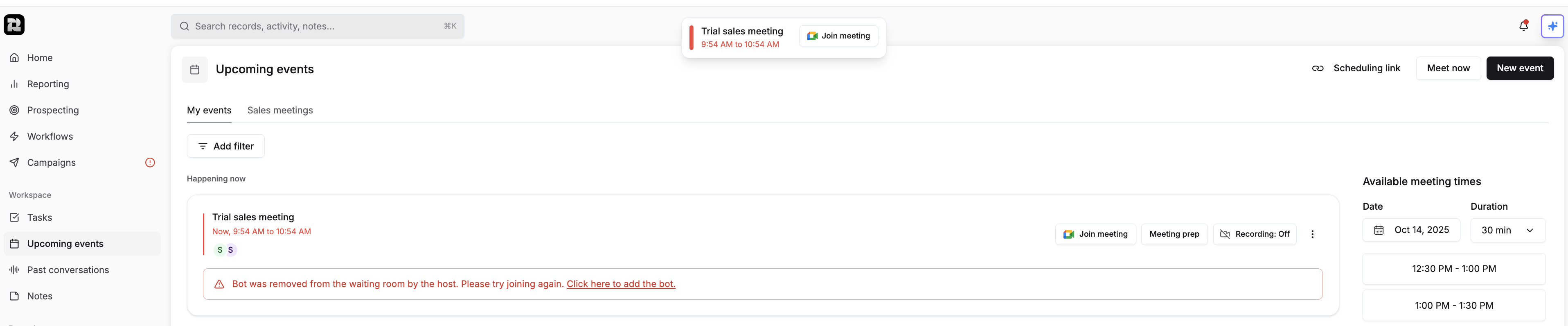 2. Ask the **host** to re-add the bot and **grant recording permission** when prompted by Zoom.
3. Once permission is granted, the bot should start recording successfully.
## Host Not Present in the Meeting
**Cause:** The bot waits for the host to join within a 10-minute timeout period. If the host doesn’t join in time, the bot exits the meeting. Other participants may join earlier, but the bot won’t start recording until the host joins and grants permission.
**Steps to Resolve:**
1. The Reevo user should open the **Upcoming Events** page and re-add the bot to the ongoing meeting.
2. Ask the **host** to re-add the bot and **grant recording permission** when prompted by Zoom.
3. Once permission is granted, the bot should start recording successfully.
## Host Not Present in the Meeting
**Cause:** The bot waits for the host to join within a 10-minute timeout period. If the host doesn’t join in time, the bot exits the meeting. Other participants may join earlier, but the bot won’t start recording until the host joins and grants permission.
**Steps to Resolve:**
1. The Reevo user should open the **Upcoming Events** page and re-add the bot to the ongoing meeting.
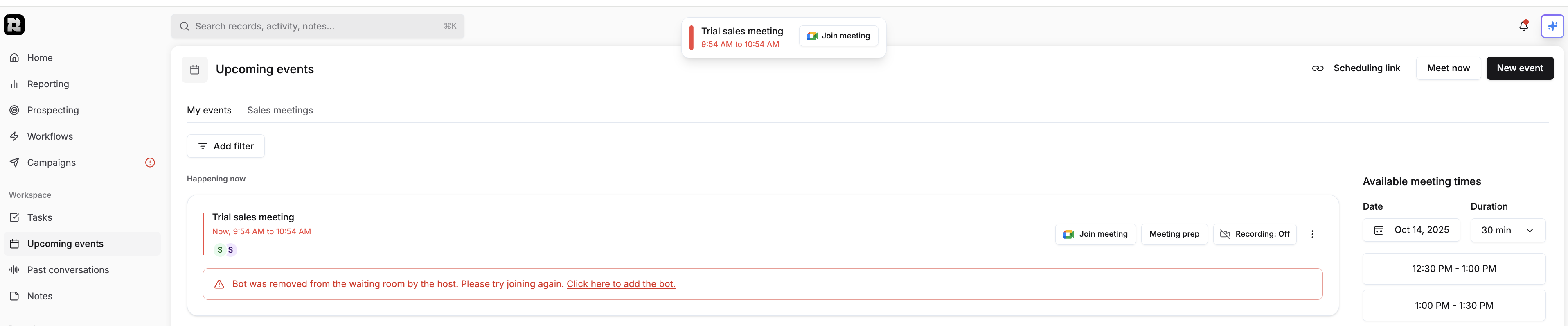 2. Ask the **host** to join using the **same Zoom account** that scheduled the meeting.
3. Once the host joins and grants the bot recording permission, the bot should begin recording successfully.
## Bot Doesn’t Have Recording Permission
**Cause:** The host’s Zoom account settings don’t allow local recording, preventing the bot from starting the session.
**Steps to Resolve:**
1. Log in to your Zoom account and go to **My Account** → **Settings** → **Recording**.
2. Ask the **host** to join using the **same Zoom account** that scheduled the meeting.
3. Once the host joins and grants the bot recording permission, the bot should begin recording successfully.
## Bot Doesn’t Have Recording Permission
**Cause:** The host’s Zoom account settings don’t allow local recording, preventing the bot from starting the session.
**Steps to Resolve:**
1. Log in to your Zoom account and go to **My Account** → **Settings** → **Recording**.
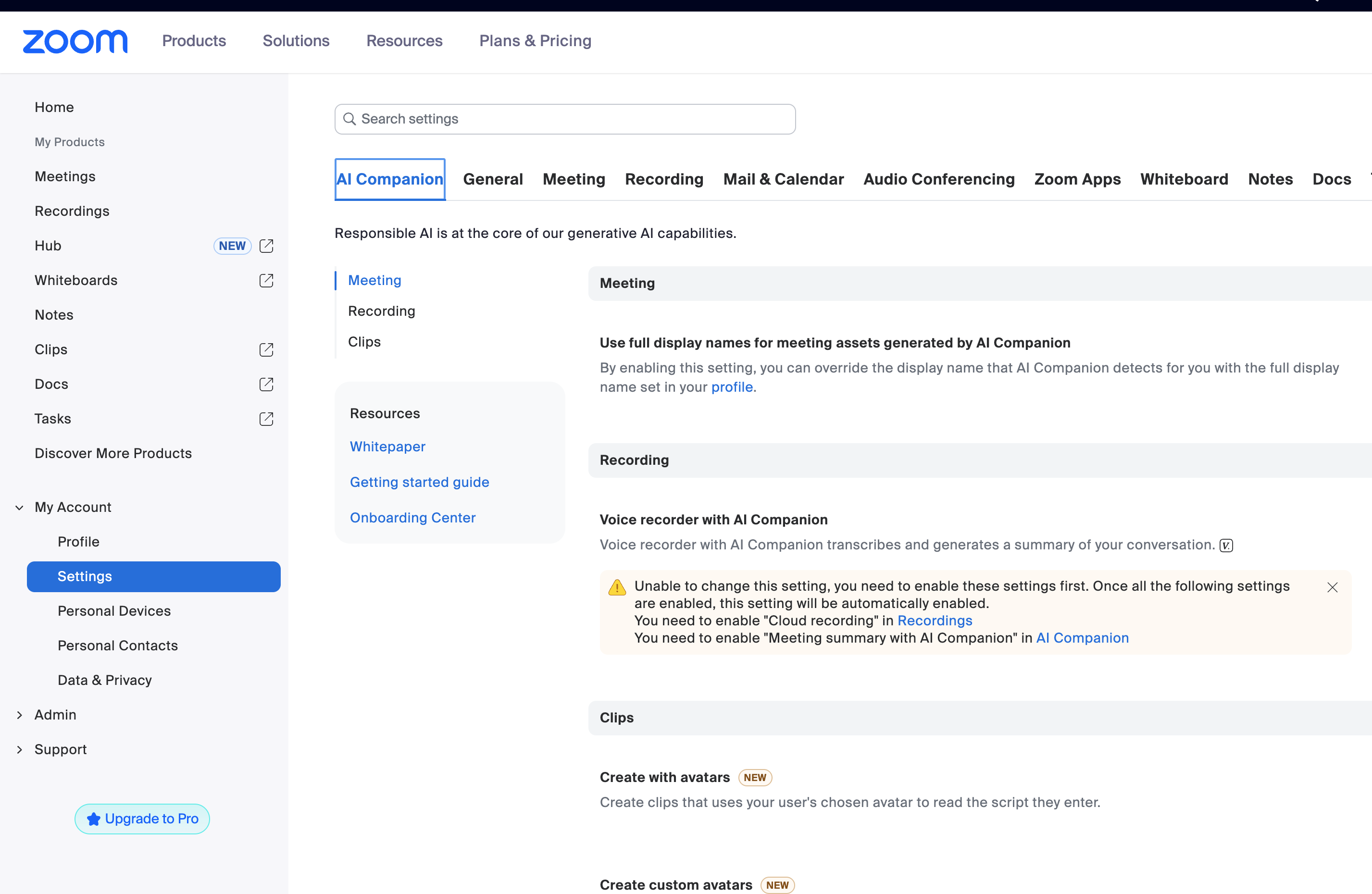 2. Under the Recording tab, ensure “Record to computer files” is enabled.
 3. After updating the Zoom host settings, open the **Upcoming Events** page in Reevo.
4. Locate the ongoing meeting and **re-add the bot**.
5. The bot should now successfully join and begin recording.
> Still have questions? [Sign in](https://reevo.ai/) and use AskReevo for instant answers or to raise a support ticket.
3. After updating the Zoom host settings, open the **Upcoming Events** page in Reevo.
4. Locate the ongoing meeting and **re-add the bot**.
5. The bot should now successfully join and begin recording.
> Still have questions? [Sign in](https://reevo.ai/) and use AskReevo for instant answers or to raise a support ticket.