> ## Documentation Index
> Fetch the complete documentation index at: https://help.reevo.ai/llms.txt
> Use this file to discover all available pages before exploring further.
# Set Up Mailboxes: Prospect Outreach
> Mailboxes let you run outbound sequences at scale without risking your main company domain
Mailboxes are dedicated email accounts affiliated to your company domain that power outbound sales in Reevo. They act as the sending engine for your sequences, maintaining individual sender reputations to ensure high deliverability while Reevo handles the technical setup. Properly configured mailboxes are essential for running automated campaigns, tracking engagement metrics, and utilizing the platform’s optimization features.
What mailboxes actually do for your business:
* **Professional Branding**: Route all outbound campaign emails through your affiliated domain instead of personal addresses
* **Build Sender Reputation**: Automatic warmup and health monitoring to reduce the probability spam filters
* **Campaign Automation**: Powering multi-step email sequences with tracking and analytics
* **Centralized Control**: Managing all outbound communication from one platform
The separation between outbound mailboxes (for cold outreach) and your primary email accounts (for business communications) is a best practice that protects your organization's email reputation while enabling scalable prospecting efforts.
***
### **Prerequisites**
* **Admin access to organizational settings**
* Appropriate subscription plan with mailbox allocation
* Understanding of team email volume requirements
***
## **Step-by-Step Instructions**
Only users with Admin role permissions can create, purchase, or configure mailboxes. You can set up a connected mailbox without purchasing a domain but it is not recommended.
## **1. Domain Setup**
1. Navigate to **Settings** → **Email setup** → **Domains** tab
2. Click **Add domain** to purchase a new domain through Reevo
1. Each domain purchased must be purchased with at least one mailbox
3. Wait for domain configuration (up to 24 hours for DNS setup)
4. Verify domain health status shows as ready before proceeding
[Learn more](https://help.reevo.ai/domains-and-mailboxes/Purchasing-Domains) about purchasing domains in [this](https://help.reevo.ai/domains-and-mailboxes/Purchasing-Domains) article
***
## **2. Understand Mailbox Types**
Two types of mailboxes are available:
* **Managed:** Mailboxes purchased through the platform with full health monitoring
* **Connected**: Mailboxes that link existing external email accounts (like Gmail)
Connected and Managed mailboxes serve different purposes across Reevo's platform. While both types can send emails, their use cases vary based on deliverability needs, workflow requirements, and platform features. Understanding these differences helps you choose the right mailbox type for each business scenario.
Below are the main benefits by mailbox type:
✅ Designed for high-volume sequence campaigns with automatic warmup
✅ Include health monitoring and deliverability optimization
✅ Support configurable sending quotas and rotation
✅ Support bulk email verification and enrichment
✅ Focus on outreach rather than meeting coordination
❌ Not used for calendar integration
✅ Calendar sync and meeting scheduling
✅ Send meeting invitations from your professional email
✅ Best for low-volume, personalized sequence outreach
✅ Maintain your existing email provider relationship
✅ Gmail accounts connect via Google Sign-In - no manual credentials needed
✅ Sends through the Gmail API for improved deliverability and reply threading
❌ No health monitoring (besides spam and DNS for custom domains only)
❌ Limited by provider rate limits
Your choice impacts email deliverability, tracking capabilities, and platform integration across sequences, prospecting, and meeting workflows.
***
## 3. Set Up Your Mailbox
### **Create Managed Mailboxes (Recommended)**
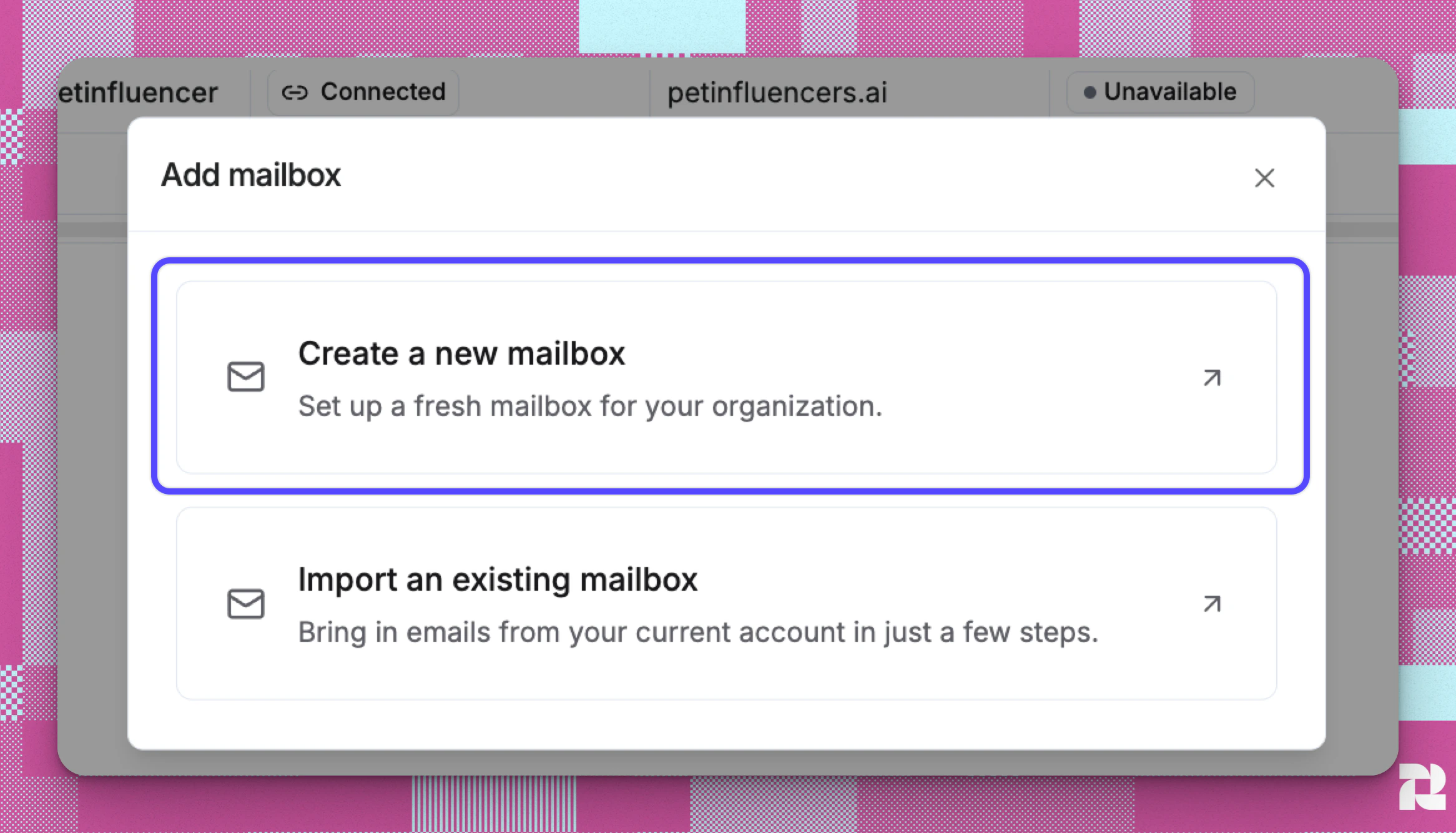
1. In [******Settings → Email setup → Mailboxes******](https://app.reevo.ai/settings/email-setup) tab, click **Add mailbox**
2. Choose “Create a new mailbox”
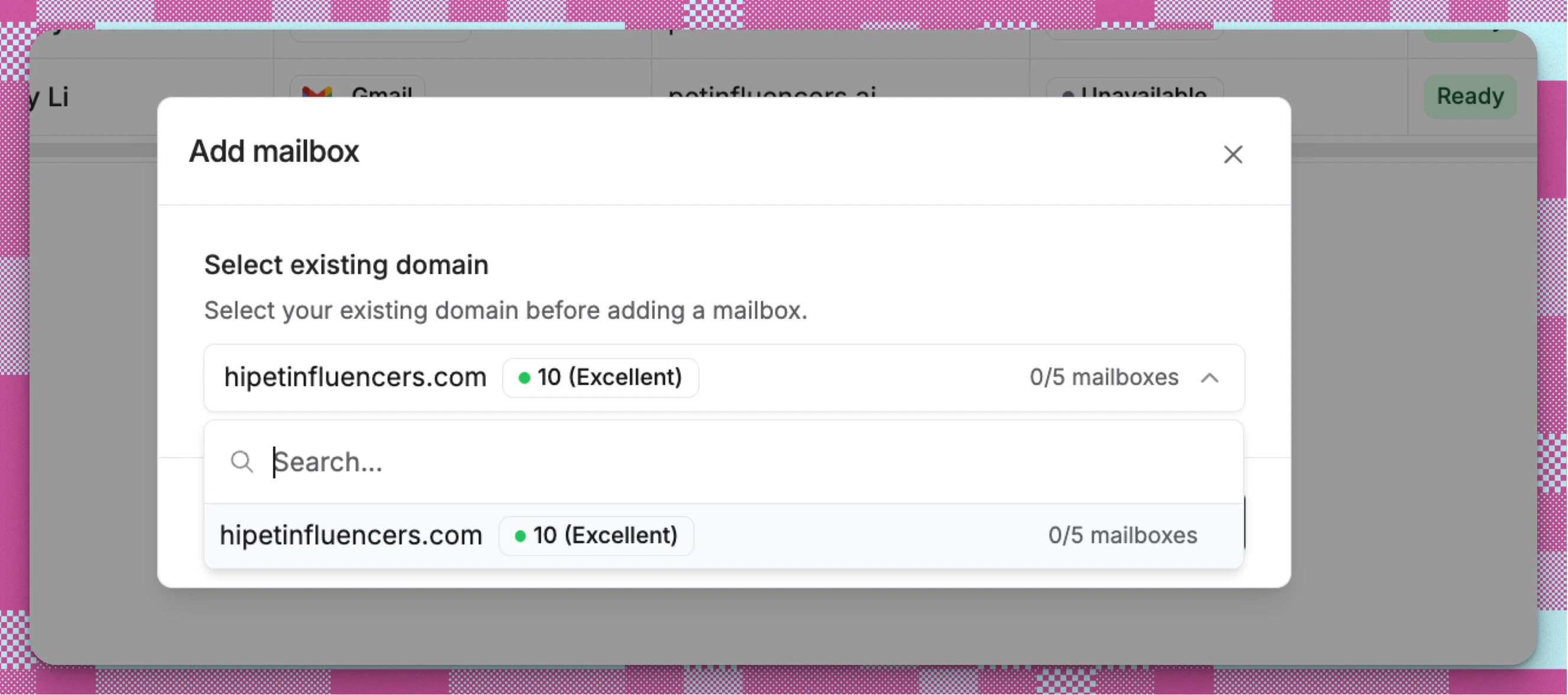
 3. Select an existing domain.
 4. Configure mailbox settings:
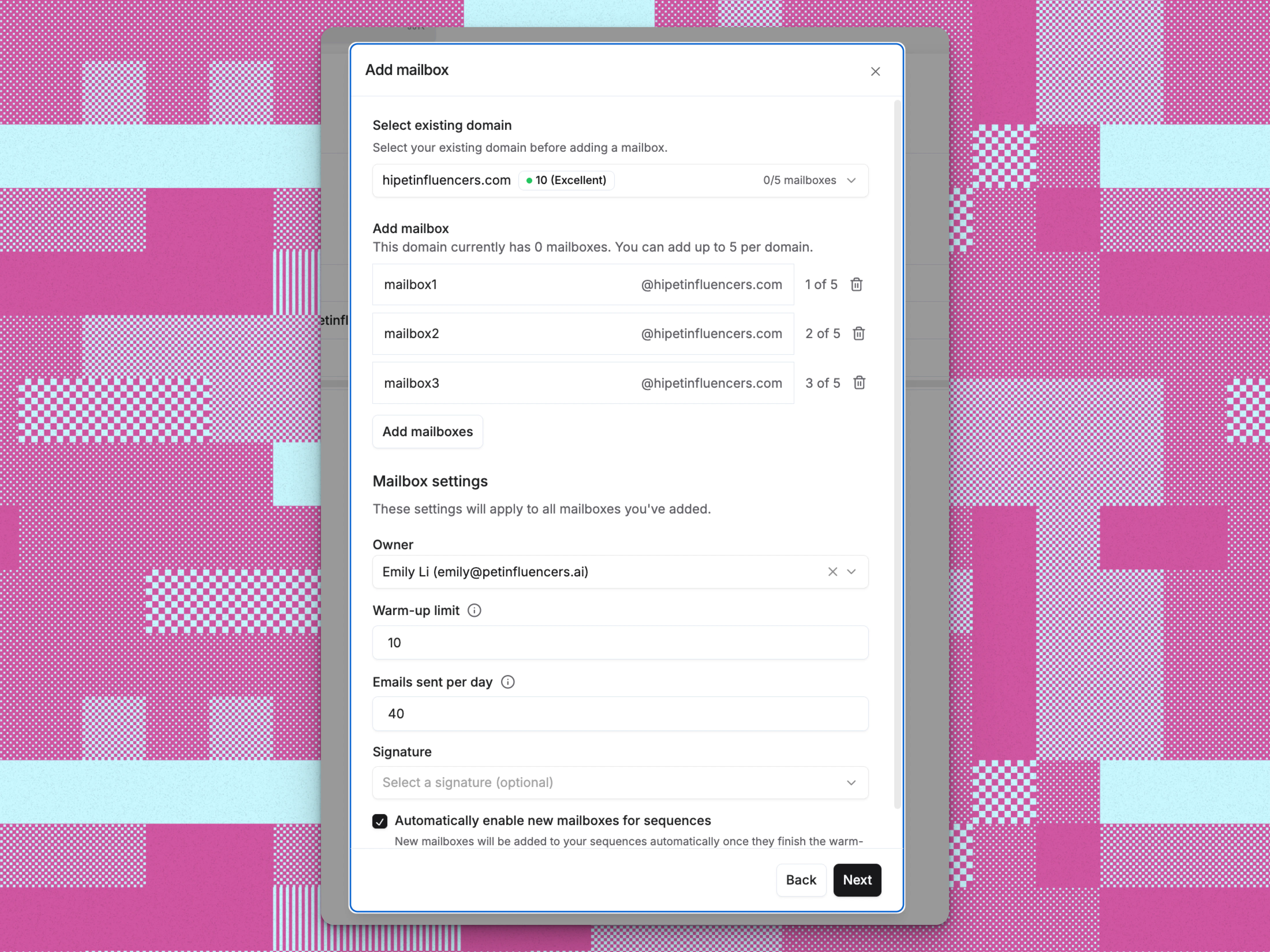 * You can purchase up to 5 mailboxes per domain. You have complete freedom to name mailboxes in whatever way helps you stay organized. Outbound emails always show the **owner’s name** and the **official domain** - never the internal mailbox label.
* Set warmup limit (0 to 10 emails per day, defaults to 10). Setting it to 0 disables warm-up.
* Configure the daily sending limit (0 to 2,000 emails per day, defaults to 40). 40 is Reevo's recommended value, not a cap. You can save a higher number and Reevo will show a deliverability warning rather than block you. Setting it to 0 disables the mailbox for sequences.
* Set **Delay between emails** (10 seconds to 40 minutes, recommended 10 minutes).
* Assign an owner from your team. The owner of the mailbox will show up as the sender in outbound emails.
* (Optional) Add a signature
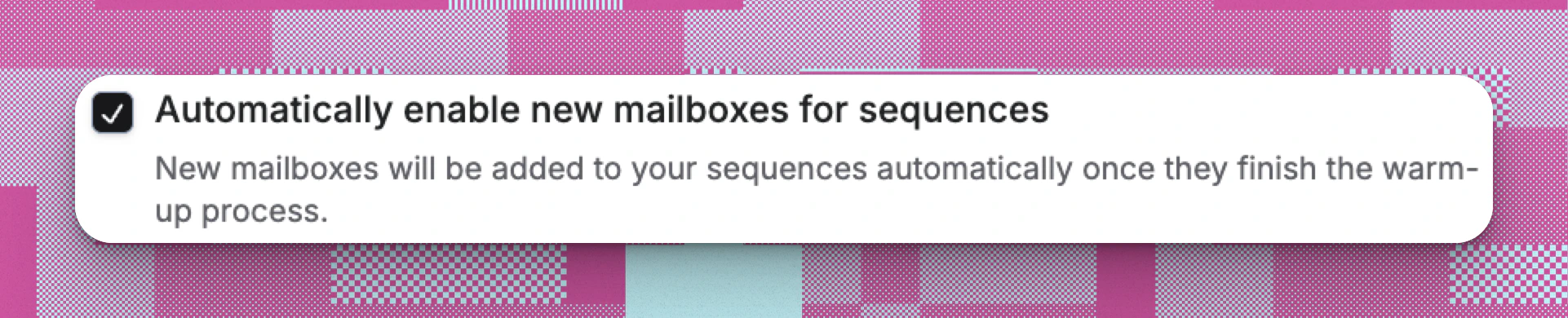
* **To use the mailbox for prospective outreach, it is important that this option is enabled by checking the box.**
* You can purchase up to 5 mailboxes per domain. You have complete freedom to name mailboxes in whatever way helps you stay organized. Outbound emails always show the **owner’s name** and the **official domain** - never the internal mailbox label.
* Set warmup limit (0 to 10 emails per day, defaults to 10). Setting it to 0 disables warm-up.
* Configure the daily sending limit (0 to 2,000 emails per day, defaults to 40). 40 is Reevo's recommended value, not a cap. You can save a higher number and Reevo will show a deliverability warning rather than block you. Setting it to 0 disables the mailbox for sequences.
* Set **Delay between emails** (10 seconds to 40 minutes, recommended 10 minutes).
* Assign an owner from your team. The owner of the mailbox will show up as the sender in outbound emails.
* (Optional) Add a signature
* **To use the mailbox for prospective outreach, it is important that this option is enabled by checking the box.**
 5. Review the summary and complete your mailbox purchase.
6. Newly created managed mailboxes enters a warmup period that typically takes 14 business days to complete. To learn more about this process refer to this article
Mailbox management works together with domain purchasing and email verification to create a complete email infrastructure.
The warmup process and health monitoring systems are designed to protect sender reputation while maximizing deliverability. Regular monitoring of mailbox health helps maintain optimal campaign performance and prevents deliverability issues before they impact outreach efforts.
***
### Import an Existing Mailbox via SMTP/IMAP
1. Ensure you have admin credentials in the external email account (i.e. Google Workspace)
2. In [******Settings → Email setup → Mailboxes******](https://app.reevo.ai/settings/email-setup) tab, click **Add mailbox**
3. Choose “Import and existing Mailbox”
5. Review the summary and complete your mailbox purchase.
6. Newly created managed mailboxes enters a warmup period that typically takes 14 business days to complete. To learn more about this process refer to this article
Mailbox management works together with domain purchasing and email verification to create a complete email infrastructure.
The warmup process and health monitoring systems are designed to protect sender reputation while maximizing deliverability. Regular monitoring of mailbox health helps maintain optimal campaign performance and prevents deliverability issues before they impact outreach efforts.
***
### Import an Existing Mailbox via SMTP/IMAP
1. Ensure you have admin credentials in the external email account (i.e. Google Workspace)
2. In [******Settings → Email setup → Mailboxes******](https://app.reevo.ai/settings/email-setup) tab, click **Add mailbox**
3. Choose “Import and existing Mailbox”
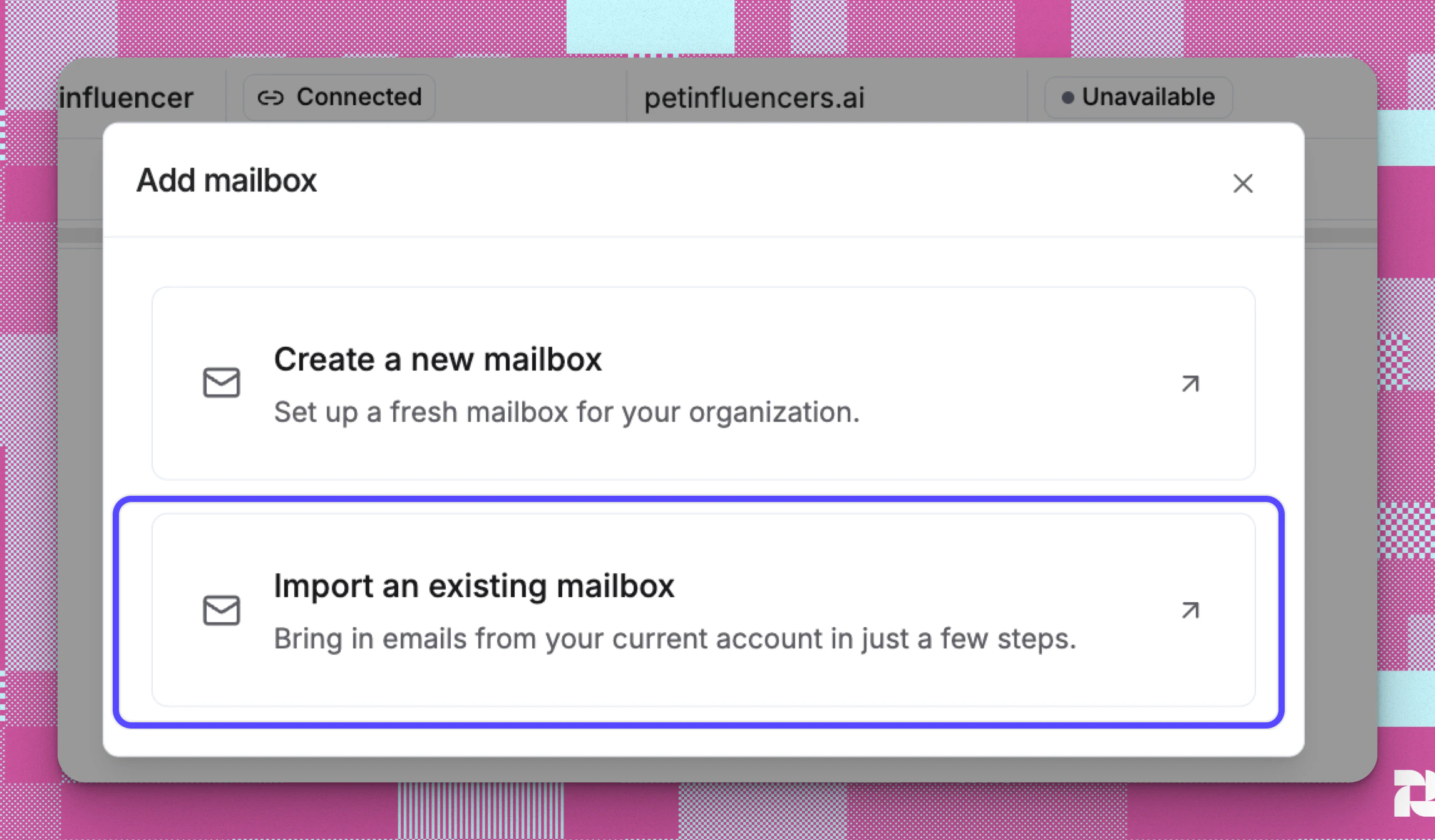 4. Configure mailbox settings:
* Different provides may require an app-specific password (different from your account password) to connect your external mailbox. As an example: [Here's how to create one with Google.](https://support.google.com/accounts/answer/185833?hl=en) Check with your mailbox provider if the account password does not work.
4. Configure mailbox settings:
* Different provides may require an app-specific password (different from your account password) to connect your external mailbox. As an example: [Here's how to create one with Google.](https://support.google.com/accounts/answer/185833?hl=en) Check with your mailbox provider if the account password does not work.
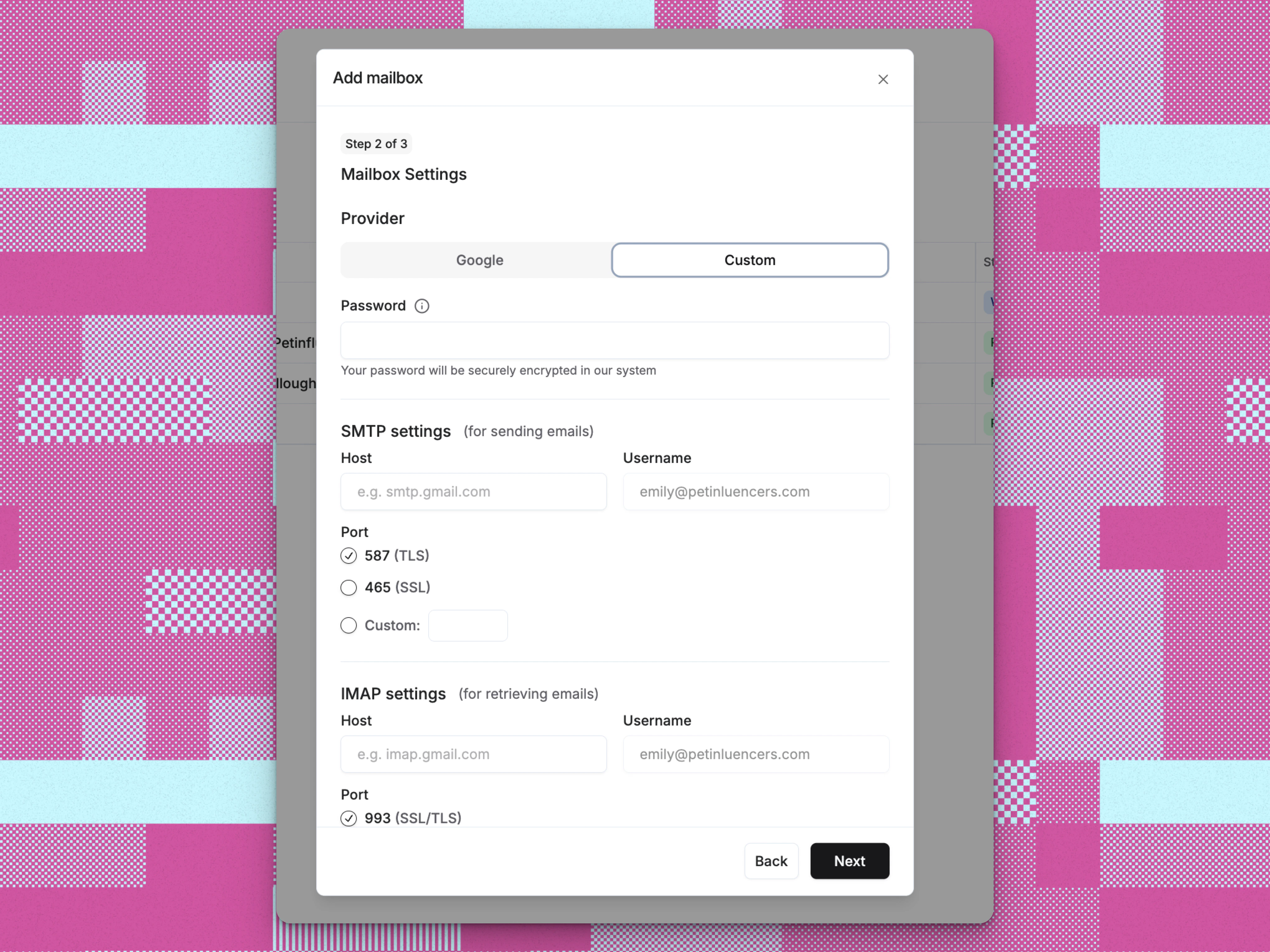 This import only works with providers that permit password or app-password access over both SMTP and IMAP. Outlook and Microsoft 365 require OAuth and cannot be imported through this flow. To use Outlook as your personal Reevo email integration, connect Microsoft under [**Settings → Integrations → Email**](https://app.reevo.ai/settings/integrations). A Reevo user can connect Google or Microsoft there, not both.
***
### Import a Gmail Mailbox via Google Sign-In
Connect an existing Gmail or Google Workspace mailbox using your Google account. This method sends through the Gmail API directly - no manual credential entry, better deliverability, smarter retry handling, and replies that stay properly threaded in conversations.
Google Workspace accounts with custom domains (e.g. [you@yourcompany.com](mailto:you@yourcompany.com)) are strongly recommended for sequences. If connecting a free Gmail account, it should have at least 7 days of regular personal use first. Do not create a Gmail account exclusively for outreach - Google may flag or disable accounts not used for regular personal email.
Gmail mailboxes connected via Google Sign-In cannot be enrolled in Reevo's warmup service. Sending defaults to 10 emails per day with a 40-minute delay between sends to protect your deliverability. These are defaults, not hard caps: you can raise the daily quota up to 2,000 in mailbox settings, but doing so is not recommended as it may harm your sender reputation.
1. In [**Settings → Email setup → Mailboxes**](https://app.reevo.ai/settings/email-setup), click **Add mailbox**
2. Choose **Import Google mailbox**
3. Read the Gmail usage guidance, then click **I understand, continue**
4. Complete Google Sign-In in the popup window that opens
5. When prompted, grant the requested Gmail permissions
6. Once authorized, the popup closes and the mailbox appears in your list
Allow popups from Reevo in your browser if the window does not open. The connection times out after 5 minutes if not completed.
***
## 4. Mailbox Management
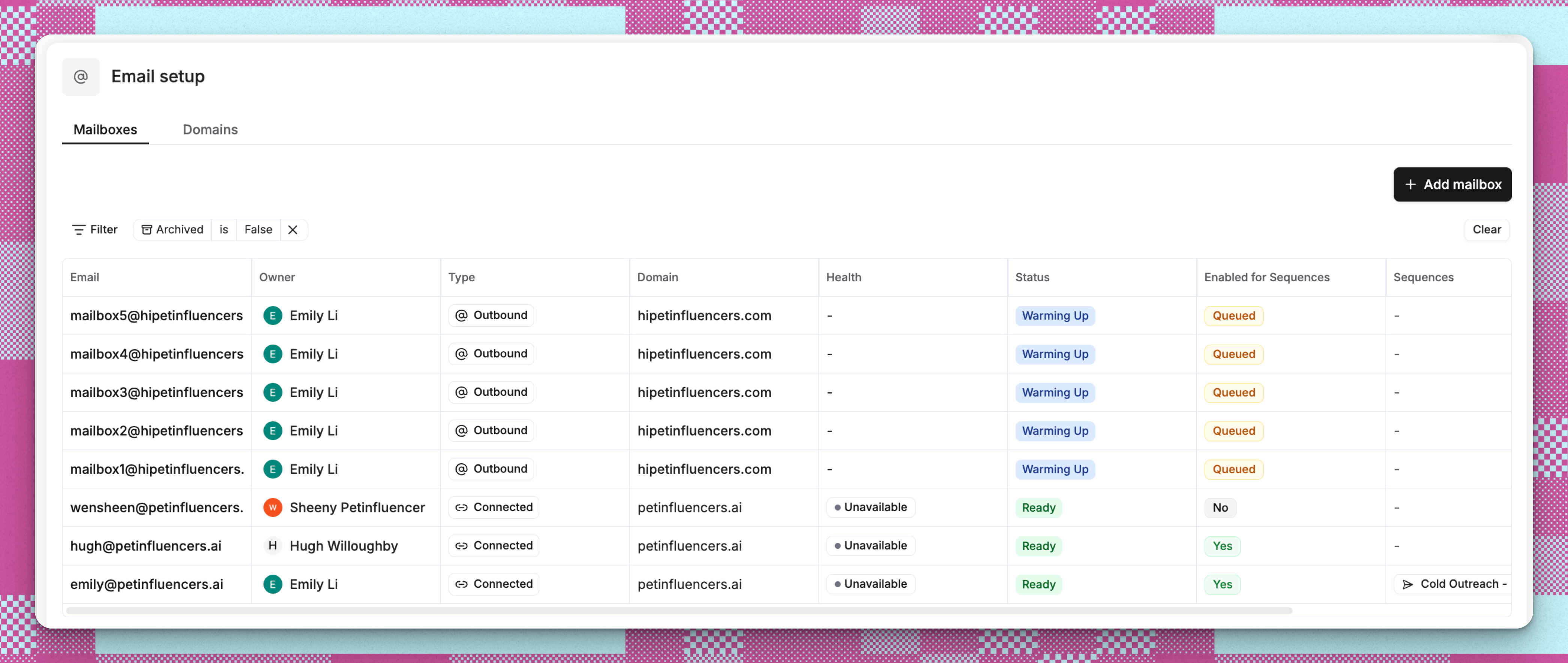
All created mailboxes will appear in [**Settings → Email setup → Mailboxes**](https://app.reevo.ai/settings/email-setup). You can track the following fields:
* Type. Reevo-managed mailboxes show an **Outbound** badge. Mailboxes you connect show a **Connected** badge. The list filter also offers **Imported**.
* Associated Domain
* Status: **Ready**, **Warming up**, **Attempting to purchase**, **Archived**, or **Requires re-authentication** (shown when Reevo has lost access to a mailbox you connected through Google Sign-In, for example because you changed your Google password or revoked app permissions; reconnect it from the mailbox's settings page)
* Health
* Sequence enrollment settings
This import only works with providers that permit password or app-password access over both SMTP and IMAP. Outlook and Microsoft 365 require OAuth and cannot be imported through this flow. To use Outlook as your personal Reevo email integration, connect Microsoft under [**Settings → Integrations → Email**](https://app.reevo.ai/settings/integrations). A Reevo user can connect Google or Microsoft there, not both.
***
### Import a Gmail Mailbox via Google Sign-In
Connect an existing Gmail or Google Workspace mailbox using your Google account. This method sends through the Gmail API directly - no manual credential entry, better deliverability, smarter retry handling, and replies that stay properly threaded in conversations.
Google Workspace accounts with custom domains (e.g. [you@yourcompany.com](mailto:you@yourcompany.com)) are strongly recommended for sequences. If connecting a free Gmail account, it should have at least 7 days of regular personal use first. Do not create a Gmail account exclusively for outreach - Google may flag or disable accounts not used for regular personal email.
Gmail mailboxes connected via Google Sign-In cannot be enrolled in Reevo's warmup service. Sending defaults to 10 emails per day with a 40-minute delay between sends to protect your deliverability. These are defaults, not hard caps: you can raise the daily quota up to 2,000 in mailbox settings, but doing so is not recommended as it may harm your sender reputation.
1. In [**Settings → Email setup → Mailboxes**](https://app.reevo.ai/settings/email-setup), click **Add mailbox**
2. Choose **Import Google mailbox**
3. Read the Gmail usage guidance, then click **I understand, continue**
4. Complete Google Sign-In in the popup window that opens
5. When prompted, grant the requested Gmail permissions
6. Once authorized, the popup closes and the mailbox appears in your list
Allow popups from Reevo in your browser if the window does not open. The connection times out after 5 minutes if not completed.
***
## 4. Mailbox Management
All created mailboxes will appear in [**Settings → Email setup → Mailboxes**](https://app.reevo.ai/settings/email-setup). You can track the following fields:
* Type. Reevo-managed mailboxes show an **Outbound** badge. Mailboxes you connect show a **Connected** badge. The list filter also offers **Imported**.
* Associated Domain
* Status: **Ready**, **Warming up**, **Attempting to purchase**, **Archived**, or **Requires re-authentication** (shown when Reevo has lost access to a mailbox you connected through Google Sign-In, for example because you changed your Google password or revoked app permissions; reconnect it from the mailbox's settings page)
* Health
* Sequence enrollment settings
 ***
## Troubleshooting / FAQs
An associated domain is needed for mailboxes to function properly. Domains provide the foundation for email authentication and deliverability. Without a verified domain, Reevo-managed mailboxes cannot be created for outbound campaigns.
Yes. Gmail and Google Workspace accounts can be connected using the **Import Google mailbox** option in the Add mailbox modal. The Google Sign-In flow connects your account without requiring manual SMTP or IMAP credentials. Sending routes through the Gmail API, which improves deliverability and reply threading compared to the legacy SMTP/IMAP import path. Connected mailboxes show "Unavailable" health status since Reevo cannot monitor external account health, but they can be used in sequences.
No. Outlook and Microsoft 365 mailboxes cannot be imported through the SMTP/IMAP or Google Sign-In options under **Email setup → Add mailbox**. Outlook is supported as a user's single personal email integration under **Settings → Integrations → Email**. If that user already has Gmail connected, contact Support to switch providers, or create a Reevo-managed mailbox for additional outbound sending.
Yes, settings like signatures and sending preferences can be edited by mailbox owners and admins. However, core settings like the email address and domain cannot be changed after creation.
These are Reevo's recommended defaults rather than hard limits. The warm-up limit is capped at 10 per day. The daily send limit defaults to 40 but can be set as high as 2,000 per mailbox; above 40 you will see a deliverability warning instead of a block. New mailboxes and domains need to build reputation gradually because email service providers treat them with suspicion by default. The recommended approach:
* Starting with very small volumes (tens, not hundreds)
* Ramping up gradually over several weeks
* Avoiding sudden jumps in sending volume
* Keeping target volumes low even after successful ramp-up
Only users with Admin role permissions can access organizational settings and view mailbox usage metrics. Ask your organization administrator for access if you need to monitor mailbox allocation.
When you approach your mailbox limit, the Usage dashboard will show your current consumption alongside plan limits. Contact your account representative to upgrade your plan or purchase additional mailbox capacity before you run out.
Connected mailboxes sync with your existing email providers like Google Workspace. Reevo-managed mailboxes are created within Reevo and include automatic warming, health monitoring, and deliverability optimization features.
Yes, you can mix connected and Reevo-managed mailboxes based on your team's needs. Many organizations use connected mailboxes for personal communication and Reevo-managed mailboxes for outreach campaigns.
Reevo-managed mailboxes include automatic warming, domain health monitoring, and deliverability optimization features that improve inbox placement for sales outreach sequences.
You can add or remove mailboxes at any time, but switching a specific mailbox from connected to Reevo-managed requires creating a new mailbox and updating your sequences and workflows.
Reevo automatically warms new mailboxes, monitors domain health, and optimizes sending patterns to improve inbox placement. These features are exclusive to Reevo-managed mailboxes.
Domain health measures DNS configuration and authentication at the domain level and is scored on a 1-10 scale. Mailbox health is not a numeric score: it is a status of **Satisfactory** or **Needs attention**, based on bounce rate, unsubscribe rate, and the health of the parent domain. Both contribute to overall email success and are tracked separately.
Mailboxes are tied to your verified domains and help maintain sender reputation. Proper mailbox management ensures your emails reach prospects' inboxes and avoid spam filters.
The Usage dashboard provides organization-level mailbox metrics. For detailed email performance analytics, use the reporting features to track open rates, reply rates, and other engagement metrics.
Mailbox usage resets at each billing cycle start. Your next billing date is displayed at the top of the Usage page to help you plan accordingly. Note that this refers to how mailboxes are billed against your plan. Your per-mailbox daily send quota is separate and is measured over a rolling 24-hour window rather than resetting at midnight.
When archiving a mailbox with active sequences, you'll be prompted to handle the sequences. Options include stopping the sequences, or reassigning them to different mailboxes to avoid disruption.
When enabling a non-outbound mailbox for sequences, you'll see: "Using your own mailbox for sequences is not recommended. This may affect deliverability and your sender reputation."
This status indicates that your mailbox purchase is being processed. The system is provisioning your mailbox, which typically takes around 30 minutes. Newly created mailboxes then go through a warm-up period of about 14 business days.
Yes, when purchasing outbound mailboxes, you can up to 5 mailboxes to a domain in a single transaction. All mailboxes will share the same settings you configure.
When using multiple mailboxes, sequences automatically distribute sends across them to maintain natural sending patterns and prevent any single mailbox from exceeding volume limits.
Your browser may be blocking popups from Reevo. Allow popups for the Reevo app in your browser settings, then try again. The popup must be completed within 5 minutes or the connection attempt will time out.
Reevo needs the `gmail.modify` permission to send and sync email on your behalf. If you declined any permissions on the Google consent screen, the connection cannot complete. Click **Import Google mailbox** again and accept all permissions when prompted.
The Gmail address you authorized is already linked to a mailbox in your Reevo organization. Each email address can only be connected once. If you need to refresh an existing connection, use the reconnect option from that mailbox's settings page instead of starting a new import.
If Reevo loses access (e.g. you changed your Google password or revoked app permissions), the mailbox will show a connection error. Open the affected mailbox's settings page and use the reconnect option. This launches the same Google Sign-In popup and restores the connection without creating a duplicate.
Google Sign-In uses the Gmail API - more reliable sending, automatic retries, proper reply threading, and no credential entry. SMTP/IMAP requires server credentials and an app-specific password, and only works with providers that still permit both protocols. Outlook and Microsoft 365 are not supported through SMTP/IMAP import because they require OAuth. For Gmail and Google Workspace accounts, Google Sign-In is the recommended option.
Gmail mailboxes connected via Google Sign-In cannot be enrolled in Reevo's warmup service, so Reevo applies a conservative default of 10 emails per day with a 40-minute delay between sends. This is a default, not a hard cap. You can raise the daily quota up to 2,000 in mailbox settings, though Reevo will warn you above 10 for connected mailboxes because it may harm your sender reputation. For higher-volume outreach, use a Reevo-managed mailbox instead.
***
## Troubleshooting / FAQs
An associated domain is needed for mailboxes to function properly. Domains provide the foundation for email authentication and deliverability. Without a verified domain, Reevo-managed mailboxes cannot be created for outbound campaigns.
Yes. Gmail and Google Workspace accounts can be connected using the **Import Google mailbox** option in the Add mailbox modal. The Google Sign-In flow connects your account without requiring manual SMTP or IMAP credentials. Sending routes through the Gmail API, which improves deliverability and reply threading compared to the legacy SMTP/IMAP import path. Connected mailboxes show "Unavailable" health status since Reevo cannot monitor external account health, but they can be used in sequences.
No. Outlook and Microsoft 365 mailboxes cannot be imported through the SMTP/IMAP or Google Sign-In options under **Email setup → Add mailbox**. Outlook is supported as a user's single personal email integration under **Settings → Integrations → Email**. If that user already has Gmail connected, contact Support to switch providers, or create a Reevo-managed mailbox for additional outbound sending.
Yes, settings like signatures and sending preferences can be edited by mailbox owners and admins. However, core settings like the email address and domain cannot be changed after creation.
These are Reevo's recommended defaults rather than hard limits. The warm-up limit is capped at 10 per day. The daily send limit defaults to 40 but can be set as high as 2,000 per mailbox; above 40 you will see a deliverability warning instead of a block. New mailboxes and domains need to build reputation gradually because email service providers treat them with suspicion by default. The recommended approach:
* Starting with very small volumes (tens, not hundreds)
* Ramping up gradually over several weeks
* Avoiding sudden jumps in sending volume
* Keeping target volumes low even after successful ramp-up
Only users with Admin role permissions can access organizational settings and view mailbox usage metrics. Ask your organization administrator for access if you need to monitor mailbox allocation.
When you approach your mailbox limit, the Usage dashboard will show your current consumption alongside plan limits. Contact your account representative to upgrade your plan or purchase additional mailbox capacity before you run out.
Connected mailboxes sync with your existing email providers like Google Workspace. Reevo-managed mailboxes are created within Reevo and include automatic warming, health monitoring, and deliverability optimization features.
Yes, you can mix connected and Reevo-managed mailboxes based on your team's needs. Many organizations use connected mailboxes for personal communication and Reevo-managed mailboxes for outreach campaigns.
Reevo-managed mailboxes include automatic warming, domain health monitoring, and deliverability optimization features that improve inbox placement for sales outreach sequences.
You can add or remove mailboxes at any time, but switching a specific mailbox from connected to Reevo-managed requires creating a new mailbox and updating your sequences and workflows.
Reevo automatically warms new mailboxes, monitors domain health, and optimizes sending patterns to improve inbox placement. These features are exclusive to Reevo-managed mailboxes.
Domain health measures DNS configuration and authentication at the domain level and is scored on a 1-10 scale. Mailbox health is not a numeric score: it is a status of **Satisfactory** or **Needs attention**, based on bounce rate, unsubscribe rate, and the health of the parent domain. Both contribute to overall email success and are tracked separately.
Mailboxes are tied to your verified domains and help maintain sender reputation. Proper mailbox management ensures your emails reach prospects' inboxes and avoid spam filters.
The Usage dashboard provides organization-level mailbox metrics. For detailed email performance analytics, use the reporting features to track open rates, reply rates, and other engagement metrics.
Mailbox usage resets at each billing cycle start. Your next billing date is displayed at the top of the Usage page to help you plan accordingly. Note that this refers to how mailboxes are billed against your plan. Your per-mailbox daily send quota is separate and is measured over a rolling 24-hour window rather than resetting at midnight.
When archiving a mailbox with active sequences, you'll be prompted to handle the sequences. Options include stopping the sequences, or reassigning them to different mailboxes to avoid disruption.
When enabling a non-outbound mailbox for sequences, you'll see: "Using your own mailbox for sequences is not recommended. This may affect deliverability and your sender reputation."
This status indicates that your mailbox purchase is being processed. The system is provisioning your mailbox, which typically takes around 30 minutes. Newly created mailboxes then go through a warm-up period of about 14 business days.
Yes, when purchasing outbound mailboxes, you can up to 5 mailboxes to a domain in a single transaction. All mailboxes will share the same settings you configure.
When using multiple mailboxes, sequences automatically distribute sends across them to maintain natural sending patterns and prevent any single mailbox from exceeding volume limits.
Your browser may be blocking popups from Reevo. Allow popups for the Reevo app in your browser settings, then try again. The popup must be completed within 5 minutes or the connection attempt will time out.
Reevo needs the `gmail.modify` permission to send and sync email on your behalf. If you declined any permissions on the Google consent screen, the connection cannot complete. Click **Import Google mailbox** again and accept all permissions when prompted.
The Gmail address you authorized is already linked to a mailbox in your Reevo organization. Each email address can only be connected once. If you need to refresh an existing connection, use the reconnect option from that mailbox's settings page instead of starting a new import.
If Reevo loses access (e.g. you changed your Google password or revoked app permissions), the mailbox will show a connection error. Open the affected mailbox's settings page and use the reconnect option. This launches the same Google Sign-In popup and restores the connection without creating a duplicate.
Google Sign-In uses the Gmail API - more reliable sending, automatic retries, proper reply threading, and no credential entry. SMTP/IMAP requires server credentials and an app-specific password, and only works with providers that still permit both protocols. Outlook and Microsoft 365 are not supported through SMTP/IMAP import because they require OAuth. For Gmail and Google Workspace accounts, Google Sign-In is the recommended option.
Gmail mailboxes connected via Google Sign-In cannot be enrolled in Reevo's warmup service, so Reevo applies a conservative default of 10 emails per day with a 40-minute delay between sends. This is a default, not a hard cap. You can raise the daily quota up to 2,000 in mailbox settings, though Reevo will warn you above 10 for connected mailboxes because it may harm your sender reputation. For higher-volume outreach, use a Reevo-managed mailbox instead.