> ## Documentation Index
> Fetch the complete documentation index at: https://help.reevo.ai/llms.txt
> Use this file to discover all available pages before exploring further.
# Managing Mailboxes
> After creating mailboxes in Reevo, you can view and manage them from multiple locations throughout the platform. Each interface provides different levels of detail and functionality - from high-level usage tracking to individual mailbox configuration and performance monitoring. This distributed approach allows you to manage your email infrastructure efficiently whether you're administering settings, monitoring campaigns, or analyzing performance.
## **Permissions**
Admin users see additional management options and organization-wide metrics, while regular users see only mailboxes they own. Reevo recalculates mailbox health automatically on a scheduled basis using the most recent 14-day window of email activity, so health reflects recent performance rather than updating instantly.
## **Primary Mailbox Management Location**
1. Navigate to **Settings** → **Email setup** → **Mailboxes** tab
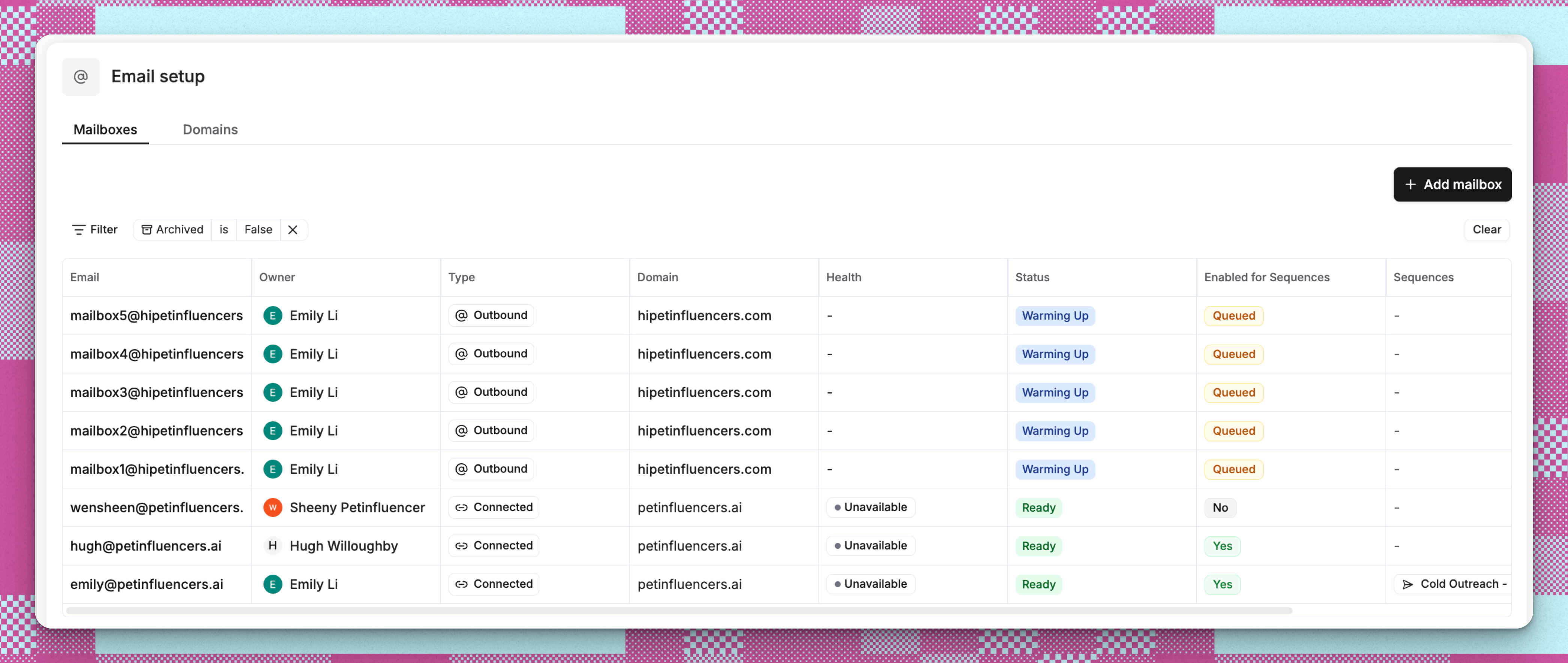 2. View all mailboxes in a comprehensive list with:
* Mailbox type badges (Outbound/Connected)
* Health status indicators
* Default pool membership
* Owner information
* Associated sequences
3. Use filters to find specific mailboxes by type, health, or status. Health filter options are **Satisfactory**, **Needs attention**, **Warming up**, and **Not monitored**.
4. Click any mailbox to view its detailed management page
***
## **Individual Mailbox Details Page**
Access the complete management interface for each mailbox by clicking on it from the mailboxes list. The detail page includes:
**Performance and Health Section**
* Warmup status and progress tracking
* Delivery statistics and metrics
* Health status (**Satisfactory** or **Needs attention**) with a breakdown by factor
* Recommendations for improving deliverability
**Configuration Section**
* Mailbox details (type, status, email address)
* Owner assignment and permissions
* Email signature management
* Sending configuration (quotas, delays, warmup settings). While a mailbox is warming up, the effective daily cap is the warm-up limit rather than the full daily quota, and the card shows when full capacity unlocks.
**Usage Section**
* Active sequences using this mailbox
* Performance metrics across campaigns
* Historical sending data
***
## **Usage Tracking Dashboard**
1. Navigate to **Settings** → **Usage**
2. View mailbox metrics including:
* Total mailboxes in your organization
* Mailboxes purchased through Reevo
* Current usage against plan limits
* Monthly consumption trends
***
## **Campaign Performance View**
1. Navigate to any campaign or sequence
2. View the **Mailbox metrics** card showing:
* Total active mailboxes
* Health status distribution
* Quick link to manage mailboxes (opens in new tab)
***
## **Sequence-Specific Mailbox Information**
1. Open any sequence details page
2. View the **Setup** tab to see:
* Mailboxes assigned to the sequence
* Sending pool configuration
* Individual mailbox performance within that sequence
***
## Troubleshooting / FAQs
The main mailboxes list under **Settings** → **Email setup** → **Mailboxes** provides a comprehensive view of all mailboxes in your organization with filtering and sorting options.
Mailbox health is displayed as a color-coded badge in the mailboxes list: **Satisfactory** (green), **Needs attention** (red), **Warming up** (yellow), **Not monitored** (gray, for connected mailboxes), or **Not rated** (gray, when there is not yet enough data). There is no numeric mailbox health score. Health is based on bounce rate, unsubscribe rate, and the health of the parent domain. Warm-up metrics are shown for information but do not affect the badge.
Users can only view and edit mailboxes they own. Admins can manage all mailboxes in the organization. The "Add mailbox" button only appears for admin users.
Navigate to the individual mailbox detail page and edit the sending configuration. You can adjust daily quotas, delays between emails, and warmup settings.
The mailbox detail page shows all active sequences using that mailbox. You can also view sequence-specific mailbox assignments on each sequence's setup page.
The mailboxes list provides detailed management capabilities for individual mailboxes. The usage page shows high-level consumption metrics and plan limits across your entire organization.
Yes, from the individual mailbox detail page, use the ellipsis menu to archive mailboxes. Archived mailboxes can be reactivated later. Connected mailboxes must be disconnected from your email provider first.
The daily quota is the maximum number of emails your mailbox can send in a rolling 24-hour window. Reevo recommends 40 emails per day for Reevo-managed mailboxes and 10 for connected mailboxes. These are recommended defaults, not hard caps: you can set a quota as high as 2,000 per mailbox, and Reevo will show a deliverability warning rather than block you. Keeping volume low protects your sender reputation by preventing sudden spikes that could flag your mailbox as spam.
You'll see an alert: "Your organization has reached the maximum mailbox limit." You'll need to contact support to increase your limit.
2. View all mailboxes in a comprehensive list with:
* Mailbox type badges (Outbound/Connected)
* Health status indicators
* Default pool membership
* Owner information
* Associated sequences
3. Use filters to find specific mailboxes by type, health, or status. Health filter options are **Satisfactory**, **Needs attention**, **Warming up**, and **Not monitored**.
4. Click any mailbox to view its detailed management page
***
## **Individual Mailbox Details Page**
Access the complete management interface for each mailbox by clicking on it from the mailboxes list. The detail page includes:
**Performance and Health Section**
* Warmup status and progress tracking
* Delivery statistics and metrics
* Health status (**Satisfactory** or **Needs attention**) with a breakdown by factor
* Recommendations for improving deliverability
**Configuration Section**
* Mailbox details (type, status, email address)
* Owner assignment and permissions
* Email signature management
* Sending configuration (quotas, delays, warmup settings). While a mailbox is warming up, the effective daily cap is the warm-up limit rather than the full daily quota, and the card shows when full capacity unlocks.
**Usage Section**
* Active sequences using this mailbox
* Performance metrics across campaigns
* Historical sending data
***
## **Usage Tracking Dashboard**
1. Navigate to **Settings** → **Usage**
2. View mailbox metrics including:
* Total mailboxes in your organization
* Mailboxes purchased through Reevo
* Current usage against plan limits
* Monthly consumption trends
***
## **Campaign Performance View**
1. Navigate to any campaign or sequence
2. View the **Mailbox metrics** card showing:
* Total active mailboxes
* Health status distribution
* Quick link to manage mailboxes (opens in new tab)
***
## **Sequence-Specific Mailbox Information**
1. Open any sequence details page
2. View the **Setup** tab to see:
* Mailboxes assigned to the sequence
* Sending pool configuration
* Individual mailbox performance within that sequence
***
## Troubleshooting / FAQs
The main mailboxes list under **Settings** → **Email setup** → **Mailboxes** provides a comprehensive view of all mailboxes in your organization with filtering and sorting options.
Mailbox health is displayed as a color-coded badge in the mailboxes list: **Satisfactory** (green), **Needs attention** (red), **Warming up** (yellow), **Not monitored** (gray, for connected mailboxes), or **Not rated** (gray, when there is not yet enough data). There is no numeric mailbox health score. Health is based on bounce rate, unsubscribe rate, and the health of the parent domain. Warm-up metrics are shown for information but do not affect the badge.
Users can only view and edit mailboxes they own. Admins can manage all mailboxes in the organization. The "Add mailbox" button only appears for admin users.
Navigate to the individual mailbox detail page and edit the sending configuration. You can adjust daily quotas, delays between emails, and warmup settings.
The mailbox detail page shows all active sequences using that mailbox. You can also view sequence-specific mailbox assignments on each sequence's setup page.
The mailboxes list provides detailed management capabilities for individual mailboxes. The usage page shows high-level consumption metrics and plan limits across your entire organization.
Yes, from the individual mailbox detail page, use the ellipsis menu to archive mailboxes. Archived mailboxes can be reactivated later. Connected mailboxes must be disconnected from your email provider first.
The daily quota is the maximum number of emails your mailbox can send in a rolling 24-hour window. Reevo recommends 40 emails per day for Reevo-managed mailboxes and 10 for connected mailboxes. These are recommended defaults, not hard caps: you can set a quota as high as 2,000 per mailbox, and Reevo will show a deliverability warning rather than block you. Keeping volume low protects your sender reputation by preventing sudden spikes that could flag your mailbox as spam.
You'll see an alert: "Your organization has reached the maximum mailbox limit." You'll need to contact support to increase your limit.