> ## Documentation Index
> Fetch the complete documentation index at: https://help.reevo.ai/llms.txt
> Use this file to discover all available pages before exploring further.
# Notifications
> Decide how and where Reevo notifies you about meetings, opportunities, workflows, and AI summaries.
Decide how and where you receive alerts for meetings, opportunities, workflows, and AI summaries, across in-app, email, and Slack channels. This page covers your personal preferences (the **You** tab). Admins can also configure workspace-wide defaults from the **Organization** tab, documented separately in [Organizational Account Settings → Notifications](/Getting-started/Organizational-Account-Settings/Notifications).
For the bell icon, popover, and `/notifications` feed page, see [In-App Notifications](/Notifications/In-App-Notifications).
# Where to Find It
**Settings → My account → [Notifications](https://app.reevo.ai/settings/notifications)**
# What you can configure
The **You** tab groups notifications by feature area. Most rows let you independently toggle the **Email** and **Slack** delivery channels; some have only one channel available.
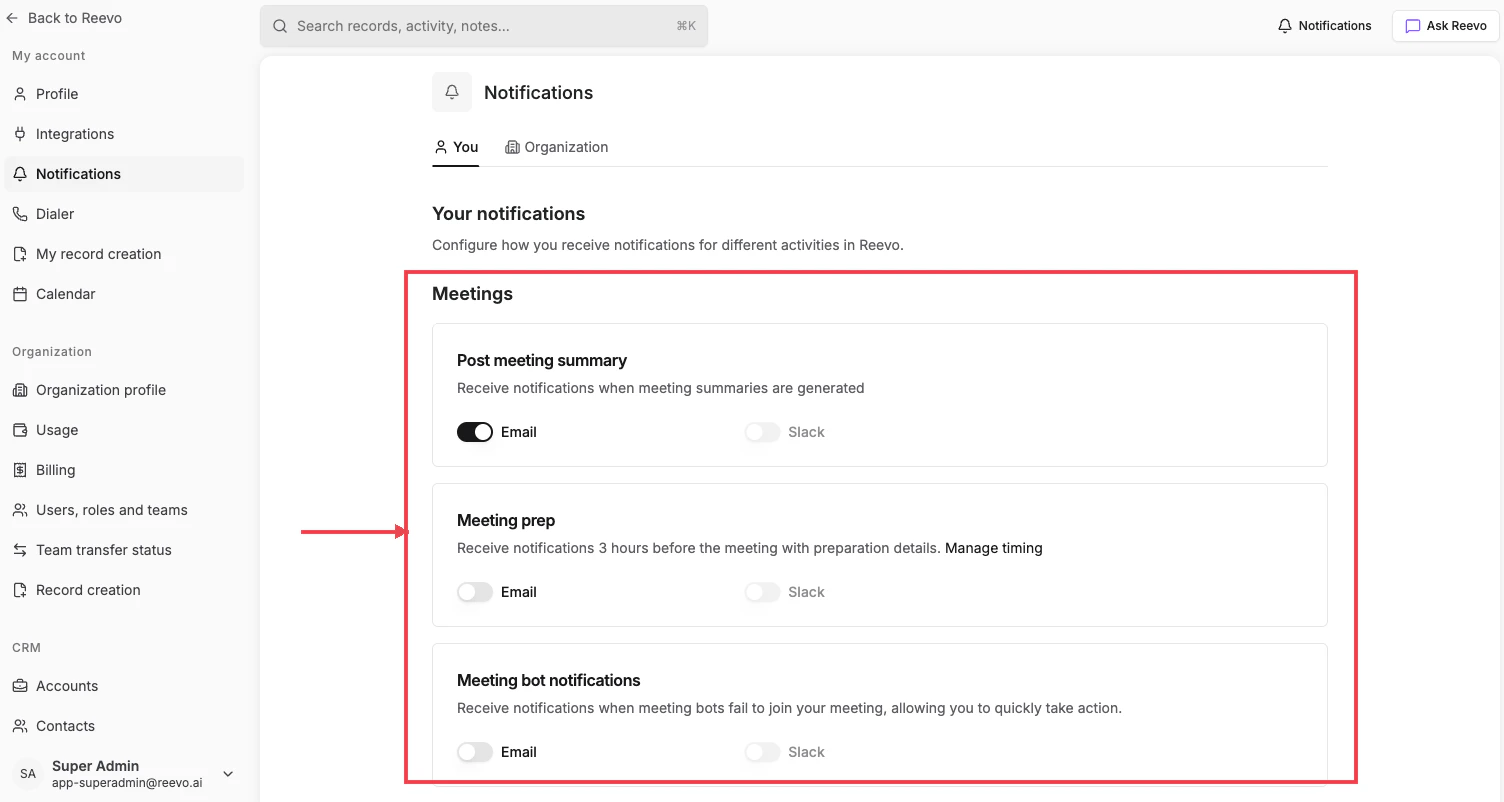
## Meetings
* **Post meeting summary**: get notified when a Notetaker-generated summary is ready. (Email, Slack)
* **Meeting prep**: receive [Pre-Meeting Prep](/Conversations/Meeting-Intelligence/Pre-Meeting-Prep) details before your upcoming meetings. The lead time (default 3 hours) is set by your admin on the **Organization** tab; click **Manage timing** on this row to jump there. (Email, Slack)
* **Meeting bot notifications**: alerts when a Notetaker bot fails to join your meeting so you can take action. (Email, Slack)
 ## Workflows
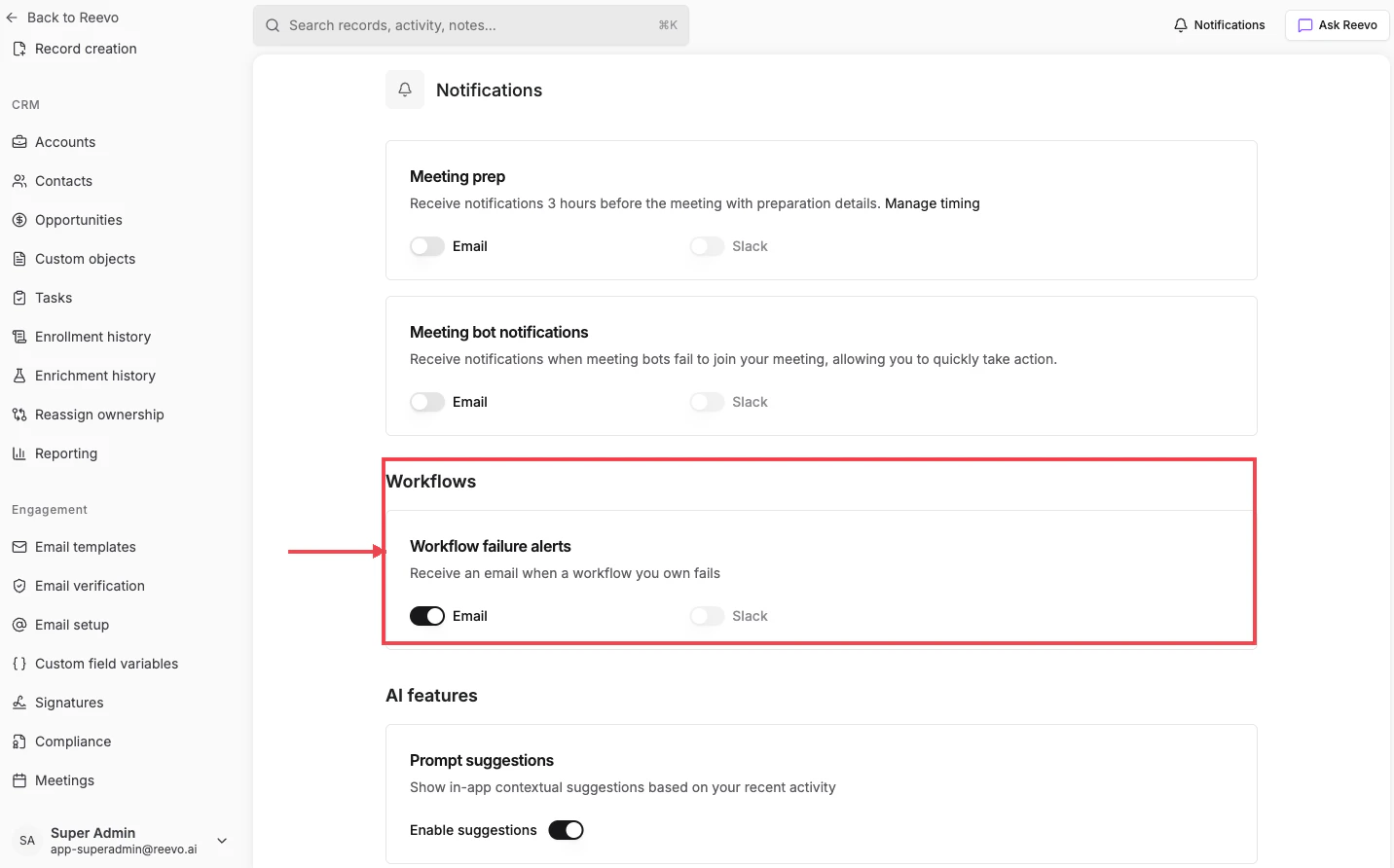
* **Workflow failure alerts**: emailed to workflow owners when a workflow they own fails to execute. On by default; email-only.
## Workflows
* **Workflow failure alerts**: emailed to workflow owners when a workflow they own fails to execute. On by default; email-only.
 ## AI features
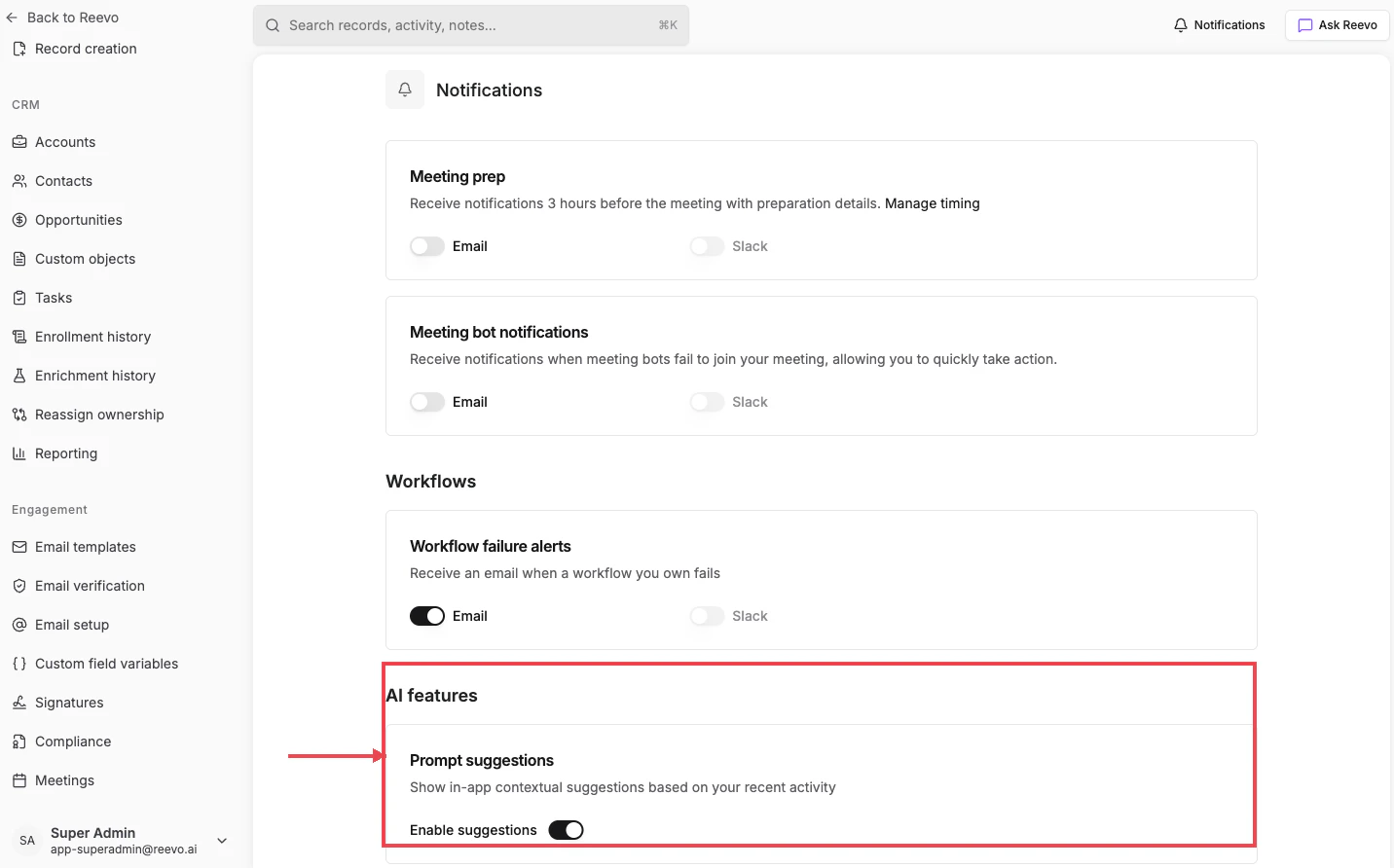
* **Prompt suggestions**: shows in-app contextual suggestions based on your recent activity. In-app only.
## AI features
* **Prompt suggestions**: shows in-app contextual suggestions based on your recent activity. In-app only.
 Other notification types (deal alerts, sequence engagement, mentions) appear here as well, with the same Email/Slack toggle pattern.
Slack notifications require the **Reevo Bot for Slack** workspace integration to be installed first. Connect it from [**Settings → Integrations**](https://app.reevo.ai/settings/integrations); see [Workspace Integrations](/Getting-started/Integrations/Workspace).
#
> Still have questions? [Sign in](https://reevo.ai/) and use AskReevo for instant answers or to raise a support ticket.
Other notification types (deal alerts, sequence engagement, mentions) appear here as well, with the same Email/Slack toggle pattern.
Slack notifications require the **Reevo Bot for Slack** workspace integration to be installed first. Connect it from [**Settings → Integrations**](https://app.reevo.ai/settings/integrations); see [Workspace Integrations](/Getting-started/Integrations/Workspace).
#
> Still have questions? [Sign in](https://reevo.ai/) and use AskReevo for instant answers or to raise a support ticket.