> ## Documentation Index
> Fetch the complete documentation index at: https://help.reevo.ai/llms.txt
> Use this file to discover all available pages before exploring further.
# Billing
> Manage your subscription, add-ons, seats, billing details, and invoice history.
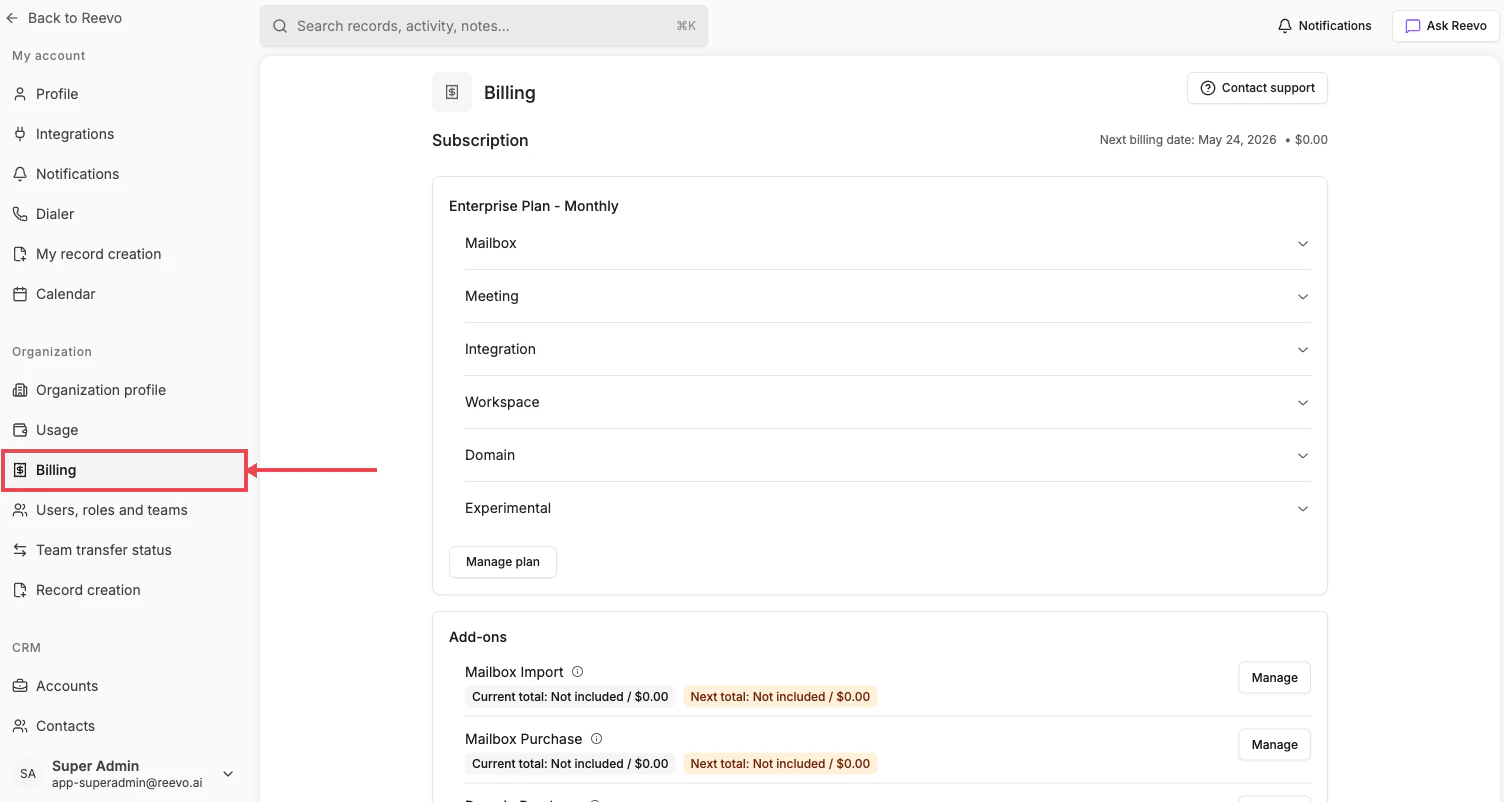
Manage your subscription, add-ons, seats, billing details, and invoice history. The next billing date and projected charge are shown at the top of the **Subscription** section.
# Where to Find It
**Settings → Organization → [Billing](https://app.reevo.ai/settings/billing)**
 # Sections
* **Subscription**: your plan (e.g. Enterprise Plan – Monthly) with collapsible per-product breakdowns: **Mailbox**, **Meeting**, **Integration**, **Workspace**, **Domain**, **Experimental**. Click **Manage plan** to change tiers.
* **Add-ons**: optional line items like **Mailbox Import** and **Mailbox Purchase**, each with current and projected next-cycle totals and a **Manage** button.
* **Seats**: total user seats included in your plan and current consumption.
* **Billing details**: payment method and billing contact information.
* **Invoices**: download past invoices for accounting.
Need to change plans or pause billing? Click **Contact support** in the page header to reach the Reevo billing team.
#
> Still have questions? [Sign in](https://reevo.ai/) and use AskReevo for instant answers or to raise a support ticket.
# Sections
* **Subscription**: your plan (e.g. Enterprise Plan – Monthly) with collapsible per-product breakdowns: **Mailbox**, **Meeting**, **Integration**, **Workspace**, **Domain**, **Experimental**. Click **Manage plan** to change tiers.
* **Add-ons**: optional line items like **Mailbox Import** and **Mailbox Purchase**, each with current and projected next-cycle totals and a **Manage** button.
* **Seats**: total user seats included in your plan and current consumption.
* **Billing details**: payment method and billing contact information.
* **Invoices**: download past invoices for accounting.
Need to change plans or pause billing? Click **Contact support** in the page header to reach the Reevo billing team.
#
> Still have questions? [Sign in](https://reevo.ai/) and use AskReevo for instant answers or to raise a support ticket.