> ## Documentation Index
> Fetch the complete documentation index at: https://help.reevo.ai/llms.txt
> Use this file to discover all available pages before exploring further.
# In-App Notifications
> View, filter, and manage notifications from the bell icon and the notifications page inside the Reevo app.
## **Overview**
In-app notifications appear in the **bell icon** in Reevo's top toolbar and on the dedicated **Notifications** page. They keep you informed about deals, tasks, calls, CRM changes, and AI processing, without leaving the app.
To configure email or Slack delivery for notifications, see [Email & Slack Notifications](/Notifications/Email-and-Slack-Notifications).
***
## **Viewing Your Notifications**
### Bell icon
Click the **bell icon** in the top-right toolbar to see your most recent notifications.
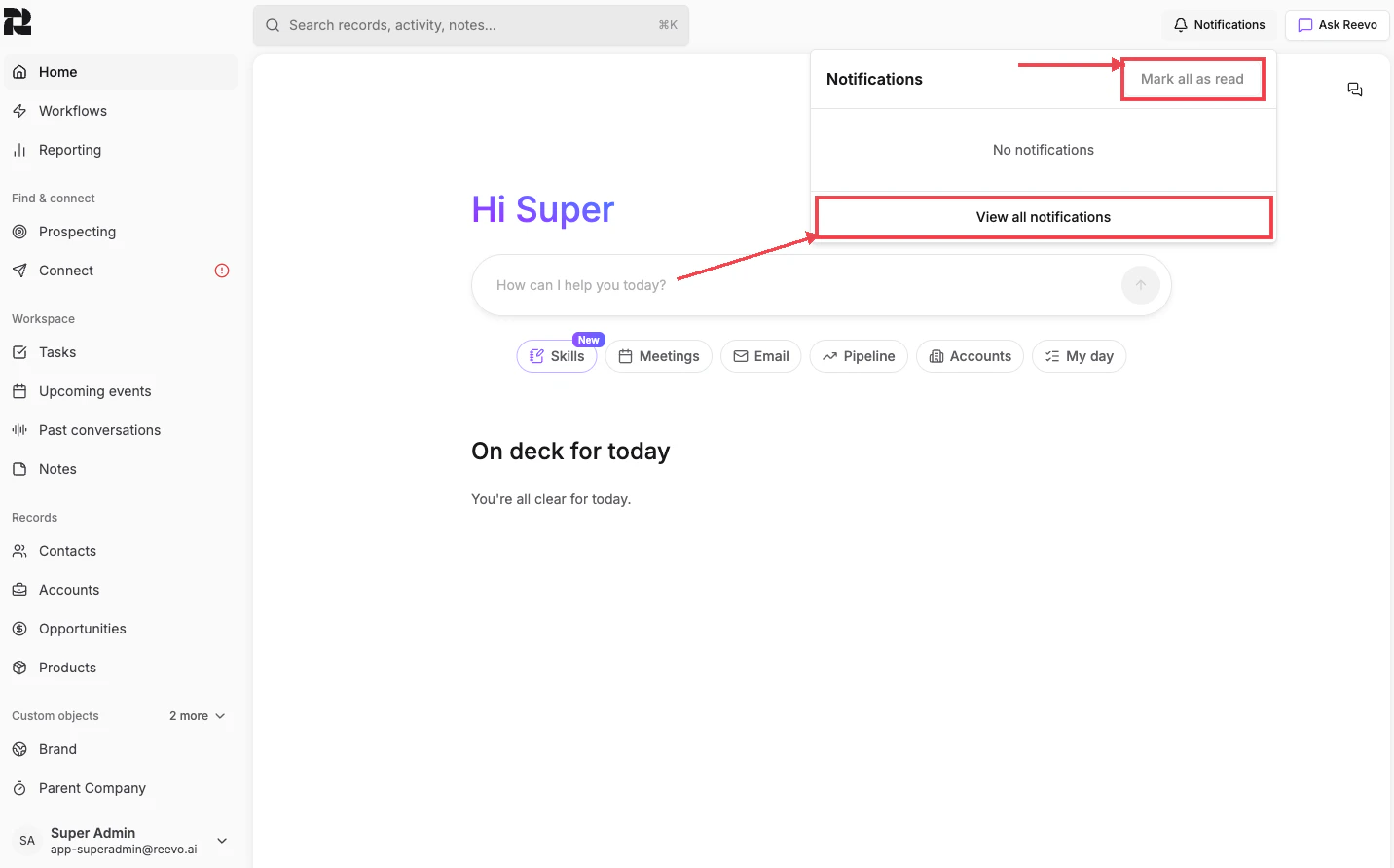
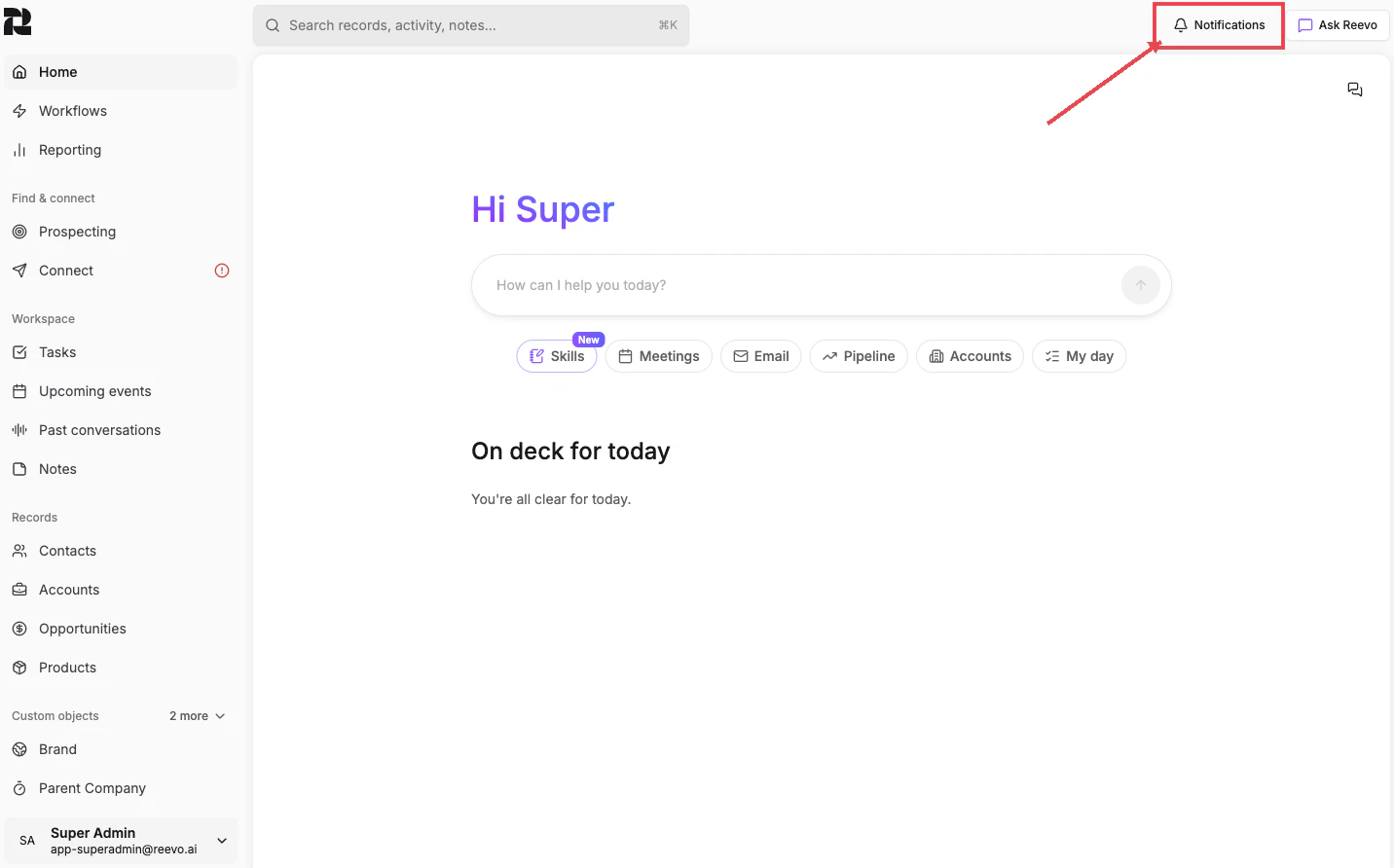 Each notification shows a brief description and a relative timestamp (e.g., "11 hr", "yesterday").
From the popover, you can:
* Click a notification to navigate to the related record or task
* Click **Mark all as read** to clear unread indicators
* Click **View all notifications** to open the full notifications page
Each notification shows a brief description and a relative timestamp (e.g., "11 hr", "yesterday").
From the popover, you can:
* Click a notification to navigate to the related record or task
* Click **Mark all as read** to clear unread indicators
* Click **View all notifications** to open the full notifications page
 ### Full notifications page
To see your complete notification history, click **View all notifications** from the bell popover, or use the **Command Palette** (`⌘K`) and search for "Notifications".
### Full notifications page
To see your complete notification history, click **View all notifications** from the bell popover, or use the **Command Palette** (`⌘K`) and search for "Notifications".
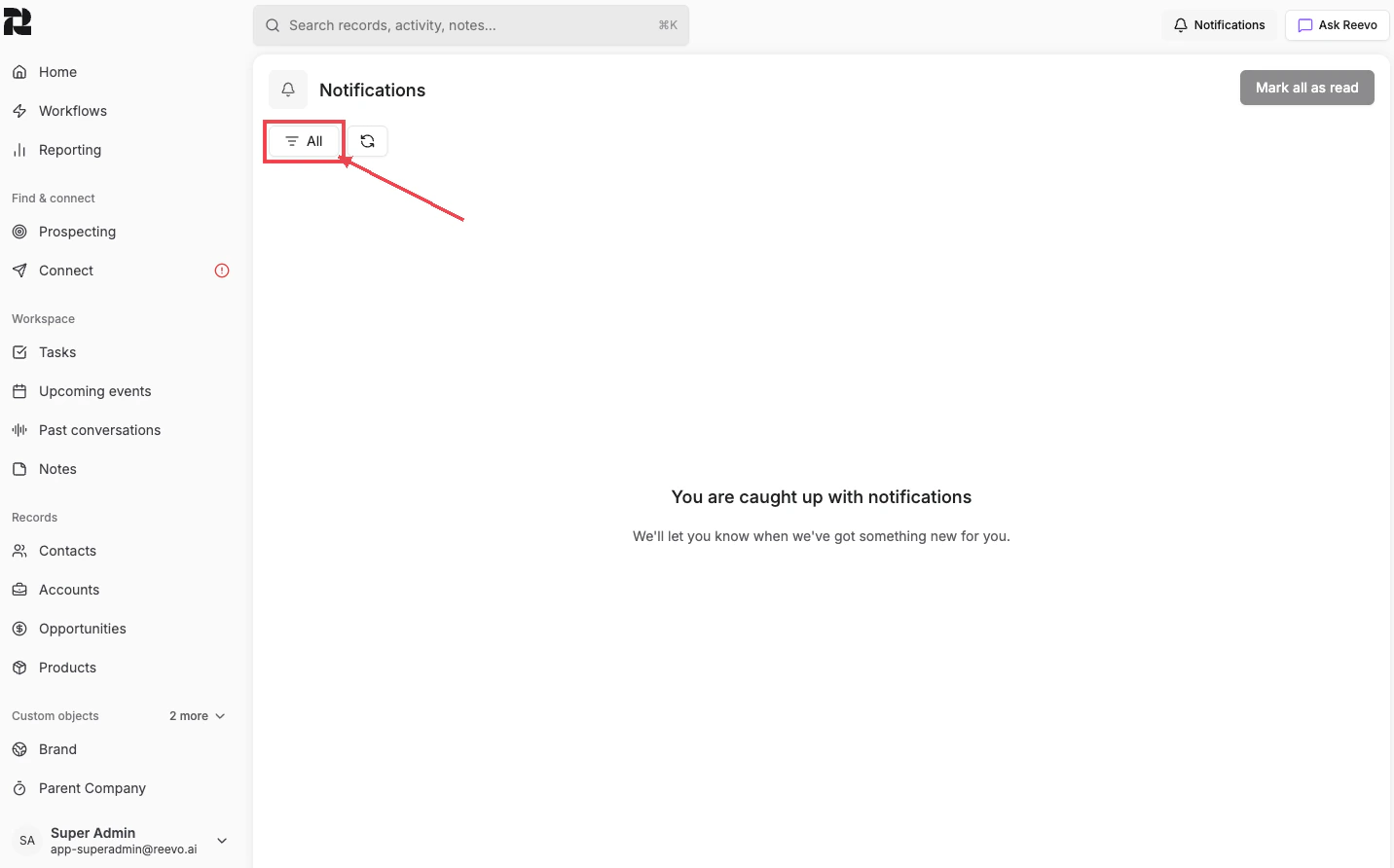 On the full page, you can:
* **Filter** notifications by **All**, **Unread**, or **Read** using the dropdown at the top
On the full page, you can:
* **Filter** notifications by **All**, **Unread**, or **Read** using the dropdown at the top
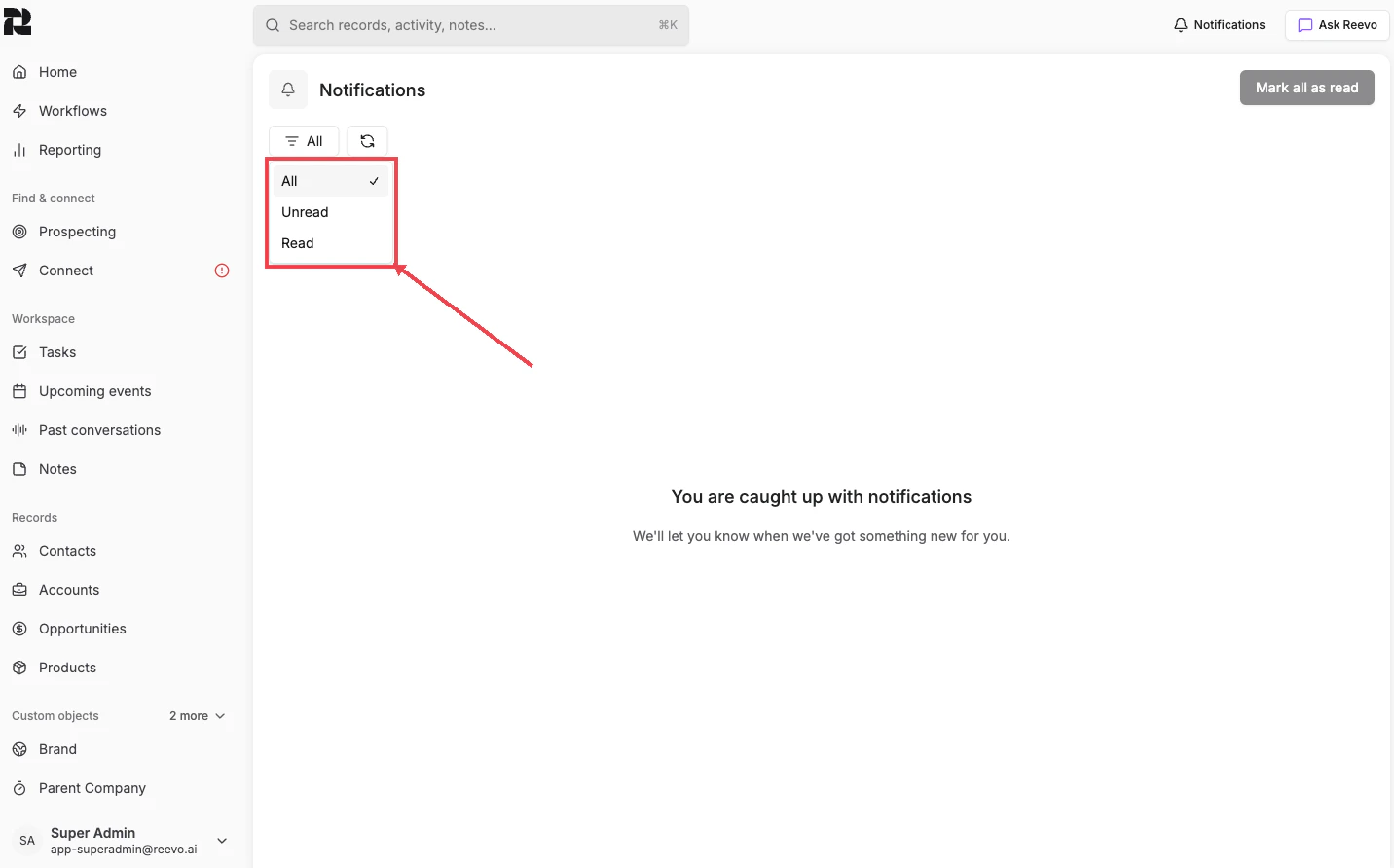 * **Refresh** the feed to check for new notifications
* **Mark all as read** to clear all unread indicators at once
* **Scroll** to load older notifications automatically
Clicking a task notification opens the task details in a side panel. Other notifications navigate you directly to the related record.
***
## **What Triggers In-App Notifications**
Reevo sends in-app notifications automatically for a variety of events. Here's what you can expect to see in your notification feed:
| Event | Example notification |
| :--------------------------------- | :-------------------------------------------------------------------------------------------------------------------------------------------------- |
| **Task created** | "Task: Prepare Q2 deck. You created a new task and assigned to you" |
| **Task assigned** | "Task: Follow up with Acme. Sarah assigned task to you." |
| **Task due soon** | "Task: Send proposal to GlobalCorp, due in 3 hours" |
| **Task overdue** | "Task: Review contract terms, was due yesterday" |
| **CRM state change** | "Contact Jane Smith stage changed from Untouched to MQL" or "Opportunity Acme Deal stage changed from Qualified To Buy to Decision Maker Bought-In" |
| **Missed call** | Missed inbound call from +1 (555) 123-4567 (Jane Smith) |
| **Voicemail left** | Voicemail left by +1 (555) 123-4567 (Jane Smith) |
| **Computed or rollup field ready** | 'The "Annual Revenue" field has finished processing and is now available to use.' |
| **Sequence enrollment ended** | "Jane Smith exited Outbound Sequence, meeting booked" |
| **Workflow execution failure** | "Lead Routing workflow failed, error in Assign Owner node" |
| **Data integrity job completed** | "CRM Data Integrity, Merge Contacts. Merge Contact Jane Smith into Jane S. Job Status: Success" |
***
## **Troubleshooting / FAQs**
In-app notifications for CRM state changes (opportunity stage changes, account status updates, etc.) are triggered whenever a record you own or are associated with is modified, even by other team members or automated workflows.
In-app notifications for system events (like CRM changes and task updates) cannot currently be fully disabled, but you can mark them as read to clear unread indicators. To stop receiving **email** or **Slack** notifications, see [Email & Slack Notifications](/Notifications/Email-and-Slack-Notifications) and disable the relevant toggles.
> Still have questions? [Sign in](https://reevo.ai/) and use AskReevo for instant answers or to raise a support ticket.
* **Refresh** the feed to check for new notifications
* **Mark all as read** to clear all unread indicators at once
* **Scroll** to load older notifications automatically
Clicking a task notification opens the task details in a side panel. Other notifications navigate you directly to the related record.
***
## **What Triggers In-App Notifications**
Reevo sends in-app notifications automatically for a variety of events. Here's what you can expect to see in your notification feed:
| Event | Example notification |
| :--------------------------------- | :-------------------------------------------------------------------------------------------------------------------------------------------------- |
| **Task created** | "Task: Prepare Q2 deck. You created a new task and assigned to you" |
| **Task assigned** | "Task: Follow up with Acme. Sarah assigned task to you." |
| **Task due soon** | "Task: Send proposal to GlobalCorp, due in 3 hours" |
| **Task overdue** | "Task: Review contract terms, was due yesterday" |
| **CRM state change** | "Contact Jane Smith stage changed from Untouched to MQL" or "Opportunity Acme Deal stage changed from Qualified To Buy to Decision Maker Bought-In" |
| **Missed call** | Missed inbound call from +1 (555) 123-4567 (Jane Smith) |
| **Voicemail left** | Voicemail left by +1 (555) 123-4567 (Jane Smith) |
| **Computed or rollup field ready** | 'The "Annual Revenue" field has finished processing and is now available to use.' |
| **Sequence enrollment ended** | "Jane Smith exited Outbound Sequence, meeting booked" |
| **Workflow execution failure** | "Lead Routing workflow failed, error in Assign Owner node" |
| **Data integrity job completed** | "CRM Data Integrity, Merge Contacts. Merge Contact Jane Smith into Jane S. Job Status: Success" |
***
## **Troubleshooting / FAQs**
In-app notifications for CRM state changes (opportunity stage changes, account status updates, etc.) are triggered whenever a record you own or are associated with is modified, even by other team members or automated workflows.
In-app notifications for system events (like CRM changes and task updates) cannot currently be fully disabled, but you can mark them as read to clear unread indicators. To stop receiving **email** or **Slack** notifications, see [Email & Slack Notifications](/Notifications/Email-and-Slack-Notifications) and disable the relevant toggles.
> Still have questions? [Sign in](https://reevo.ai/) and use AskReevo for instant answers or to raise a support ticket.