> ## Documentation Index
> Fetch the complete documentation index at: https://help.reevo.ai/llms.txt
> Use this file to discover all available pages before exploring further.
# Connecting an External Form to Reevo
> Connect a Framer, HubSpot, Jotform, Tally, Typeform, or Webflow form to Reevo using a webhook, then map its submissions to your CRM.
If you already collect leads with another form provider, you can keep that form and send its submissions to Reevo. Reevo receives each submission, maps its fields to Contact and Account fields, and starts the workflow connected to the form.
Reevo supports external forms from Framer, HubSpot, Jotform, Tally, Typeform, and Webflow.
***
## Prerequisites
* An admin role in Reevo.
* A form created with one of the supported providers.
* Any Contact or Account fields that you want to populate already created in Reevo.
External forms remain hosted by your form provider. Reevo receives their submissions and runs the connected workflow, but it does not control the form's design or hosting.
***
## Create the external form in Reevo
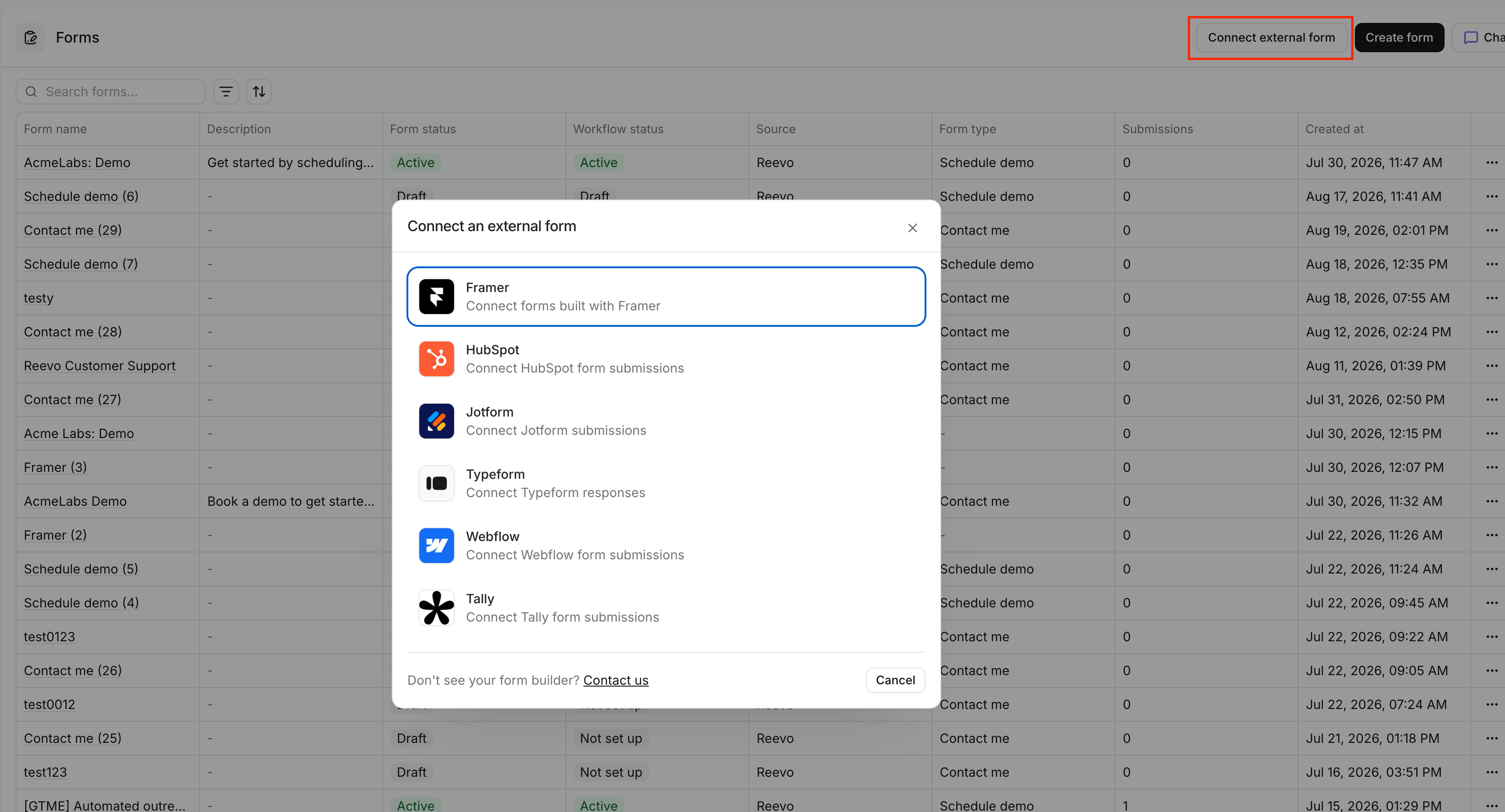
1. Open [**Forms**](https://app.reevo.ai/forms) under **Find & connect** in the sidebar.
2. Click **Set up external form**.
3. Select your form provider.
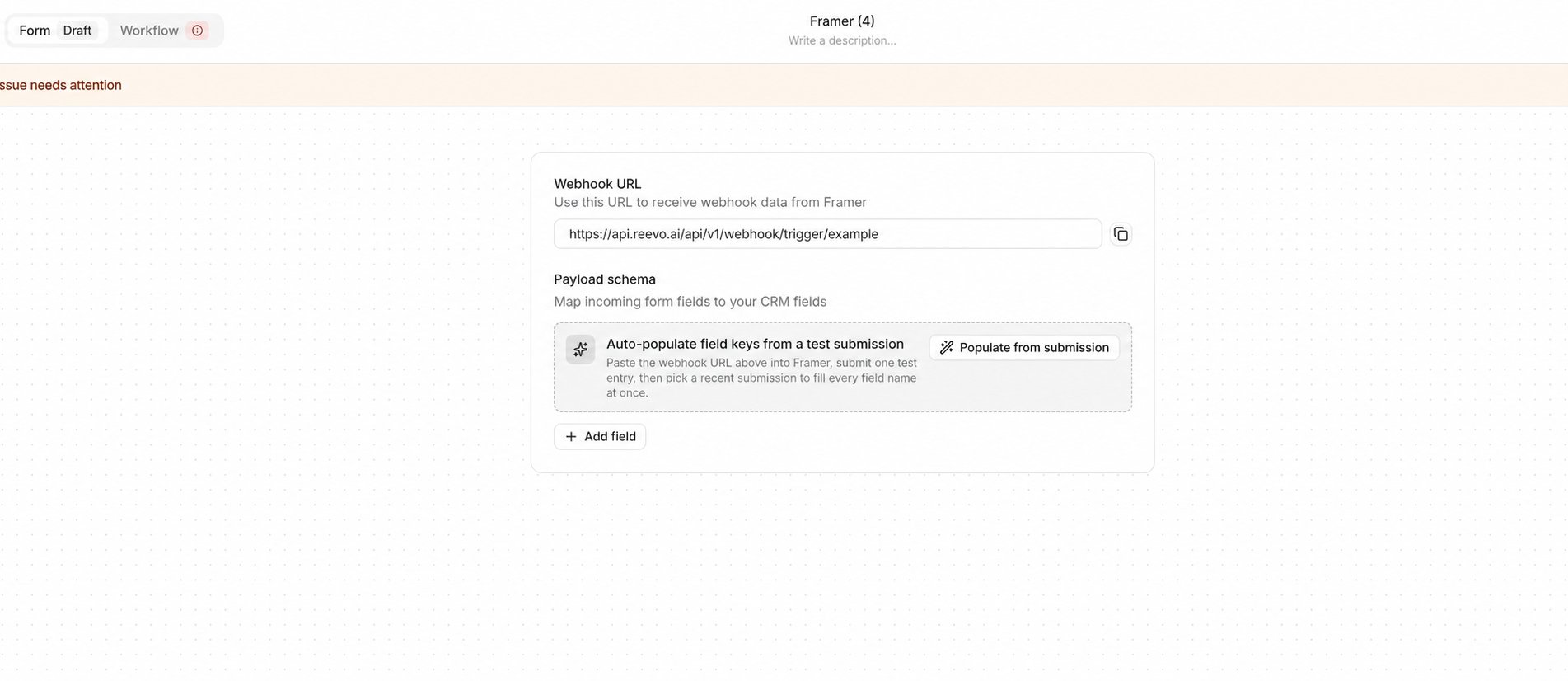
4. Enter a name for the form, then click **Create**.
5. Copy the webhook URL shown in the form builder. You will add this URL to your form provider in the next section.
 ***
## Connect your form provider
Choose your provider for instructions on adding the webhook URL, identifying incoming field names, and sending a test submission.
| Provider | Setup guide |
| :----------- | :--------------------------------------------------------------------------- |
| **Webflow** | [Connect a Webflow Form](/Prospecting-and-Outreach/External-Forms/Webflow) |
| **Framer** | [Connect a Framer Form](/Prospecting-and-Outreach/External-Forms/Framer) |
| **Typeform** | [Connect a Typeform Form](/Prospecting-and-Outreach/External-Forms/Typeform) |
| **Jotform** | [Connect a Jotform Form](/Prospecting-and-Outreach/External-Forms/Jotform) |
| **HubSpot** | [Connect a HubSpot Form](/Prospecting-and-Outreach/External-Forms/HubSpot) |
| **Tally** | [Connect a Tally Form](/Prospecting-and-Outreach/External-Forms/Tally) |
***
## Map incoming fields to your CRM
If you have not sent a test submission yet, submit the published external form using recognizable test values. Then return to the external form builder in Reevo.
1. Click **Populate from submission**.
2. Select the test submission you sent from your provider.
3. Review the incoming fields that Reevo adds to the payload schema.
4. For each source field, select **Contact** or **Account**, then choose the CRM field that should receive the value.
5. For dropdown or select-list fields, map each incoming source value to the corresponding Reevo value.
***
## Connect your form provider
Choose your provider for instructions on adding the webhook URL, identifying incoming field names, and sending a test submission.
| Provider | Setup guide |
| :----------- | :--------------------------------------------------------------------------- |
| **Webflow** | [Connect a Webflow Form](/Prospecting-and-Outreach/External-Forms/Webflow) |
| **Framer** | [Connect a Framer Form](/Prospecting-and-Outreach/External-Forms/Framer) |
| **Typeform** | [Connect a Typeform Form](/Prospecting-and-Outreach/External-Forms/Typeform) |
| **Jotform** | [Connect a Jotform Form](/Prospecting-and-Outreach/External-Forms/Jotform) |
| **HubSpot** | [Connect a HubSpot Form](/Prospecting-and-Outreach/External-Forms/HubSpot) |
| **Tally** | [Connect a Tally Form](/Prospecting-and-Outreach/External-Forms/Tally) |
***
## Map incoming fields to your CRM
If you have not sent a test submission yet, submit the published external form using recognizable test values. Then return to the external form builder in Reevo.
1. Click **Populate from submission**.
2. Select the test submission you sent from your provider.
3. Review the incoming fields that Reevo adds to the payload schema.
4. For each source field, select **Contact** or **Account**, then choose the CRM field that should receive the value.
5. For dropdown or select-list fields, map each incoming source value to the corresponding Reevo value.
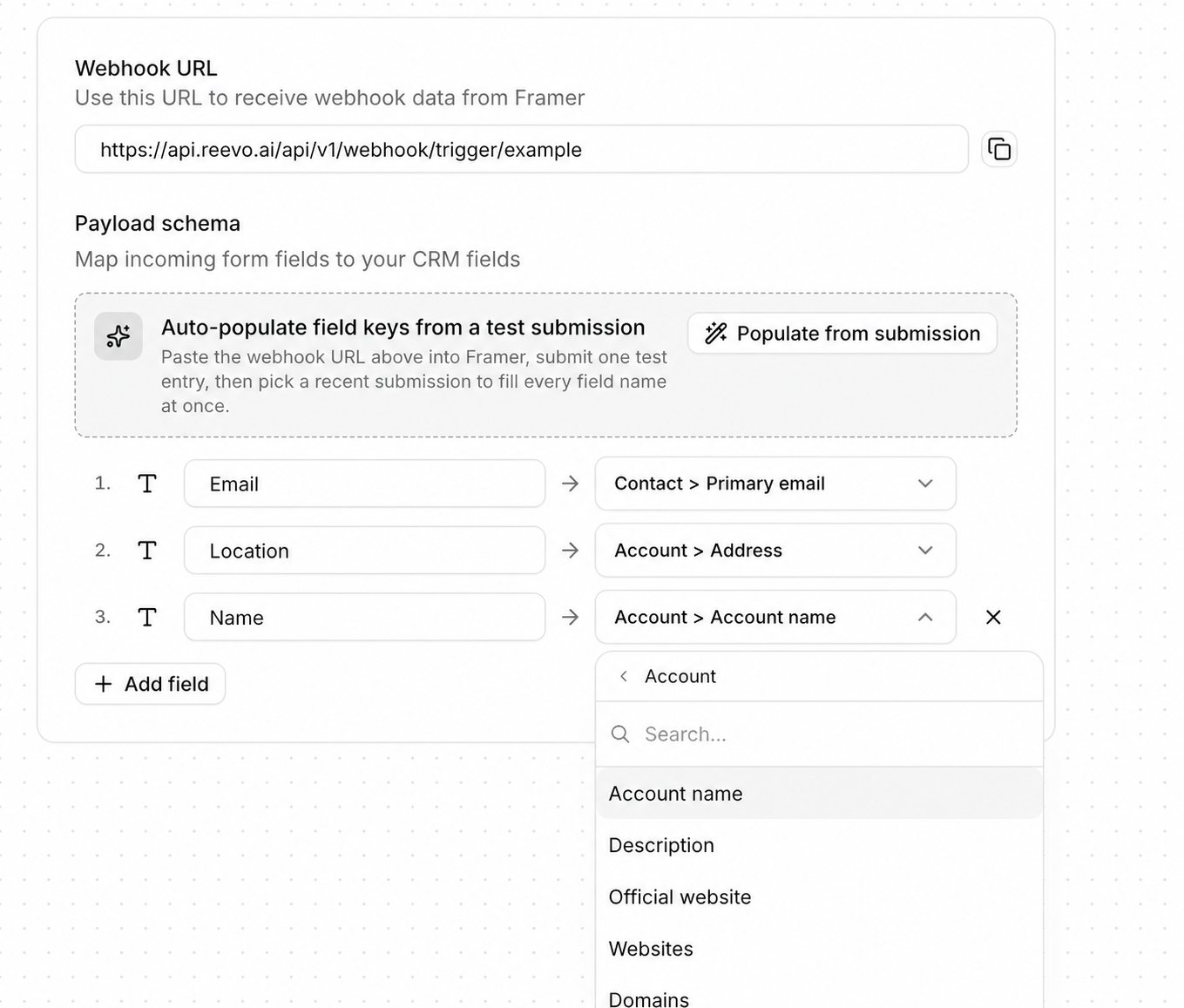 Use clear, unique field names in your external form. This makes the incoming payload easier to identify and map in Reevo.
***
## Configure the workflow and launch
1. Open the **Workflow** tab in the Reevo form builder.
2. Configure what should happen after a submission, such as creating records, assigning an owner, sending a notification, or enrolling the contact in a sequence.
3. Resolve any validation issues shown in the builder.
4. Click **Launch** to activate the form and its workflow.
For more information about form workflows and available actions, see [Building Inbound Lead Forms](/Prospecting-and-Outreach/Building-Inbound-Lead-Forms#configuring-the-workflow).
***
## Test the connection
1. Submit the published external form using recognizable test values.
2. Open the form in Reevo and select the **Submissions** tab.
3. Confirm that the test submission appears with the expected field values.
4. Open the submission and confirm that the linked workflow ran successfully.
***
## Troubleshooting
| Issue | What to check |
| :-------------------------------------------------------- | :------------------------------------------------------------------------------------------------------------------------------------------------------------------------ |
| **No submission appears in Reevo** | Confirm that the webhook is enabled, the external form is published, and the webhook URL exactly matches the URL from Reevo. |
| **The provider reports a failed delivery** | Open the provider's webhook delivery or test log, confirm that Reevo returned a successful response, then resend the test submission before changing your field mappings. |
| **Fields are missing or incorrect** | Send another test submission, then compare the provider's field names or request-body keys with the payload schema in Reevo. |
| **Dropdown values do not map** | Confirm that every incoming source value is mapped to an existing Reevo select-list value. |
| **The submission appears, but the workflow does not run** | Confirm that the external form and its linked workflow are active, then inspect the workflow run from the submission. |
| **Recent mapping or workflow changes are not active** | Return to the form builder and click **Launch changes**. |
> Still have questions? [Sign in](https://app.reevo.ai) and use Ask Reevo for help or to raise a support ticket.
Use clear, unique field names in your external form. This makes the incoming payload easier to identify and map in Reevo.
***
## Configure the workflow and launch
1. Open the **Workflow** tab in the Reevo form builder.
2. Configure what should happen after a submission, such as creating records, assigning an owner, sending a notification, or enrolling the contact in a sequence.
3. Resolve any validation issues shown in the builder.
4. Click **Launch** to activate the form and its workflow.
For more information about form workflows and available actions, see [Building Inbound Lead Forms](/Prospecting-and-Outreach/Building-Inbound-Lead-Forms#configuring-the-workflow).
***
## Test the connection
1. Submit the published external form using recognizable test values.
2. Open the form in Reevo and select the **Submissions** tab.
3. Confirm that the test submission appears with the expected field values.
4. Open the submission and confirm that the linked workflow ran successfully.
***
## Troubleshooting
| Issue | What to check |
| :-------------------------------------------------------- | :------------------------------------------------------------------------------------------------------------------------------------------------------------------------ |
| **No submission appears in Reevo** | Confirm that the webhook is enabled, the external form is published, and the webhook URL exactly matches the URL from Reevo. |
| **The provider reports a failed delivery** | Open the provider's webhook delivery or test log, confirm that Reevo returned a successful response, then resend the test submission before changing your field mappings. |
| **Fields are missing or incorrect** | Send another test submission, then compare the provider's field names or request-body keys with the payload schema in Reevo. |
| **Dropdown values do not map** | Confirm that every incoming source value is mapped to an existing Reevo select-list value. |
| **The submission appears, but the workflow does not run** | Confirm that the external form and its linked workflow are active, then inspect the workflow run from the submission. |
| **Recent mapping or workflow changes are not active** | Return to the form builder and click **Launch changes**. |
> Still have questions? [Sign in](https://app.reevo.ai) and use Ask Reevo for help or to raise a support ticket.