> ## Documentation Index
> Fetch the complete documentation index at: https://help.reevo.ai/llms.txt
> Use this file to discover all available pages before exploring further.
# Connect a Framer Form to Reevo
> Send Framer form submissions to Reevo with a webhook, then map Framer input names to your CRM.
Connect a Framer form to Reevo to create or update CRM records and run a Reevo workflow whenever someone submits the form.
***
## Before you start
You need a Framer project with a Form Builder element and an external form created in Reevo. Follow [Connecting an External Form to Reevo](/Prospecting-and-Outreach/Connecting-an-External-Form#create-the-external-form-in-reevo) to create it and copy its webhook URL.
***
## Add the webhook URL in Framer
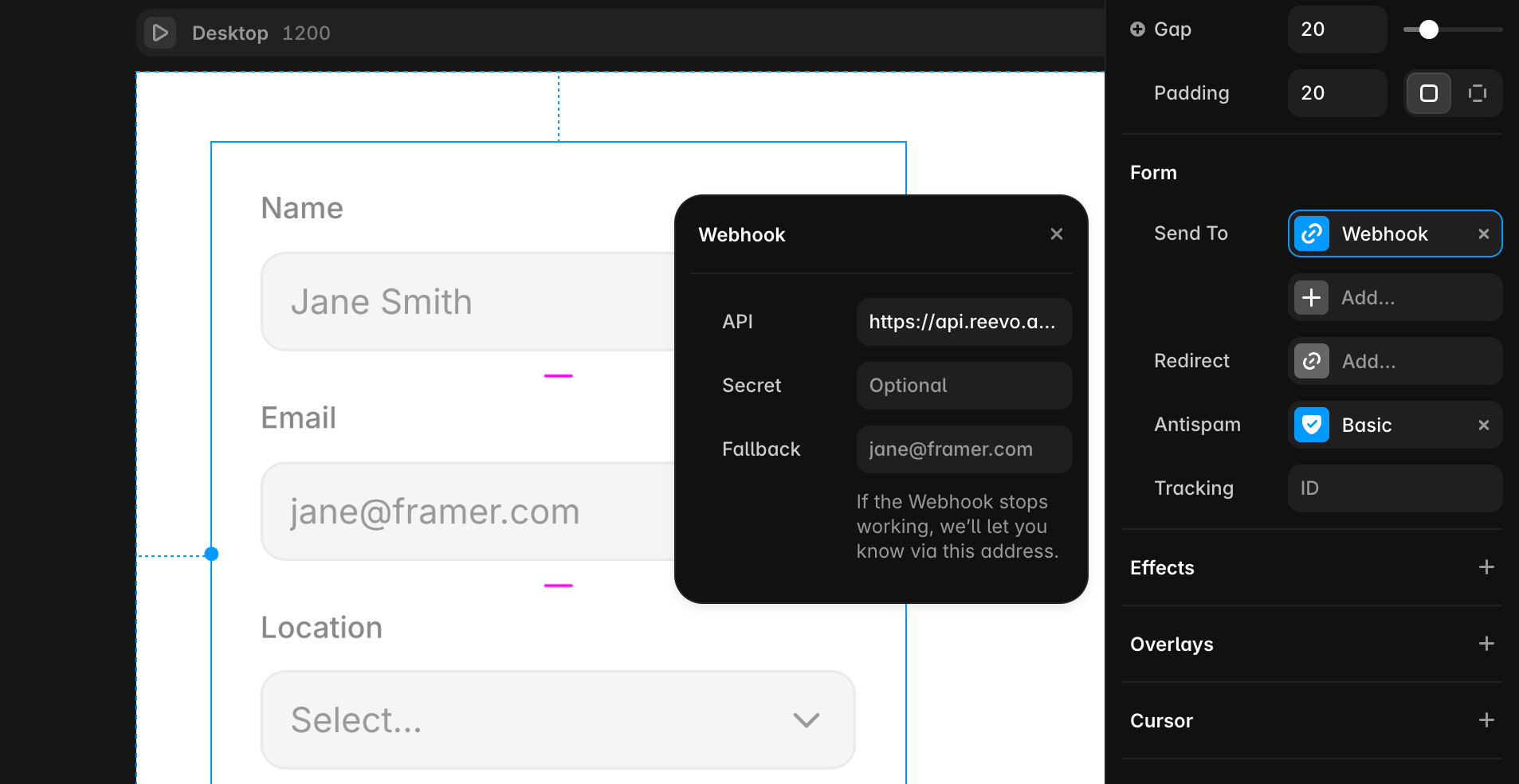
1. Open your project in Framer and select the form on the canvas.
2. In the right sidebar, find **Send To**.
3. Click **Add**, then select **Webhook**.
4. Paste the webhook URL you copied from Reevo.
5. Publish your project so the webhook is active on the live form.
 ***
## Identify the fields to map
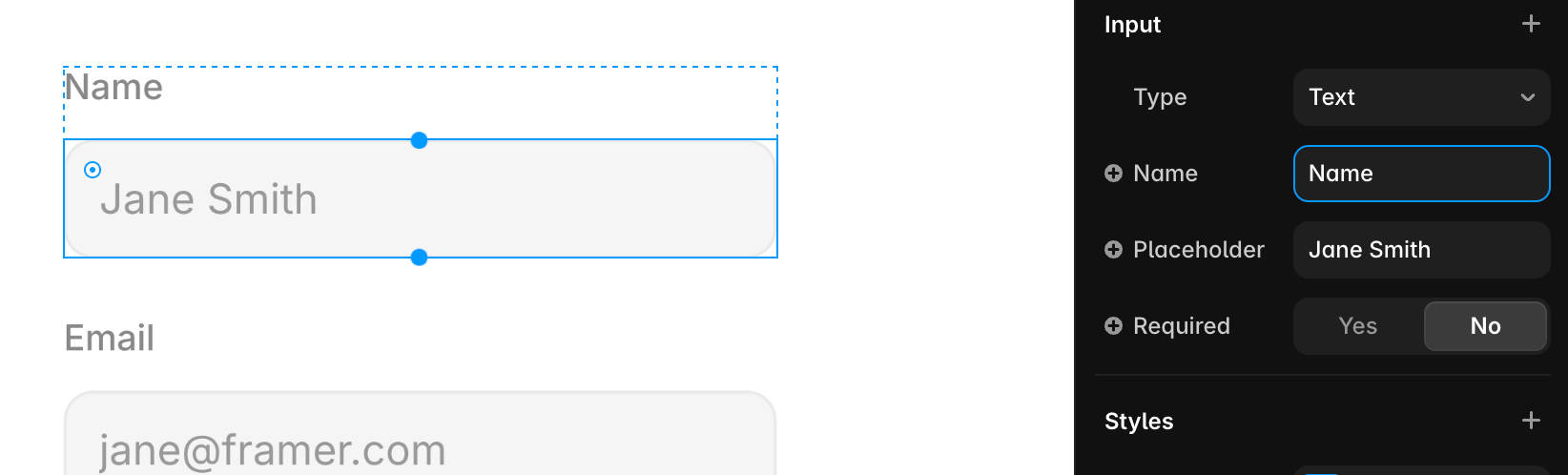
Framer sends each input's **Name** as its payload key. Check the input itself rather than the visible title or label.
1. Select an input inside the form.
2. Find **Name** under **Input** in the right sidebar.
3. Give the field a clear, unique name.
4. Repeat for every field that you want to map in Reevo.
***
## Identify the fields to map
Framer sends each input's **Name** as its payload key. Check the input itself rather than the visible title or label.
1. Select an input inside the form.
2. Find **Name** under **Input** in the right sidebar.
3. Give the field a clear, unique name.
4. Repeat for every field that you want to map in Reevo.
 ***
## Map and test the form in Reevo
1. Submit the published Framer form using recognizable test values.
2. Return to the external form builder in Reevo and click **Populate from submission**.
3. Select the test submission.
4. Map each Framer input name to its Contact or Account field.
5. Configure the connected workflow, then click **Launch**.
6. Submit the Framer form again and confirm the submission and workflow appear in Reevo.
For the complete mapping and workflow steps, see [Connecting an External Form to Reevo](/Prospecting-and-Outreach/Connecting-an-External-Form#map-incoming-fields-to-your-crm).
***
## Troubleshooting Framer
* **The webhook does not run**: confirm that **Webhook** is selected under **Send To** and that you published the project after adding it.
* **A field is missing**: confirm that the input has a unique **Name**, then send another test submission.
* **The wrong field appears in Reevo**: compare the incoming key with the input's **Name**, not its visible label.
***
## Map and test the form in Reevo
1. Submit the published Framer form using recognizable test values.
2. Return to the external form builder in Reevo and click **Populate from submission**.
3. Select the test submission.
4. Map each Framer input name to its Contact or Account field.
5. Configure the connected workflow, then click **Launch**.
6. Submit the Framer form again and confirm the submission and workflow appear in Reevo.
For the complete mapping and workflow steps, see [Connecting an External Form to Reevo](/Prospecting-and-Outreach/Connecting-an-External-Form#map-incoming-fields-to-your-crm).
***
## Troubleshooting Framer
* **The webhook does not run**: confirm that **Webhook** is selected under **Send To** and that you published the project after adding it.
* **A field is missing**: confirm that the input has a unique **Name**, then send another test submission.
* **The wrong field appears in Reevo**: compare the incoming key with the input's **Name**, not its visible label.