> ## Documentation Index
> Fetch the complete documentation index at: https://help.reevo.ai/llms.txt
> Use this file to discover all available pages before exploring further.
# Connect a Jotform Form to Reevo
> Send Jotform submissions to Reevo with a webhook and map custom request-body keys to your CRM.
Connect a Jotform form to Reevo to create or update CRM records and run a Reevo workflow whenever someone submits the form.
***
## Before you start
You need a Jotform form and an external form created in Reevo. Follow [Connecting an External Form to Reevo](/Prospecting-and-Outreach/Connecting-an-External-Form#create-the-external-form-in-reevo) to create it and copy its webhook URL.
***
## Configure the webhook in Jotform
1. Open your form and go to **Settings**, then **Workflows**.
2. Create a workflow from scratch or open the workflow connected to your form.
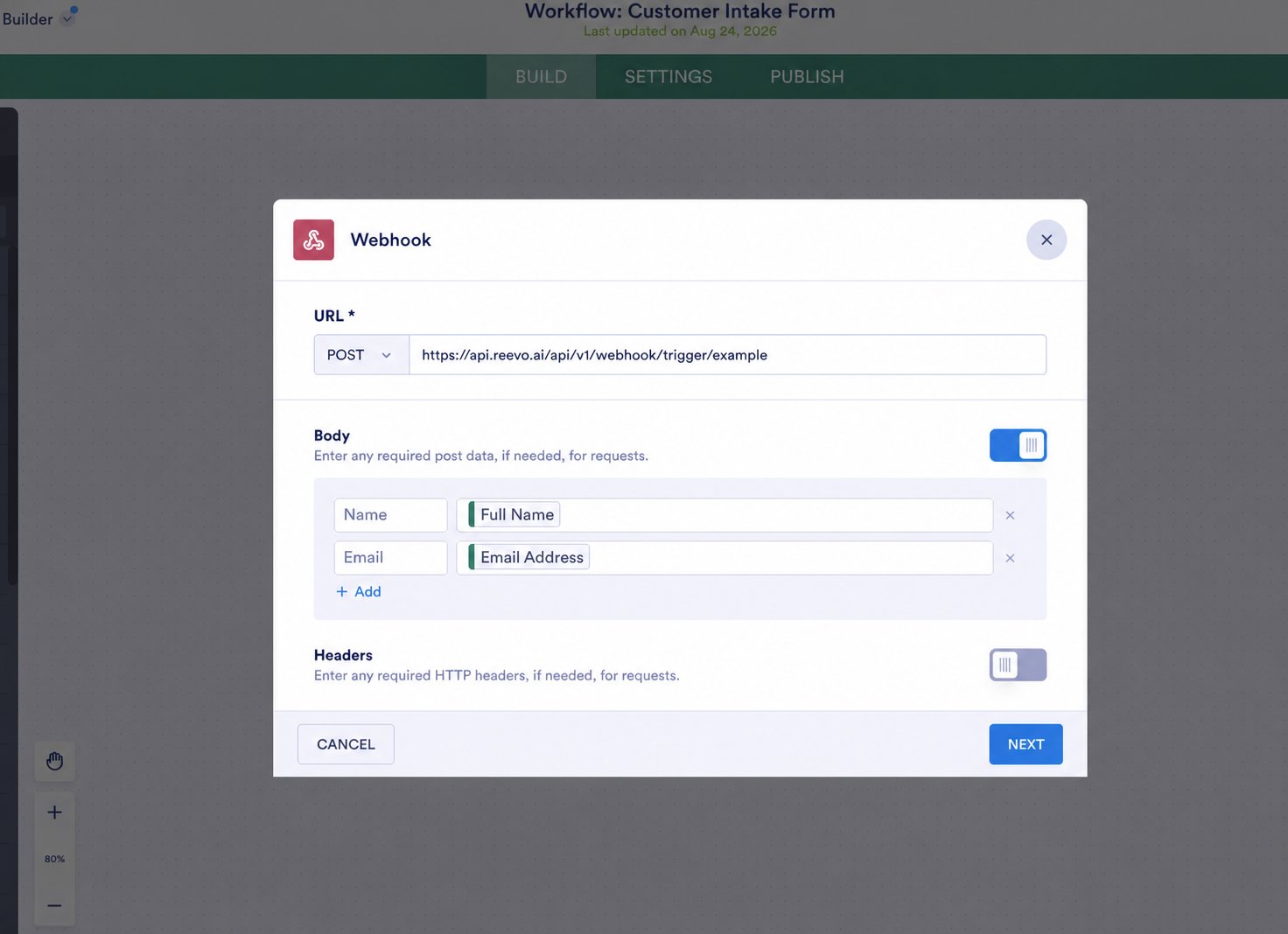
3. Add a **Webhook** element and open its settings.
4. Select an HTTP request and set the method to `POST`.
5. Paste the webhook URL you copied from Reevo.
6. Turn on the request body.
 ***
## Define the fields to send
Jotform lets you define the request-body keys that Reevo receives.
1. Add a clear, unique key for each value that you want to send.
2. Connect each key to the corresponding Jotform field.
3. Save the webhook and workflow configuration.
4. Submit the form using recognizable test values.
Use stable names such as `first_name`, `last_name`, and `company_name`. If you rename a request-body key later, update its mapping in Reevo.
***
## Map and test the form in Reevo
1. Return to the external form builder in Reevo and click **Populate from submission**.
2. Select the Jotform test submission.
3. Map each request-body key to its Contact or Account field.
4. Configure the connected workflow, then click **Launch**.
5. Submit the Jotform form again and confirm the submission and workflow appear in Reevo.
For the complete mapping and workflow steps, see [Connecting an External Form to Reevo](/Prospecting-and-Outreach/Connecting-an-External-Form#map-incoming-fields-to-your-crm).
***
## Troubleshooting Jotform
* **No submission appears in Reevo**: confirm that the request uses `POST`, the workflow is saved, and the URL exactly matches the one from Reevo.
* **A field is missing**: confirm that its request-body key is connected to a Jotform field and that the test submission contains a value.
* **An unexpected key appears**: review the custom request body in the webhook element, then send another test submission.
***
## Define the fields to send
Jotform lets you define the request-body keys that Reevo receives.
1. Add a clear, unique key for each value that you want to send.
2. Connect each key to the corresponding Jotform field.
3. Save the webhook and workflow configuration.
4. Submit the form using recognizable test values.
Use stable names such as `first_name`, `last_name`, and `company_name`. If you rename a request-body key later, update its mapping in Reevo.
***
## Map and test the form in Reevo
1. Return to the external form builder in Reevo and click **Populate from submission**.
2. Select the Jotform test submission.
3. Map each request-body key to its Contact or Account field.
4. Configure the connected workflow, then click **Launch**.
5. Submit the Jotform form again and confirm the submission and workflow appear in Reevo.
For the complete mapping and workflow steps, see [Connecting an External Form to Reevo](/Prospecting-and-Outreach/Connecting-an-External-Form#map-incoming-fields-to-your-crm).
***
## Troubleshooting Jotform
* **No submission appears in Reevo**: confirm that the request uses `POST`, the workflow is saved, and the URL exactly matches the one from Reevo.
* **A field is missing**: confirm that its request-body key is connected to a Jotform field and that the test submission contains a value.
* **An unexpected key appears**: review the custom request body in the webhook element, then send another test submission.