> ## Documentation Index
> Fetch the complete documentation index at: https://help.reevo.ai/llms.txt
> Use this file to discover all available pages before exploring further.
# Sequences: Create Automated Multi-Channel Campaigns
> Sequences are automated multi-channel campaigns that help sales teams engage prospects and customers at scale. Sequences save time by automating repetitive outreach while maintaining personalization. Instead of manually doing outreach, you can enroll contacts into a sequence that automatically sends the right message at the right time based on your schedule and rules.
## **Prerequisites**
Before using Sequences, you need:
* **Admin or User role** with appropriate permissions in your Reevo workspace
* [Connected mailbox](https://app.reevo.ai/settings/email-setup) to send emails from sequences
* **Contacts or accounts** to enroll in your sequences
* [**Email templates**](https://app.reevo.ai/settings/email-templates) (optional but recommended for faster setup)
Your organization must have sequences enabled in your plan. Check your [**Usage**](https://app.reevo.ai/settings/usage) page to see sequence-related quotas and limits.
***
# Get Started
## **Accessing Sequences**
1. Navigate to [**Connect**](https://app.reevo.ai/connect?tab=sequences) in the main sidebar
2. Click the [**Sequences**](https://app.reevo.ai/connect?tab=sequences) tab to view all your sequences
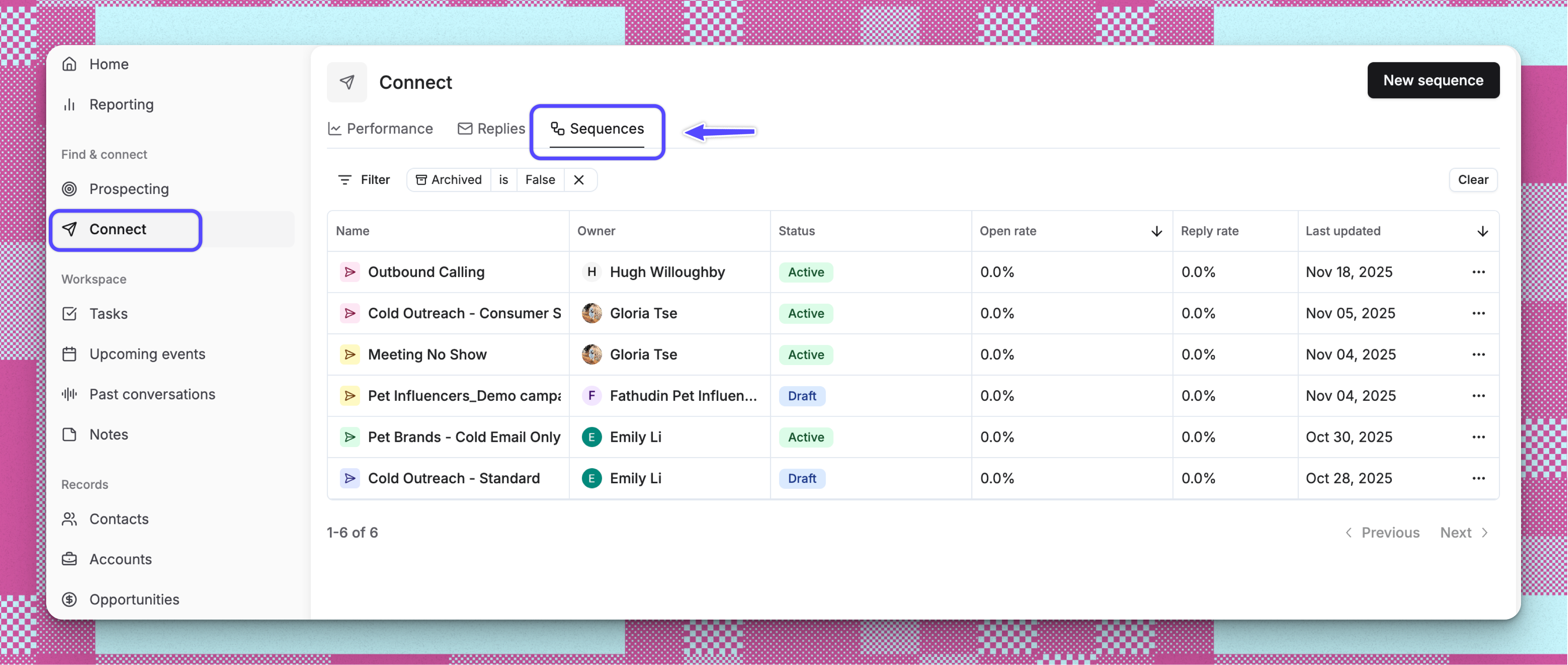 The Connect section groups all your outreach tools together, including sequences and other campaign features.
***
## Understanding Steps in Sequences
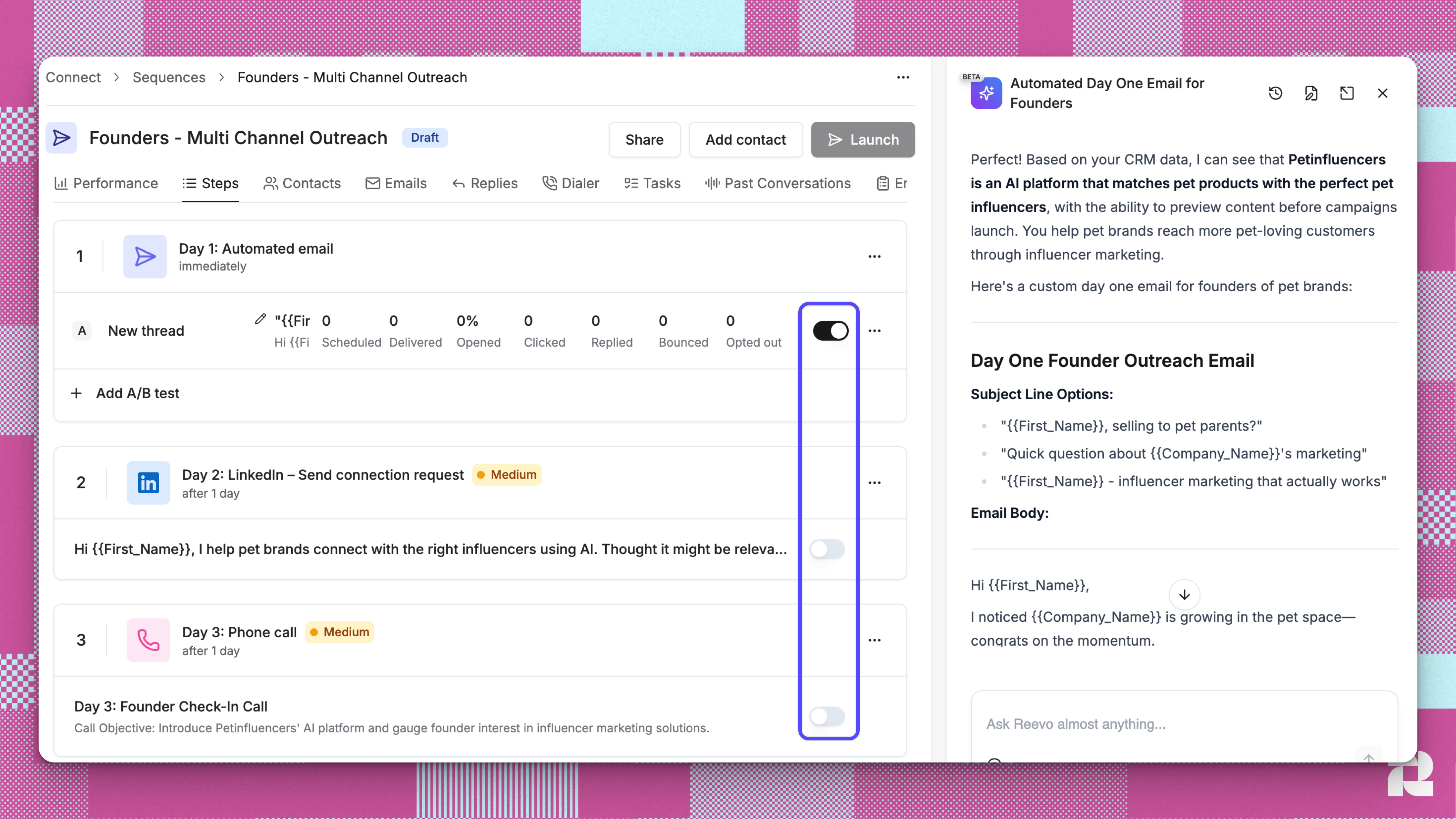
A sequence consists of multiple steps that can include automated emails, manual tasks like calls or LinkedIn outreach, and A/B testing variants to optimize messaging. Reevo offers full customization of these actions to build sequences that fit the way your team sells.
| **Category** | **Step Type** | **What it does** | **When to use** | **User Experience** | **Action Required** |
| :------------ | :----------------------------------------------------------------------------------------- | :-------------------------------------------------------- | :---------------------------------------------------------- | :---------------------------------------------------------------------- | :-------------------------------------- |
| **Automatic** | Automated Email | Sends emails automatically without user intervention. | For standardized messaging that doesn't need customization. | Emails queue and send automatically based on schedule and mailbox quota | **None** (System handles everything). |
| **Task** | Manual Email | Creates a task to review and send an email manually. | When you need to personalize messages or add context. | A task appears with a draft email prepared. | Open task, review/edit, and click send. |
| **Task** | Phone Call (Contacts enrolled in this sequence must have a valid phone number in your CRM) | Creates a call task with instructions and talking points. | For phone outreach in multi-channel sequences. | Task appears with call details and priority level. | Complete call and log the outcome. |
| **LinkedIn** | Connection Request | Creates a task to send a LinkedIn connection request. | To expand your network and get on prospects' radar. | Task includes the connection message and note. | Send the request via LinkedIn. |
| **LinkedIn** | Message | Creates a task to send a direct LinkedIn message. | For following up with connected prospects. | Task includes the message content. | Send the message via LinkedIn. |
| **LinkedIn** | InMail | Creates a task to send a LinkedIn InMail (Premium). | To reach prospects you aren't connected with yet. | Task includes InMail content. | Send the InMail via LinkedIn. |
***
## How to Create and Launch Sequences
### 🧬 **Step 1: Creating a Sequence**
1. Ensure you have at least one mailbox in your [email setup](https://app.reevo.ai/settings/email-setup) (under settings) that is enabled for sequences and ready for sending
2. From [**Connect > Sequences**](https://app.reevo.ai/connect?tab=sequences), click **New Sequence** to start a new sequence
3. Select one of the following creation methods:
1. **Start from scratch:** Build a completely custom sequence from the ground up
* **Best for** unique outreach strategies or when you need full control over every detail
* You'll configure the sequence name, schedule, and steps manually
2. **Use a sequence blueprint:** Choose from pre-built sequence templates designed for common use cases
* Saves time by providing proven sequence structures you can customize
* **Ideal for** standard outreach patterns like cold outreach, follow-ups, or onboarding
3. **Clone a sequence:** Copy an existing sequence from your workspace
* Preserves all steps, variants, and configurations from the original
* **Perfect for** creating variations of successful sequences or adapting a teammate's sequence
4. Name your sequence with a clear, descriptive title (i.e Tech Founders Email Multi-Channel Cold Outreach)
5. Add sequence steps in order:
* **Automated email steps**: Compose email content or select from templates
* **Manual task steps**: Add call tasks, LinkedIn connection requests, or other manual actions
* **Wait periods**: Set delays between steps (hours or days)
6. Configure step variants for A/B testing different messaging approaches
7. Set your sending schedule to control when emails go out
8. **Enable** the variant you want to activate for this sequence
The Connect section groups all your outreach tools together, including sequences and other campaign features.
***
## Understanding Steps in Sequences
A sequence consists of multiple steps that can include automated emails, manual tasks like calls or LinkedIn outreach, and A/B testing variants to optimize messaging. Reevo offers full customization of these actions to build sequences that fit the way your team sells.
| **Category** | **Step Type** | **What it does** | **When to use** | **User Experience** | **Action Required** |
| :------------ | :----------------------------------------------------------------------------------------- | :-------------------------------------------------------- | :---------------------------------------------------------- | :---------------------------------------------------------------------- | :-------------------------------------- |
| **Automatic** | Automated Email | Sends emails automatically without user intervention. | For standardized messaging that doesn't need customization. | Emails queue and send automatically based on schedule and mailbox quota | **None** (System handles everything). |
| **Task** | Manual Email | Creates a task to review and send an email manually. | When you need to personalize messages or add context. | A task appears with a draft email prepared. | Open task, review/edit, and click send. |
| **Task** | Phone Call (Contacts enrolled in this sequence must have a valid phone number in your CRM) | Creates a call task with instructions and talking points. | For phone outreach in multi-channel sequences. | Task appears with call details and priority level. | Complete call and log the outcome. |
| **LinkedIn** | Connection Request | Creates a task to send a LinkedIn connection request. | To expand your network and get on prospects' radar. | Task includes the connection message and note. | Send the request via LinkedIn. |
| **LinkedIn** | Message | Creates a task to send a direct LinkedIn message. | For following up with connected prospects. | Task includes the message content. | Send the message via LinkedIn. |
| **LinkedIn** | InMail | Creates a task to send a LinkedIn InMail (Premium). | To reach prospects you aren't connected with yet. | Task includes InMail content. | Send the InMail via LinkedIn. |
***
## How to Create and Launch Sequences
### 🧬 **Step 1: Creating a Sequence**
1. Ensure you have at least one mailbox in your [email setup](https://app.reevo.ai/settings/email-setup) (under settings) that is enabled for sequences and ready for sending
2. From [**Connect > Sequences**](https://app.reevo.ai/connect?tab=sequences), click **New Sequence** to start a new sequence
3. Select one of the following creation methods:
1. **Start from scratch:** Build a completely custom sequence from the ground up
* **Best for** unique outreach strategies or when you need full control over every detail
* You'll configure the sequence name, schedule, and steps manually
2. **Use a sequence blueprint:** Choose from pre-built sequence templates designed for common use cases
* Saves time by providing proven sequence structures you can customize
* **Ideal for** standard outreach patterns like cold outreach, follow-ups, or onboarding
3. **Clone a sequence:** Copy an existing sequence from your workspace
* Preserves all steps, variants, and configurations from the original
* **Perfect for** creating variations of successful sequences or adapting a teammate's sequence
4. Name your sequence with a clear, descriptive title (i.e Tech Founders Email Multi-Channel Cold Outreach)
5. Add sequence steps in order:
* **Automated email steps**: Compose email content or select from templates
* **Manual task steps**: Add call tasks, LinkedIn connection requests, or other manual actions
* **Wait periods**: Set delays between steps (hours or days)
6. Configure step variants for A/B testing different messaging approaches
7. Set your sending schedule to control when emails go out
8. **Enable** the variant you want to activate for this sequence
 ### 👤 **Step 2: Enrolling Contacts**
Launching a sequence turns it on, but outreach only sends after contacts are enrolled. There are **four primary methods** for adding contacts to sequences:
| **Enrollment Method** | **How to Access** | **What It Does** | **When to Use** |
| :----------------------- | :------------------------------------------------------------------------------------- | :--------------------------------------------------------------------------------------------------------------------------------- | :---------------------------------------------------------------------------------------- |
| **Add from List** | Go to **Connect > Sequences**, click **Add contact**, select **Add from list**. | Allows you to select an existing contact list and enroll **all** contacts from that list at once. | Best for bulk enrolling pre-defined groups you have already organized. |
| **Add from CRM** | Go to **Connect > Sequences**, click **Add contact**, select **Add from CRM**. | Opens a search interface to find contacts by name/email. *Note: Admins can toggle between personal or organization-wide contacts.* | Ideal for hand-picking specific contacts or reviewing individuals before enrollment. |
| **Add from Prospecting** | Go to **Connect > Sequences**, click **Add contact**, select **Add from prospecting**. | Redirects you to the prospecting tool to search for new leads and enroll them immediately. | Perfect for finding and enrolling **net-new prospects** who are not yet in your database. |
| **Chrome Extension** | Open the **Reevo Chrome Extension** while viewing a **LinkedIn profile**. | Allows you to extract a contact and enroll them directly without leaving the LinkedIn tab. | Streamlines workflow when prospecting on LinkedIn to avoid tab-switching. |
### 📬 **Step 3: Configure Mailbox & Sending Method**
### 👤 **Step 2: Enrolling Contacts**
Launching a sequence turns it on, but outreach only sends after contacts are enrolled. There are **four primary methods** for adding contacts to sequences:
| **Enrollment Method** | **How to Access** | **What It Does** | **When to Use** |
| :----------------------- | :------------------------------------------------------------------------------------- | :--------------------------------------------------------------------------------------------------------------------------------- | :---------------------------------------------------------------------------------------- |
| **Add from List** | Go to **Connect > Sequences**, click **Add contact**, select **Add from list**. | Allows you to select an existing contact list and enroll **all** contacts from that list at once. | Best for bulk enrolling pre-defined groups you have already organized. |
| **Add from CRM** | Go to **Connect > Sequences**, click **Add contact**, select **Add from CRM**. | Opens a search interface to find contacts by name/email. *Note: Admins can toggle between personal or organization-wide contacts.* | Ideal for hand-picking specific contacts or reviewing individuals before enrollment. |
| **Add from Prospecting** | Go to **Connect > Sequences**, click **Add contact**, select **Add from prospecting**. | Redirects you to the prospecting tool to search for new leads and enroll them immediately. | Perfect for finding and enrolling **net-new prospects** who are not yet in your database. |
| **Chrome Extension** | Open the **Reevo Chrome Extension** while viewing a **LinkedIn profile**. | Allows you to extract a contact and enroll them directly without leaving the LinkedIn tab. | Streamlines workflow when prospecting on LinkedIn to avoid tab-switching. |
### 📬 **Step 3: Configure Mailbox & Sending Method**
 During enrollment, choose how emails are sent for that enrollment run. This is where you select the mailbox strategy. You have two options:
**Option 1: Use existing CRM owners (default)**
Emails are sent from the mailbox of each contact's assigned CRM owner. You must also select a **fallback mailbox**, which is used when a CRM owner has no available mailbox.
**Option 2: Use specific mailboxes**
Manually select one or more mailboxes to send from. Emails are distributed evenly across your selected mailboxes. You can search mailboxes by email and view each mailbox's owner, health status, and which sequences it's already assigned to. A **fallback mailbox** is also required and must be chosen from mailboxes outside your selection.
The **Add to sequence** button remains disabled until a valid sending method is configured (a method is selected and a fallback mailbox is set).
Your last-used sending method configuration is remembered and pre-filled the next time you enroll contacts into this sequence.
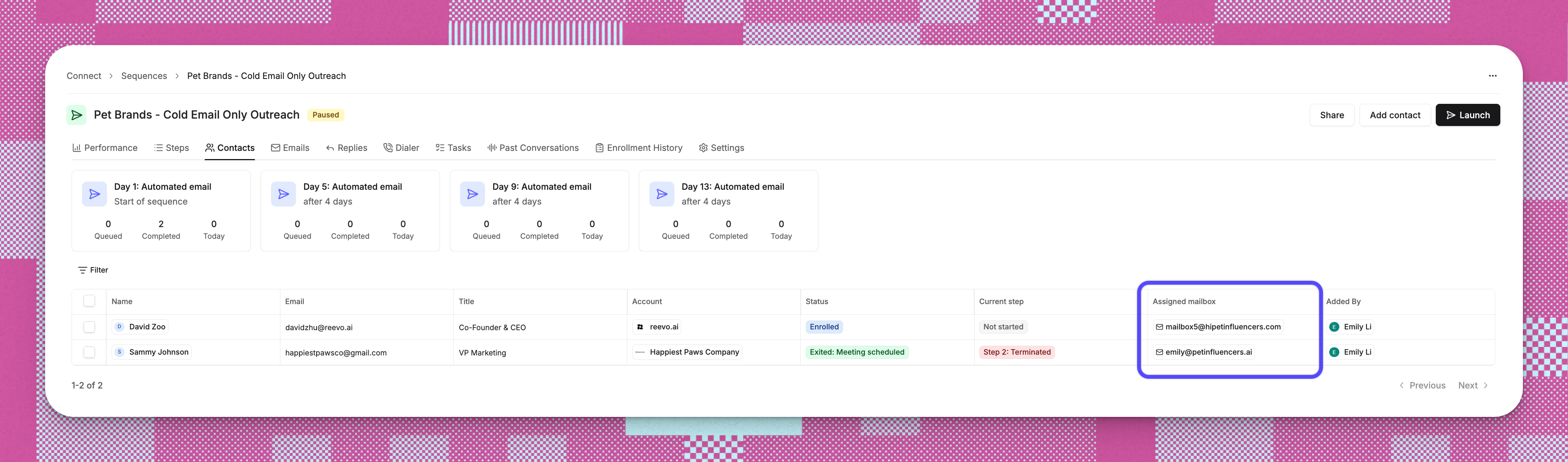
To view the mailbox assigned to each contact, navigate to **Sequence > Contacts** tab and refer to the **Assigned Mailbox** column.
During enrollment, choose how emails are sent for that enrollment run. This is where you select the mailbox strategy. You have two options:
**Option 1: Use existing CRM owners (default)**
Emails are sent from the mailbox of each contact's assigned CRM owner. You must also select a **fallback mailbox**, which is used when a CRM owner has no available mailbox.
**Option 2: Use specific mailboxes**
Manually select one or more mailboxes to send from. Emails are distributed evenly across your selected mailboxes. You can search mailboxes by email and view each mailbox's owner, health status, and which sequences it's already assigned to. A **fallback mailbox** is also required and must be chosen from mailboxes outside your selection.
The **Add to sequence** button remains disabled until a valid sending method is configured (a method is selected and a fallback mailbox is set).
Your last-used sending method configuration is remembered and pre-filled the next time you enroll contacts into this sequence.
To view the mailbox assigned to each contact, navigate to **Sequence > Contacts** tab and refer to the **Assigned Mailbox** column.
 ### 🚀 **Step 4: Launch Sequence**
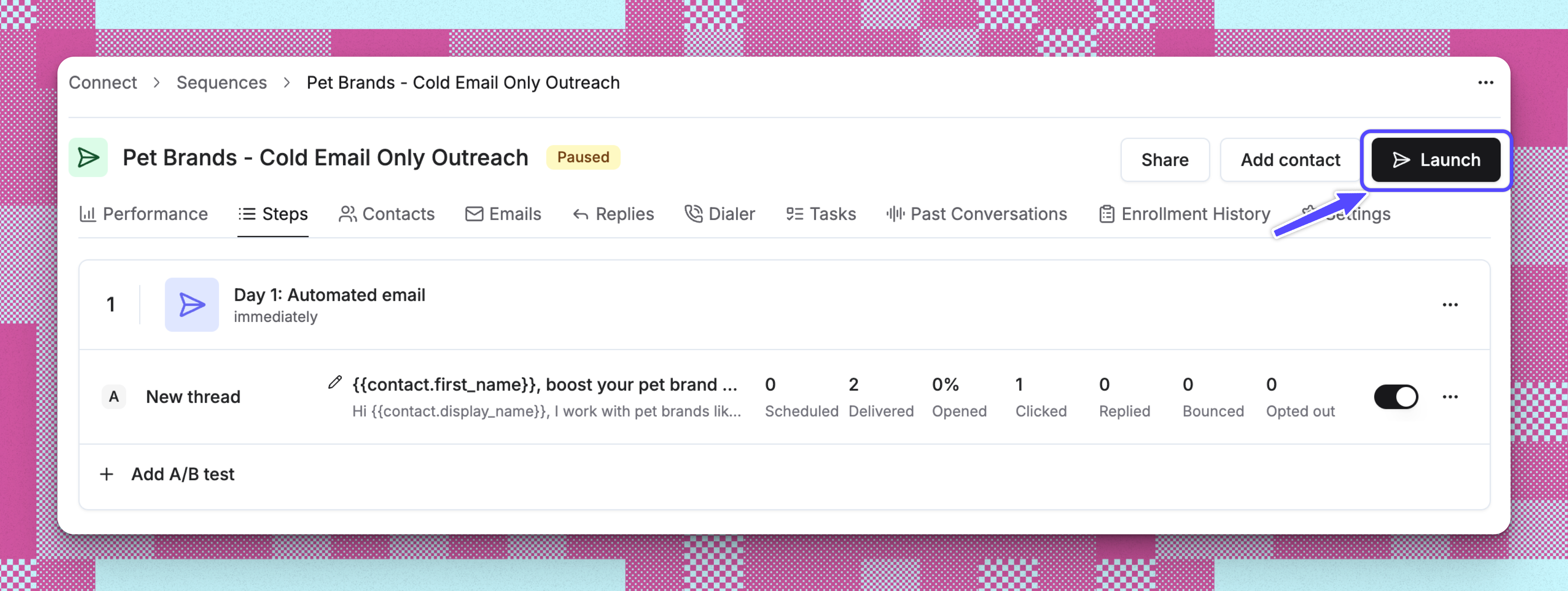
Review your sequence and click **Launch** to activate it. Launch makes the sequence eligible to send to enrolled contacts. It does not add contacts or choose sending mailboxes.
**Activation vs enrollment:** Activation turns the sequence on. Enrollment adds contacts and chooses the sender or mailbox strategy for that enrollment run. If a sequence is active but has no enrolled contacts, no outreach sends.
### 🚀 **Step 4: Launch Sequence**
Review your sequence and click **Launch** to activate it. Launch makes the sequence eligible to send to enrolled contacts. It does not add contacts or choose sending mailboxes.
**Activation vs enrollment:** Activation turns the sequence on. Enrollment adds contacts and chooses the sender or mailbox strategy for that enrollment run. If a sequence is active but has no enrolled contacts, no outreach sends.
 ***
## **Enrollment Status Tracking**
Behind the scenes, once contacts are enrolled, the system tracks detailed enrollment status information including when contacts were enrolled, when they exited, and why they exited. This powers the enrollment history views and helps you understand the full lifecycle of each contact's journey through your sequences.
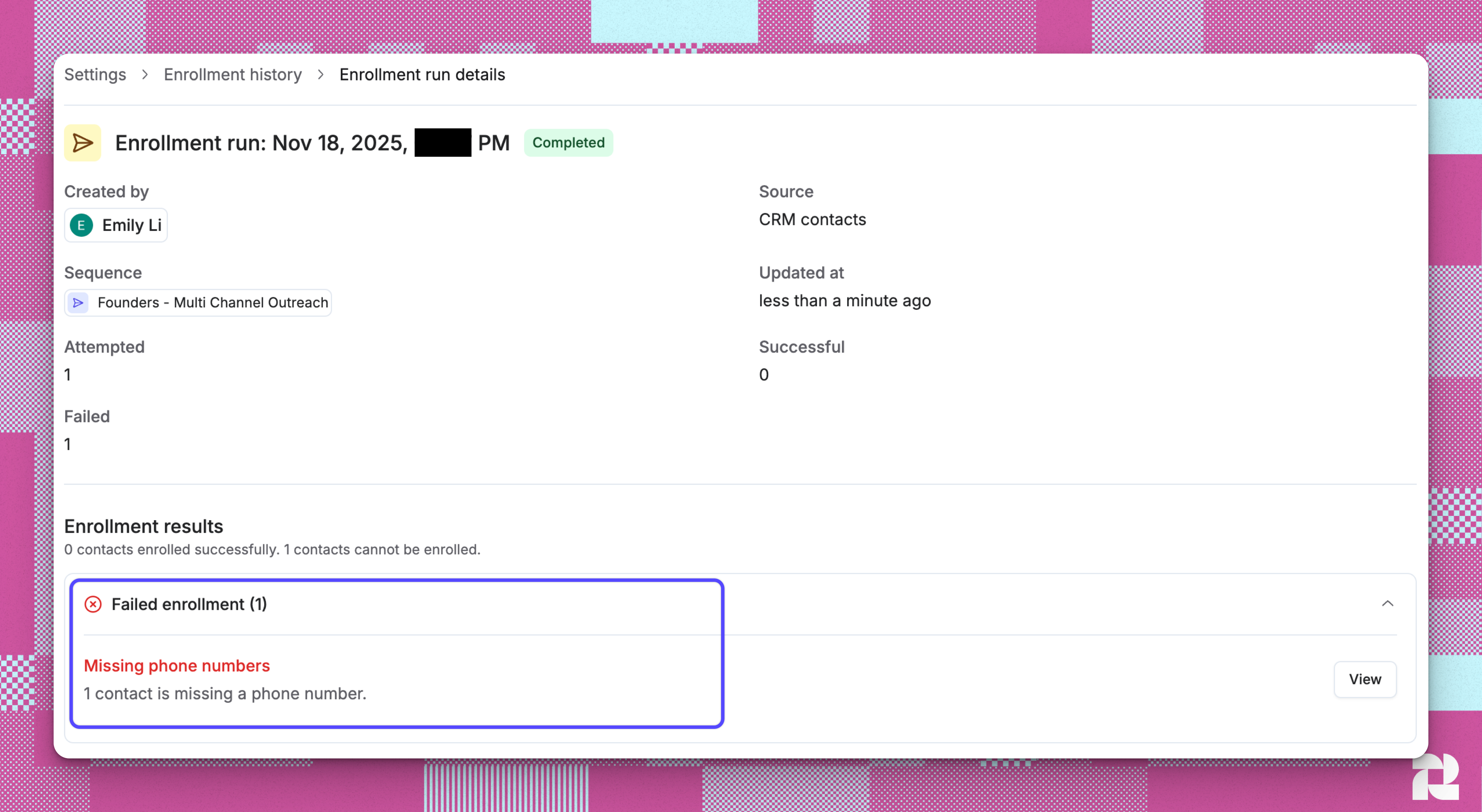
### **Enrollment Run Details**
When you click into a specific enrollment run, you'll see:
***
## **Enrollment Status Tracking**
Behind the scenes, once contacts are enrolled, the system tracks detailed enrollment status information including when contacts were enrolled, when they exited, and why they exited. This powers the enrollment history views and helps you understand the full lifecycle of each contact's journey through your sequences.
### **Enrollment Run Details**
When you click into a specific enrollment run, you'll see:
 **Success Section**: Shows contacts who were successfully enrolled, organized by category.
**Failure Section**: Groups failed contacts by failure reason, such as:
* Contact is already enrolled in another sequence
* Email address is risky (Not recommended or Use with caution)
* Contact does not have an account
* Contact does not have an owner
Contacts missing an email address, phone number, or LinkedIn profile URL are no longer blocked from enrollment. Instead, Reevo applies the fallback rules configured in the sequence's Settings tab when the contact reaches the relevant step. See [Sequences: Manage Missing Contact Fields](/Prospecting-and-Outreach/Sequences-Manage-Missing-Contact-Fields) to configure this behavior.
**Category Details**: Click any category to see the specific contacts affected and get resolution steps.
**Success Section**: Shows contacts who were successfully enrolled, organized by category.
**Failure Section**: Groups failed contacts by failure reason, such as:
* Contact is already enrolled in another sequence
* Email address is risky (Not recommended or Use with caution)
* Contact does not have an account
* Contact does not have an owner
Contacts missing an email address, phone number, or LinkedIn profile URL are no longer blocked from enrollment. Instead, Reevo applies the fallback rules configured in the sequence's Settings tab when the contact reaches the relevant step. See [Sequences: Manage Missing Contact Fields](/Prospecting-and-Outreach/Sequences-Manage-Missing-Contact-Fields) to configure this behavior.
**Category Details**: Click any category to see the specific contacts affected and get resolution steps.
 ### **Why Enrollment History Matters**
Enrollment History helps you:
1. **Troubleshoot enrollment issues**: Understand why specific contacts failed to enroll so you can fix the underlying problems
2. **Maintain data quality**: Identify contacts missing required information (emails, accounts, owners)
3. **Protect sender reputation**: See which contacts were blocked due to risky email addresses
4. **Track enrichment progress**: Monitor email and phone enrichment runs that were triggered during enrollment
5. **Re-enroll contacts**: After fixing issues, you can retry enrollment for failed contacts
***
## **Sequence Rules and Automation**
Sequences respect several rules to protect deliverability and user experience:
* **Reply detection**: When the TO recipient replies to a sequence email, they automatically exit the sequence. Replies from CC'd recipients do not exit the sequence.
* **Sending schedules**: Emails only send during your configured business hours.
* **Mailbox rotation**: If you select multiple mailboxes during enrollment, Reevo distributes sends across them.
* **Duplicate prevention**: Contacts cannot be enrolled in multiple sequences simultaneously.
* **Missing field handling**: When a contact reaches a step requiring information they don't have (email, phone, or LinkedIn), Reevo follows the fallback rule configured for that channel - pausing, skipping, or exiting the contact. See [Sequences: Manage Missing Contact Fields](/Prospecting-and-Outreach/Sequences-Manage-Missing-Contact-Fields) to configure this.
***
## **Troubleshooting / FAQs**
Check these common issues:
* Confirm the sequence has enrolled contacts.
* Confirm a sending method and fallback mailbox were configured during enrollment.
* Verify your mailbox is connected and healthy in **Settings**.
* Confirm your sending schedule allows emails at the current time.
* Check if you've reached your monthly email quota in **Usage**.
* Ensure contacts are not already in another active sequence.
The **Launch** button activates your sequence. Emails only send after contacts are enrolled and a sending method is configured during enrollment. You must have at least one step enabled before you can launch.
Yes, but changes only affect contacts who haven't reached that step yet. Contacts already past a step won't receive retroactive changes.
When the primary TO recipient replies to a sequence email, they automatically exit the sequence to prevent automated follow-ups after engagement. You'll see the reply in your inbox and can continue the conversation manually. Replies from CC'd recipients do not affect sequence enrollment.
Review A/B test results in the **Performance** tab of your sequence. Reevo tracks open rates, reply rates, and other engagement metrics for each variant. Use the winning variant for future enrollments.
Sequences work for any contact in your Reevo workspace. Common use cases include prospect outreach, customer onboarding, renewal reminders, and event invitations.
The fallback mailbox you configured during enrollment will be used instead. This is why setting a fallback mailbox is required — it ensures no emails are skipped when a CRM owner doesn't have an available mailbox.
The sending method is configured per enrollment run, not per sequence. You can choose a different method the next time you enroll contacts into the same sequence, but contacts already enrolled will continue with the method that was set when they were added.
The sending method and mailbox selection apply to email steps only. Manual tasks (calls, LinkedIn actions) are not affected.
Emails are distributed evenly across your selected mailboxes. Each mailbox sends based on its individual daily quota and schedule.
If a selected mailbox becomes unhealthy or unavailable during an active sequence, the fallback mailbox you configured will be used to ensure sending continues without interruption.
Yes. A fallback mailbox is required for both sending methods. It ensures there's always a mailbox available to send from when the primary method can't be used.
Yes — your last-used sending method configuration is remembered and pre-filled the next time you enroll contacts into the same sequence. You can change it at any time during the enrollment flow.
Regular users can only select mailboxes they own. Admins can access all mailboxes in the organization when configuring the sending method during enrollment.
### **Why Enrollment History Matters**
Enrollment History helps you:
1. **Troubleshoot enrollment issues**: Understand why specific contacts failed to enroll so you can fix the underlying problems
2. **Maintain data quality**: Identify contacts missing required information (emails, accounts, owners)
3. **Protect sender reputation**: See which contacts were blocked due to risky email addresses
4. **Track enrichment progress**: Monitor email and phone enrichment runs that were triggered during enrollment
5. **Re-enroll contacts**: After fixing issues, you can retry enrollment for failed contacts
***
## **Sequence Rules and Automation**
Sequences respect several rules to protect deliverability and user experience:
* **Reply detection**: When the TO recipient replies to a sequence email, they automatically exit the sequence. Replies from CC'd recipients do not exit the sequence.
* **Sending schedules**: Emails only send during your configured business hours.
* **Mailbox rotation**: If you select multiple mailboxes during enrollment, Reevo distributes sends across them.
* **Duplicate prevention**: Contacts cannot be enrolled in multiple sequences simultaneously.
* **Missing field handling**: When a contact reaches a step requiring information they don't have (email, phone, or LinkedIn), Reevo follows the fallback rule configured for that channel - pausing, skipping, or exiting the contact. See [Sequences: Manage Missing Contact Fields](/Prospecting-and-Outreach/Sequences-Manage-Missing-Contact-Fields) to configure this.
***
## **Troubleshooting / FAQs**
Check these common issues:
* Confirm the sequence has enrolled contacts.
* Confirm a sending method and fallback mailbox were configured during enrollment.
* Verify your mailbox is connected and healthy in **Settings**.
* Confirm your sending schedule allows emails at the current time.
* Check if you've reached your monthly email quota in **Usage**.
* Ensure contacts are not already in another active sequence.
The **Launch** button activates your sequence. Emails only send after contacts are enrolled and a sending method is configured during enrollment. You must have at least one step enabled before you can launch.
Yes, but changes only affect contacts who haven't reached that step yet. Contacts already past a step won't receive retroactive changes.
When the primary TO recipient replies to a sequence email, they automatically exit the sequence to prevent automated follow-ups after engagement. You'll see the reply in your inbox and can continue the conversation manually. Replies from CC'd recipients do not affect sequence enrollment.
Review A/B test results in the **Performance** tab of your sequence. Reevo tracks open rates, reply rates, and other engagement metrics for each variant. Use the winning variant for future enrollments.
Sequences work for any contact in your Reevo workspace. Common use cases include prospect outreach, customer onboarding, renewal reminders, and event invitations.
The fallback mailbox you configured during enrollment will be used instead. This is why setting a fallback mailbox is required — it ensures no emails are skipped when a CRM owner doesn't have an available mailbox.
The sending method is configured per enrollment run, not per sequence. You can choose a different method the next time you enroll contacts into the same sequence, but contacts already enrolled will continue with the method that was set when they were added.
The sending method and mailbox selection apply to email steps only. Manual tasks (calls, LinkedIn actions) are not affected.
Emails are distributed evenly across your selected mailboxes. Each mailbox sends based on its individual daily quota and schedule.
If a selected mailbox becomes unhealthy or unavailable during an active sequence, the fallback mailbox you configured will be used to ensure sending continues without interruption.
Yes. A fallback mailbox is required for both sending methods. It ensures there's always a mailbox available to send from when the primary method can't be used.
Yes — your last-used sending method configuration is remembered and pre-filled the next time you enroll contacts into the same sequence. You can change it at any time during the enrollment flow.
Regular users can only select mailboxes they own. Admins can access all mailboxes in the organization when configuring the sending method during enrollment.