Where to Find It
- Click your name in the lower-left corner of Reevo.
- Select Settings.
-
You’ll see Organization under My Account.
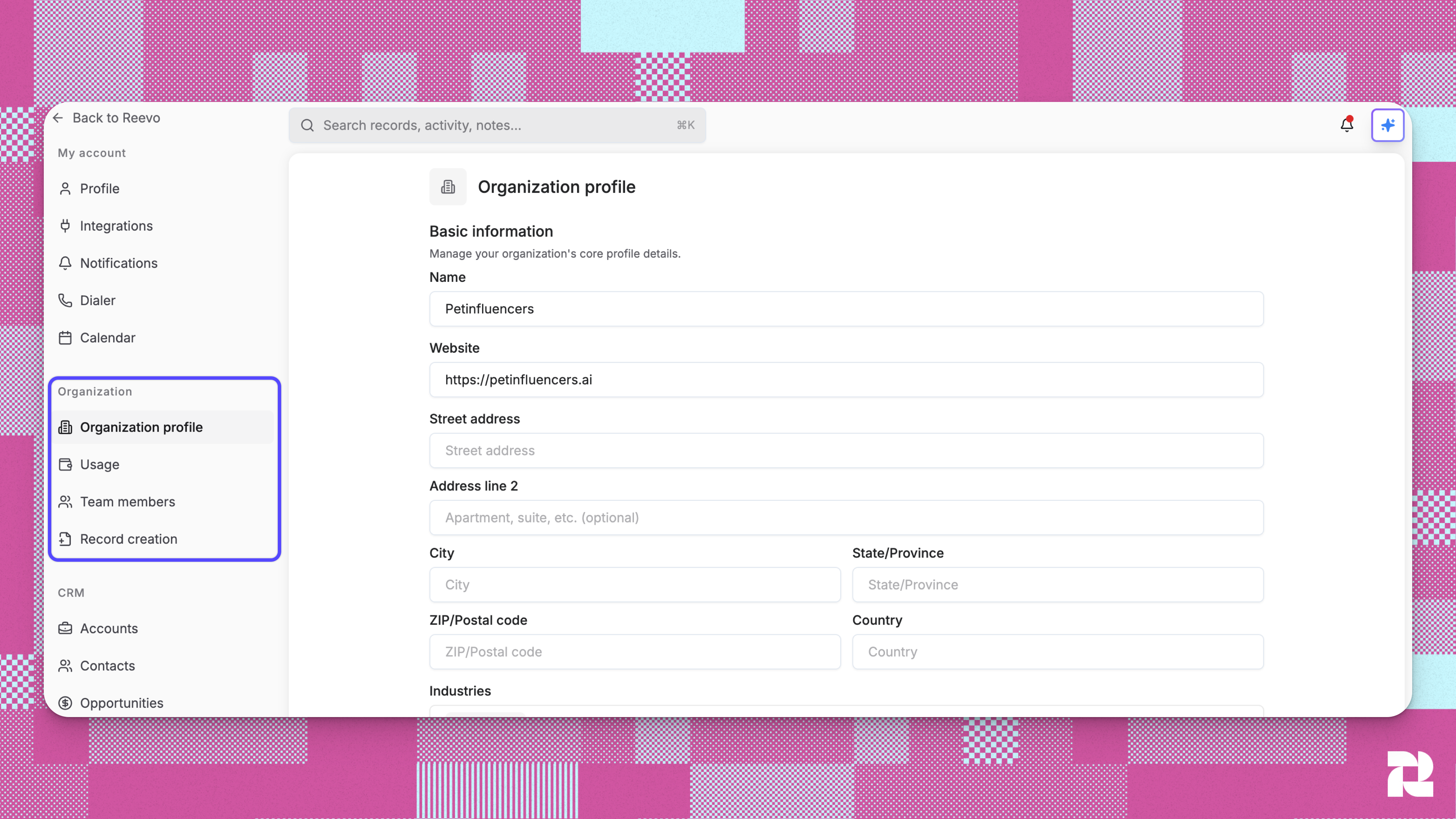
Account Settings Overview
Organization Profile
Define your company’s identity and provide the business context Reevo uses to personalize automation, insights, and engagement. Basic Information- Name: Your company’s official name
- Website: Main URL
- Address: Headquarters or billing address
- Industry: Choose one or more relevant industries
- Verified Domains: Add company-owned email domains for validation and record accuracy
- Elevator pitch or value proposition
- Ideal Customer Profile (ICP)
- Common buyer personas or titles
- Sales team size and structure
- Typical sales stages and evaluation process
- Key differentiators and success stories
Usage
The Usage page gives admins a clear view of how your organization is using Reevo’s available resources. This includes metrics across users, dialer activity, domains, and mailboxes — helping you track consumption and manage limits tied to your plan. What you can view:- Admin & Workspace: Active users per organization.
- Dialer: Total monthly call minutes and phone number updates.
- Domains: Domains purchased and total domains connected.
- Mailboxes: Mailboxes purchased through Reevo and total mailboxes in use.
- Prospecting: The total number of contact or company enrichments used this month.
Usage resets automatically at the start of each billing cycle. You can find your next billing date at the top of the page.
Team Members
Invite, remove, and manage users within your organization.- Assign roles and permissions to control access levels.
- Deactivate users who no longer need access.
- View pending invitations and resend if needed.
- Admin: Full access to all data and settings. Can invite users, assign roles, and edit any record.
- User: Limited access. By default, cannot edit contacts, accounts, or opportunities not owned by them.
Record Creation
Control how Reevo automatically creates Accounts and Contacts based on user activity.- Choose from Capture All, Existing Accounts, Outbound Only, or Do Not Capture modes.
- Configure Blocked Domains & Emails to prevent syncing of personal or sensitive correspondence.
- Adjust Meeting Recording Settings to define when calls and meetings should be recorded.
Troubleshooting / FAQs
Why can't I see the Organizational Settings page?
Why can't I see the Organizational Settings page?
Only users with Admin role permissions can access organizational settings. If you need to update company information, ask your organization administrator to grant you Admin access or make the changes on your behalf.
What happens if I don't answer the business questions?
What happens if I don't answer the business questions?
You can still use all Reevo features, but AI-generated content like Meeting Prep will be less personalized. The system will work with limited context and provide more general insights rather than strategies tailored to your specific business model.
Can I update my answers to business questions later?
Can I update my answers to business questions later?
Yes, you can return to the organizational settings page at any time to revise your answers. After updating, click Refresh in Meeting Prep to regenerate preparation with your new information.
How do verified domains work?
How do verified domains work?
When you verify a domain, any user who signs up with an email address from that domain can automatically join your organization. This streamlines onboarding for team members without requiring individual invitations. Verified domains appear with a green checkmark in the organizational settings.
What if I don't have any verified domains?
What if I don't have any verified domains?
You’ll see “No verified domains” in the organizational settings. You can still invite team members individually through the Users section of settings. To verify a domain, complete the domain setup process which involves DNS configuration.
Is there a character limit for business questions?
Is there a character limit for business questions?
Yes, each question has a maximum character limit to ensure focused, actionable answers. The exact limit varies by question, but you’ll see a character counter below each field showing your current count and remaining characters.