Overview
Forecasting in Reevo gives you multiple ways to predict revenue from your pipeline by attaching probability and forecast categories to each stage, and also allowing manual bottoms-up tagging of forecast categories (Pipeline, Best Case, Commit, Closed Won, Closed Lost, or Omitted). This allows for multiple potential views of how a month, quarter, or year might turn out, enablingyou multiple ways to predict revenue from your pipeline by attaching probability and forecast categories to each stage, and also allowing manual bottoms-up tagging of forecast categories (Pipeline, Best Case, Commit, Closed Won, Closed Lost, or Omitted). This allows for multiple potential views of how a month, quarter, or year might turn out, enabling better triangulation. Every pipeline stage can be assigned a default closing probability (0-100%) and a default forecast category. When an opportunity sits in a stage, those stage-level defaults automatically flow through to the opportunity, populating two read-only fields: Forecast system category and Weighted Amount. You can also independently set your own Forecast category, and your leadership teamYou can also independently set your own Forecast category, and your leadership team can apply a separate Forecast leadership category, keeping all three perspectives cleanly separated on a single record. Forecast fields are available for filtering, sorting, bulk editing, and reporting across the Opportunity and Opportunity trend datasets. With these set up, you cayou can compare:- Weighted Amount - the probability-weighted value of the deal. Tracking the total Weighted Amount of all deals set to close in a period is helpful to compare against the total pipeline for that period.
- Forecast Category - a field on the opportunity for manual bottoms-up tagging of the deal’s confidence level (Pipeline, Best Case, Commit, Closed Won, Closed Lost, or Omitted). These are usually reviewed and updated at least weekly to reflect the latest view of each deal’s likelihood to close.
- Leadership Forecast Category - a field your leadership team can update on the opportunity to track a separate view of how deals might turn out.
- Stage-Based Forecast Category - a system grouping of deals based on the forecast category tagged to each stage, helpful to compare against the rep-tagged Forecast Category and Leadership Forecast Category.
Prerequisites
- Admin access - Setting default closing probability and default forecast category on a stage requires admin permissions in Reevo.
- A pipeline with stages - You need at least one pipeline configured with stages before you can set forecasting defaults. See Opportunities for setup guidance.
- Amount set on opportunities - Weighted amount is only calculated when an opportunity’s Amount field has a value. Opportunities without an amount will show a blank Weighted amount.
Configure Forecasting Defaults on a Stage
Stage-level defaults control the automatic values that flow through to opportunities in that stage.- Navigate to Settings > Opportunities.
- Click the Pipelines tab.
- Select the pipeline you want to configure.
- Click the edit icon next to the stage you want to update.
- In the Default closing probability (%) field, enter a whole number between 0 and 100. Note that probabilities must increase as stages progress (e.g. if your first stage has a probability of 10%, the second stage must be higher, like 15% - it cannot decrease).
- In the Default forecast category field, select a category from the dropdown. Similar to probability, these need to progress as the stages move down the funnel.
- Click Save.
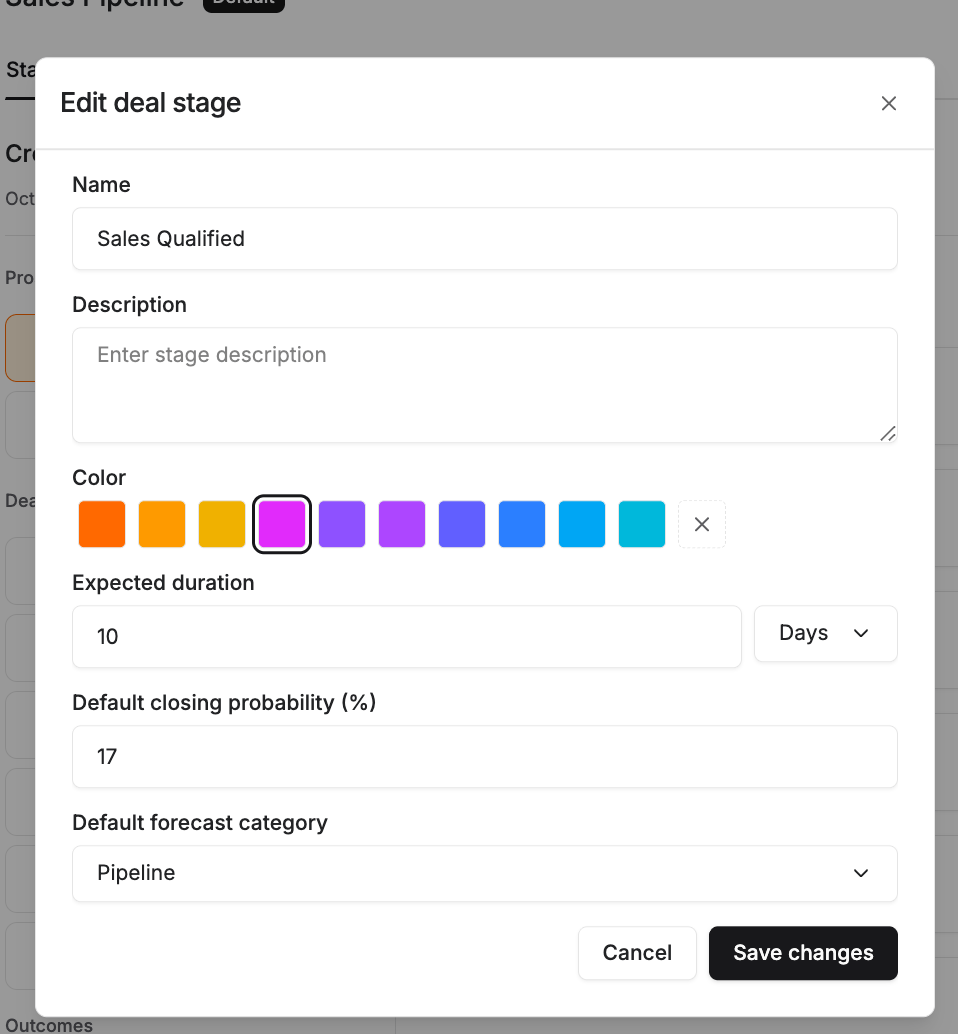
- Defaults are set per stage. Different stages in the same pipeline can have different probabilities and categories.
- These defaults automatically populate the Forecast system category and Weighted amount fields on any opportunity currently in that stage.
- Changing a stage’s defaults will update those fields on all opportunities in that stage.
Forecast category values: The available options are Pipeline, Best Case, Commit, Closed Won, Closed Lost, and Omitted.Stage defaults for new pipelines: When you create a new pipeline, the form pre-populates four stages with forecasting values already set: New (10%, Pipeline category) as a Prospect stage, Meeting held (40%, Best Case) as a Deal stage, and Closed Won (100%) and Closed Lost (0%) as outcome stages. Any stages you add beyond those start with 0% probability and no forecast category until configured manually.
- Weighted Amount - the probability-weighted value of the deal. Tracking the total Weighted Amount of all deals set to close in a period is helpful to compare against the total pipeline for that period.
- Forecast Category - a field on the opportunity for manual bottoms-up tagging of the deal’s confidence level (Pipeline, Best Case, Commit, Closed Won, Closed Lost, or Omitted). These are usually reviewed and updated at least weekly to reflect the latest view of each deal’s likelihood to close.
- Leadership Forecast Category - a field your leadership team can update on the opportunity to track a separate view of how deals might turn out.
- Stage-Based Forecast Category - a system grouping of deals based on the forecast category tagged to each stage, helpful to compare against the rep-tagged Forecast Category and Leadership Forecast Category.
Prerequisites
- Admin access - Setting default closing probability and default forecast category on a stage requires admin permissions in Reevo.
- A pipeline with stages - You need at least one pipeline configured with stages before you can set forecasting defaults. See Opportunities for setup guidance.
- Amount set on opportunities - Weighted amount is only calculated when an opportunity’s Amount field has a value. Opportunities without an amount will show a blank Weighted amount.
Configure Forecasting Defaults on a Stage
Stage-level defaults control the automatic values that flow through to opportunities in that stage.- Navigate to Settings > Opportunities.
- Click the Pipelines tab.
- Select the pipeline you want to configure.
- Click the edit icon next to the stage you want to update.
- In the Default closing probability (%) field, enter a whole number between 0 and 100. Note that probabilities must increase as stages progress (e.g. if your first stage has a probability of 10%, the second stage must be higher, like 15% - it cannot decrease).
- In the Default forecast category field, select a category from the dropdown. Similar to probability, these need to progress as the stages move down the funnel.
- Click Save.
- Defaults are set per stage. Different stages in the same pipeline can have different probabilities and categories.
- These defaults automatically populate the Forecast system category and Weighted amount fields on any opportunity currently in that stage.
- Changing a stage’s defaults will update those fields on all opportunities in that stage.
Forecast category values: The available options are Pipeline, Best Case, Commit, Closed Won, Closed Lost, and Omitted.Stage defaults for new pipelines: When you create a new pipeline, the form pre-populates four stages with forecasting values already set: New (10%, Pipeline category) as a Prospect stage, Meeting held (40%, Best Case) as a Deal stage, and Closed Won (100%) and Closed Lost (0%) as outcome stages. Any stages you add beyond those start with 0% probability and no forecast category until configured manually.
Update Forecast Fields on an Opportunity
The most common time to update forecast fields is during a weekly pipeline review, when you sweep through your open deals in a list view and tag each one with youyou sweep through your open deals in a list view and tag each one with your current confidence level. You can also update fields on any individual opportunity record at any time.In a list view
In a list view
- Add the relevant field - such as Forecast category - to your list view as a column.
- Click into the field for any deal and select the right value.
Bulk editing multiple deals
Bulk editing multiple deals
- Check the box next to each deal you want to update.
- Click Edit in the top toolbar.
- Select the field you want to update (e.g., Forecast category).
- Choose the new value (e.g., Commit) and confirm.
On an individual opportunity record
On an individual opportunity record
- Open an opportunity record.
- In the right-hand details panel, locate the Forecast category or Forecast leadership category field.
- Click the field and select a value from the dropdown.
- The field saves automatically.
- Forecast category is the rep-editable field. It does not affect the Weighted amount calculation.
- Forecast leadership category is for optional leadership overrides. It does not impact the Forecast Category field or the Weighted amount.
- Forecast system category is read-only and always reflects the default forecast category of the stage the opportunity is currently in. It cannot be edited manually.
- Weighted amount is a read-only computed field. It does not appear on the opportunity detail panel. It is available as a column in list views and in reporting, and recalculates automatically whenever the opportunity’s Amount or stage changes.
- Forecast category is the rep-editable field. It does not affect the Weighted amount calculation.
- Forecast leadership category is for optional leadership overrides. It does not impact the Forecast Category field or the Weighted amount.
- Forecast system category is read-only and always reflects the default forecast category of the stage the opportunity is currently in. It cannot be edited manually.
- Weighted amount is a read-only computed field. It does not appear on the opportunity detail panel. It is available as a column in list views and in reporting, and recalculates automatically whenever the opportunity’s Amount or stage changes.
View Weighted Totals on the Kanban Board
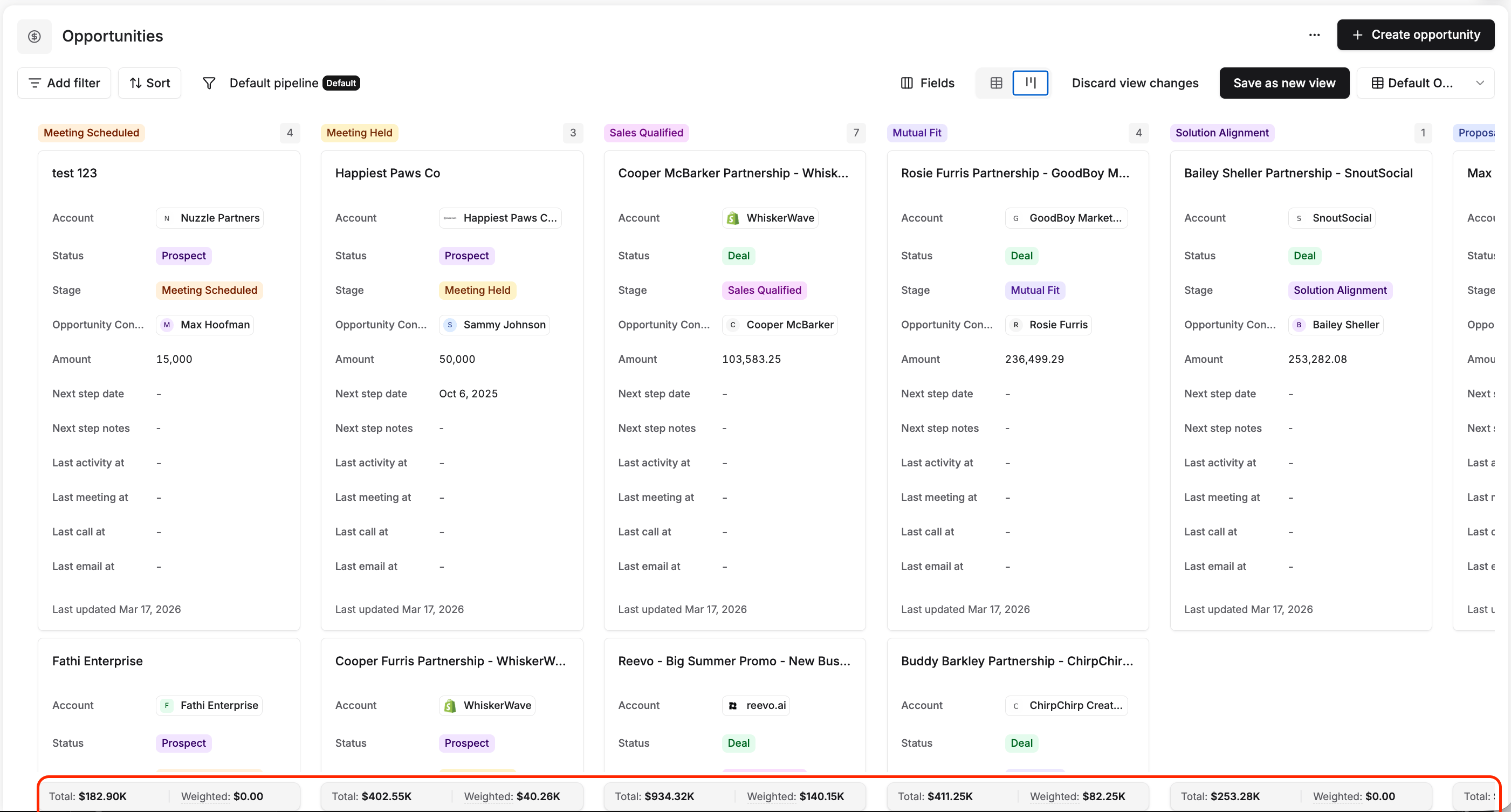
The Kanban board displays a summary footer at the bottom of each stage column, giving you an at-a-glance view of expected revenue for that stage without leaving the pipeline.- Total: The sum of all opportunity amounts in that stage.
- Weighted: The sum of weighted amounts in that stage (each opportunity’s amount multiplied by its stage’s closing probability). Hover over “Weighted:” in the footer for a tooltip reminder of the formula.
Use Forecast Fields in Reporting
All four forecast fields are available when building custom reports in Reevo:- Forecast category
- Forecast leadership category
- Forecast system category
- Weighted amount
Use Forecast Fields in Reporting
All four forecast fields are available when building custom reports in Reevo:- Forecast category
- Forecast leadership category
- Forecast system category
- Weighted amount
Troubleshooting / FAQs
What is the difference between Forecast category, Forecast leadership category, and Forecast system category?
What is the difference between Forecast category, Forecast leadership category, and Forecast system category?
These three fields represent three separate perspectives on the same opportunity. Forecast system category is read-only and automatically set based on the stage the opportunity is in. It reflects the stage’s default forecast category. Forecast category is your own assessment and can be edited at any time. Forecast leadership category is a separate optional override field for leadership, independent of what you have set, in case your. It reflects the stage’s default forecast category. Forecast category is your own assessment and can be edited at any time. Forecast leadership category is a separate optional override field for leadership, independent of what you have set, in case your leadership team wants to track a separate view of the forecast.
How is Weighted amount calculated?
How is Weighted amount calculated?
Weighted amount = Amount × (Default closing probability ÷ 100). For example, if an opportunity has an Amount of $10,000 and its current stage has a Default closing probability of 60%, the Weighted amount will be $6,000. The value is rounded to two decimal places.
What happens to Weighted Amount and Forecast system category when an opportunity moves to a new stage?
What happens to Weighted Amount and Forecast system category when an opportunity moves to a new stage?
Both fields update automatically. Weighted amount is recalculated using the new stage’s Default closing probability, and Forecast system category updates to reflect the new stage’s default forecast category.
Why is Weighted Amount blank on some opportunities?
Why is Weighted Amount blank on some opportunities?
Weighted amount requires both the opportunity’s Amount field and the current stage’s Default closing probability to be set. If either is missing, the field will be empty.
Can I filter or sort by forecast fields in list views?
Can I filter or sort by forecast fields in list views?
Yes. All four forecast fields support filtering, sorting, and bulk editing in list views and on the Kanban board.
Can I set a Forecast category when creating a new opportunity?
Can I set a Forecast category when creating a new opportunity?
Forecast category is automatically populated when you create an opportunity, based on the default forecast category configured for the selected stage. You do not need to set it manually at creation. You can update it at any time after creation by editing the record directly.
Can my reps see the Leadership Forecast Category?
Can my reps see the Leadership Forecast Category?
Yes. Forecast leadership category is visible to anyone with access to the opportunity record. If you want to keep leadership and rep forecasts separate during reviews, create dedicated list views. Use one view. Use one view with Forecast category for rep pipeline reviews, and a separate view with Forecast leadership category for leadership reviews.