- Professional Branding: Route all outbound campaign emails through your affiliated domain instead of personal addresses
- Build Sender Reputation: Automatic warmup and health monitoring to reduce the probability spam filters
- Campaign Automation: Powering multi-step email sequences with tracking and analytics
- Centralized Control: Managing all outbound communication from one platform
Prerequisites
- Admin access to organizational settings
- Appropriate subscription plan with mailbox allocation
- Understanding of team email volume requirements
Step-by-Step Instructions
1. Domain Setup
- Navigate to Settings → Email setup → Domains tab
- Click Add domain to purchase a new domain through Reevo
- Each domain purchased must be purchased with at least one mailbox
- Wait for domain configuration (up to 24 hours for DNS setup)
- Verify domain health status shows as ready before proceeding
2. Understand Mailbox Types
Two types of mailboxes are available:- Managed: Mailboxes purchased through the platform with full health monitoring
- Connected: Mailboxes that link existing external email accounts (like Gmail)
Managed (Recommended)
Connected
3. Set Up Your Mailbox
Create Managed Mailboxes (Recommended)
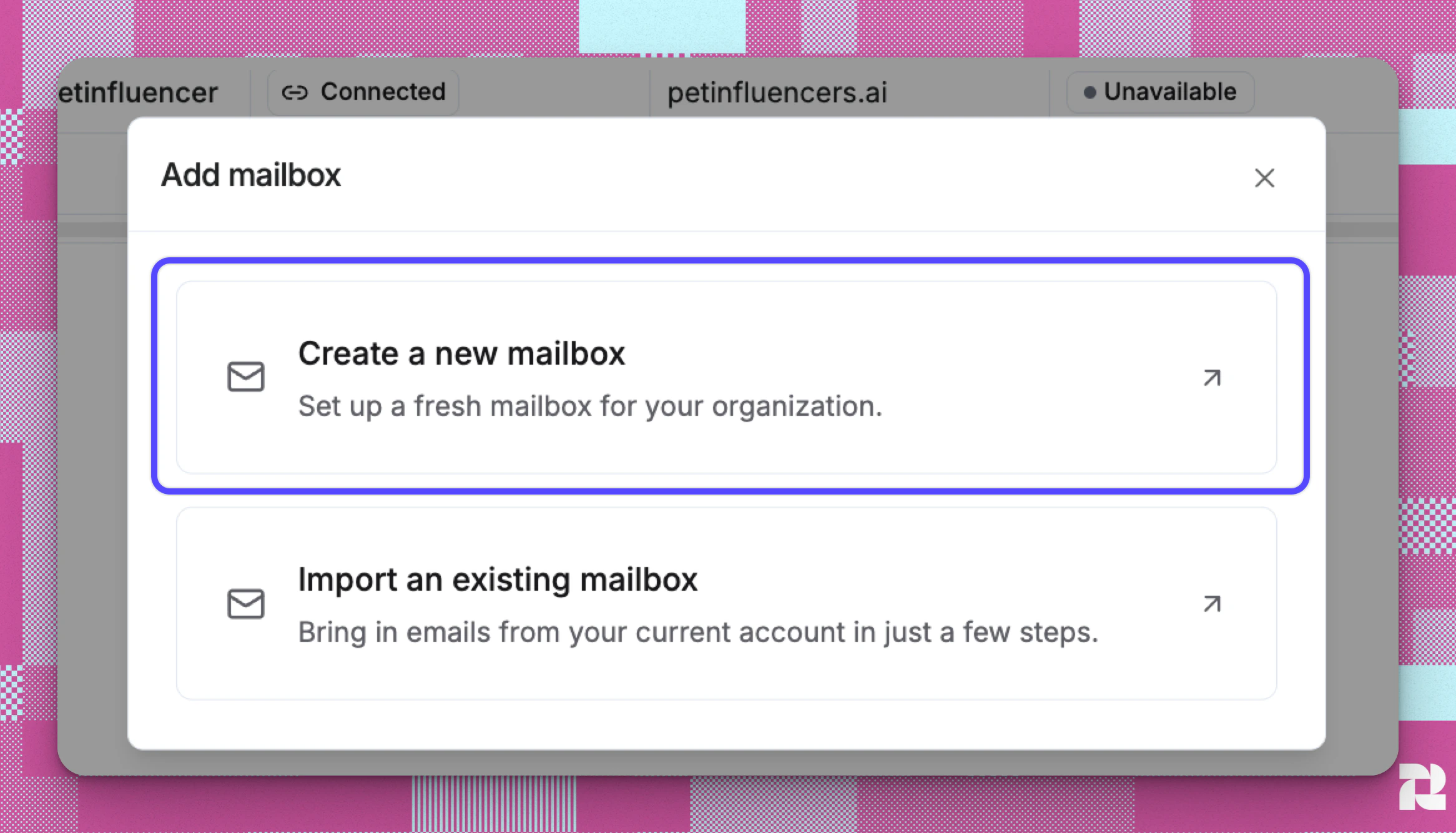
- In Settings → Email setup → Mailboxes tab, click Add mailbox
- Choose “Create a new mailbox”
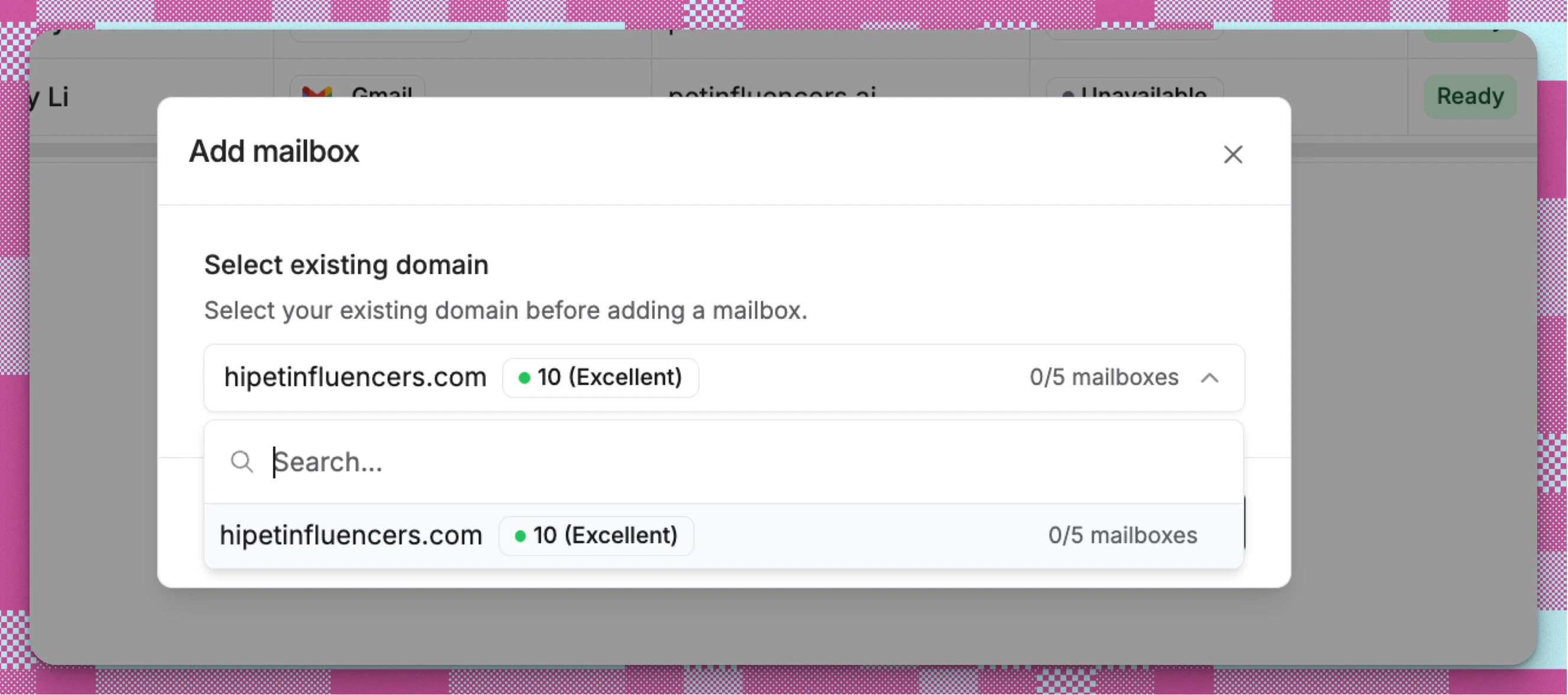
- Select an existing domain.
- Configure mailbox settings:
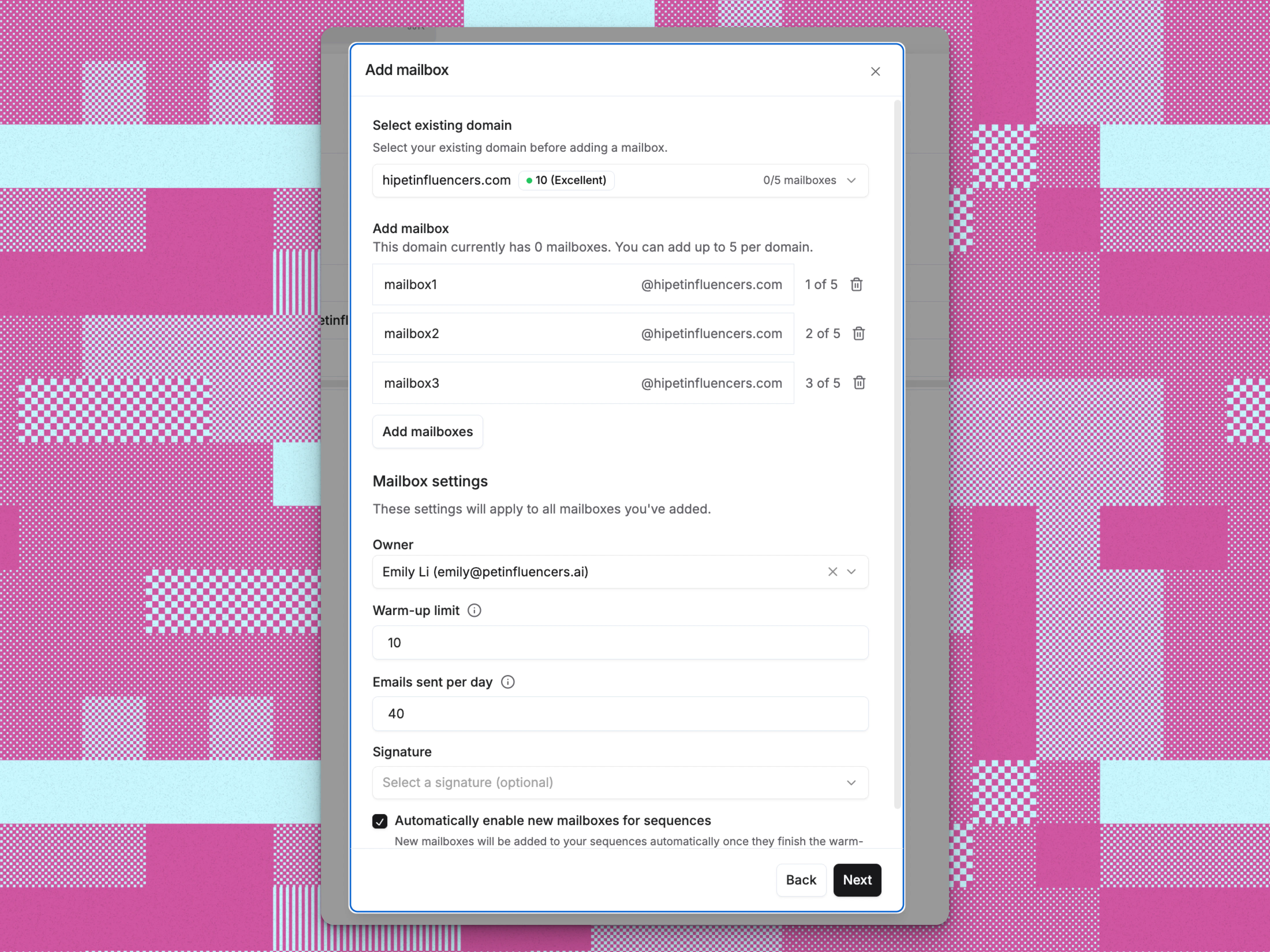
- You can purchase up to 5 mailboxes per domain. You have complete freedom to name mailboxes in whatever way helps you stay organized. Outbound emails always show the owner’s name and the official domain - never the internal mailbox label.
- Set warmup limit (0 to 10 emails per day, defaults to 10). Setting it to 0 disables warm-up.
- Configure the daily sending limit (0 to 2,000 emails per day, defaults to 40). 40 is Reevo’s recommended value, not a cap. You can save a higher number and Reevo will show a deliverability warning rather than block you. Setting it to 0 disables the mailbox for sequences.
- Set Delay between emails (10 seconds to 40 minutes, recommended 10 minutes).
- Assign an owner from your team. The owner of the mailbox will show up as the sender in outbound emails.
- (Optional) Add a signature
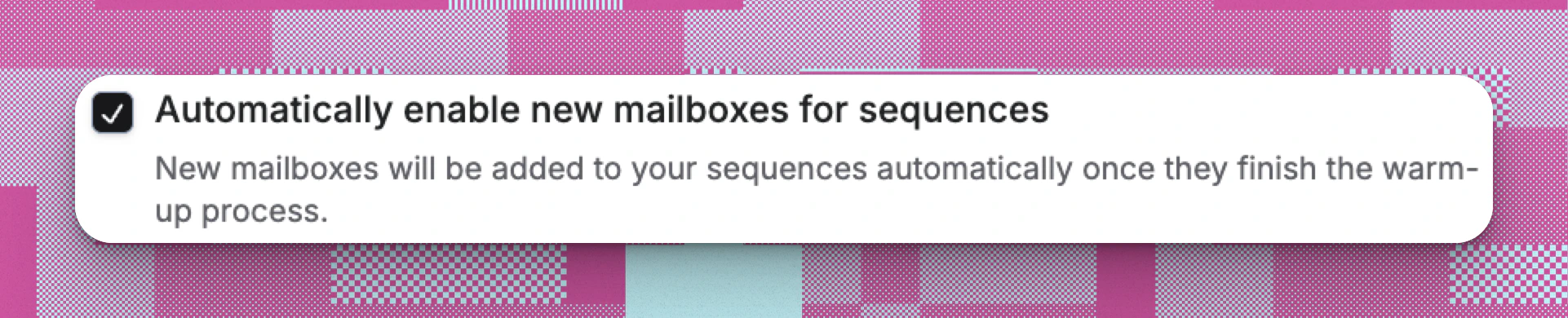
- To use the mailbox for prospective outreach, it is important that this option is enabled by checking the box.
- Review the summary and complete your mailbox purchase.
- Newly created managed mailboxes enters a warmup period that typically takes 14 business days to complete. To learn more about this process refer to this article.
Import an Existing Mailbox via SMTP/IMAP
Before Connecting a Mailbox on Your Existing Domain
When you connect an existing mailbox, your email provider continues to send the messages, and your organization remains responsible for the domain’s DNS configuration and sender reputation. Connecting the mailbox to Reevo does not create or repair SPF, DKIM, or DMARC records, and it does not reset an existing domain or mailbox reputation. Before connecting a mailbox on a custom domain:- Confirm who manages your DNS and email. Your domain registrar, DNS host, and email provider can be different companies. Make sure an administrator can update records at the authoritative DNS host and access your email provider’s authentication settings.
- Verify SPF. Keep one SPF record for the domain and confirm it authorizes every service that sends email for you. Do not replace an existing SPF record without accounting for your other sending services.
- Enable DKIM signing. Follow your provider’s setup instructions for Google Workspace or Microsoft 365.
- Configure DMARC reporting. DMARC depends on aligned SPF or DKIM. Start with a monitoring policy and an aggregate-reporting address, review legitimate sending sources, and move to enforcement only when you understand the impact.
- Check existing reputation. Review recent bounce and complaint activity, confirm the domain is not on a public blocklist, and investigate any previous sending or ownership issues before increasing volume.
Steps to Import a Mailbox
- Ensure you have admin credentials in the external email account (i.e. Google Workspace)
- In Settings → Email setup → Mailboxes tab, click Add mailbox
- Choose “Import and existing Mailbox”
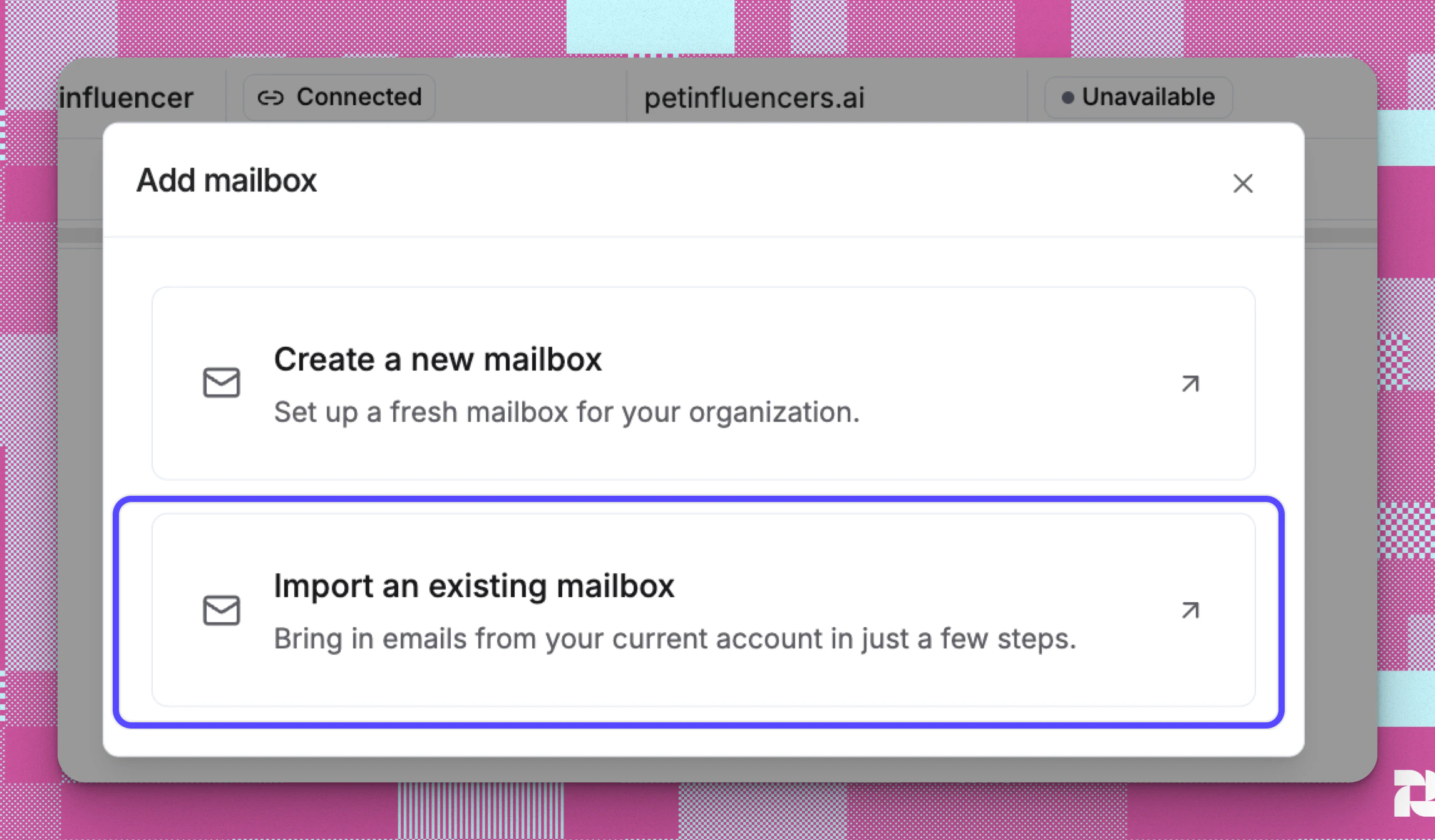
- Configure mailbox settings:
- Different provides may require an app-specific password (different from your account password) to connect your external mailbox. As an example: Here’s how to create one with Google. Check with your mailbox provider if the account password does not work.
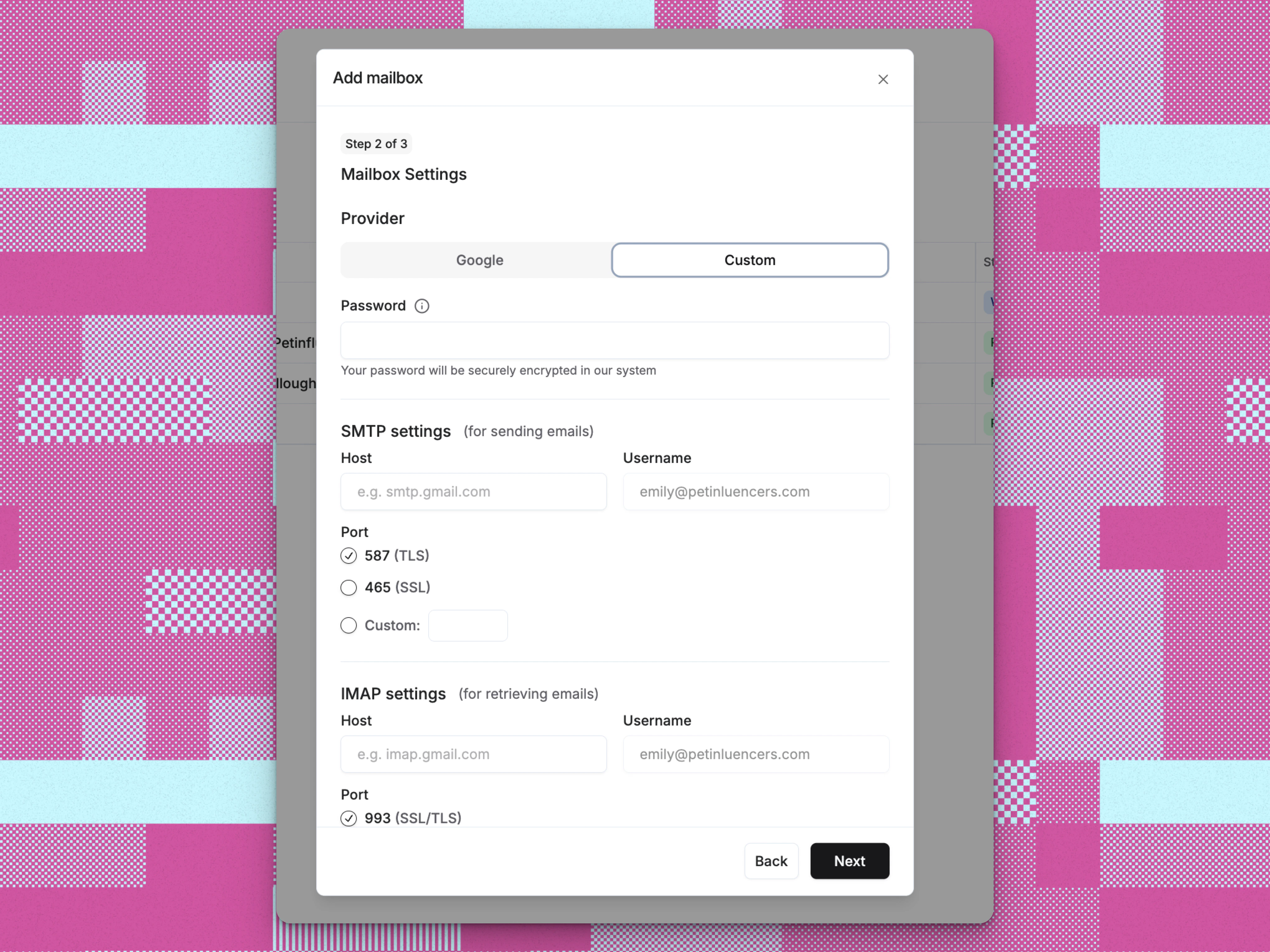
- Different provides may require an app-specific password (different from your account password) to connect your external mailbox. As an example: Here’s how to create one with Google. Check with your mailbox provider if the account password does not work.
Import a Gmail Mailbox via Google Sign-In
Connect an existing Gmail or Google Workspace mailbox using your Google account. This method sends through the Gmail API directly - no manual credential entry, better deliverability, smarter retry handling, and replies that stay properly threaded in conversations.- In Settings → Email setup → Mailboxes, click Add mailbox
- Choose Import Google mailbox
- Read the Gmail usage guidance, then click I understand, continue
- Complete Google Sign-In in the popup window that opens
- When prompted, grant the requested Gmail permissions
- Once authorized, the popup closes and the mailbox appears in your list
4. Mailbox Management
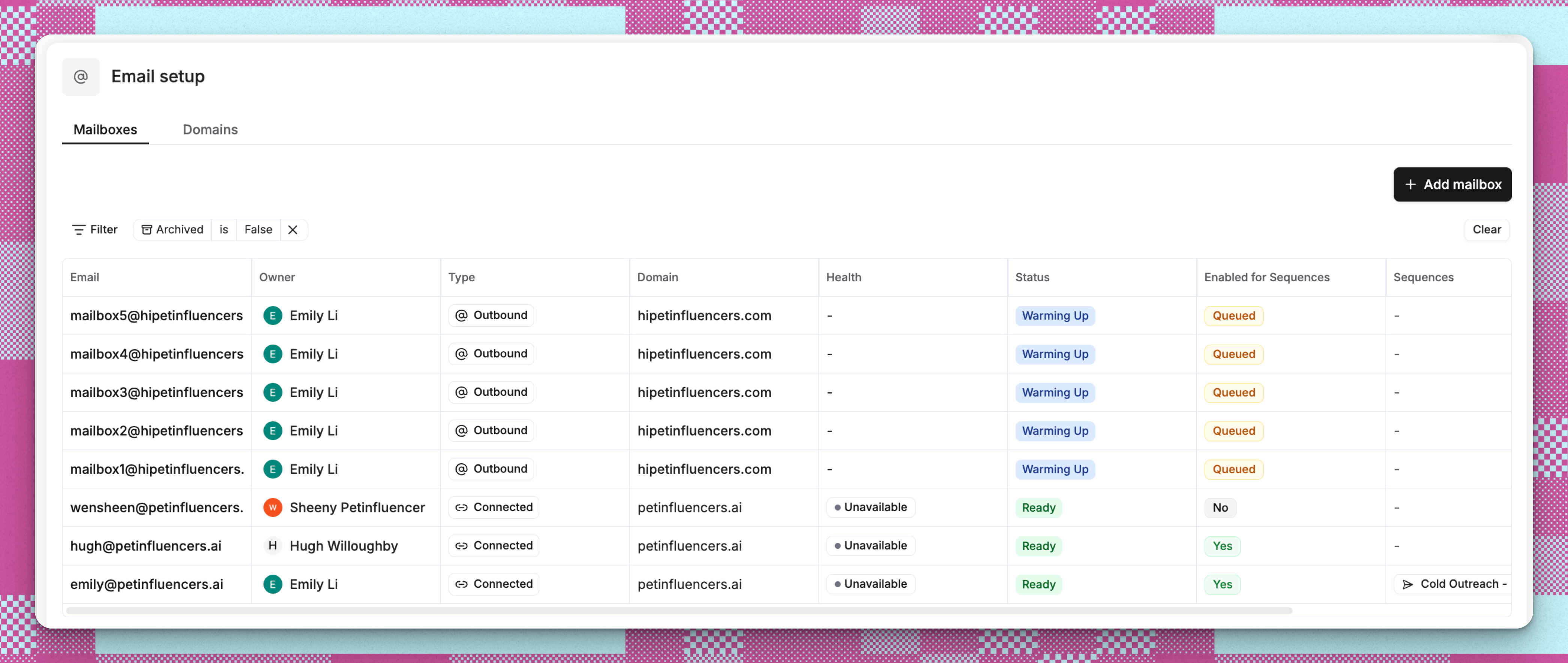
All created mailboxes will appear in Settings → Email setup → Mailboxes. You can track the following fields:- Type. Reevo-managed mailboxes show an Outbound badge. Mailboxes you connect show a Connected badge. The list filter also offers Imported.
- Associated Domain
- Status: Ready, Warming up, Attempting to purchase, Archived, or Requires re-authentication (shown when Reevo has lost access to a mailbox you connected through Google Sign-In, for example because you changed your Google password or revoked app permissions; reconnect it from the mailbox’s settings page)
- Health
- Sequence enrollment settings
Troubleshooting / FAQs
Why are domains needed before creating mailboxes?
Why are domains needed before creating mailboxes?
Can existing Gmail accounts be connected instead of purchasing new mailboxes?
Can existing Gmail accounts be connected instead of purchasing new mailboxes?
Can I add Outlook as an additional outbound mailbox?
Can I add Outlook as an additional outbound mailbox?
Can mailbox settings be edited after creation?
Can mailbox settings be edited after creation?
Why does Reevo recommend a warm-up limit of 10 and a daily send limit of 40?
Why does Reevo recommend a warm-up limit of 10 and a daily send limit of 40?
- Starting with very small volumes (tens, not hundreds)
- Ramping up gradually over several weeks
- Avoiding sudden jumps in sending volume
- Keeping target volumes low even after successful ramp-up
Why can't I see mailbox information in settings?
Why can't I see mailbox information in settings?
What happens when I reach my mailbox limit?
What happens when I reach my mailbox limit?
What's the difference between connected and Reevo-managed mailboxes?
What's the difference between connected and Reevo-managed mailboxes?
Can I use both types of mailboxes?
Can I use both types of mailboxes?
Why would I choose Reevo-managed mailboxes?
Why would I choose Reevo-managed mailboxes?
Can I change mailbox types after setup?
Can I change mailbox types after setup?
How do deliverability features work with Reevo mailboxes?
How do deliverability features work with Reevo mailboxes?
What's the difference between domain health and mailbox health?
What's the difference between domain health and mailbox health?
How do mailboxes relate to email deliverability?
How do mailboxes relate to email deliverability?
Can I track individual mailbox performance?
Can I track individual mailbox performance?
Do mailboxes automatically renew?
Do mailboxes automatically renew?
What happens to active sequences if I archive a mailbox?
What happens to active sequences if I archive a mailbox?
Should I use my Gmail account for sequences?
Should I use my Gmail account for sequences?
What does Attempting to Purchase status mean?
What does Attempting to Purchase status mean?
Can I add more than one mailbox at a time?
Can I add more than one mailbox at a time?
How does mailbox rotation work?
How does mailbox rotation work?
What should I do if the Google Sign-In popup does not open?
What should I do if the Google Sign-In popup does not open?
Why did I see a Required Gmail permissions were not granted error?
Why did I see a Required Gmail permissions were not granted error?
gmail.modify permission to send and sync email on your behalf. If you declined any permissions on the Google consent screen, the connection cannot complete. Click Import Google mailbox again and accept all permissions when prompted.What does This email is already connected to your organization mean?
What does This email is already connected to your organization mean?
How do I reconnect a Gmail mailbox if the connection expires or is revoked?
How do I reconnect a Gmail mailbox if the connection expires or is revoked?
What is the difference between Google Sign-In import and SMTP/IMAP import?
What is the difference between Google Sign-In import and SMTP/IMAP import?
Why does my Gmail mailbox default to 10 emails per day?
Why does my Gmail mailbox default to 10 emails per day?