Prerequisites
Before using Sequences, you need:- Admin or User role with appropriate permissions in your Reevo workspace
- Connected mailbox to send emails from sequences
- Contacts or accounts to enroll in your sequences
- Email templates (optional but recommended for faster setup)
Get Started
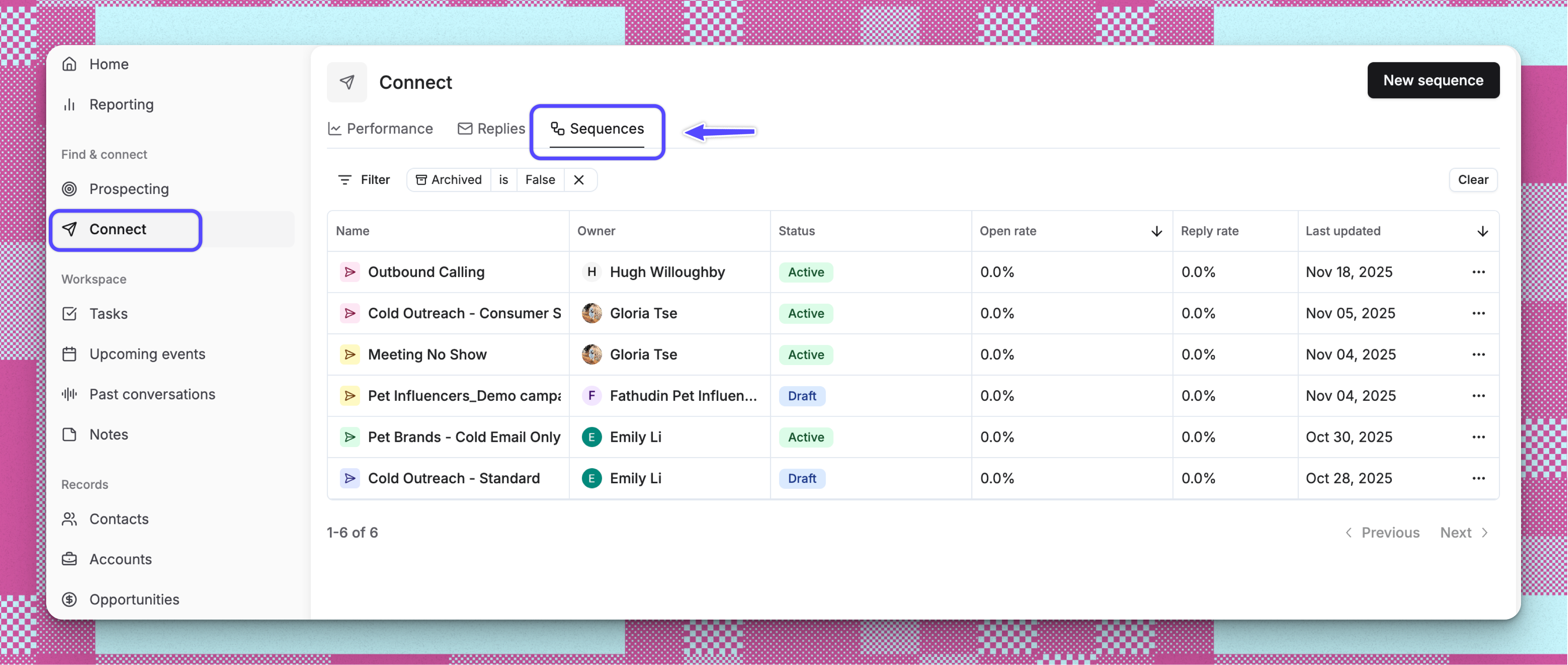
Accessing Sequences
Understanding Steps in Sequences
A sequence consists of multiple steps that can include automated emails, manual tasks like calls or LinkedIn outreach, and A/B testing variants to optimize messaging. Reevo offers full customization of these actions to build sequences that fit the way your team sells.How to Create and Launch Sequences
🧬 Step 1: Creating a Sequence
- Ensure you have at least one mailbox in your email setup (under settings) that is enabled for sequences and ready for sending
- From Connect > Sequences, click New Sequence to start a new sequence
- Select one of the following creation methods:
- Start from scratch: Build a completely custom sequence from the ground up
- Best for unique outreach strategies or when you need full control over every detail
- You’ll configure the sequence name, schedule, and steps manually
- Use a sequence blueprint: Choose from pre-built sequence templates designed for common use cases
- Saves time by providing proven sequence structures you can customize
- Ideal for standard outreach patterns like cold outreach, follow-ups, or onboarding
- Clone a sequence: Copy an existing sequence from your workspace
- Preserves all steps, variants, and configurations from the original
- Perfect for creating variations of successful sequences or adapting a teammate’s sequence
- Start from scratch: Build a completely custom sequence from the ground up
- Name your sequence with a clear, descriptive title (i.e Tech Founders Email Multi-Channel Cold Outreach)
- Add sequence steps in order:
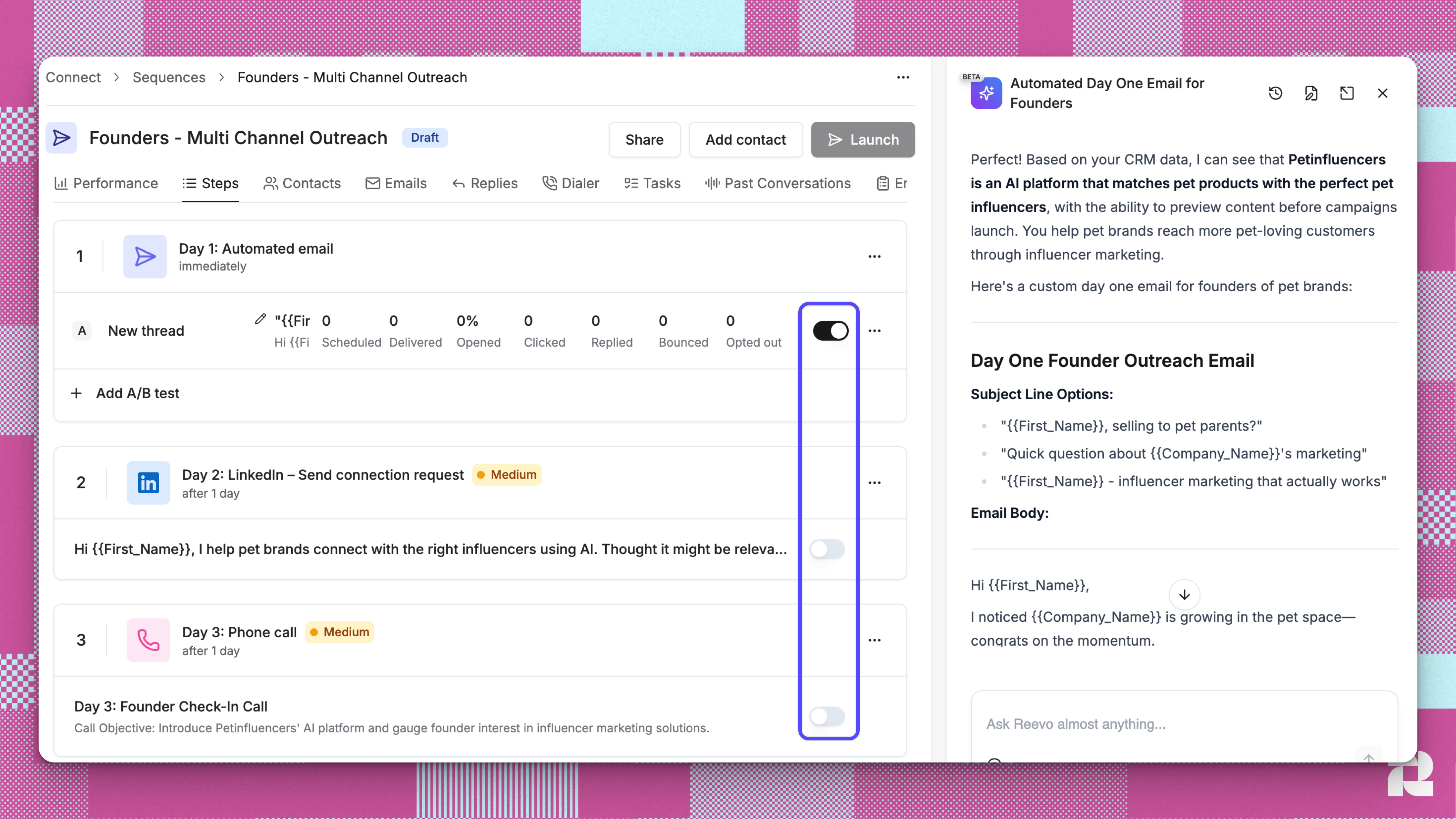
- Automated email steps: Compose email content or select from templates
- Manual task steps: Add call tasks, LinkedIn connection requests, or other manual actions
- Wait periods: Set delays between steps (hours or days)
- Configure step variants for A/B testing different messaging approaches
- Set your sending schedule to control when emails go out
- Enable the variant you want to activate for this sequence
👤 Step 2: Enrolling Contacts
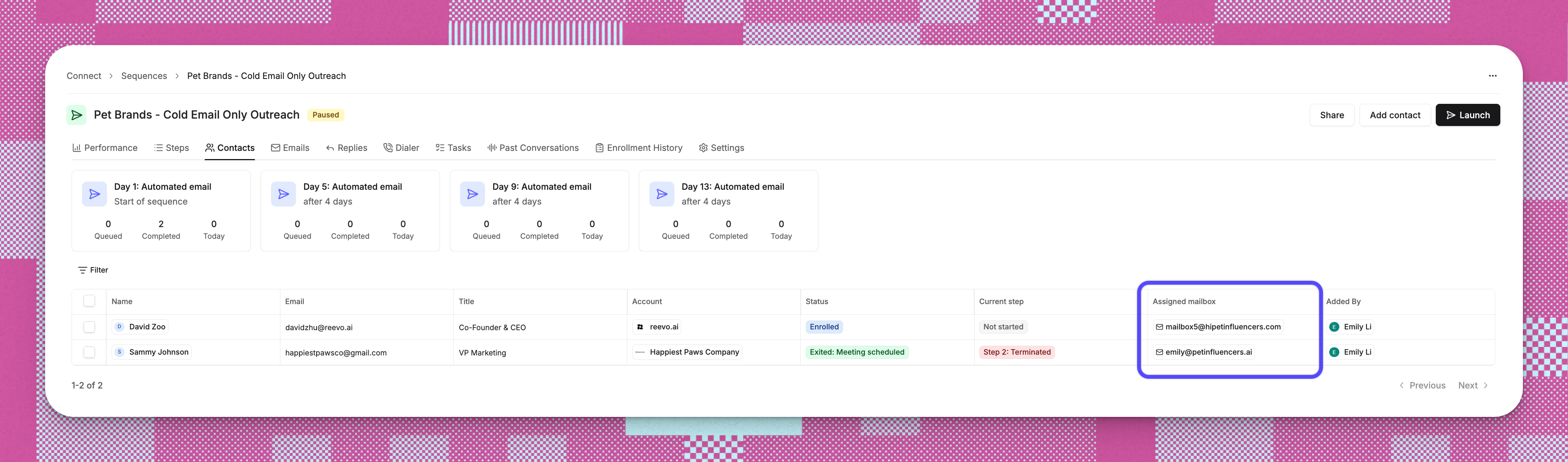
Launching a sequence turns it on, but outreach only sends after contacts are enrolled. There are four primary methods for adding contacts to sequences:📬 Step 3: Configure Mailbox & Sending Method

🚀 Step 4: Launch Sequence
Review your sequence and click Launch to activate it. Launch makes the sequence eligible to send to enrolled contacts. It does not add contacts or choose sending mailboxes.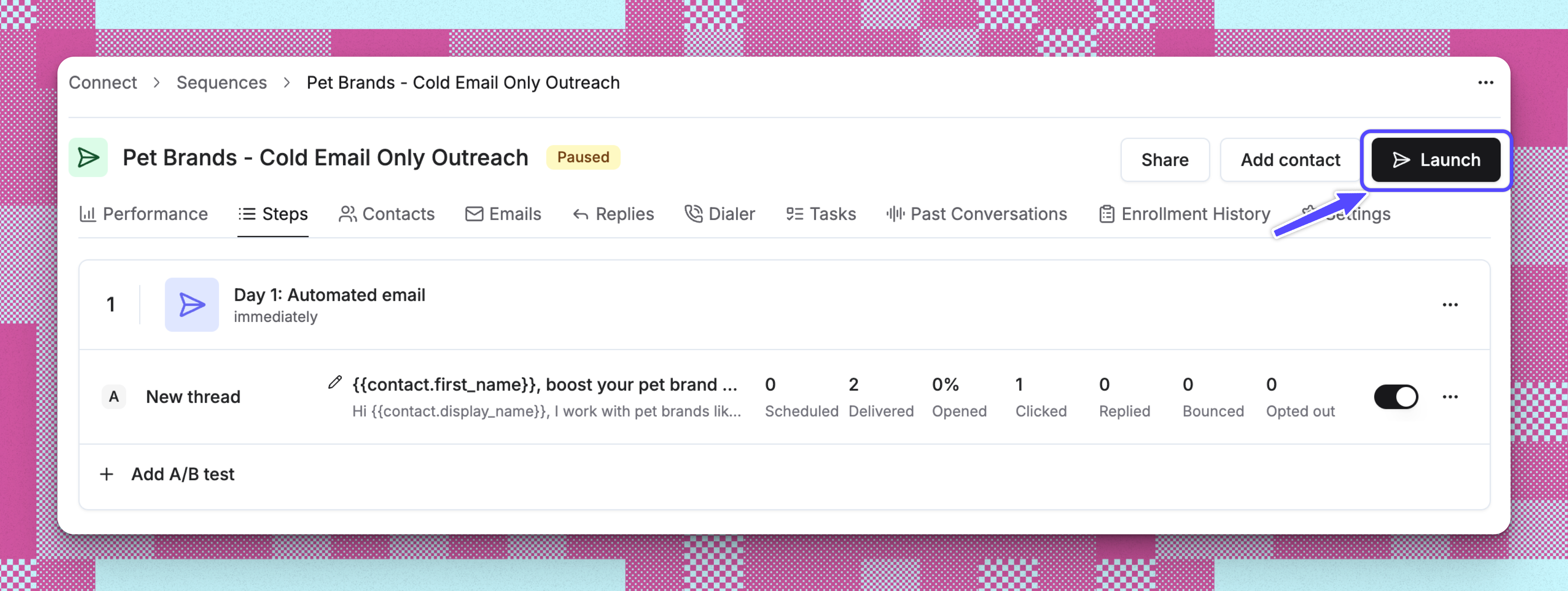
Enrollment Status Tracking
Behind the scenes, once contacts are enrolled, the system tracks detailed enrollment status information including when contacts were enrolled, when they exited, and why they exited. This powers the enrollment history views and helps you understand the full lifecycle of each contact’s journey through your sequences.Enrollment Run Details
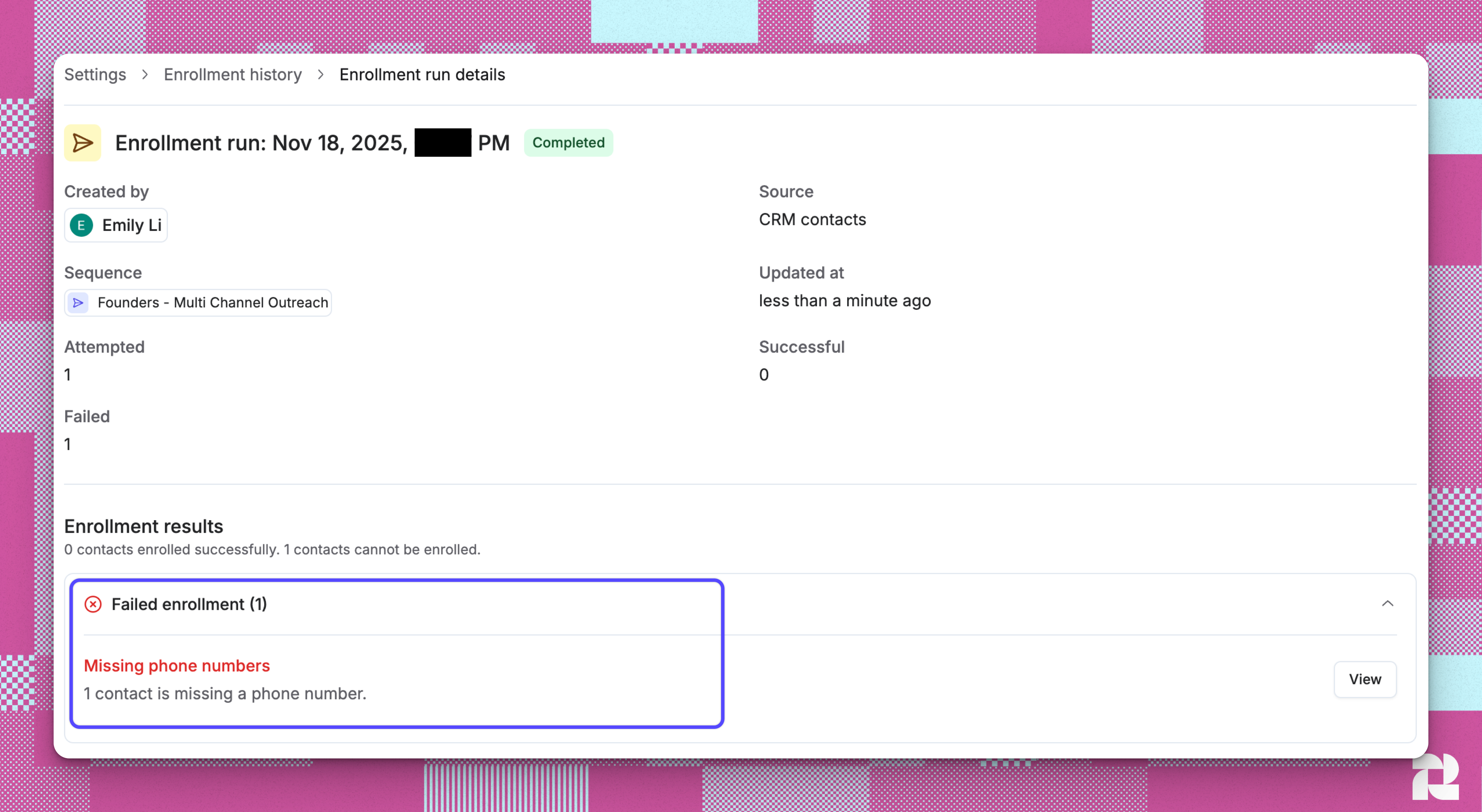
When you click into a specific enrollment run, you’ll see:
- Contact is already enrolled in another sequence
- Email address is risky (Not recommended or Use with caution)
- Contact does not have an account
- Contact does not have an owner
Why Enrollment History Matters
Enrollment History helps you:- Troubleshoot enrollment issues: Understand why specific contacts failed to enroll so you can fix the underlying problems
- Maintain data quality: Identify contacts missing required information (emails, accounts, owners)
- Protect sender reputation: See which contacts were blocked due to risky email addresses
- Track enrichment progress: Monitor email and phone enrichment runs that were triggered during enrollment
- Re-enroll contacts: After fixing issues, you can retry enrollment for failed contacts
Sequence Rules and Automation
Sequences respect several rules to protect deliverability and user experience:- Reply detection: When the TO recipient replies to a sequence email, they automatically exit the sequence. Replies from CC’d recipients do not exit the sequence.
- Sending schedules: Emails only send during your configured business hours.
- Mailbox rotation: If you select multiple mailboxes during enrollment, Reevo distributes sends across them.
- Duplicate prevention: Contacts cannot be enrolled in multiple sequences simultaneously.
- Missing field handling: When a contact reaches a step requiring information they don’t have (email, phone, or LinkedIn), Reevo follows the fallback rule configured for that channel - pausing, skipping, or exiting the contact. See Sequences: Manage Missing Contact Fields to configure this.
Troubleshooting / FAQs
Why aren't my sequence emails sending?
Why aren't my sequence emails sending?
- Confirm the sequence has enrolled contacts.
- Confirm a sending method and fallback mailbox were configured during enrollment.
- Verify your mailbox is connected and healthy in Settings.
- Confirm your sending schedule allows emails at the current time.
- Check if you’ve reached your monthly email quota in Usage.
- Ensure contacts are not already in another active sequence.
Can I edit a sequence after contacts are enrolled?
Can I edit a sequence after contacts are enrolled?
What happens when a contact replies to a sequence email?
What happens when a contact replies to a sequence email?
How do I know which sequence variant is performing better?
How do I know which sequence variant is performing better?
Can I use sequences for existing customers or only prospects?
Can I use sequences for existing customers or only prospects?
What happens if a contact's CRM owner doesn't have a mailbox?
What happens if a contact's CRM owner doesn't have a mailbox?
Can I change the sending method after a sequence is already running?
Can I change the sending method after a sequence is already running?
Does the sending method apply to all step types, or just automated emails?
Does the sending method apply to all step types, or just automated emails?
How are emails distributed across multiple mailboxes when using specific mailboxes?
How are emails distributed across multiple mailboxes when using specific mailboxes?
What happens if one of my selected mailboxes becomes unhealthy mid-sequence?
What happens if one of my selected mailboxes becomes unhealthy mid-sequence?
Is a fallback mailbox required?
Is a fallback mailbox required?
Does my sending method choice carry over to future enrollments?
Does my sending method choice carry over to future enrollments?
Can regular users access all mailboxes when enrolling, or only their own?
Can regular users access all mailboxes when enrolling, or only their own?