Meeting Settings
The Reevo Notetaker may be unable to join when:- Anonymous users cannot join meetings
- Anonymous users cannot join without email verification
- Anonymous or untrusted users must complete a verification check
If Anonymous Users are Blocked
If Anonymous Users are Blocked
By default, some Microsoft tenants block anonymous users from joining Teams meetings. The Reevo Notetaker joins as an anonymous participant, so this setting must be configured to allow it.
How to Configure
How to Configure
Navigate to the following settings page:Teams Admin Center → Meetings → Meeting settingsSet Anonymous users can join a meeting to ON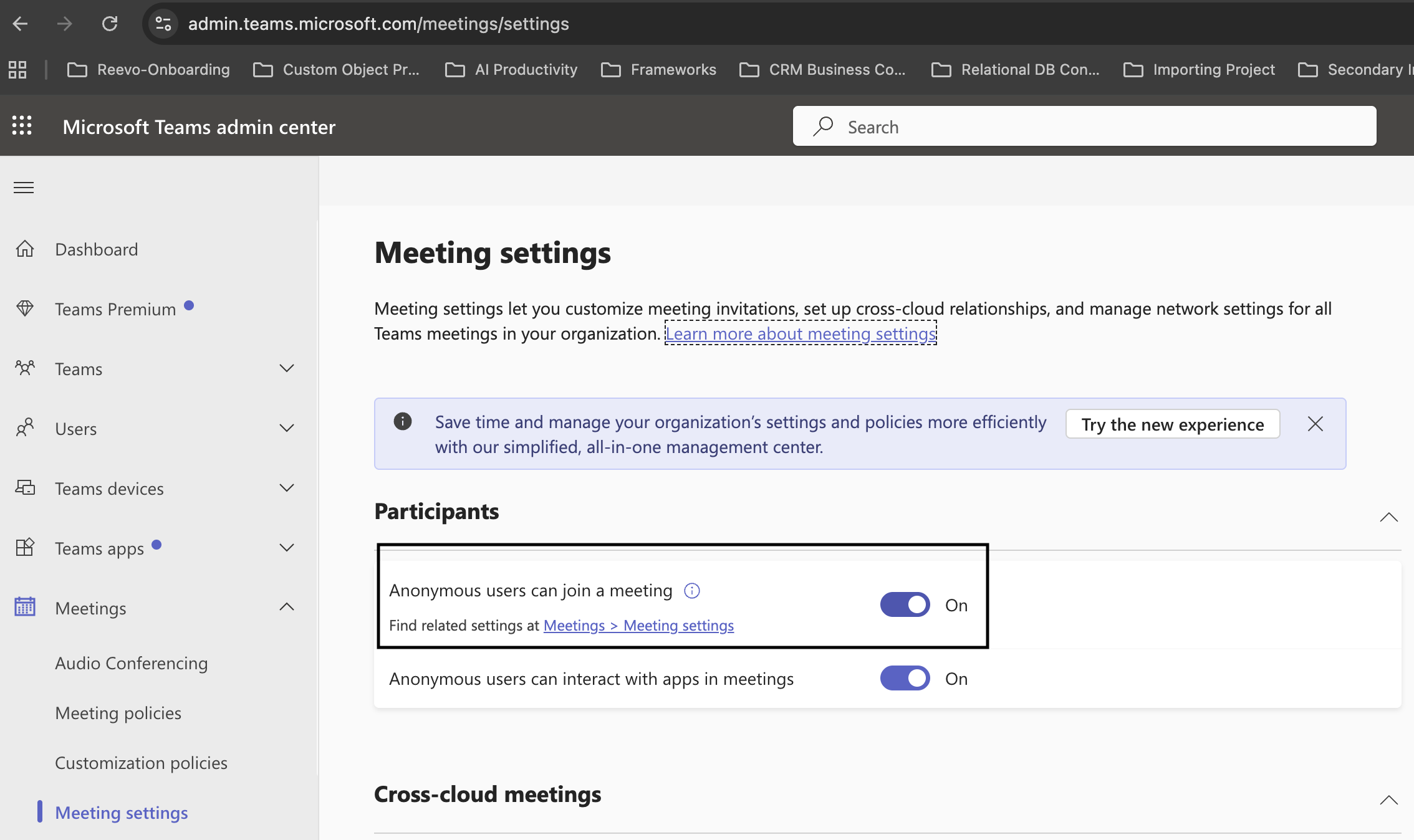
When this is ON.
When this is ON.
- Allows anyone to attempt to join meetings, even those who have NOT signed in
- Includes:
- External people
- People from other Microsoft tenants
- People not on your allowed domain list
- Browsers in incognito mode
- Sends them to the meeting join flow (lobby rules still apply)
- Includes:
- This does not mean they automatically get into the meeting
- Lobby, verification, and admit rules still apply
- This toggle only answers: “Are anonymous joins allowed at all?”
If Anonymous Users Must Verify Their Identity
If Anonymous Users Must Verify Their Identity
How to Configure
How to Configure
Navigate to the following settings page:Teams Admin Center → Policies → Meeting policiesFor all meeting policies for users using Reevo (or the Global default policy) you will need to change the following:Under Meeting join & lobby, find “Anonymous users can join a meeting unverified” and set it to ON.
When this is ON.
When this is ON.
- Anonymous users can join a meeting without authentication or identity verification
- They land directly in the lobby (unless lobby bypass rules allow otherwise)
- This does not mean they automatically get into the meeting
- Lobby, verification, and admit rules still apply
- This toggle only controls whether verification is required before reaching the lobby
If Verification is Required for Anonymous Users
If Verification is Required for Anonymous Users
This setting determines whether anonymous users must complete an email verification check before joining meetings. If set to require verification, the Reevo Notetaker will be blocked.
How to Configure
How to Configure
Navigate to the following settings page:Teams Admin Center → Policies → Meeting policiesSelect your meeting policy (or the Global default policy).Under Meeting join & lobby, find “Require a verification check from” and set it to “Not required”.
When set to 'Not required'.
When set to 'Not required'.
- No one is required to verify their identity before joining
- Anonymous users can:
- Click the meeting link
- Enter a display name
- Go straight to the lobby
- Anonymous users
- Bots and AI note-takers (including Reevo)
- External users from other organizations
- Anyone with the meeting link
- This does not mean they automatically get into the meeting
- Lobby and admit rules still apply
- This only removes the verification step
When set to 'Anonymous users and people from untrusted organizations'.
When set to 'Anonymous users and people from untrusted organizations'.
- Anonymous users must complete a verification check (typically email-based) before reaching the lobby
- Most bots (including the Reevo Notetaker)
- Automated joiners
- Headless browsers
- Real humans who can complete the email verification
Still have questions? Sign in and use AskReevo for instant answers or to raise a support ticket.