Overview
Reevo’s workflow builder lets you automate repetitive tasks and create sophisticated business processes without writing code. Set up workflows that trigger automatically when specific events occur - like a record being created, an opportunity being updated, a meeting starting, a webhook being received, or a recurring schedule reaching its next run time - and execute a series of actions like updating records, routing leads, waiting, branching, or sending notifications. Workflows consist of two main parts: a trigger that starts the workflow automatically, and action nodes that execute in sequence to complete your business process.Prerequisites
- Admin or User role with permission to create workflows in your Reevo workspace
- Familiarity with the records and data you want to automate (Contacts, Accounts, Opportunities, etc.)
Creating a New Workflow
Step 1: Navigate to Workflows
Access Workflows through the navigation bar.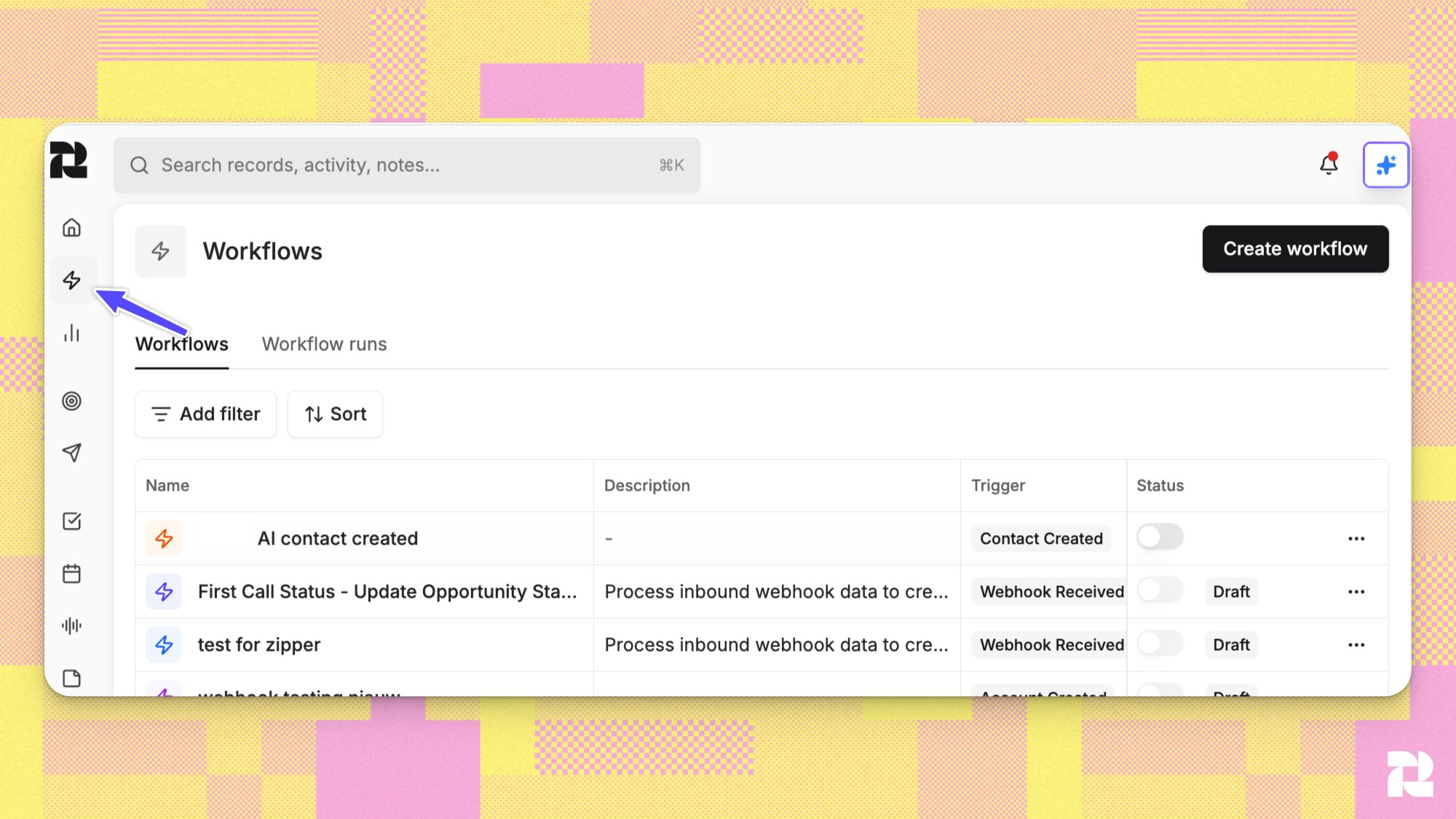
Step 2: Choose a Template or Start from Scratch
Select a template that matches your use case, or build your own from scratch. Templates are organized by category - Contact-Based, Account-Based, Lead Routing, Alerts, and more. See Workflow Templates: Choosing the Right Starting Point for a breakdown of each category. Give your workflow a clear, descriptive name so it’s easy to identify later (e.g., “Closed Won New Business Opportunity → Create Renewal Opportunity”).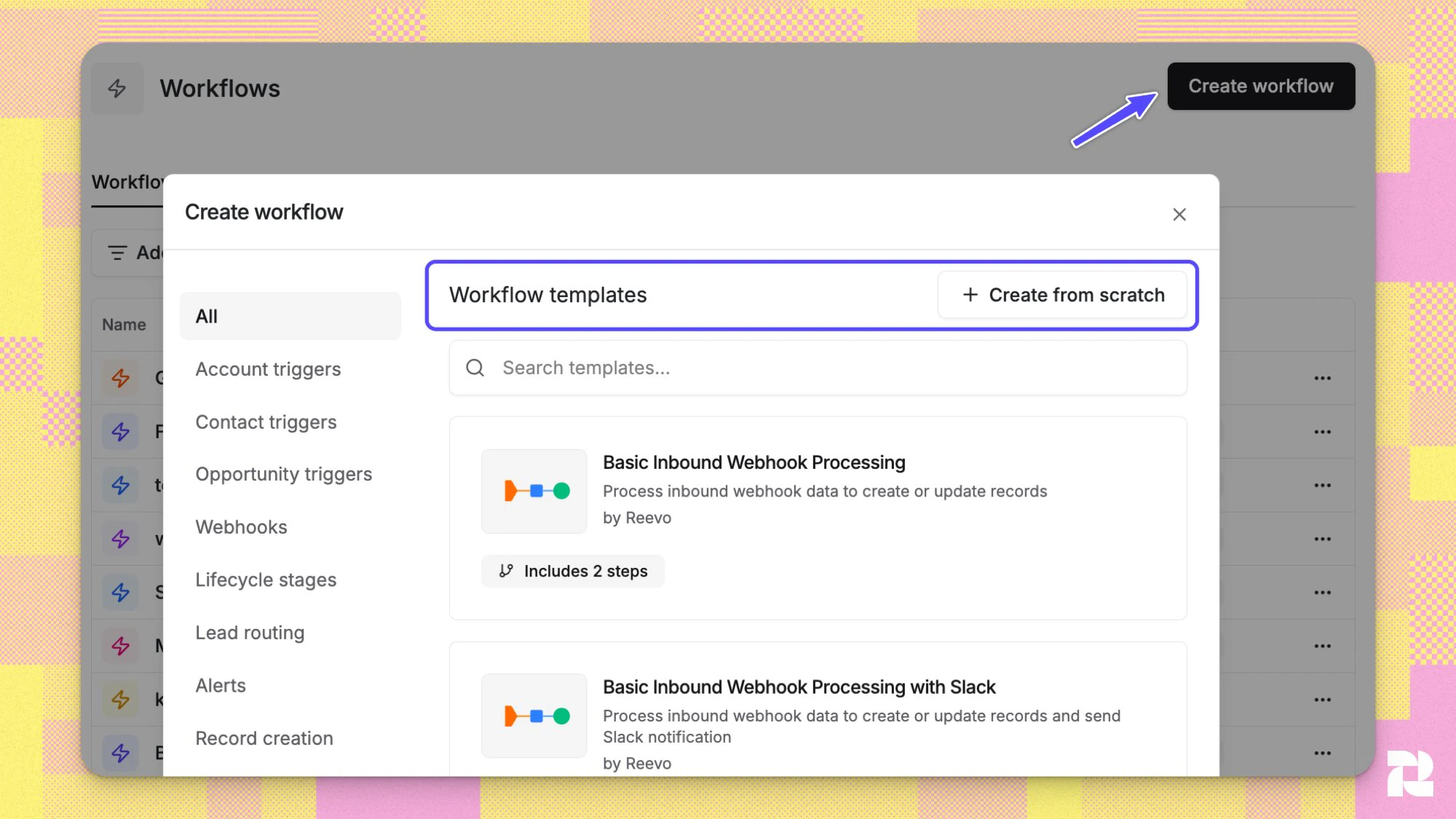
Step 3: Build in the Setup Tab
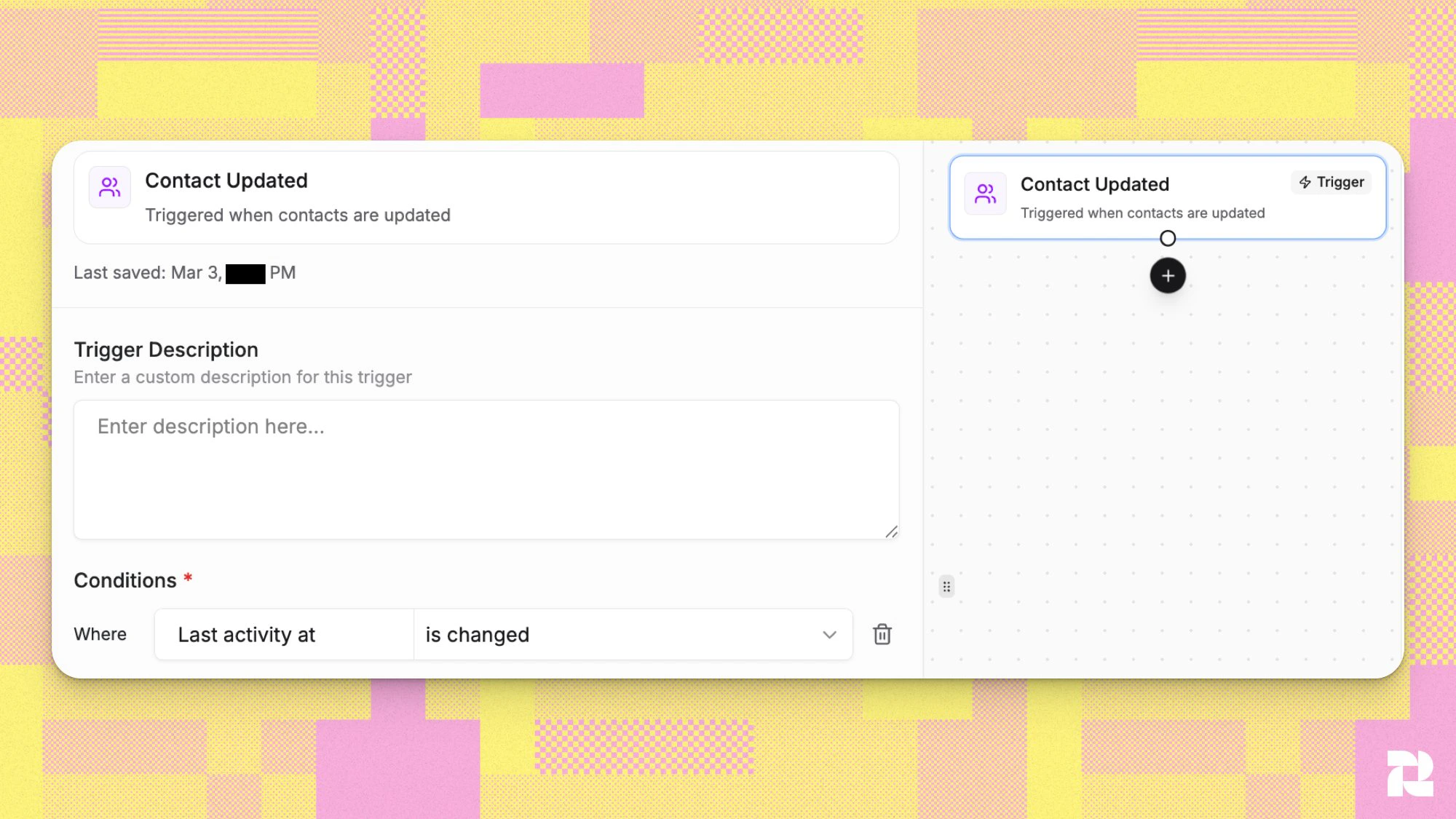
You’ll land on the Setup tab, where you can see and configure every node in your workflow. The workflow flows top to bottom:- Trigger node - the special first node that defines the event that starts the workflow and provides relevant data to downstream nodes (e.g., when an account or contact is updated)
- Action nodes - the steps that execute after the trigger, defining what the workflow does in sequence
Configuring Your Trigger
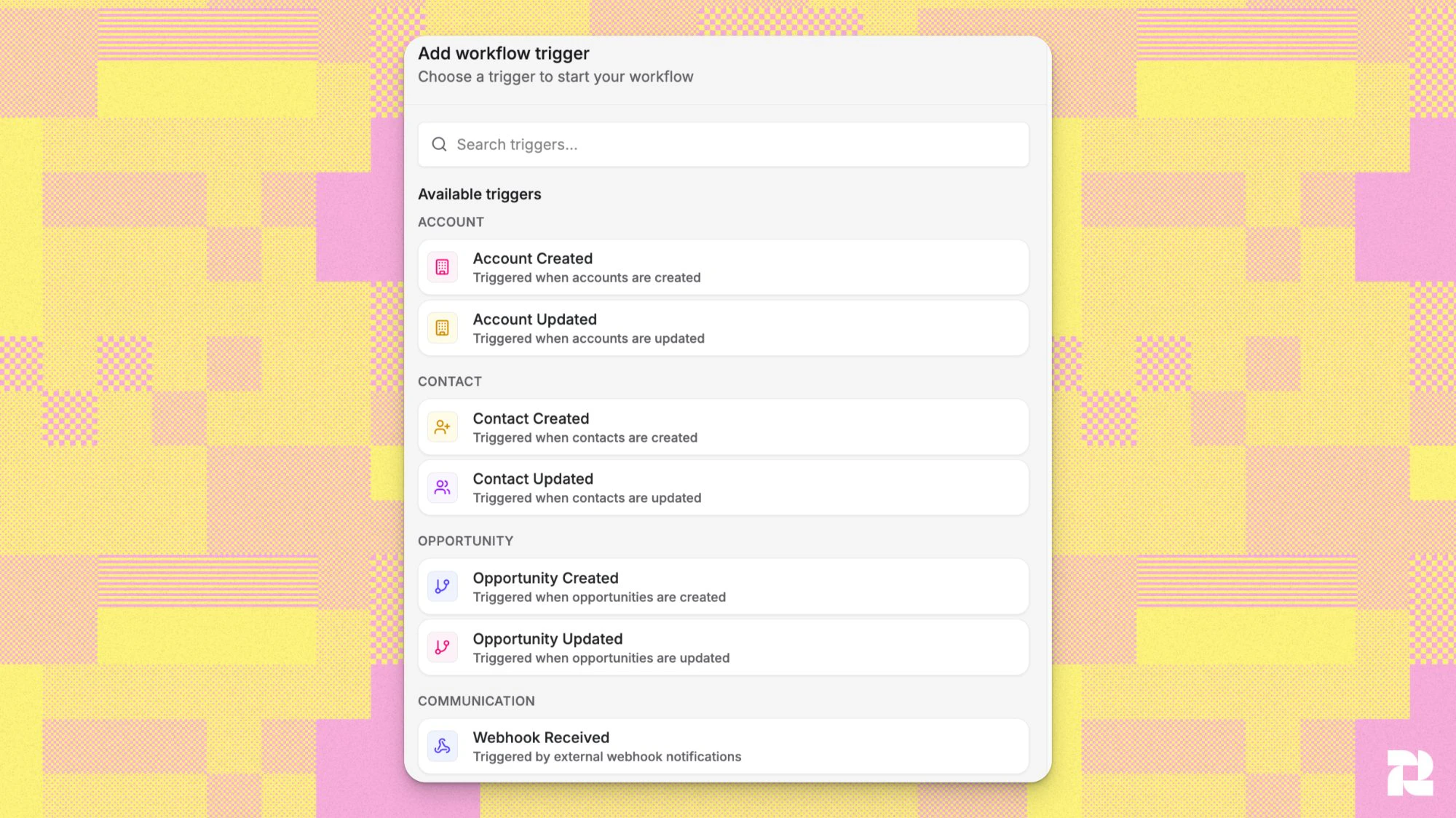
Click the trigger node to select your trigger type and configure its settings. Released trigger categories include:
See Understanding Workflow Triggers for the full list of trigger types and configuration details.
Adding and Configuring Action Nodes
Click + at any point in the workflow to add a new action node. Released node categories include:
For a full explanation of every available node, see Workflow Action Nodes: Complete Reference.
To bring Condition paths back into one shared continuation, see Merge Branches in Workflows.
To send workflow notifications through Microsoft Teams, see Microsoft Teams Workflow Messaging.
Draft and Production Versions
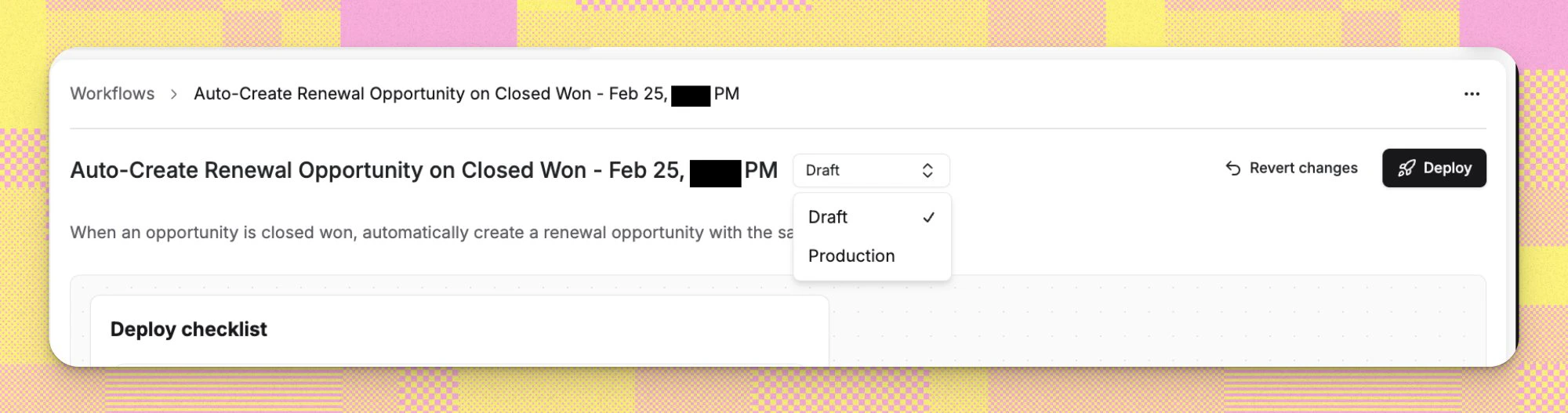
A workflow you are editing is a draft. Once you launch it, that version becomes the production version and starts running. A badge at the top of the workflow tells you which version you are looking at - Draft, Production, or Historical for an older version.- To edit a workflow that is already live, open it and click Edit. This puts you back in the draft so the production version keeps running untouched while you work.
- To see earlier versions, click Show versions on the canvas. From there you can open any past version or switch back to your draft.
- To discard your draft and start again from what is live, click Revert changes.
Undoing and Redoing Changes
While editing a draft, you can undo and redo changes using the controls in the canvas toolbar or keyboard shortcuts.
The undo and redo buttons in the canvas toolbar appear disabled when there is nothing left to undo or redo.
Changes tracked include: adding or deleting a step, updating a step’s configuration, updating the trigger, adding or removing a connection between steps, swapping or moving steps, and cloning a step.
When you undo or redo, the builder automatically scrolls the canvas to the affected node and opens its configuration panel.
Undo/redo is only available while editing a draft. Viewing the production version or launching a new version clears the undo history.
Using Variables
Variables let you pass data from one node to another, making your workflow dynamic and responsive to the actual records being processed. When configuring an action node’s fields, click any field to switch to variable mode to see all data available from earlier steps - the trigger record’s fields, outputs from previous action nodes, and internal workflow values.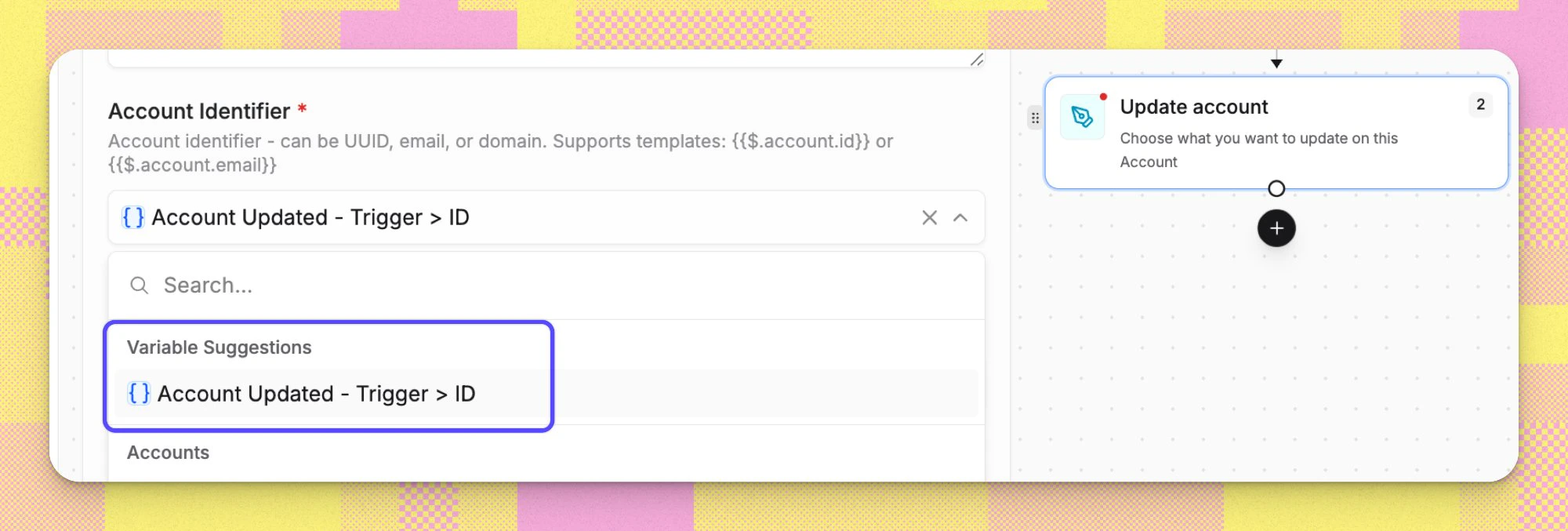
Dry Running a Workflow
Use Dry run to simulate the workflow version you are viewing before you rely on it in production. A dry run shows the trigger data, the path the workflow would take, each step’s resolved inputs and outputs, any projected external actions, and how many records would be modified. The dry run panel is available from the workflow editor when the workflow has a trigger. It can run against a draft, the launched production version, or an older version, depending on which version is open. This section has 4 parts: starting a dry run, choosing trigger inputs, reading results, and understanding what the simulation does.1. Start a dry run
- Open a workflow from Workflows.
- Make sure the workflow has a trigger configured.
- Click Dry run in the workflow editor.
- Provide the trigger input the panel asks for.
- Click Run dry run.
A dry run does not change CRM data, send emails, send Slack messages, call webhooks, or send notifications.
2. Trigger inputs
The dry run panel asks for different inputs depending on the workflow trigger:3. Reading dry run results
After the simulation finishes, the panel shows:- Simulated trigger: the record or event data that started the simulation.
- Trigger conditions: whether the simulated event matches the workflow’s trigger filters.
- Projected side effects: external actions the workflow would have taken, such as sending an email, Slack message, webhook, or notification.
- Would modify records: the number of records the workflow would create, update, or delete.
- Step results: select a step on the workflow graph to see its resolved inputs, projected output, status, and any error.
The simulation runs even when trigger conditions do not match, so you can inspect why the selected event would or would not start the workflow in production.
4. What dry run simulates
Dry run is designed to preview behavior without creating production side effects:- Read, branching, compute, delay, and loop steps are simulated so downstream steps can continue.
- CRM update and sequence enrollment steps project what would happen without writing changes.
- Email, Slack, webhook, notification, and other side-effecting steps are not sent. They appear as projected side effects.
- Enrichment and research steps return representative example data instead of calling their external providers.
- Approval, external lookup, async workflow dispatch, scheduler, scoring, and Ask Reevo steps are marked Not simulated when their real behavior cannot be reproduced offline.
Launching and Activating Your Workflow
Launch
When your workflow is configured and the Launch checklist shows all items complete, click Launch to publish your changes.- All nodes must be connected and fully configured before you can launch
- To make changes after launching, click Edit to go back to the draft, then click Launch again to push the update live
Activate
After launching, use the Active / Inactive toggle to turn the workflow on or off:A workflow can be launched but Inactive. Make sure both the workflow is launched and the toggle is Active before expecting it to run automatically.
Monitoring Workflow Performance
Monitor all your workflows from the main Workflows page. From the main Runs tab, clicking a workflow name or row navigates you directly into that workflow’s Run history tab, where you can see every execution - when it ran, whether it succeeded, and a node-by-node breakdown.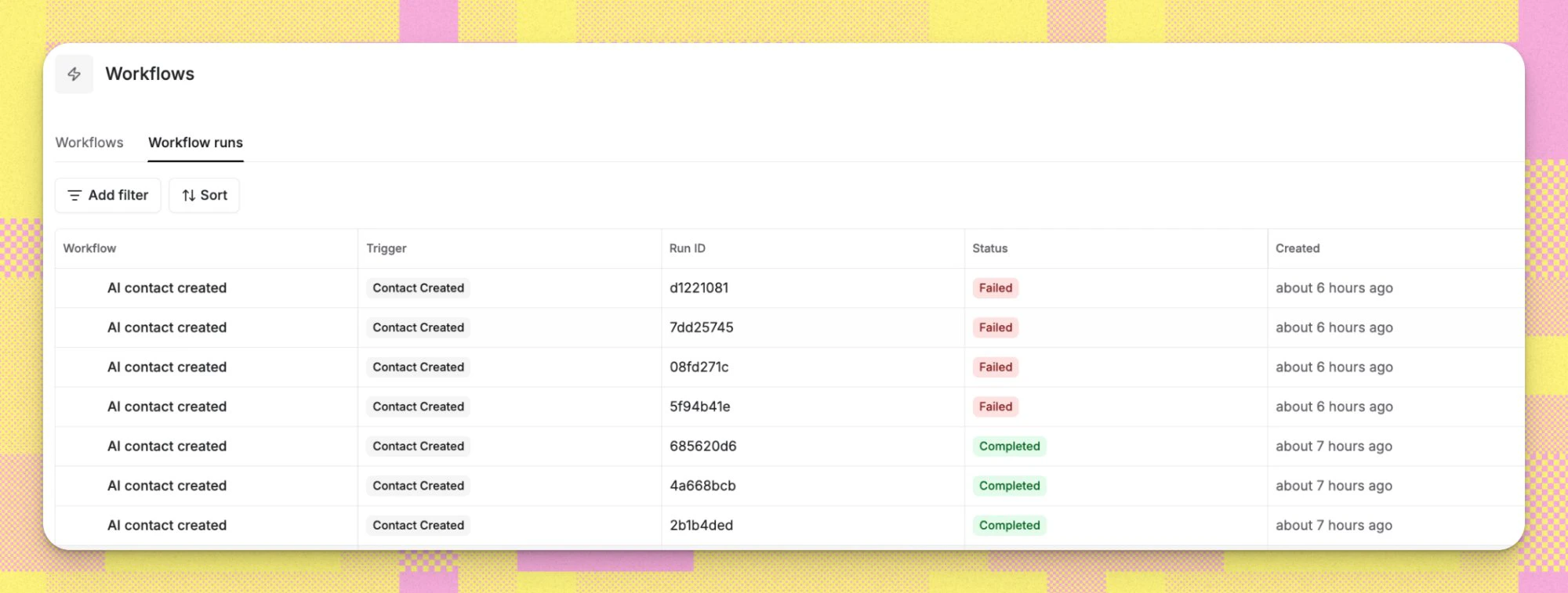
Troubleshooting / FAQs
Why can't I launch my workflow?
Why can't I launch my workflow?
Click the Launch checklist panel to see exactly which fields still need to be completed. All nodes must be connected and every required field must be filled in. The most common blocker is an unconfigured node or a disconnected node with no incoming connection.
What's the difference between static values and variables?
What's the difference between static values and variables?
Static values are fixed data you type in or select directly - like a specific email address, a hardcoded stage name, or a particular value in a select list (e.g. choosing a particular opportunity stage). Variables pull live data from earlier steps in the workflow - like the email address from the contact that triggered the run. Variables make workflows dynamic and reusable across many records.
How do I edit a workflow that is already live?
How do I edit a workflow that is already live?
Open the workflow and click Edit. That returns you to the draft version, where you can make changes without affecting the version currently running. Click Launch when you’re ready to push those changes live.
What happens if I make changes to a launched, active workflow?
What happens if I make changes to a launched, active workflow?
Click Edit first to make your changes in the draft. The currently active version keeps running until you click Launch again - in-progress runs are not affected.
Why is my workflow Active but not running?
Why is my workflow Active but not running?
Confirm that: (1) the workflow has been launched (not just saved), (2) the Active toggle is on, and (3) the trigger’s conditions are actually being met. For Record Updated triggers, the specific field and value you configured must change on a record for the trigger to fire.
Can I delete a node in the middle of a workflow?
Can I delete a node in the middle of a workflow?
Yes - you can delete any nodes in your workflow. Note that deleting a node can break variables in downstream nodes that reference it, and those references will need to be updated.
Can I undo a change I made in the builder?
Can I undo a change I made in the builder?
Yes - use Cmd+Z (Mac) or Ctrl+Z (Windows) to undo, and Cmd+Shift+Z or Ctrl+Y to redo. You can also use the undo/redo buttons in the canvas toolbar. Undo/redo is only available while editing a draft and tracks actions like adding or deleting steps, updating configurations, and moving or swapping nodes.
Can I test a workflow before launching or activating it?
Can I test a workflow before launching or activating it?
Yes. Open the workflow version you want to test and click Dry run. Reevo simulates the workflow against the trigger input you provide and shows the path, step outputs, projected side effects, and projected record changes without sending messages, calling webhooks, or changing CRM data.
Does a dry run use credits?
Does a dry run use credits?
AI-powered steps run with a real model during dry runs so the output is realistic. Those AI steps consume credits just like they do during a live workflow run.
Can I move a node or swap two nodes?
Can I move a node or swap two nodes?
Yes - click Swap at the bottom of the editor to choose two nodes to swap locations. You can also hover near the left edge of a node to drag and drop it to a different position in the workflow.
Can I clone an existing workflow?
Can I clone an existing workflow?
Yes - from the workflow list, find the workflow you want to copy and click Clone. This creates a new draft workflow with the same structure and configuration, which you can then customize independently.
Still have questions? Sign in and use Ask Reevo for instant answers or to raise a support ticket.