Overview
The dialer integrates with other Reevo features like sequences, tasks, and meeting scheduling to create a complete sales engagement workflow. All calling activity automatically updates your CRM, eliminating manual logging and ensuring accurate pipeline reporting. The phone number you select becomes your dedicated line for all Reevo calling activity, and all calls are automatically recorded and logged to contact records. For organization-wide dialer configuration (admin only), additional settings are available in the Dialer Settings page to manage team-wide calling preferences and compliance requirements.Setting Up Your Dialer
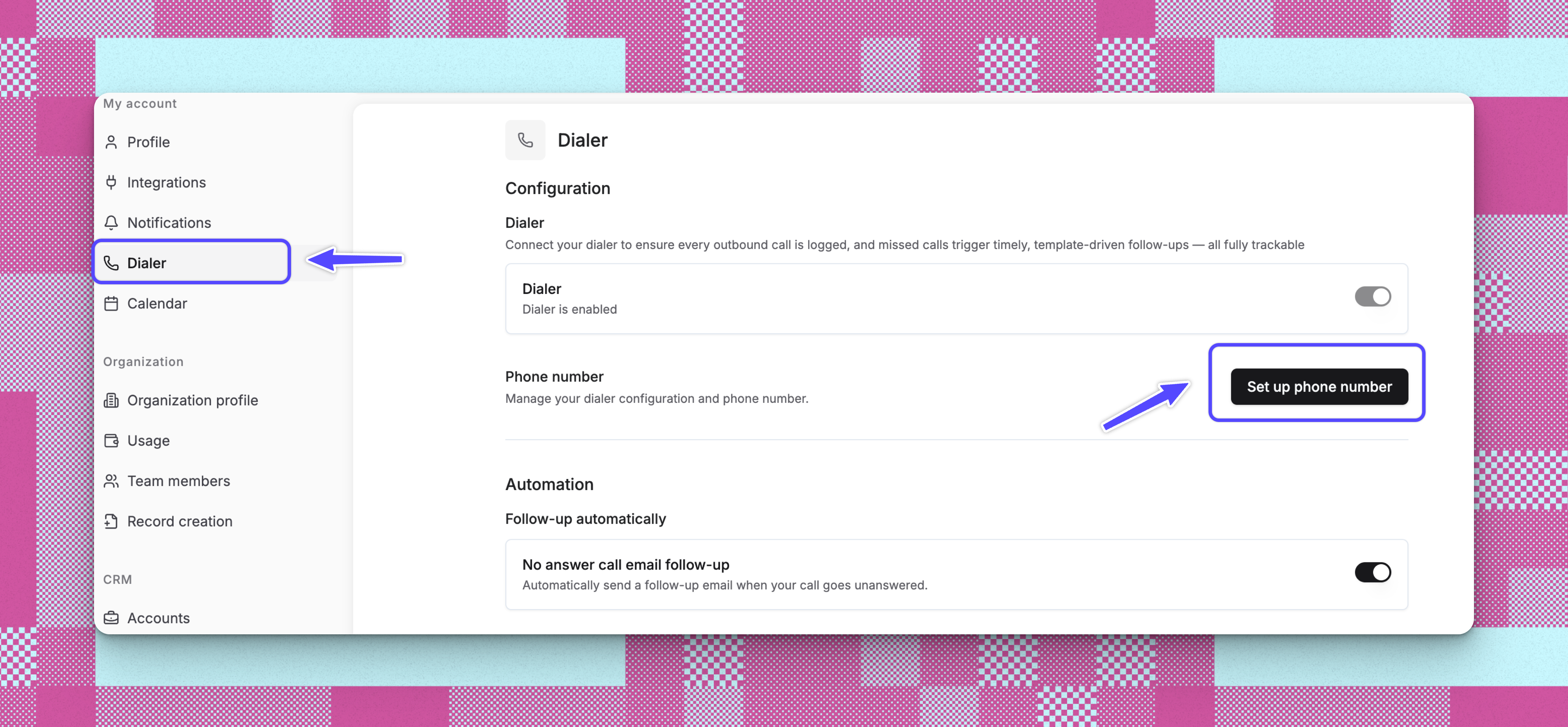
Before making calls, complete the one-time dialer setup to provision your dedicated phone number.- Navigate to **Settings > My Account > **Dialer by clicking your name in the lower left corner
- Click Set up phone number to begin the configuration wizard
Selecting Your Phone Number
You can choose your phone number using two methods:Option 1: Search by Area Code
- Enter a three-digit area code (e.g., 415 for San Francisco)
- Click Search to view available numbers in that area code
- Browse the list of available phone numbers
- Select your preferred number from the results
Option 2: Search by Location
- Switch to the Location tab
- Enter a city or address
- The system searches for numbers within 25 miles of that location
- Review available numbers and suggested area codes for that region
- Select your preferred number
Completing Setup
- After selecting a number, review your choice
- Click Complete setup to provision the phone number
- The system assigns the number to your account (this takes a few moments)
- Once complete, your phone number appears in Dialer Settings
Configuring Additional Settings
After your phone number is set up, configure these optional features:- Voicemail Setup: Record a custom voicemail greeting or use the default message, configure voicemail notifications, and set up automatic follow-up tasks for voicemails
- Call Forwarding: Enable call forwarding to receive calls on your personal device and configure when forwarding should be active
- Caller ID Display: Toggle whether your Reevo number displays as the caller ID when making outbound calls from your phone
- Call Recording: Enable automatic call recording for compliance and review
Ways to Use Dialer
Making a Single Call
- Navigate to a contact record in your Contacts list
- Click the phone icon next to the contact’s phone number
- The dialer interface opens and automatically initiates the call
- During the call, you can:
- View contact details and recent activity
- Take notes that save automatically to the contact record
- After the call ends, the system creates a call record in your CRM automatically
Automatic Sequence Calling Using Power Dialer Mode
Prerequisites:- Create a sequence with Call Task steps (navigate to Sequences and add call task steps)
- Enroll contacts into your sequence to generate call tasks
- Open your sequence and click the Dialer tab
- Click Start power dialer to begin your calling session
- Pre-Call (15-second timer): Review contact details, opportunities, and history. Click Call now to dial immediately, Skip to move to next contact, or Pause for more review time.
- Active Call: Take notes during the call that automatically save to the contact record.
- Post-Call (15-second timer): Select an outcome (Interested, No answer, Left voicemail, etc.) and the dialer auto-advances to the next contact. Click Mark as done to advance immediately or Pause for more time.
Logging Call Outcomes
Logging call outcomes is only supported when the call is initiated from a Sequence-created call task. After each call, you’ll select an outcome:
These flow control actions are configurable per sequence step, so you can customize what happens after each outcome.
Voicemail and Missed Call Automation
The dialer can automatically create follow-up tasks when calls go to voicemail or aren’t answered. This ensures no prospect falls through the cracks. Configure these automations in Settings > DialerCall Intelligence and Analysis
Meeting Prep
When a call is initiated through a contact page, the dialer provides meeting prep materials to help you prepare for the conversation. It includes:- Quick notes from previous interactions
- Contact context - Contact related Accounts and Opportunities details
- Meeting history - Past meetings with this contact
Post-Call Intelligence
When a call is recorded, Reevo automatically processes it through the meeting intelligence system to generate insights:- Transcription: The call is transcribed so you can search and reference specific moments
- AI-Generated Insights: The system analyzes the conversation to extract key topics, action items, and sentiment
- Meeting Summary: You’ll see a summary of what was discussed, similar to video meeting intelligence
Managing Call Recordings
Where Call Recordings Are Stored
After you complete a call through the Reevo Dialer, the recording and transcript are automatically saved and can be accessed in two main places: 1. Within the Contact or Opportunity Context Call recordings appear chronologically alongside other interactions (meetings, emails) when you view a contact or opportunity. This gives you a complete timeline of all touchpoints with that prospect or customer. You can find these recordings in the Activity or Events section of the contact record. 2. In the Global Recordings View There’s also a dedicated recordings page where calls and video meetings are organized separately by type. This view is optimized for reviewing and referencing past calls without needing to navigate to specific contacts.Sharing Call Recordings
You can share call recordings with team members or external stakeholders. When shared, recipients receive a link that includes:- Meeting overview with title and duration
- AI-generated insights
- Participant information
- Direct access to the recording and transcrips
Notes
The call intelligence system treats phone calls as a type of meeting, which means they benefit from the same AI analysis capabilities as video meetings. This unified approach ensures consistent conversation intelligence across all communication channels. All call recordings integrate with Ask Reevo, so you can query information from past calls using natural language questions.Troubleshooting/FAQs
Can I change my phone number after setup?
Can I change my phone number after setup?
Yes, but you can only change your phone number once per month. Navigate to Dialer Settings and click Change phone number. Note that changing your number means you won’t receive callbacks on your previous number.
What if no numbers are available in my preferred area code?
What if no numbers are available in my preferred area code?
The system will suggest alternative area codes near your selected location. You can also try searching by a nearby city or different area code.
What happens if I don't complete the setup?
What happens if I don't complete the setup?
You won’t be able to make or receive calls through the dialer until setup is complete. The system will prompt you to set up your phone number when you attempt to use calling features.
I'm experiencing poor audio quality or connection problems.
I'm experiencing poor audio quality or connection problems.
Check your internet connection stability first. If issues persist, your IT team may need to configure firewall settings to allow the dialer’s voice traffic. Contact support for specific firewall configuration requirements.
Where do my call recordings go?
Where do my call recordings go?
Call recordings and notes are automatically saved to the contact record under the Activity or Events section. You can access them anytime from the contact’s profile.
What happens if I call a number on the Do Not Call list?
What happens if I call a number on the Do Not Call list?
The system prevents calls to numbers marked as Do Not Call to ensure compliance. You’ll see a warning if you attempt to dial a restricted number.
Can I use the dialer with sequences?
Can I use the dialer with sequences?
Yes, call tasks within sequences can be completed using the dialer. When a sequence includes a call step, you’ll see the option to dial directly from the sequence task.
Is there a cost for the phone number?
Is there a cost for the phone number?
Phone numbers are provisioned as part of your Reevo subscription. Contact your account manager for specific pricing details related to calling minutes and phone line usage.
Can I set up the dialer from the mobile app or extension?
Can I set up the dialer from the mobile app or extension?
Dialer setup must be completed through the main Reevo web application at Settings > Dialer. Once configured, you can use the dialer across all platforms.
Still have questions? Sign in and use AskReevo for instant answers or to raise a support ticket.