Prerequisites
- Active calendar integration (i.e Google Calendar) connected to your account
- Meeting recording settings configured in your organization
- Meetings must include conferencing details (Zoom or Google Meet link)
- Appropriate permissions to record meetings in your organization
- Calendar events must appear on the Upcoming Events page for the bot to join
How the Meeting Bot Works
Automatic Bot Scheduling
When you create or sync a meeting from your calendar, the system automatically determines whether to add a bot based on your recording preferences. The bot is scheduled to join approximately 2 minutes before the meeting starts to ensure it’s ready when participants arrive.Bot Behavior During Meetings
Once the meeting begins, the bot goes through several stages:- Scheduled: The bot is scheduled to join at the designated time.
- Joining: The bot connects to the meeting platform and attempts to enter the call.
- Waiting: If the meeting has a waiting room enabled, the bot waits to be admitted.
- Recording: Once admitted, the bot begins recording audio and video. Participants will see the bot listed as an attendee (typically named after the meeting organizer or a custom name you’ve configured).
- Exiting: When the meeting ends or all participants leave, the bot automatically exits and begins processing the recording.
Recording and Analysis
After the meeting concludes, the bot uploads the recording to secure storage, generates a transcript with speaker identification, and creates AI-powered insights including summaries, action items, and key moments. The system also tracks recording usage against your plan’s quota limits.Step-by-Step Instructions
Adding the Bot to Meetings
There are two ways to get the bot into a meeting. Both are configured on the Meetings & Notetaker Bot Settings page (Settings → Engagement → Meetings):- Automatic: turn on Sales Meetings and/or Internal Meetings recording so the bot joins matching events on your calendar without any manual step.
- Manual: copy the bot email from the Meeting Notetaker section and add it as an attendee on individual calendar invites.
The bot MUST be invited via the calendar invitation to join a meeting. Adding its email address directly within Google Meet or Zoom will result in the bot NOT being added to the meeting.
- Make sure your calendar is synced with the system and that the event you want to add the bot to appears on the Upcoming Events page. If the event isn’t visible there, the bot won’t be able to join the meeting.
- Adding the notetaker to a meeting will create contacts and record the meeting regardless of settings.
- Meetings booked via the scheduler will always create contacts regardless of mode selection.
Managing Bot Settings During Meetings
Enabling or Disabling Recording
For individual meetings, you can control whether the bot joins:- Open the meeting details.
- Look for the Record meeting toggle or button.
- Toggle the switch to enable or disable recording for that specific meeting.
- When enabled, you’ll see “Enabled” status. When disabled, you’ll see “Disabled” status.
Adding Bot to Live Meetings
If a meeting has already started and you want to add the bot:- Open the meeting details.
- If the bot is ready but hasn’t joined yet, you’ll see: “Bot ready to join. Want to add it now? Click here”
- Click the link to add the bot immediately.
- You’ll see a message: “Reevo bot attempting to join, please allow up to 2 minutes”
Bot Status Messages
The system displays different status messages depending on the bot’s current state:- “Bot is waiting to join the meeting…” when in the waiting room
- “Bot is in the meeting and recording.” when actively recording
- “Reevo bot attempting to join, please allow up to 2 minutes” when joining
Viewing Meeting Recordings
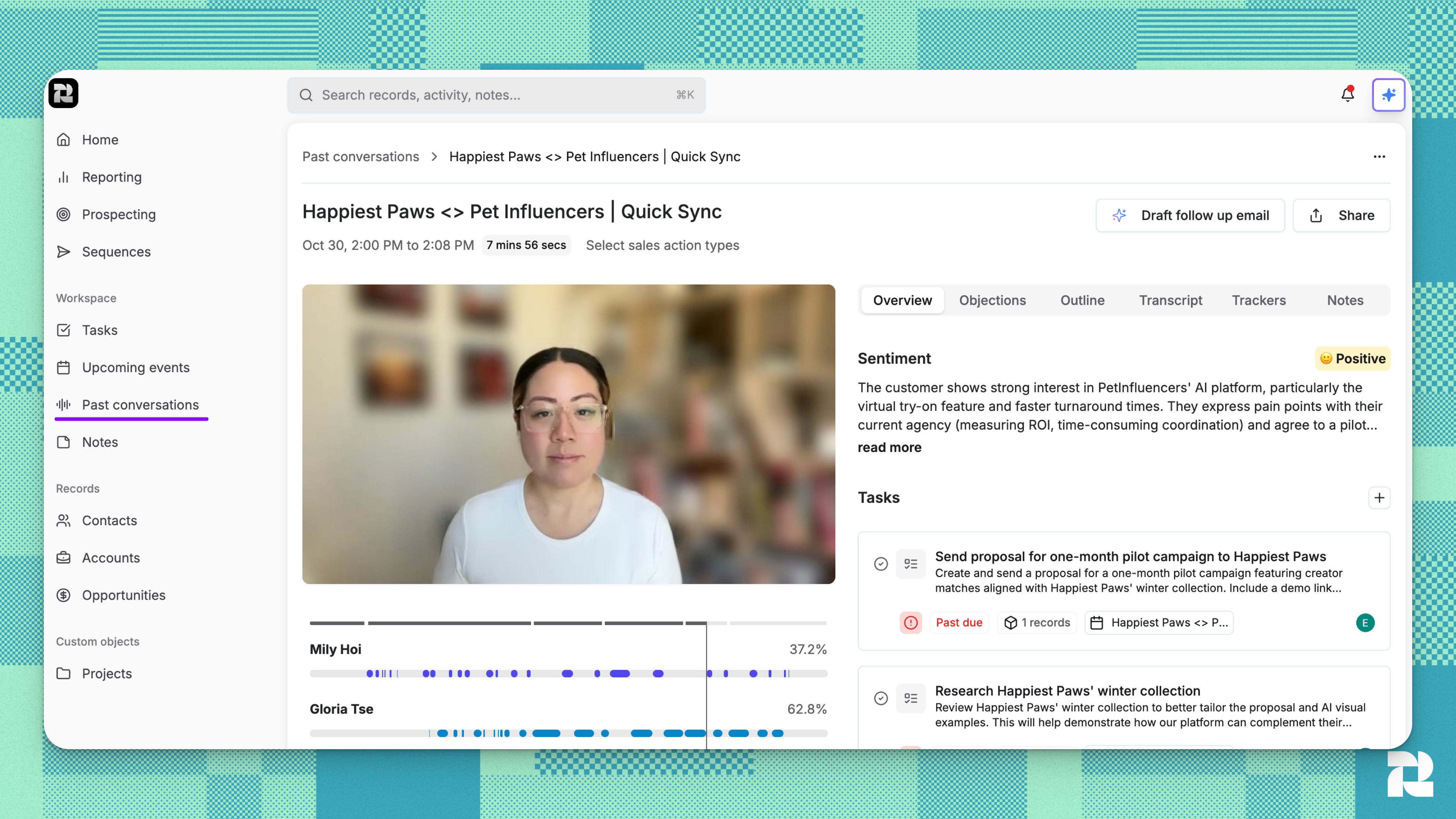
- Navigate to the Past Conversations section in your workspace.
- Select the meeting you want to review.
- The recording, transcript, and AI-generated insights will be available once processing is complete, usually within minutes.
- You can share recordings with team members or external stakeholders using the sharing options.
Troubleshooting / FAQs
The bot didn't join my meeting
The bot didn't join my meeting
Check the following:
- Verify that meeting recording is enabled in your settings for that meeting type.
- Ensure the meeting included conferencing details
- Confirm the bot was invited via the calendar invitation, not added directly in the meeting platform.
- Check if the meeting appears on your Upcoming Events page. If not, sync your calendar.
The bot is stuck in the waiting room.
The bot is stuck in the waiting room.
The system automatically retries if the bot times out in a waiting room. If the bot still cannot join, manually admit it from the meeting platform’s participant list. For future meetings, consider adjusting your meeting platform settings to automatically admit the bot.
Recording is missing or incomplete.
Recording is missing or incomplete.
This can happen if:
- The bot was removed from the meeting before it ended.
- Recording permissions were denied by the meeting host.
- The meeting ended before the bot could fully connect.
- Your organization has reached its monthly recording minutes quota - the Notetaker bot still joined and captured video, but AI analysis (transcript, summary, insights) was skipped for that meeting.
I see a lock icon and can't enable recording.
I see a lock icon and can't enable recording.
The lock icon appears on the recording toggle for an individual meeting when your organization has reached its monthly recording minutes quota. Clicking the toggle opens an upgrade prompt. Your Notetaker bot will continue joining meetings and capturing video, but transcripts and AI-generated summaries will not be generated for new meetings until you upgrade or your billing cycle resets. To upgrade, use the prompt in the app or contact your Reevo representative.
I don't want the bot in certain meetings.
I don't want the bot in certain meetings.
- Don’t invite the bot email to those specific calendar events.
- Adjust your recording settings to exclude certain meeting types.
- Add participant domains to the blocked domains list.
- Manually disable the bot toggle for individual meetings before they start.
The bot can't join because there's no conferencing link.
The bot can't join because there's no conferencing link.
The bot requires a valid conferencing link (Zoom, Google Meet) to join. If you see a prompt to add conferencing, follow the instructions to add a meeting link to your calendar event, then enable recording.
I see a message saying the bot can't record.
I see a message saying the bot can't record.
On Zoom, the bot may post a message in the meeting chat explaining why it can’t record, and Reevo notifies everyone on the meeting. Each message links to the matching section of Zoom Recording Bot Troubleshooting:
- “can’t record the meeting due to recording permission settings”: the host’s Zoom account doesn’t allow local recording. The host needs to enable Record to computer files in their Zoom settings.
- “is unable to record because the host denied recording permission”: the host declined the recording prompt. Ask them to re-add the bot and allow recording when Zoom prompts them.
- “is unable to join the meeting as the host is not present”: the host hasn’t joined yet. The bot can’t record until they do.
Still have questions? Sign in and use AskReevo for instant answers or to raise a support ticket.