Overview
In-app notifications appear in the bell icon in Reevo’s top toolbar and on the dedicated Notifications page. They keep you informed about deals, tasks, calls, CRM changes, and AI processing, without leaving the app. To configure email or Slack delivery for notifications, see Email & Slack Notifications.Viewing Your Notifications
Bell icon
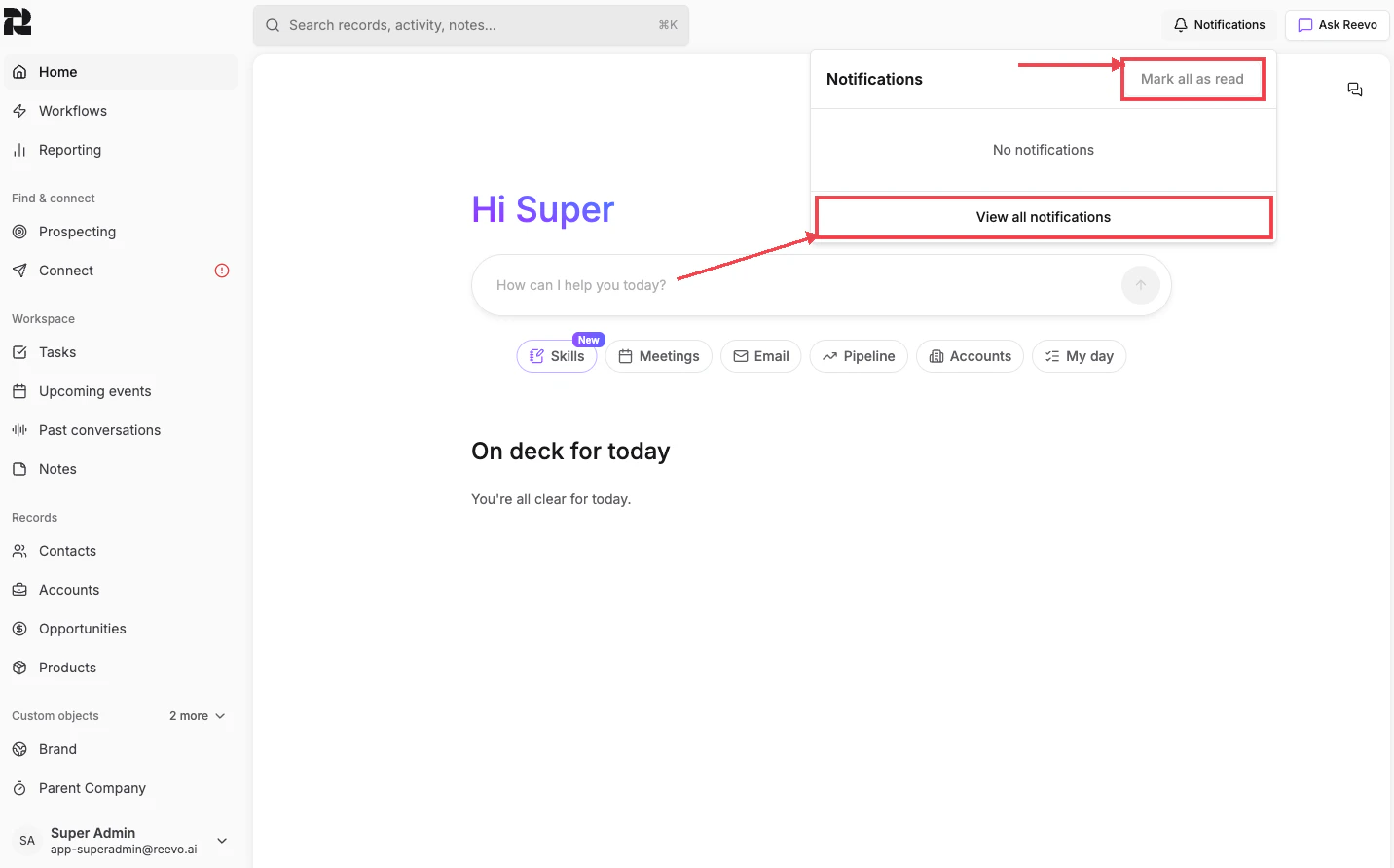
Click the bell icon in the top-right toolbar to see your most recent notifications.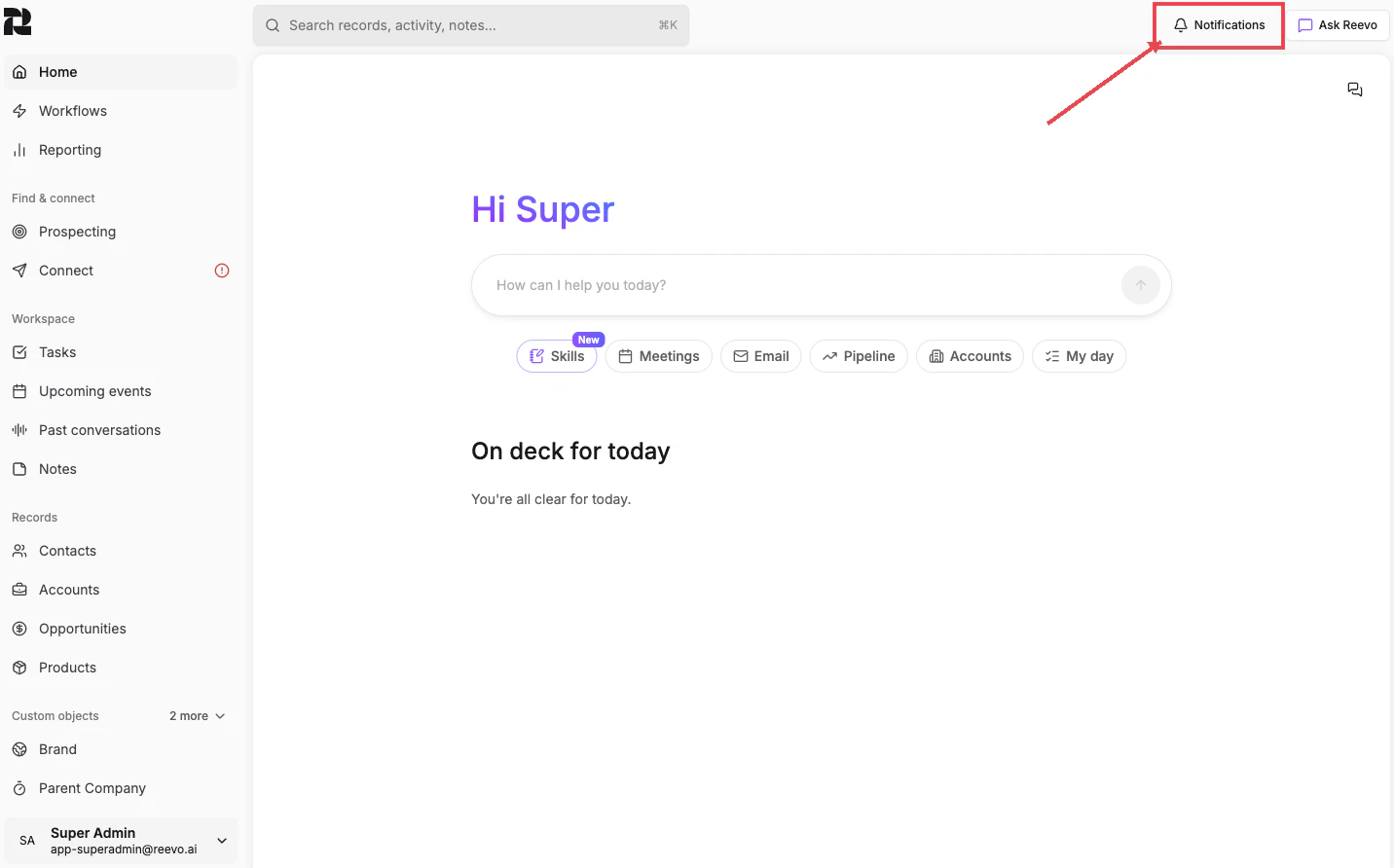
- Click a notification to navigate to the related record or task
- Click Mark all as read to clear unread indicators
- Click View all notifications to open the full notifications page
Full notifications page
To see your complete notification history, click View all notifications from the bell popover, or use the Command Palette (⌘K) and search for “Notifications”.
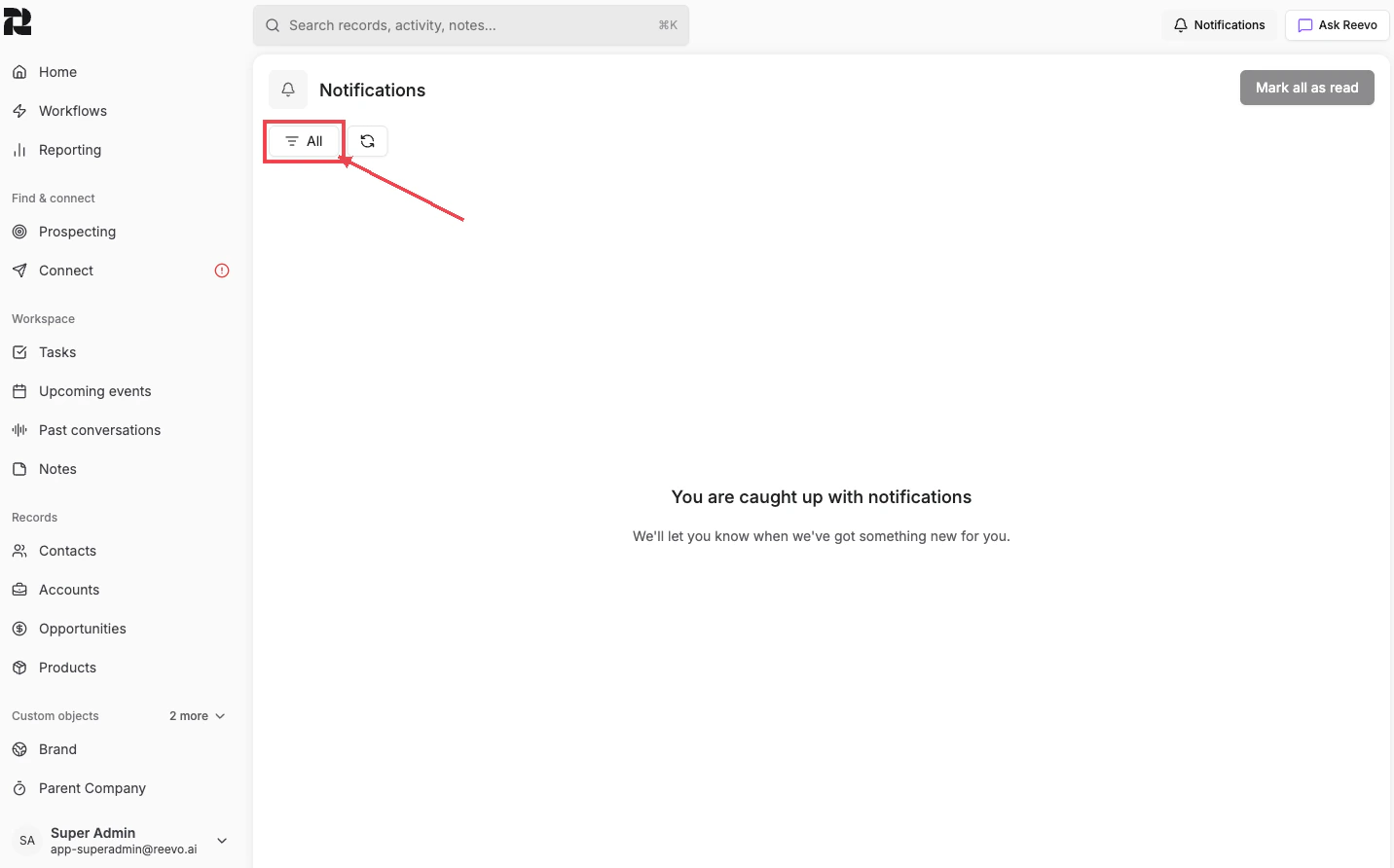
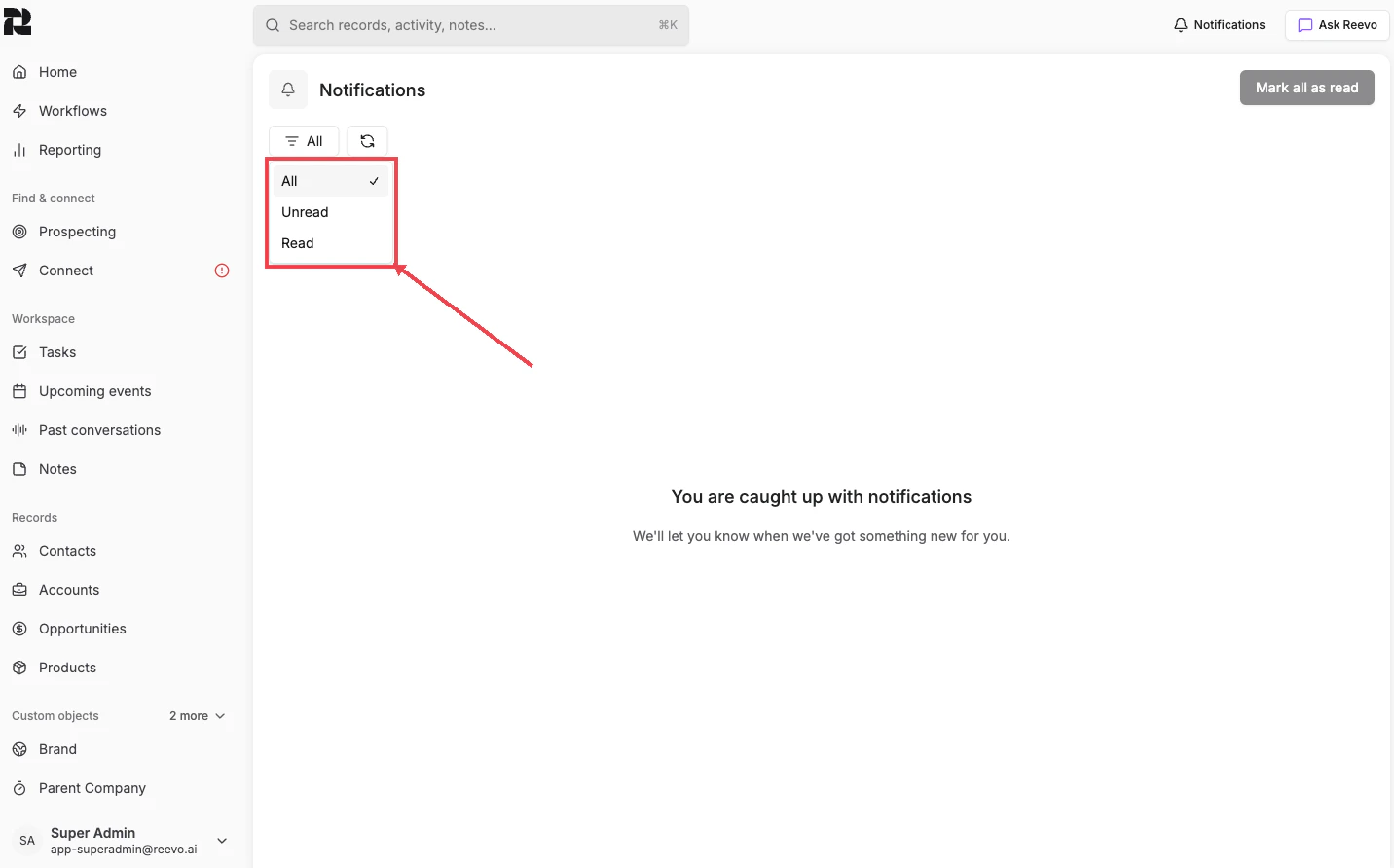
- Filter notifications by All, Unread, or Read using the dropdown at the top
- Refresh the feed to check for new notifications
- Mark all as read to clear all unread indicators at once
- Scroll to load older notifications automatically
Clicking a task notification opens the task details in a side panel. Other notifications navigate you directly to the related record.
What Triggers In-App Notifications
Reevo sends in-app notifications automatically for a variety of events. Here’s what you can expect to see in your notification feed:Troubleshooting / FAQs
Why am I seeing notifications for CRM changes I didn't make?
Why am I seeing notifications for CRM changes I didn't make?
In-app notifications for CRM state changes (opportunity stage changes, account status updates, etc.) are triggered whenever a record you own or are associated with is modified, even by other team members or automated workflows.
How do I stop receiving all in-app notifications?
How do I stop receiving all in-app notifications?
In-app notifications for system events (like CRM changes and task updates) cannot currently be fully disabled, but you can mark them as read to clear unread indicators. To stop receiving email or Slack notifications, see Email & Slack Notifications and disable the relevant toggles.
Still have questions? Sign in and use AskReevo for instant answers or to raise a support ticket.