Before you start
You need a Framer project with a Form Builder element and an external form created in Reevo. Follow Connecting an External Form to Reevo to create it and copy its webhook URL.Add the webhook URL in Framer
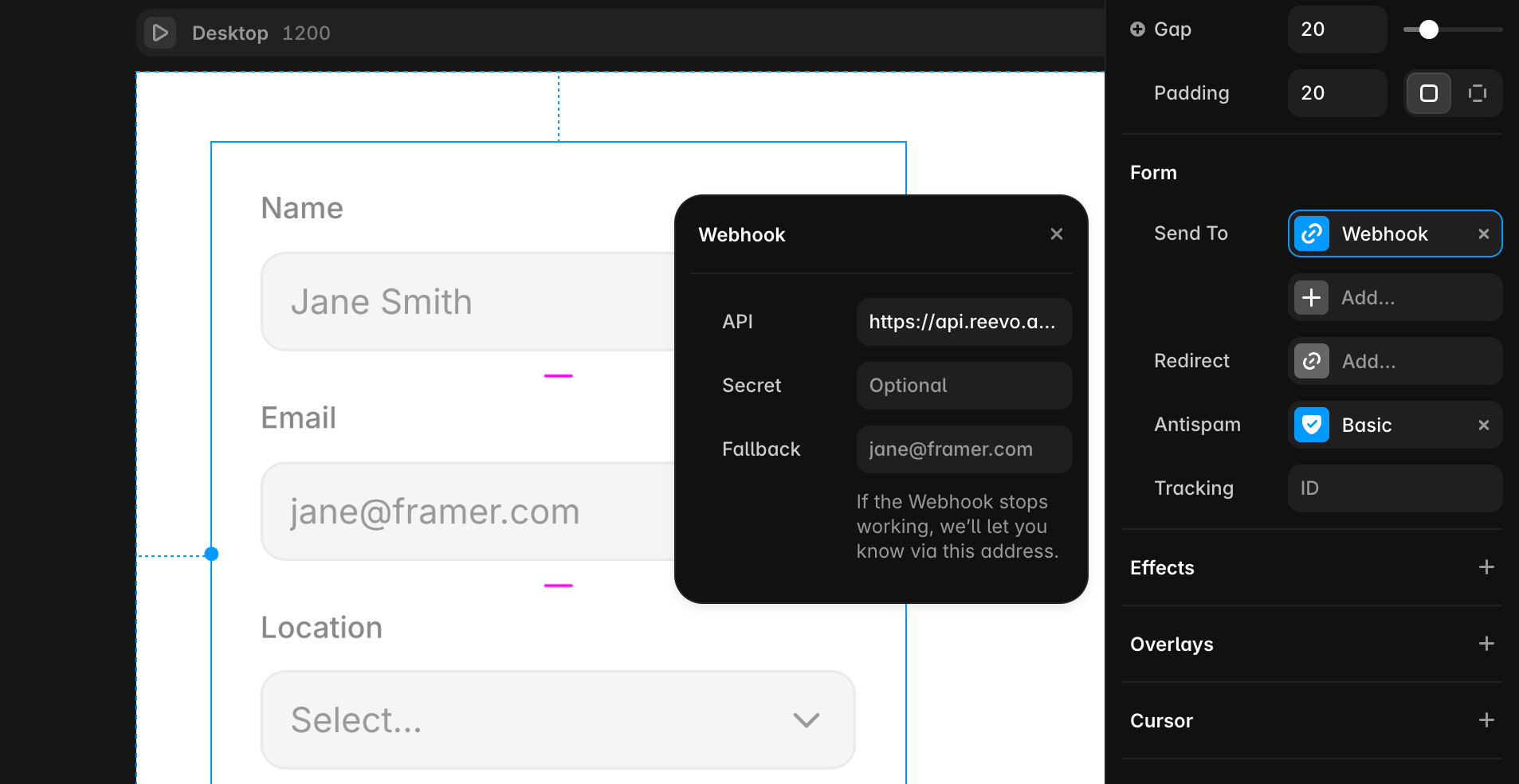
- Open your project in Framer and select the form on the canvas.
- In the right sidebar, find Send To.
- Click Add, then select Webhook.
- Paste the webhook URL you copied from Reevo.
- Publish your project so the webhook is active on the live form.
Identify the fields to map
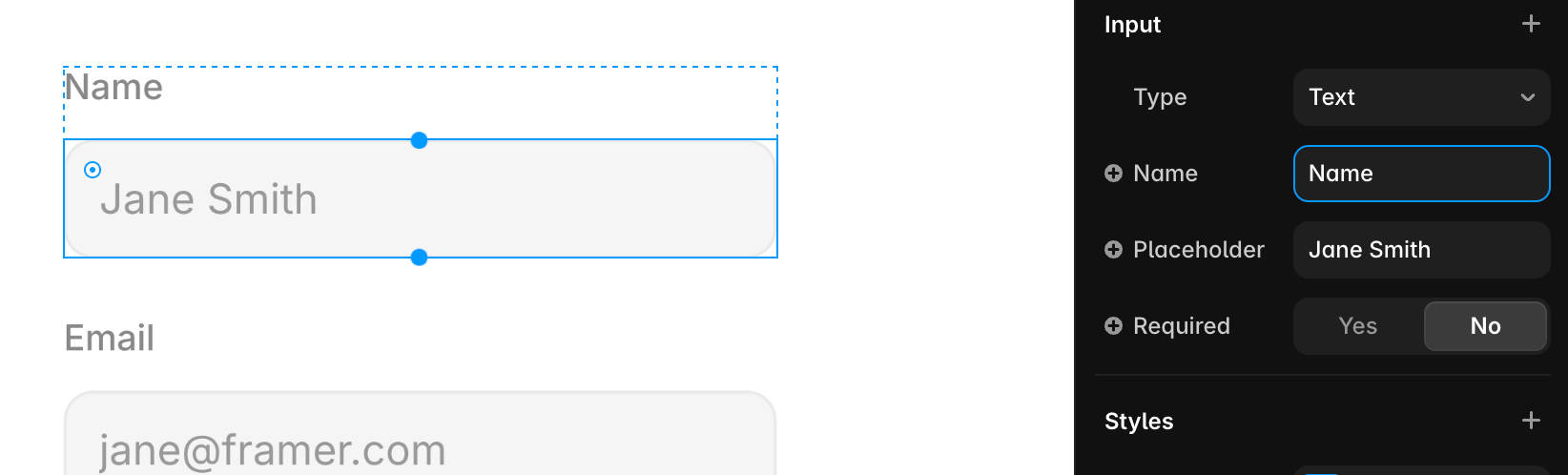
Framer sends each input’s Name as its payload key. Check the input itself rather than the visible title or label.- Select an input inside the form.
- Find Name under Input in the right sidebar.
- Give the field a clear, unique name.
- Repeat for every field that you want to map in Reevo.
Map and test the form in Reevo
- Submit the published Framer form using recognizable test values.
- Return to the external form builder in Reevo and click Populate from submission.
- Select the test submission.
- Map each Framer input name to its Contact or Account field.
- Configure the connected workflow, then click Launch.
- Submit the Framer form again and confirm the submission and workflow appear in Reevo.
For the complete mapping and workflow steps, see Connecting an External Form to Reevo.
Troubleshooting Framer
- The webhook does not run: confirm that Webhook is selected under Send To and that you published the project after adding it.
- A field is missing: confirm that the input has a unique Name, then send another test submission.
- The wrong field appears in Reevo: compare the incoming key with the input’s Name, not its visible label.