Before you start
You need a published HubSpot form, a HubSpot workflow triggered by that form, and an external form created in Reevo. Follow Connecting an External Form to Reevo to create it and copy its webhook URL.Add a webhook action in HubSpot
- Open the HubSpot workflow that runs after the form submission, or create one for the form.
- Add a Send a webhook action after the form-submission trigger.
- Set the method to
POST. - Paste the webhook URL you copied from Reevo.
- Select Customize request body.
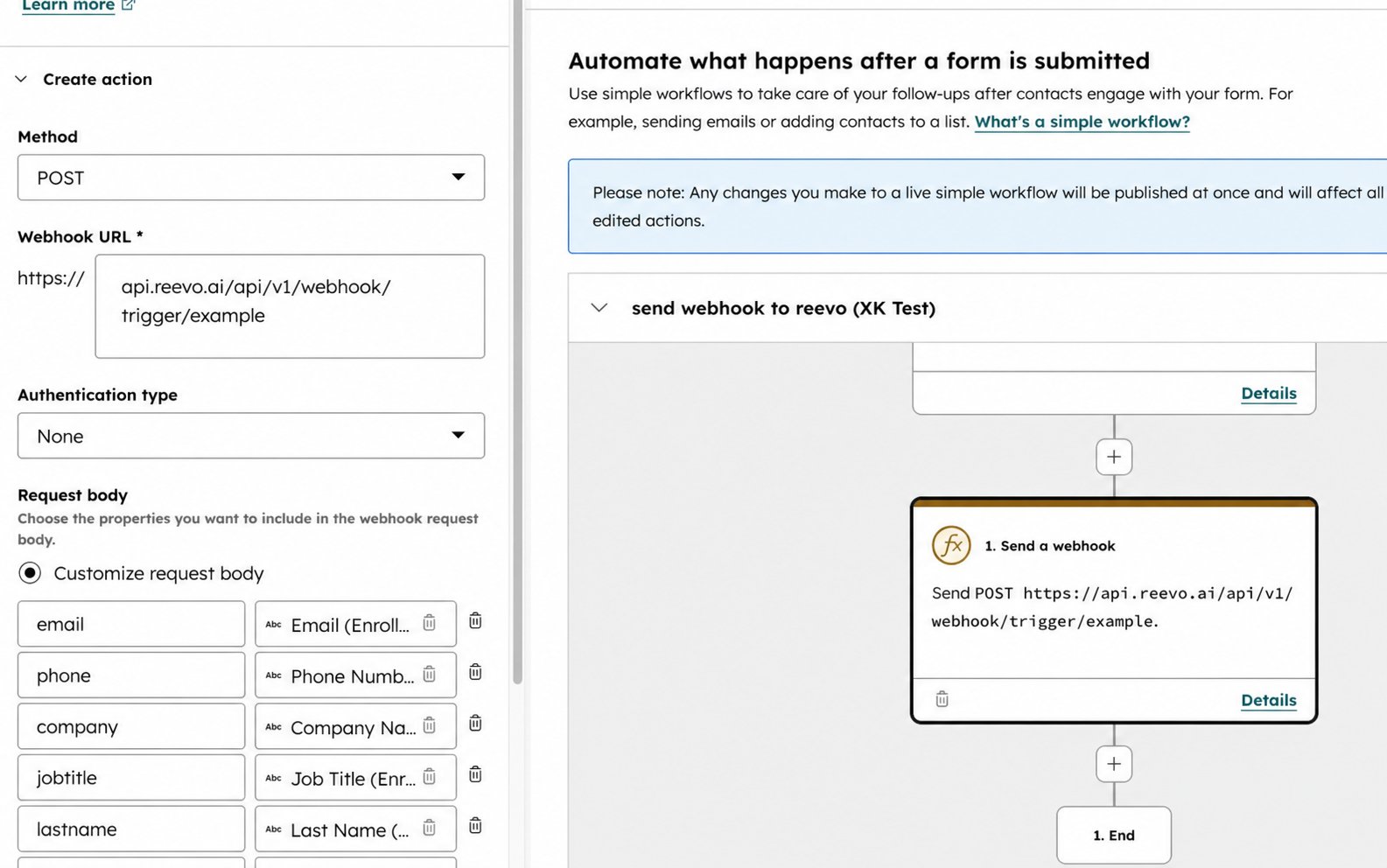
Define and test the request body
HubSpot lets you define the request-body keys that Reevo receives.- Add a clear, unique key for each value that you want to send.
- Connect each key to the corresponding HubSpot property.
- Save the webhook action.
- Open Test action and provide test values for the configured properties.
- Send the test request to Reevo.
Map and launch the form in Reevo
- Return to the external form builder in Reevo and click Populate from submission.
- Select the HubSpot test submission.
- Map each request-body key to its Contact or Account field.
- Configure the connected workflow, then click Launch.
- Test the HubSpot action again and confirm the submission and workflow appear in Reevo.
For the complete mapping and workflow steps, see Connecting an External Form to Reevo.
Troubleshooting HubSpot
- The webhook action does not run: confirm that it follows the correct form-submission trigger and that the workflow is active.
- A property is missing: confirm that its request-body key is connected to a HubSpot property and that the test contains a value.
- The test succeeds but live submissions do not appear: confirm that the form enrollment criteria match the form you are testing.