Overview
The Pipeline Waterfall chart answers one question: “Why did my pipeline change?” It compares your open pipeline at two points in time, classifies each deal based on what happened between those points, and shows the net dollar impact of each type of change. The result always balances: your starting pipeline plus every gain minus every loss equals your ending pipeline. The chart is denominated in USD.How to Read the Pipeline Waterfall Chart
Bars appear left to right in a fixed order. The first and last bars are gray and show your opening and closing pipeline totals. Everything in between explains the movement. Bar colors:- Gray - Start and End. Absolute totals, not changes.
- Green - Deals that added to your pipeline:
- Created (new deals)
- Pulled In (existing deals that entered the window)
- Amount Increased (deal values that went up)
- Red - Deals that reduced your pipeline:
- Amount Decreased (deal values that went down)
- Pushed Out (anticipated close date moved outside the window)
- Lost (closed lost)
- Won (closed won - removed from open pipeline)
Start + (Created + Pulled In + Amount Increased) - (Amount Decreased + Pushed Out + Lost + Won) = EndData labels above each bar show the net dollar amount in compact format (e.g., $42k, $1.2M).
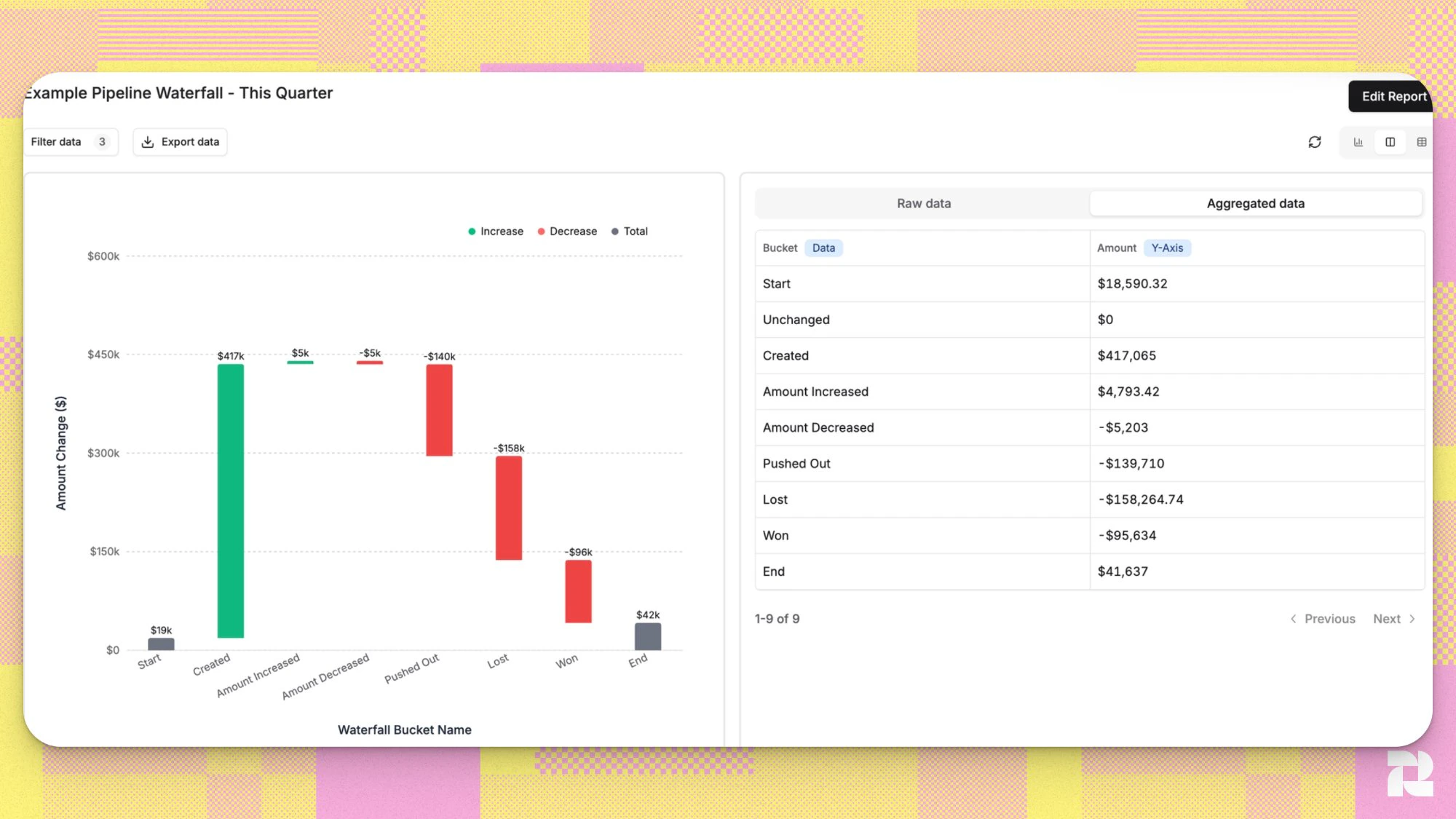
Waterfall Buckets
The chart uses ten buckets. A deal can appear in more than one bucket when multiple things changed during the period - for example, a deal that was pulled into the window and then closed lost will appear in both Pulled In and Lost.The Two Time Filters
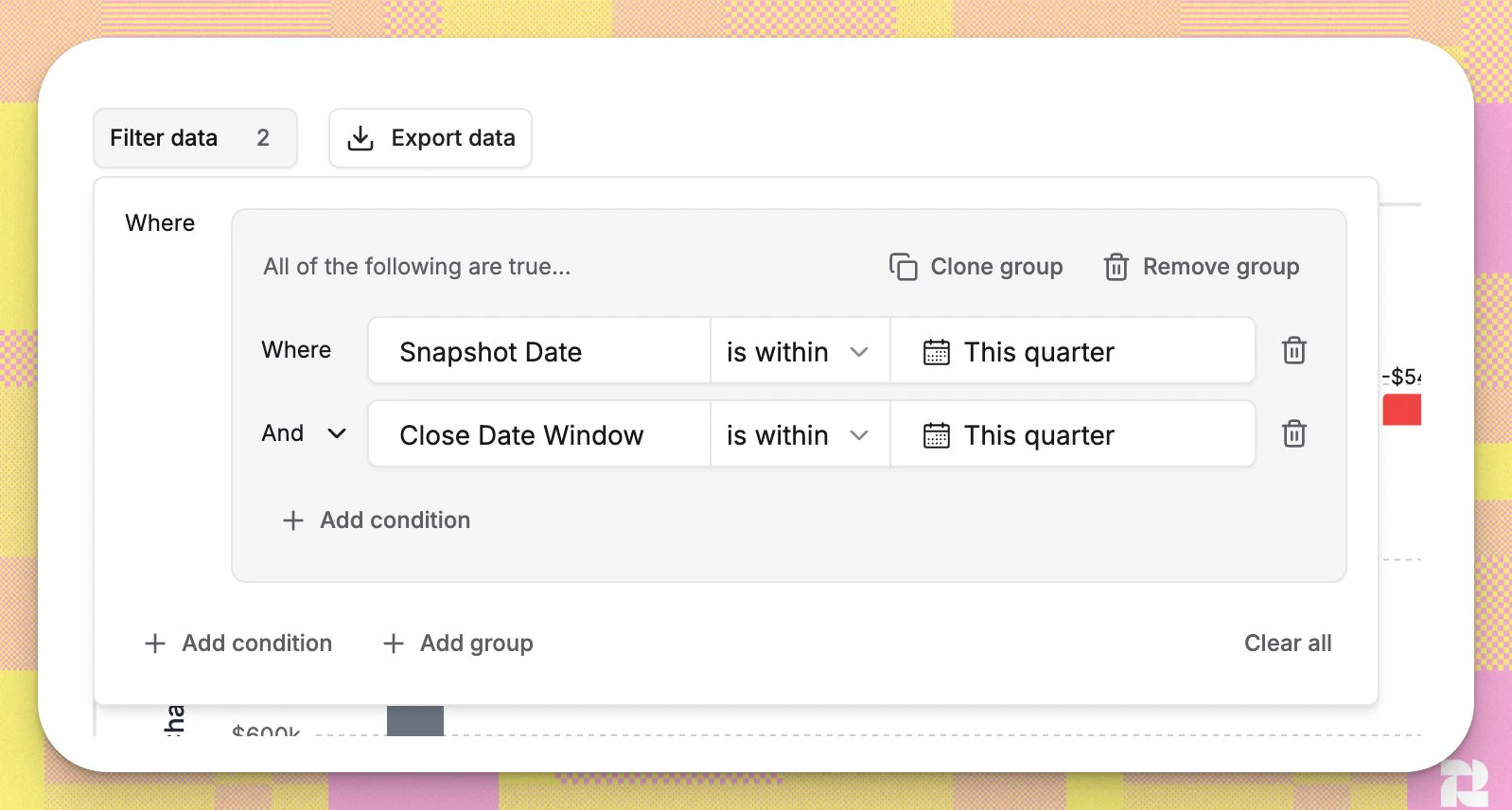
The Pipeline Waterfall requires two date filters that serve different purposes. Understanding both is essential before interpreting the chart. Snapshot Date answers: When did changes happen? This is your observation window. The lower boundary is the “before” snapshot; the upper boundary is the “after” snapshot. The chart reconstructs each deal’s stage, amount, and close date at each boundary using field history. Close Date Window answers: Which deals are we tracking? This defines the group of deals you care about, based on their anticipated close date. Only deals whose close date falls inside this range - at the start snapshot, the end snapshot, or at any point during the period - are included. Example:- Snapshot Date: March 1 - March 31
- Close Date Window: Q2 2026 (April 1 - June 30)
Step-by-Step Instructions
Creating a Pipeline Waterfall Report
- Go to Reporting.
-
Click Create - Report.
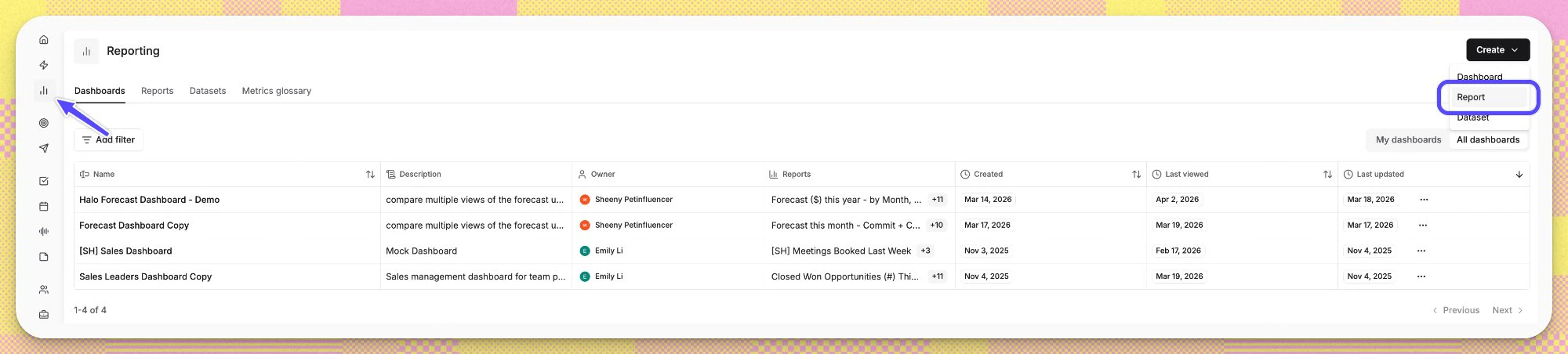
- Select Pipeline Waterfall as the chart type.
-
The report opens with Snapshot Date and Close Date Window both set to This Quarter.
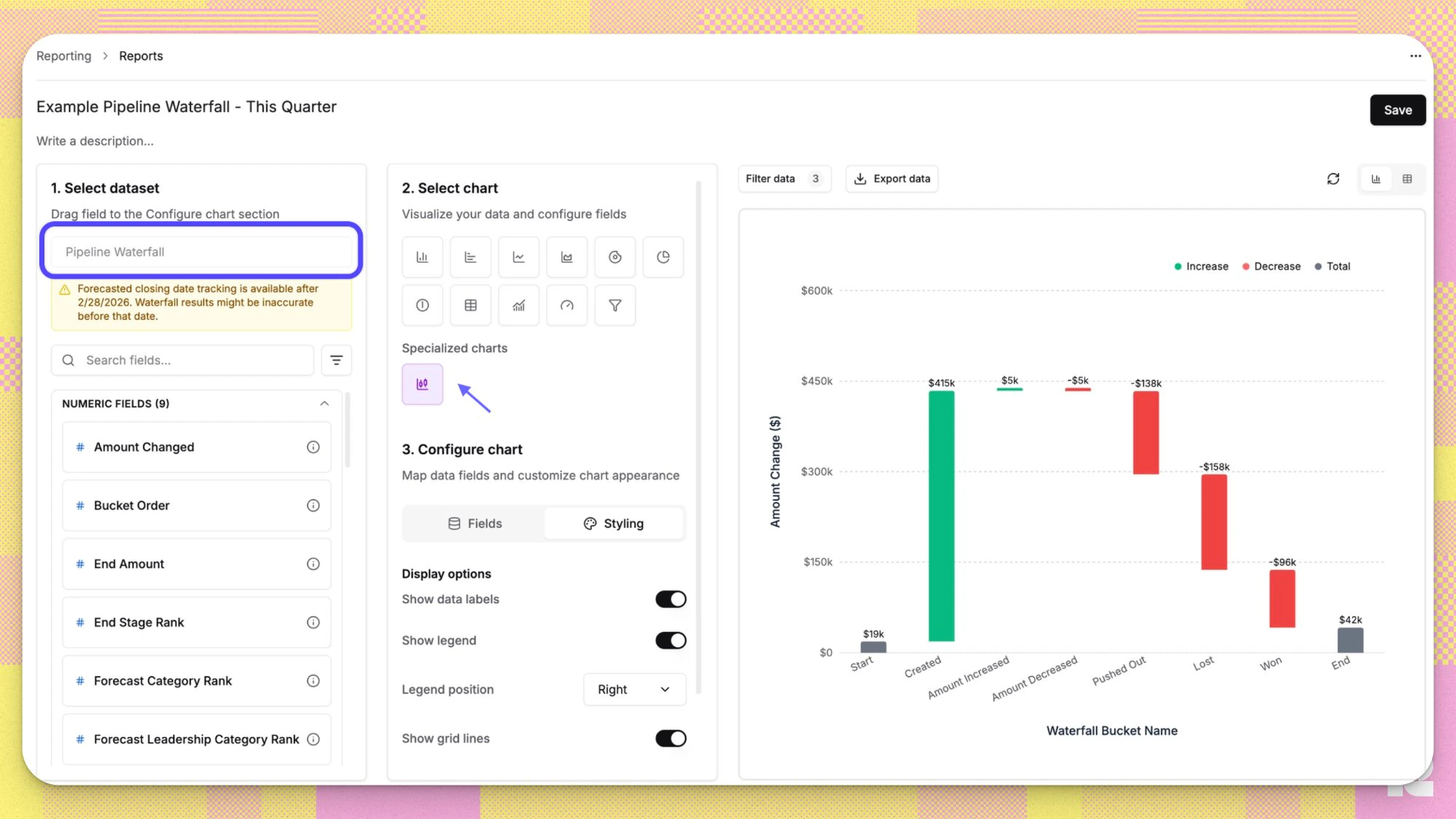
For general report setup (saving, naming, adding to dashboards) see Building Reports from Datasets.
Adjusting Filters
- Click Filters - Add condition.
- Select Snapshot Date and set the period you want to analyze (e.g., last month, last quarter).
- Select Close Date Window and set the deals you want to track (e.g., this quarter, next quarter).
Optional Filters
Drilling Down Into a Bucket
There are two ways to further explore each bucket:-
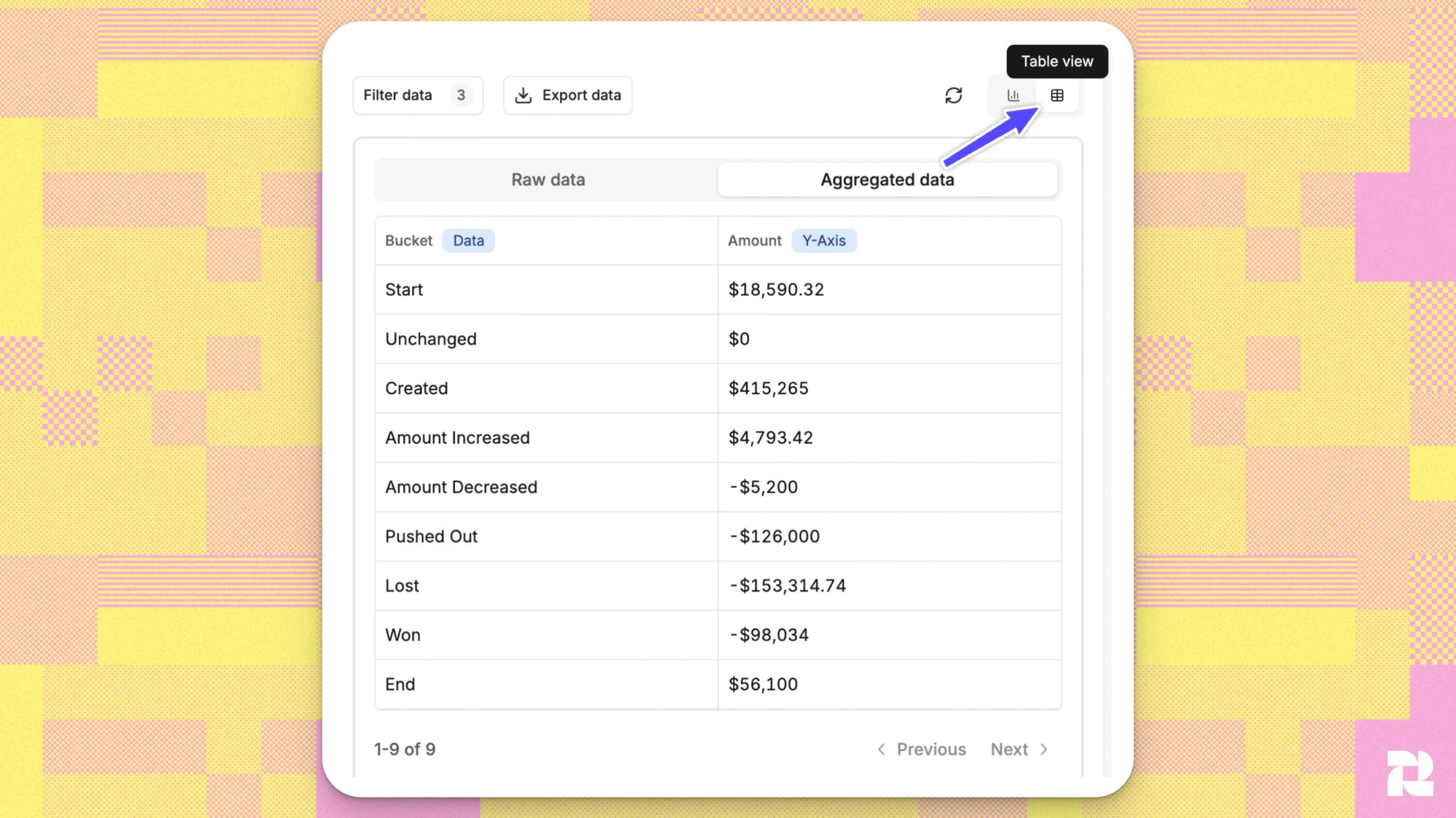
To view aggregated data, select Table view in the top right corner.
-
To view what opportunities make up a bucket, hover over any bar and click. Each row is one opportunity. Click any column header to sort.
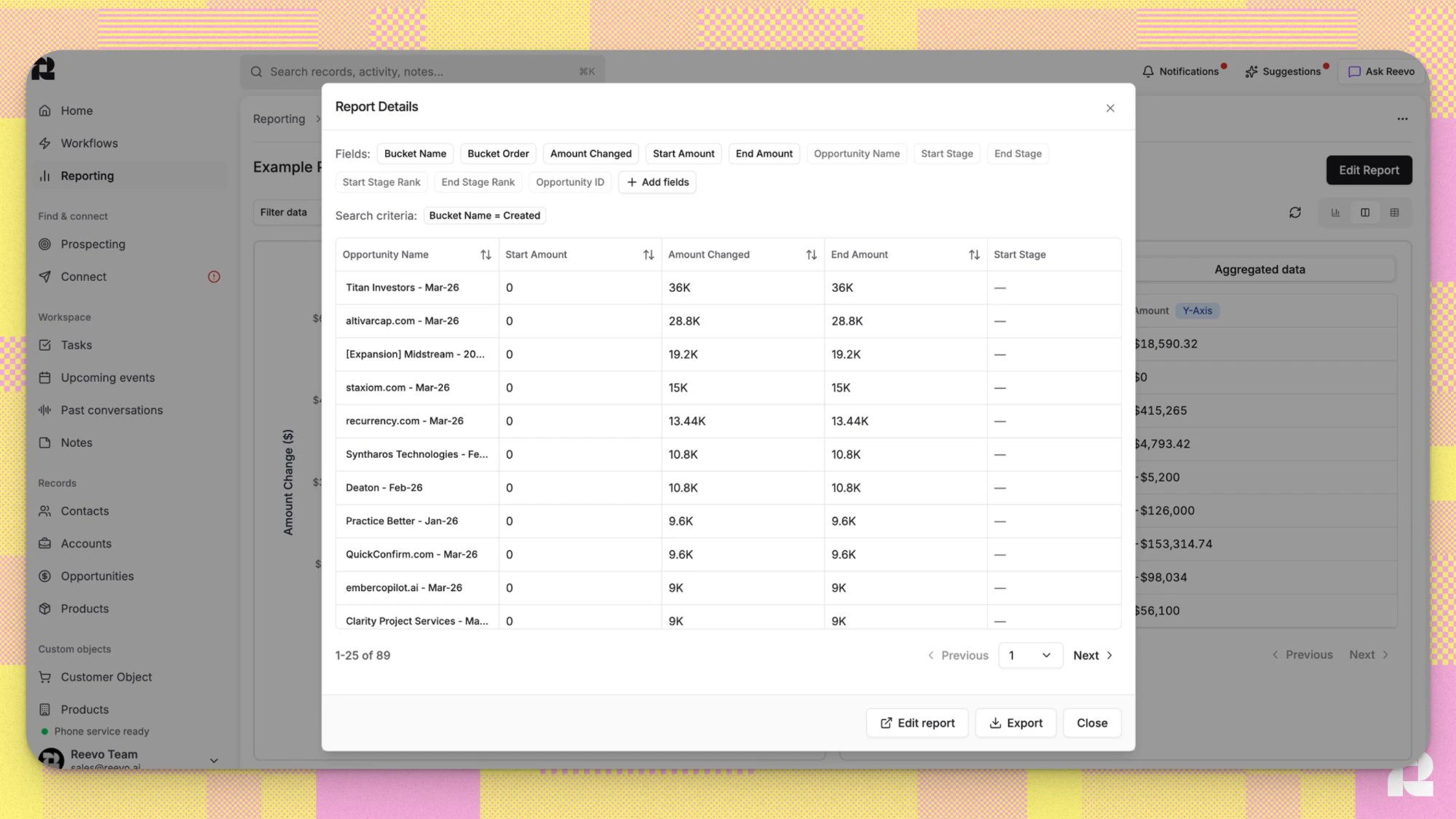
To add more columns, use Additional Fields in the report builder.
How Amount Changed is calculated per bucket:
Styling Options
Under Styling in the report builder:Troubleshooting / FAQ
Can one deal appear in more than one bucket?
Can one deal appear in more than one bucket?
Yes. A deal appears in every bucket that applies to it. For example, a deal that was pulled into the window and then closed lost during the same period appears in both Pulled In and Lost. The signed amounts are additive, so the waterfall balance still holds.
What if a deal's amount changed several times during the period?
What if a deal's amount changed several times during the period?
The chart shows net change only - the deal’s amount at the start snapshot compared to its amount at the end snapshot. Intermediate changes are not surfaced individually. For example: a deal that went $100k - $150k - $120k shows as Amount Increased with a +$20k delta.
Why does the Unchanged bucket not appear on the chart?
Why does the Unchanged bucket not appear on the chart?
Unchanged deals contribute $0, so there is no bar to render. Switch to Table view to see Unchanged deals and their deal count.
Why does a Pushed Out or Pulled In deal show Start Amount of zero?
Why does a Pushed Out or Pulled In deal show Start Amount of zero?
This happens when a deal’s close date entered the close date window mid-period rather than being in-window from the start. Because the deal was not part of the starting pipeline, it had no amount recorded at the start snapshot, so Start Amount is $0.
Why can't I change the dataset for this chart?
Why can't I change the dataset for this chart?
The Pipeline Waterfall chart type is pre-wired to the Pipeline Waterfall dataset. The bucket logic, signed amounts, and chart rendering depend on that dataset’s structure and cannot be decoupled from it.