The Organization tab lives on the same page as the You tab. It is not a separate page in the sidebar. If you don’t see the Organization tab, you don’t have admin permissions.
Where to Find It
- Click your name in the lower-left corner of Reevo.
- Select Settings.
- Under My account, click Notifications.
- Switch to the Organization tab at the top of the page.
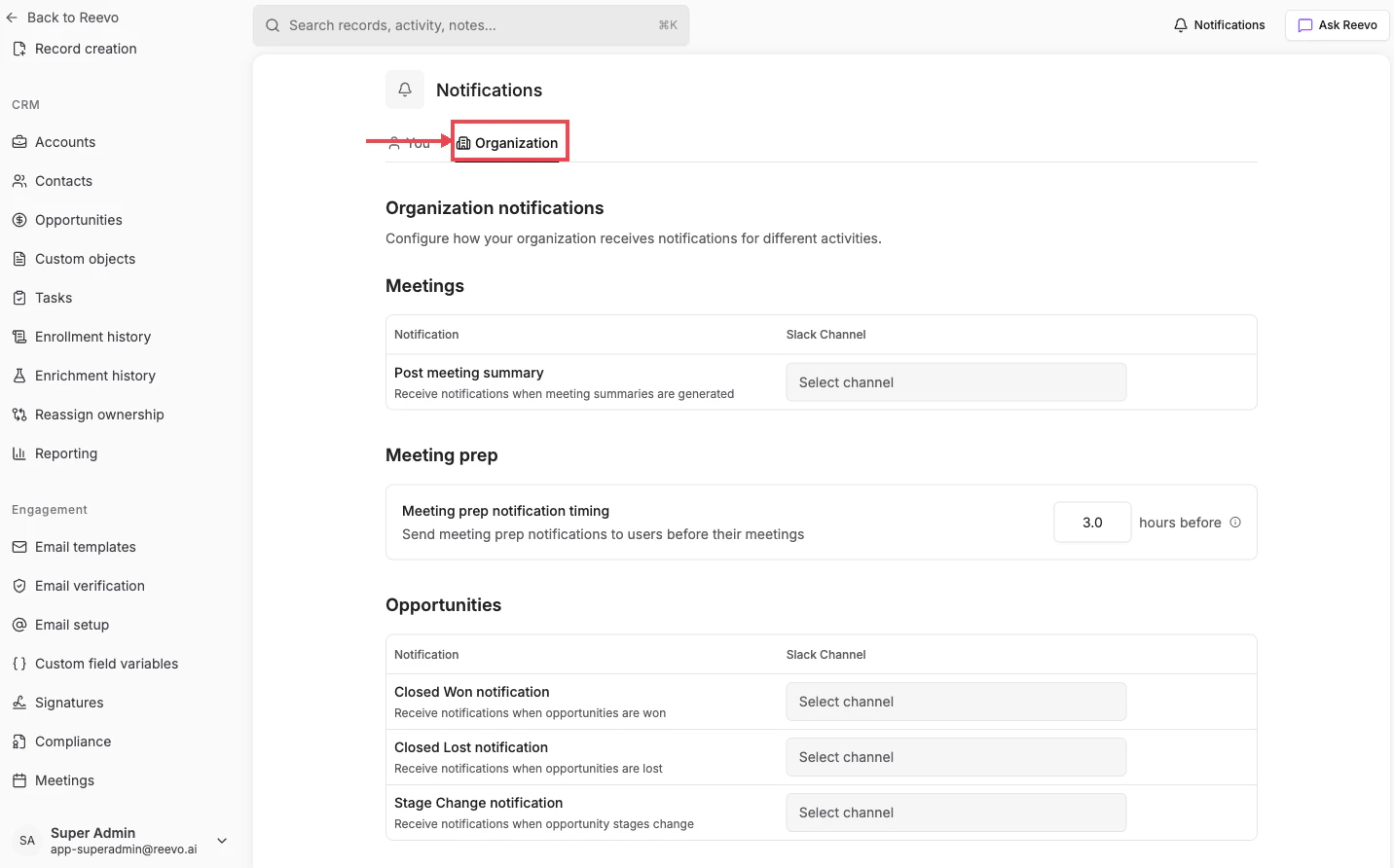
Organization tab settings
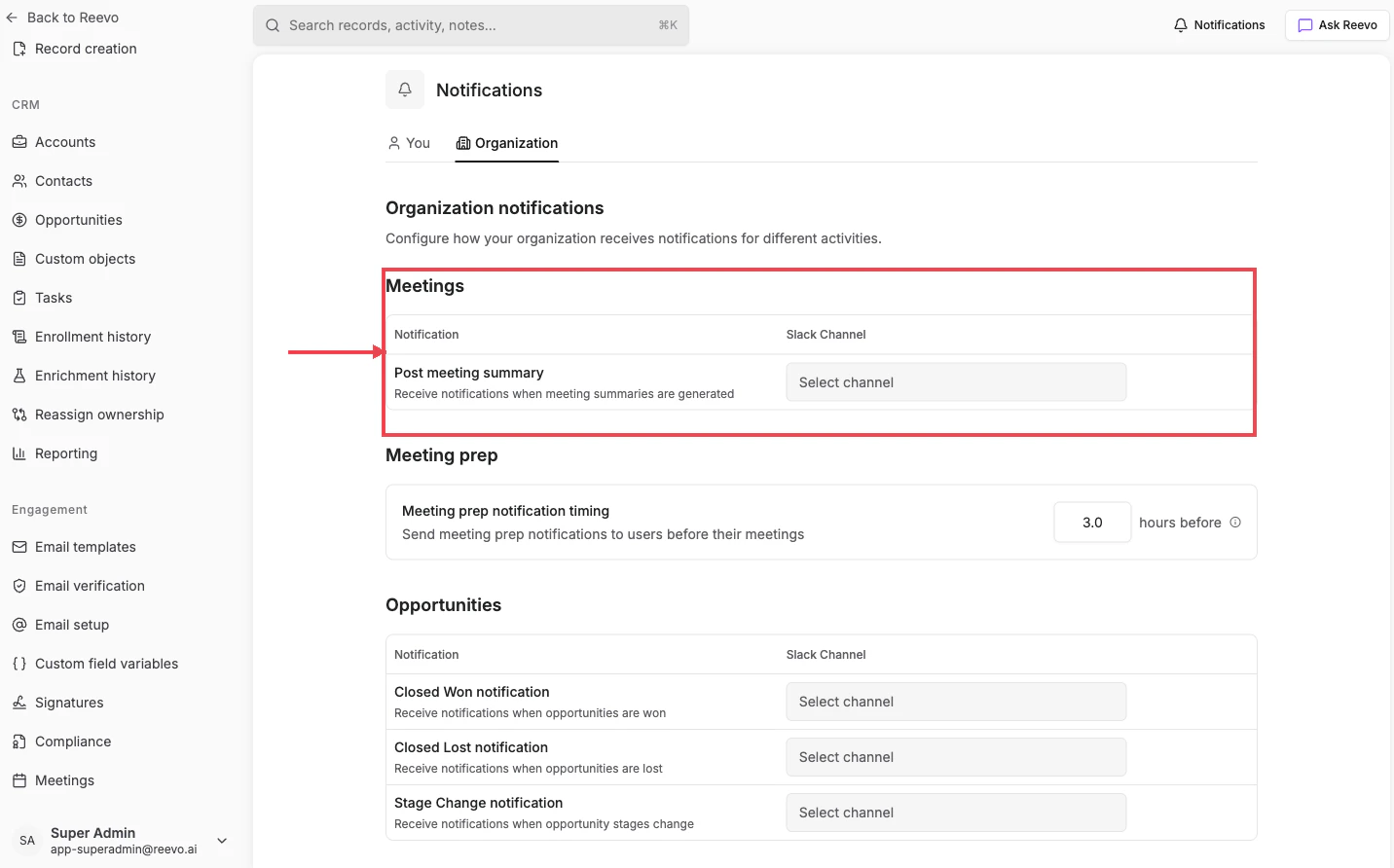
This tab has 3 sections, each controlling a different workspace-wide behavior:1. Meetings
2. Meeting prep timing
Sets how far in advance the Meeting prep notification is sent before a meeting. Enter a value between 0.5 and 24 hours. This timing applies to every user in the organization (individual users cannot override it from their You tab).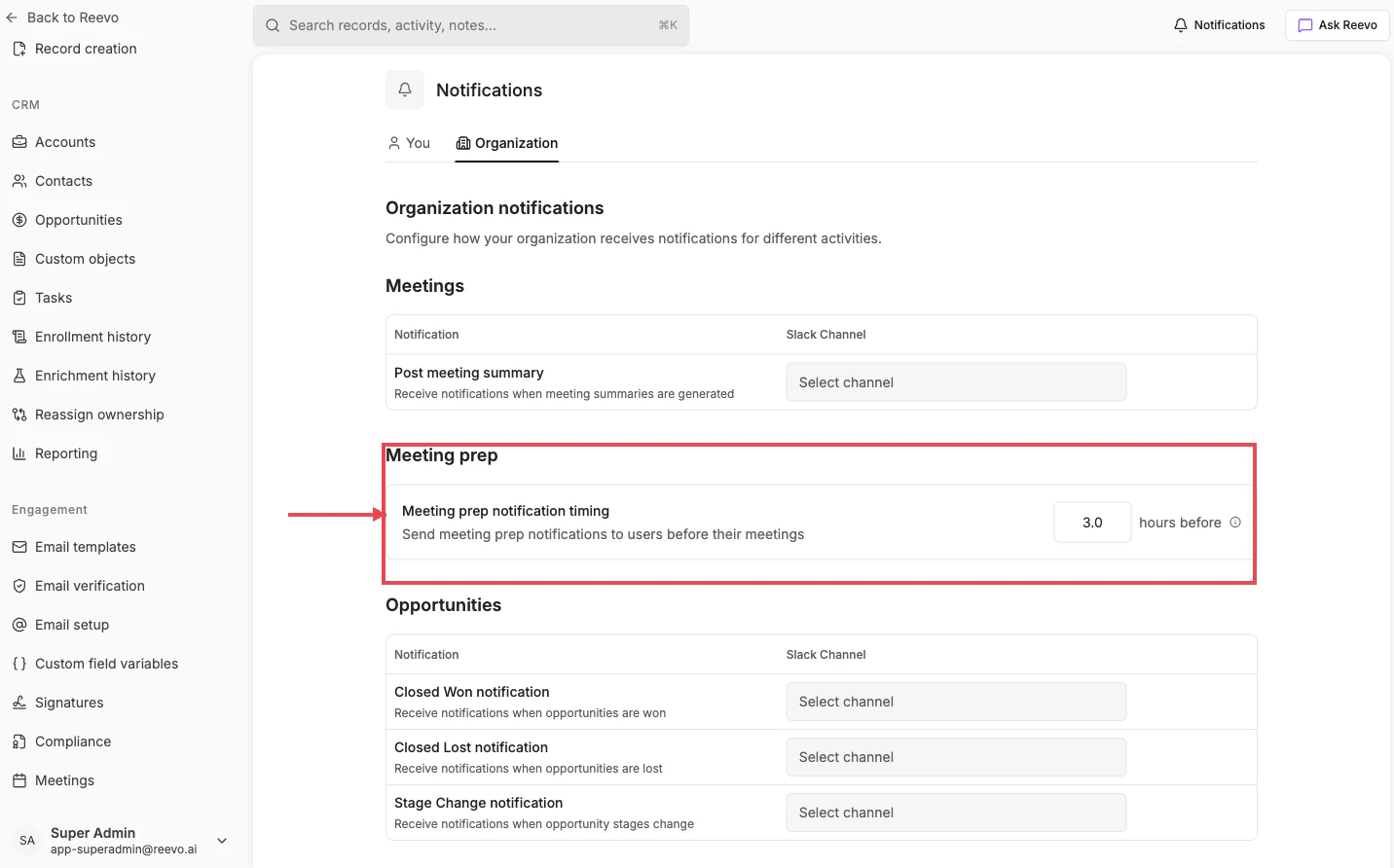
3. Opportunities
Route deal lifecycle notifications to shared Slack channels so the whole team stays in the loop:
To configure a channel:
- Click the Select channel dropdown next to the notification type.
- Search for or pick the Slack channel.
- The setting saves automatically.
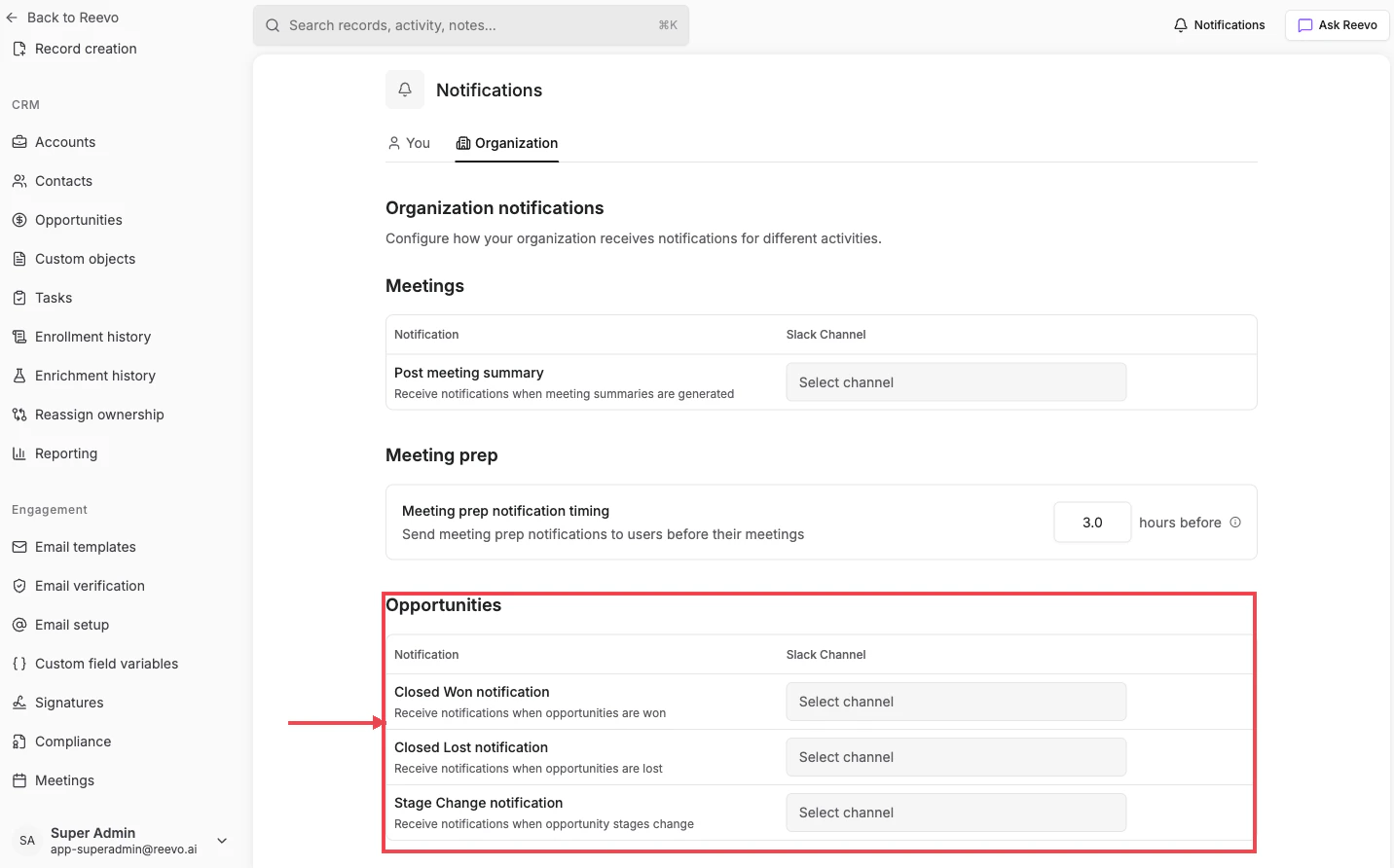
Private Slack channels show with a lock icon. Your Slack workspace must be connected at the organization level for the channel dropdowns to work. If the dropdowns are disabled, connect Slack from Settings → Integrations; see Workspace Integrations.
Troubleshooting / FAQs
Where is the Organization tab?
Where is the Organization tab?
On the same page as the You tab, at the top. If you don’t see it, your account doesn’t have admin permissions. Ask an admin to either grant you the role or make the change on your behalf.
Can I change the meeting prep notification timing?
Can I change the meeting prep notification timing?
Only admins can. Go to Settings → Notifications → Organization and adjust the Meeting prep notification timing field. The value can be set between 0.5 and 24 hours before the meeting.
Where do deal close notifications go?
Where do deal close notifications go?
Closed Won, Closed Lost, and Stage Change notifications post to the Slack channels configured here. These are team-wide notifications, not individual ones, and they’re independent of each user’s You tab toggles.
Still have questions? Sign in to Reevo and use AskReevo for instant answers or to raise a support ticket.