Where to Find It
Settings → Organization → Users, roles and teams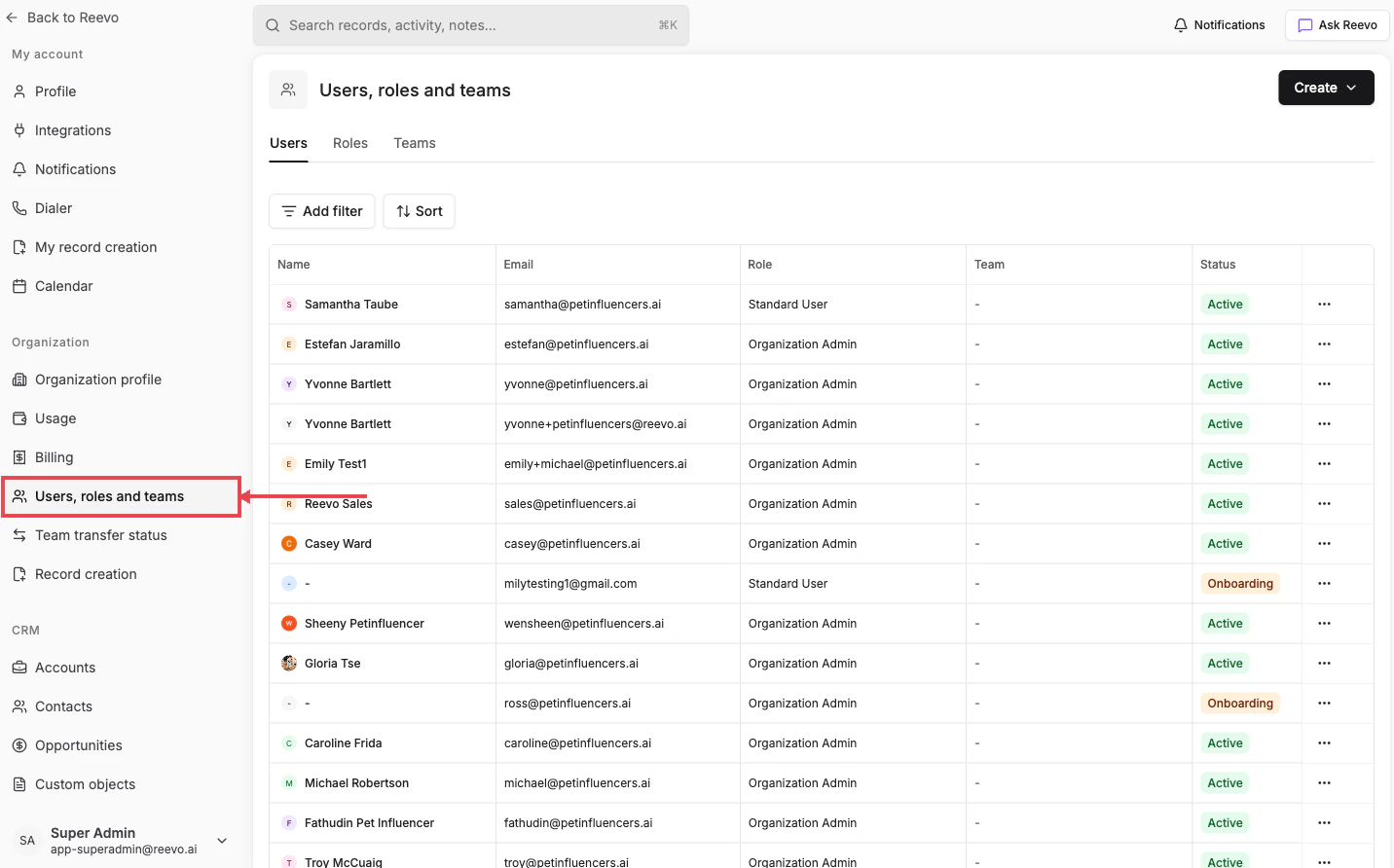
Users tab
- Invite new teammates by email. Click Create in the top right.
- Use Add filter and Sort to slice the list.
- Each row shows Name, Email, Role, Team, and Status (Active or Onboarding).
- Click the row’s ⋯ menu to deactivate, change role, or reassign records.
- Pending invitations show as Onboarding and can be resent.
- Reassign records owned by departing users via Reassign ownership.
Roles tab
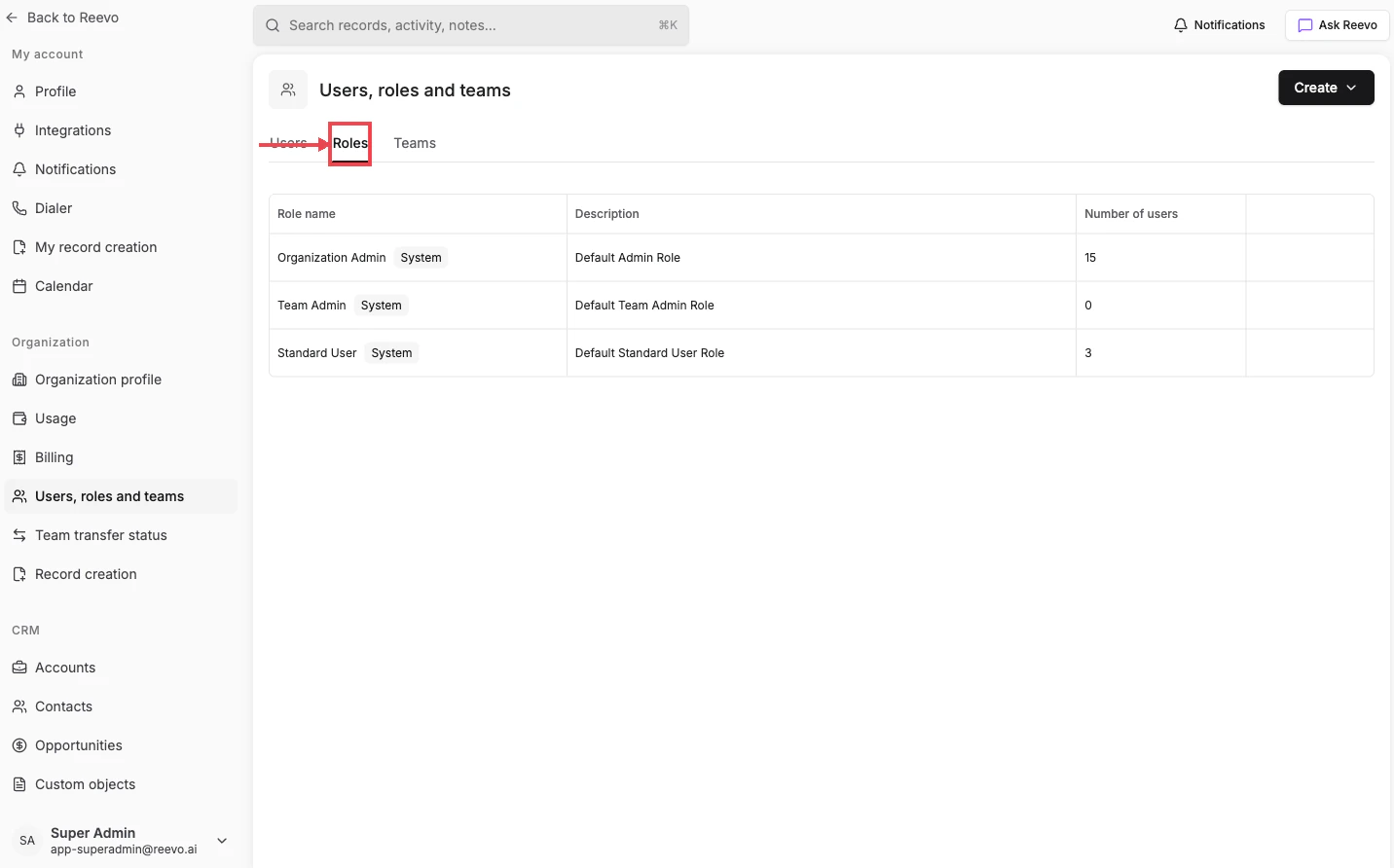
Roles control what actions a user can take in Reevo. Three system roles ship by default:- Organization Admin: full access to all data and settings. Can invite users, assign roles, edit any record, and manage organizational settings.
- Team Admin: admin permissions scoped to one or more teams. Can manage members, records, and routing within their teams without org-wide rights.
- Standard User: by default, cannot edit contacts, accounts, or opportunities owned by others.
Teams tab
Group users into teams that mirror your sales structure (for example, by region, segment, or pod). Teams are used in reporting filters, record ownership rollups, and routing. Click Create team to add your first team if none exist yet.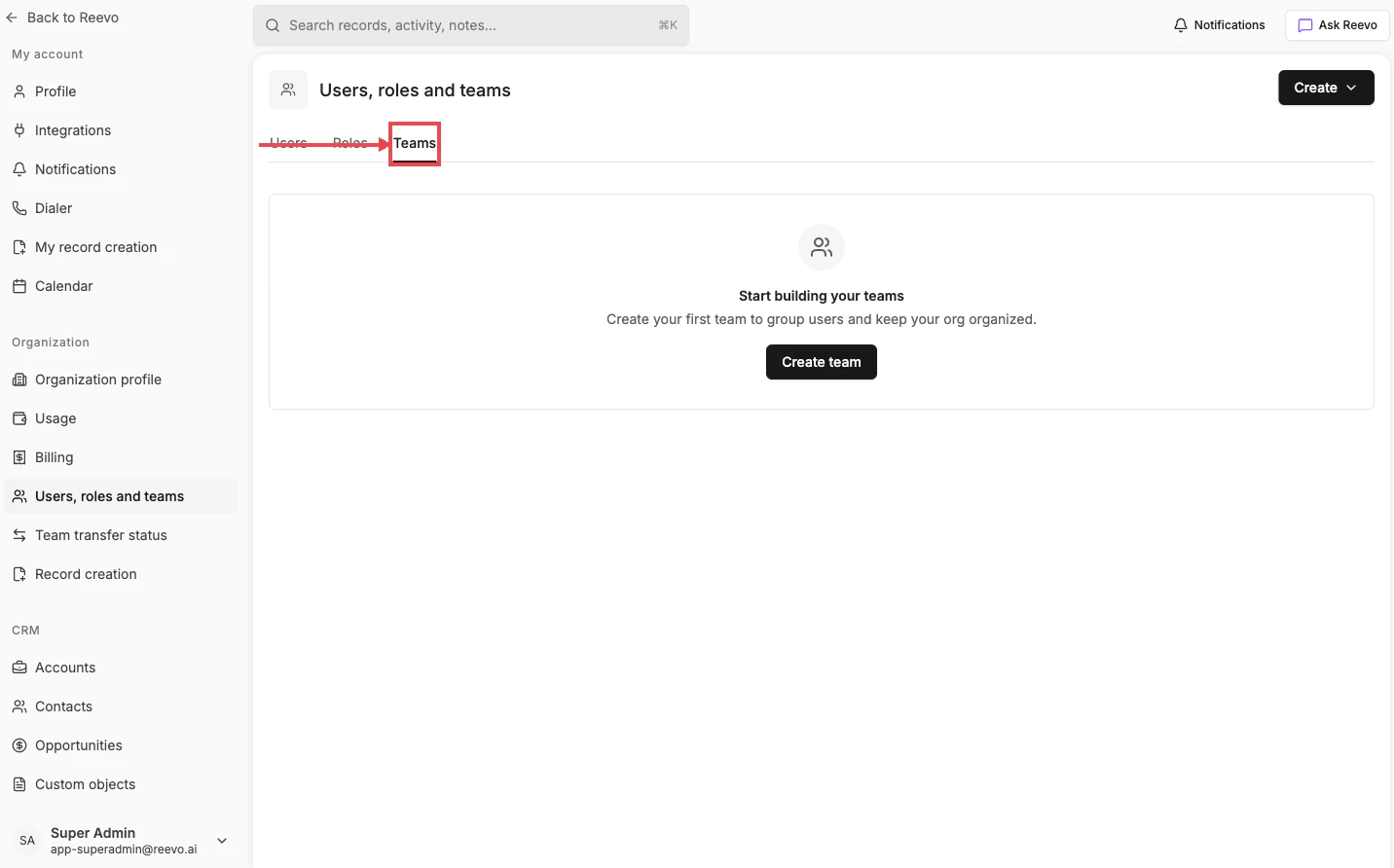
Still have questions? Sign in to Reevo and use AskReevo for instant answers or to raise a support ticket.