Overview
When a contact is enrolled in a sequence and reaches a step requiring information they don’t have - an email address for an email step, a phone number for a call step, or a LinkedIn profile URL for a LinkedIn step - Reevo follows the fallback rule you’ve configured for that channel. You have three options per channel:
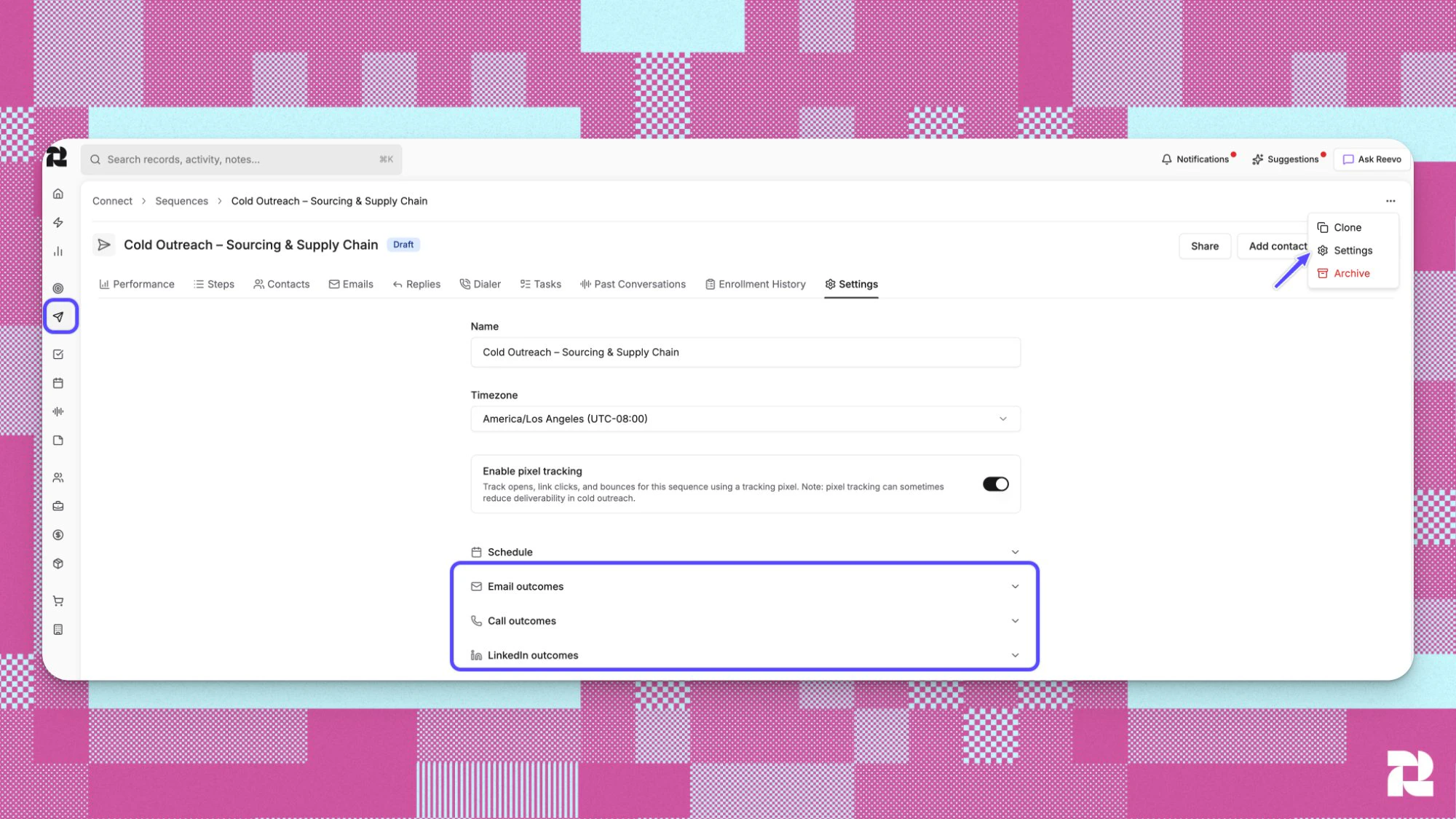
Fallback rules are configured at the sequence level in the Settings tab - not per individual step. The same rule applies to all steps of that channel type within the sequence.
New sequences default to Pause contact for all three channels. This is the recommended setting - it keeps contacts active in the sequence while you add missing information.
Configuring fallback rules
Fallback rules live in your sequence’s Settings tab under the Email outcomes, Call outcomes, and LinkedIn outcomes sections.- Open a sequence and click the Settings tab
- Expand the relevant section - Email outcomes, Call outcomes, or LinkedIn outcomes
- Under “Contacts with missing [field]”, select your preferred action
- Click Save
The three fallback options
Pause contact (Recommended, default)
The contact’s enrollment is paused at the current step. Their status badge in the Contacts tab shows the step and reason - for example, Step 2: Missing email (displayed in yellow). The contact remains in the sequence until you:- Add the missing field to their contact record in Reevo
- Resume their enrollment from the Contacts tab
Skip step
The step is marked as skipped and the contact automatically advances to the next step. No action is needed from you. Use Skip when the missing channel is optional for your outreach - for example, if you have LinkedIn steps in a primarily email-focused sequence and don’t want to pause contacts who aren’t on LinkedIn.Exit sequence
The contact is removed from the sequence with an exit reason of Missing [field]. This is counted as a negative exit and appears in red in the Contacts tab, alongside bounce and unsubscribe exits. Use Exit when a contact without the required field is not a viable target for this sequence.Finding and resolving paused contacts
When contacts are paused due to a missing field, a Need attention button appears in the Contacts tab with a live count badge.- Open your sequence and click the Contacts tab
- Click Need attention to filter to paused contacts only
- Review each contact’s status badge - it shows the specific step and missing field (for example, Step 3: Missing phone number)
- Add the missing information to the contact’s record in Reevo
- Select the contact(s) and click Resume
Contact status badges
Troubleshooting / FAQs
I enrolled a contact without an email address. Will they be blocked from entering the sequence?
I enrolled a contact without an email address. Will they be blocked from entering the sequence?
No. Contacts can be enrolled regardless of whether they have all required fields. The fallback rule only fires when the contact actually reaches a step that needs the missing field. If your sequence starts with call or LinkedIn steps, the contact progresses normally through those steps first.
Can I set different fallback rules for different email steps in the same sequence?
Can I set different fallback rules for different email steps in the same sequence?
No. Fallback rules are configured at the sequence level, not per step. The rule under Email outcomes applies to all email steps in that sequence.
What happens if I change the fallback rule while contacts are already paused?
What happens if I change the fallback rule while contacts are already paused?
Changing the rule only affects contacts that hit the missing-field condition going forward. Contacts already paused remain paused and need to be resumed manually after you add their missing information.
If I set Skip for email steps and a contact skips every email step, do they complete the sequence?
If I set Skip for email steps and a contact skips every email step, do they complete the sequence?
Yes. If a contact skips every step due to missing fields and no further steps remain, they reach the end of the sequence and their enrollment is marked as completed.
Does an Exit due to a missing field affect email deliverability or sender reputation?
Does an Exit due to a missing field affect email deliverability or sender reputation?
No. A missing-field exit does not affect deliverability. It is recorded as a negative exit reason (shown in red) alongside bounces and unsubscribes, but it has no impact on mailbox health.
Can I re-enroll a contact who was exited due to a missing field?
Can I re-enroll a contact who was exited due to a missing field?
Yes. Once you add the missing information to their contact record, you can re-enroll them from the Contacts tab using the Re-enroll option.
What was the behavior before this change?
What was the behavior before this change?
Previously, contacts missing required fields (email, phone, or LinkedIn URL) were blocked from enrollment entirely. They appeared in the enrollment run failure list and could not enter the sequence. Now they can enroll, and the fallback rule controls what happens when they reach a step that requires the missing field.