Supported providers
You can connect Google or Microsoft, not both. If a Google email integration is already connected, the Outlook Email card shows “Unavailable” with the tooltip “You already have a Google email integration connected” (and vice versa). The same rule applies to calendar.
This connection is your personal inbox and calendar integration. It does not add an Outlook mailbox to Settings → Email setup → Add mailbox for outbound rotation. If you already use Gmail here, you cannot add Outlook as a second personal integration for the same Reevo user. For an additional outbound sender, use a Reevo-managed mailbox instead.
Setup
Step 1. Connect your calendar
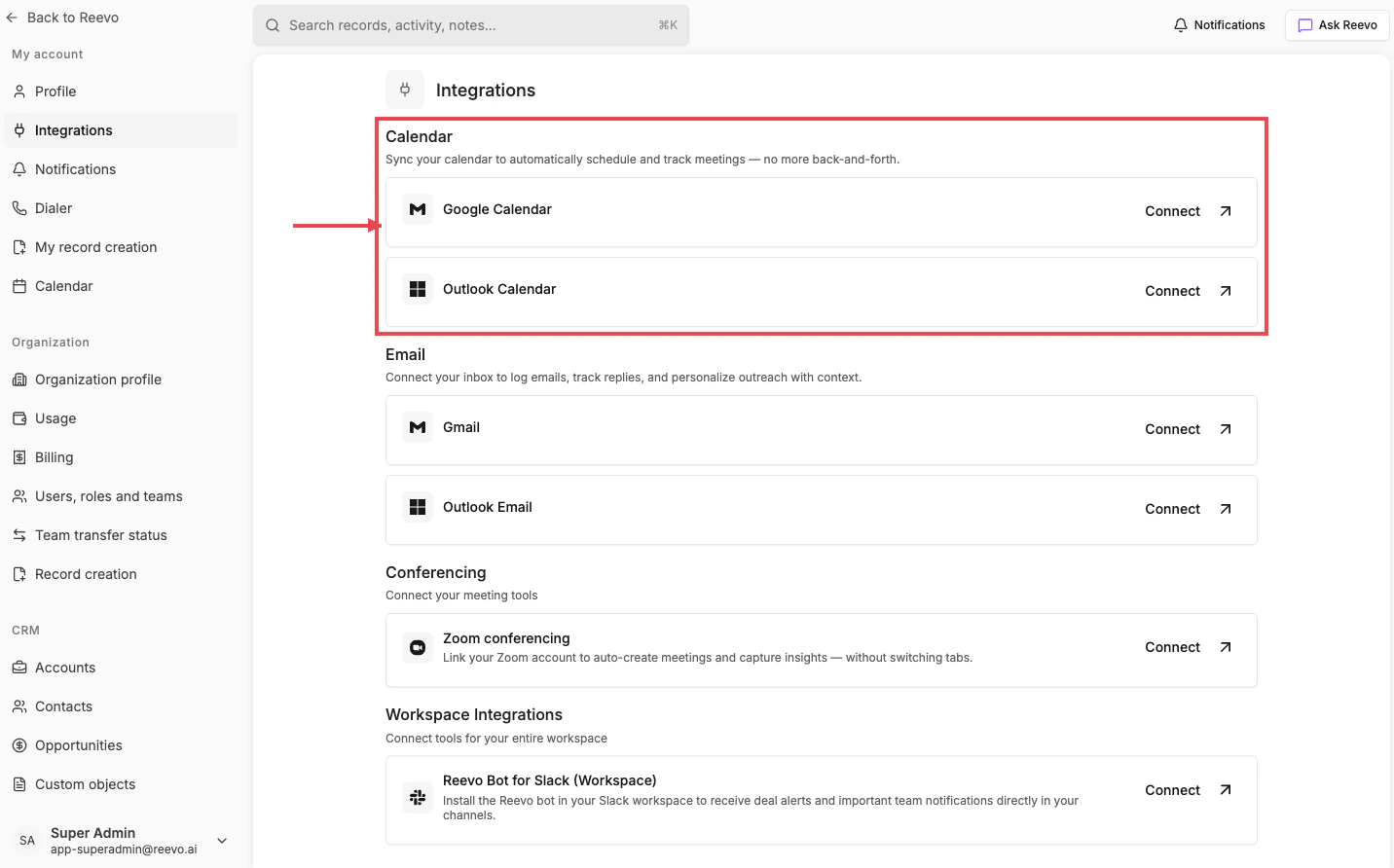
- Open Settings → Integrations.
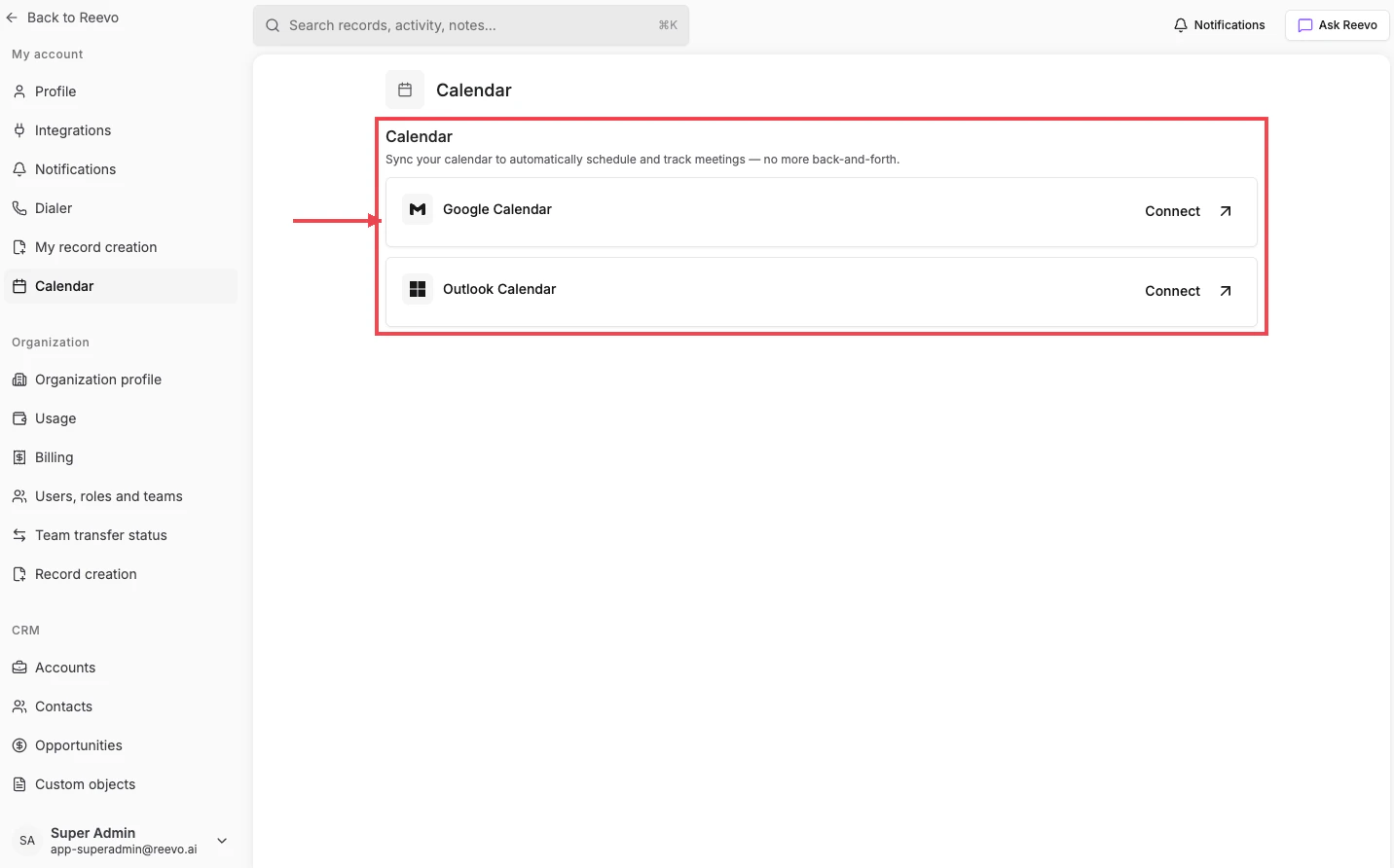
- Under the Calendar section (“Sync your calendar to automatically schedule and track meetings, no more back-and-forth.”), click Connect on either the Google Calendar or Outlook Calendar card.
- Complete the OAuth flow with Google or Microsoft and grant the requested scopes.
- The card label changes to Connected when the integration is active.
Step 2. Connect your email
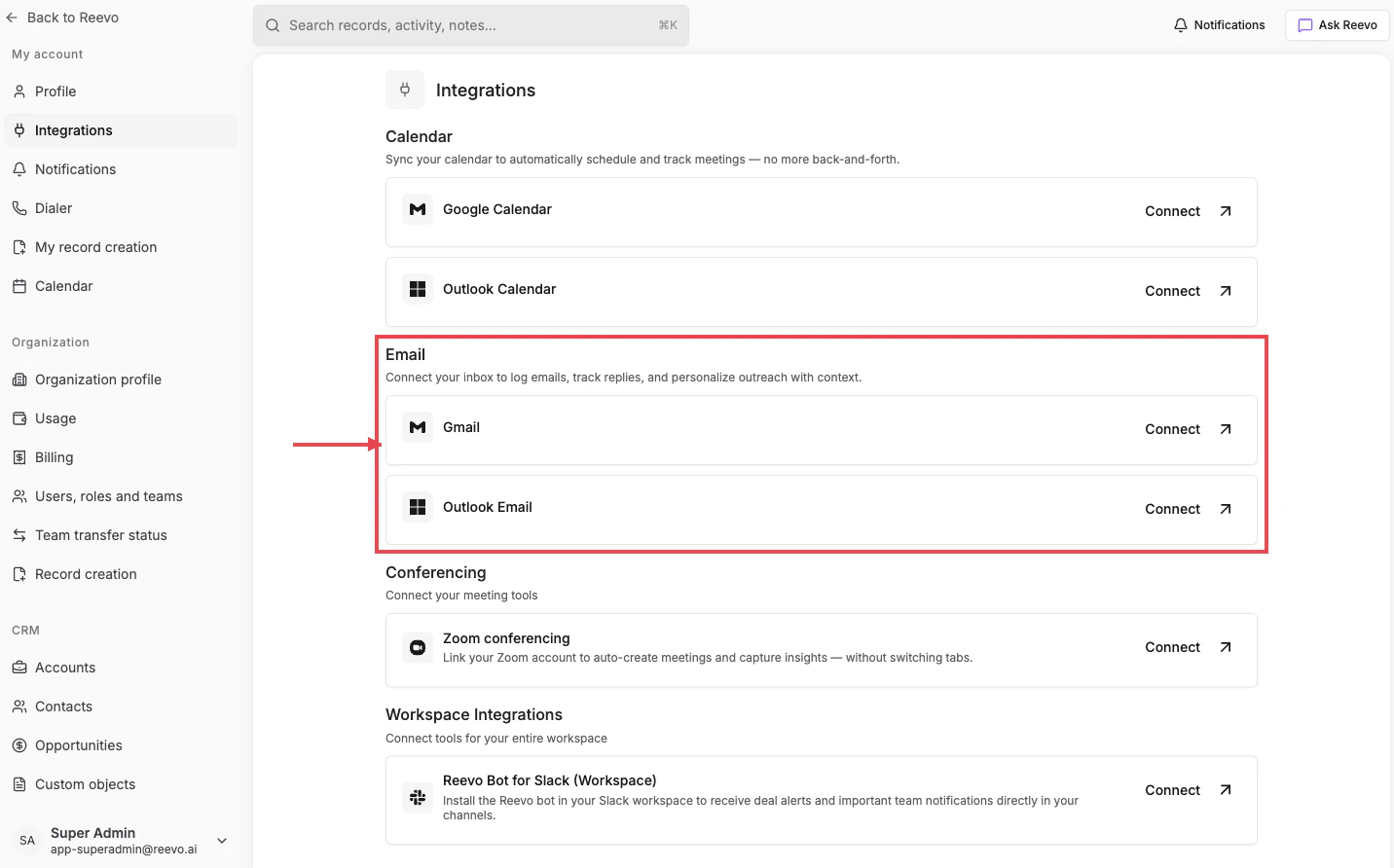
- Stay on Settings → Integrations and scroll to the Email section (“Connect your inbox to log emails, track replies, and personalize outreach with context.”).
- Click Connect on the email card that matches the provider you used for calendar (Gmail if you connected Google Calendar, Outlook Email if you connected Outlook Calendar).
- Approve the OAuth flow.
- The card shows Connected when finished.
Step 3. Turn on auto-sync (recommended)
Once connected, two toggles appear directly below the cards:- Auto-sync calendar events (recommended): “Sync your calendar events, prep for meetings, get personalized insights, and automatically create relevant CRM records.”
- Auto-sync email events (recommended): “Sync your emails, automate intelligent record creation, and maintain a comprehensive communication history.”
What turning off email auto-sync means
What turning off email auto-sync means
- Smart conversation insights stop
- Tasks are no longer created automatically from email signals
- Contacts and Accounts stop being enriched from new conversations
- Email campaign engagement (opens, replies) is no longer tracked
What turning off calendar auto-sync means
What turning off calendar auto-sync means
- Meeting insights and Meeting Prep stop generating
- The Notetaker bot no longer joins meetings automatically
- New attendees stop being captured as contacts
- Your Upcoming Events page goes stale
Step 4. Set your default availability (optional)
On Settings → Calendar, the Default availability section appears once Google Calendar is connected:Set your default weekly availability and timezone. This will be used as the template for new event types.Set the days, start/end times, and timezone you want to use as the template for scheduling links and other event types.
What gets synced
- Calendar: events with their participants, conference links, and timing flow into Reevo and power Upcoming Events, Pre-Meeting Prep, scheduling links, and the Notetaker Bot.
- Email: sent and received messages, threads, subjects, and bodies are synced. They power automatic record creation, sequence engagement tracking, and conversation history on contact, account, and opportunity records.
- Tokens, not passwords: Reevo never stores your Google or Microsoft password. OAuth refresh tokens are encrypted at rest, and Reevo only ever asks for the minimum scopes required.
- Sync timing: Gmail uses Google’s push notifications, so new mail arrives in Reevo within seconds. Calendar and Outlook sync over webhooks and polling, typically within a minute.
Reconnecting a broken integration
If a connection breaks, the card’s button changes from Connected to Reconnect. Click it and complete the OAuth flow again. The most common reasons a connection breaks:- You removed Reevo under your Google account at myaccount.google.com → Security → Third-party apps & services.
- You reset your Google password (Google revokes third-party tokens on password reset).
- You revoked or downgraded a scope when prompted by Google or Microsoft.
- The provider’s refresh token expired (rare, and reconnecting once fixes it).
Disconnecting
Self-service disconnect is currently not available for Gmail, Google Calendar, Outlook Email, or Outlook Calendar. If you click the disconnect option, you’ll see:“Google integration cannot be disconnected. Contact support for more information.” “Microsoft integration cannot be disconnected. Contact support for more information.”If you need to disconnect, for example, you’re moving Reevo to a different work account, open a ticket via AskReevo and support will handle it. (Conferencing and Workspace integrations can be disconnected directly.)
Microsoft-specific notes
Microsoft customers should also review:- Outlook Calendar: what you can do once connected, plus the known attendee-status limitation when meetings originate outside Outlook.
- Microsoft Organization Onboarding Checklist: admin steps to enable Microsoft sign-in across the org.
Watch: Connect Outlook Calendar & Email
Activity Capture depends on this connection
Reevo’s automatic record creation rules (Capture All, Existing Accounts, Outbound Only, Do Not Capture) only fire when your email and calendar are connected and auto-sync is on. If your record creation page warns you about missing Google permissions, it means your account isn’t connected yet, finishing the steps above resolves it. Full details on the rules themselves live in Onboarding to Reevo! under Record Auto-Creation Settings.Troubleshooting / FAQs
Why can't I connect both Google and Microsoft?
Why can't I connect both Google and Microsoft?
Reevo expects a single source of truth for your inbox and calendar. The integration cards become “Unavailable” on the unused provider once one is connected. Contact support if you need to switch providers.
Can I add Outlook as an additional outbound mailbox?
Can I add Outlook as an additional outbound mailbox?
No. Outlook Email is available as your one personal email integration, but it is not available in Settings → Email setup → Add mailbox. If Gmail is already connected to your Reevo user, contact Support to switch your personal integration to Outlook, or create a Reevo-managed mailbox for additional outbound sending.
Can I use Gmail with Outlook Calendar (or vice versa)?
Can I use Gmail with Outlook Calendar (or vice versa)?
No. Email and calendar must come from the same provider, Gmail with Google Calendar, or Outlook Email with Outlook Calendar.
Can my admin connect email or calendar for me?
Can my admin connect email or calendar for me?
No. Each user connects their own Google or Microsoft account. This is what lets your individual emails and meetings be attributed to you in Reevo.
My connection stopped working, what happened?
My connection stopped working, what happened?
Most often: you removed Reevo from your Google account’s third-party apps list, or you reset your Google password. Both invalidate the token. Click Reconnect on the card to re-authorize.
How quickly does activity show up after I connect?
How quickly does activity show up after I connect?
The first sync backfills recent history asynchronously, so contacts, accounts, and meetings can take a few minutes to appear. After backfill, new emails and calendar events sync in near real-time.
What does Reevo store from my email?
What does Reevo store from my email?
Reevo stores the message metadata (sender, recipients, timestamps, subject, thread ID) and the body, encrypted at rest. Attachment file contents are not stored by default. OAuth tokens are also encrypted at rest, your password is never sent to Reevo.
Still have questions? Sign in and use AskReevo for instant answers or to raise a support ticket.