Overview
Reevo provides API keys that allow you to connect external tools and automate data flow into your workspace. With API keys, you can push contacts from platforms like Clay or Zapier, build custom integrations, or sync data from your own systems directly into Reevo without manual entry. API keys use a permission-based system, allowing you to control exactly what each key can access. This means you can create separate keys for different integrations with only the permissions they need.Prerequisites
- You must be an admin in your Reevo workspace to create API keys
- Your organization must have available quota for public requests
Watch: How to Generate and Manage API Keys
Step-by-Step Instructions
Creating a New API Key
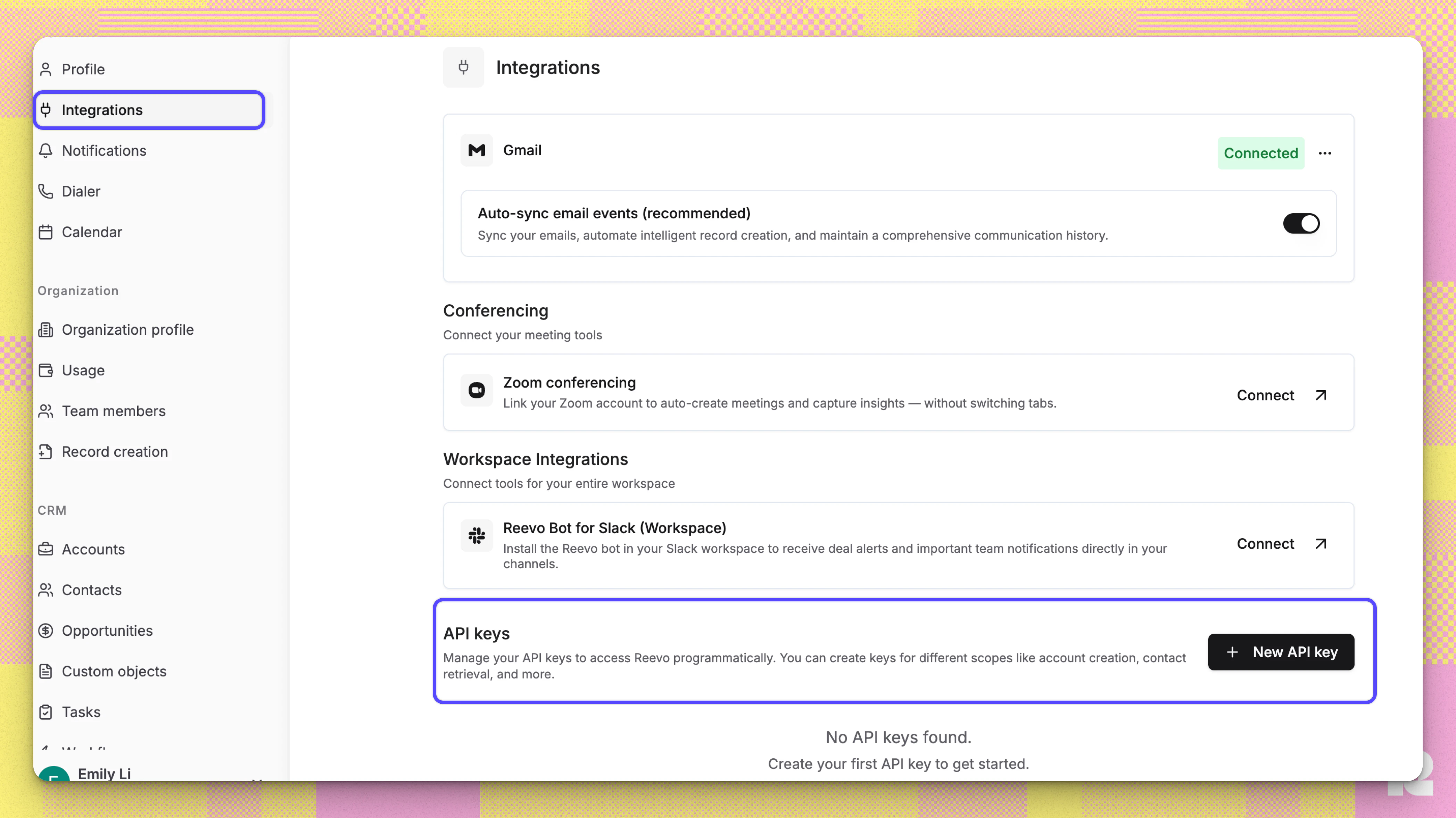
- Navigate to Settings in your Reevo workspace
-
Go to the API Keys section → New API key button
- Give your key a descriptive name (for example, “Clay Integration” or “Zapier Webhook”)
-
Select the permissions your integration needs:
Read permissions allow an API key to view and retrieve data, but not modify it. For example, with Accounts Read, you can fetch account information but cannot create or update accounts.Write permissions allow an API key to create, update, or modify data. Importantly, write permissions automatically include read permissions for the same resource. So if you have Contacts Write, you can both read and write contact data without needing to also select Contacts Read.
- Click Generate
Managing Existing API Keys
You can manage Existing API Keys under Setting → Integrations. The API keys table shows:- Name: The label you gave the key
- Permissions: What the key can access
- Status: Whether the key is Active or Expired
Expiring an API Key
If you need to revoke access for a key:- Find the key in your API keys table
- Click the three-dot menu next to the key
- Select Expire key
- The key will immediately stop working and show as “Expired” in your table
Using Your API Key
In your external tool, configure Webhooks by:-
Assigning a new HTTP API and include your API key in the request header:
- Header name:
x-api-key - Header value: Your API key
- Header name:
-
Set your request details
- Endpoint: See available endpoints below.
- Query Parameter:
- Key:
payload_type - Value:
json
- Key:
-
Define the body of your request. See example requests and supported values for each endpoint below:
Account Contact
This does upsert for account and contact.Supported values:Example full request:Accounts
Create
Create a new account in your CRM.Supported values:Example full request:Update
Update an existing account by its ID. You can retrieve an account ID from the Search by domain name endpoint, or from the account URL in your Reevo workspace.Path parameter:{account_id}- the UUID of the account to update.Supported values:Example full request:Get By ID
Retrieve a specific account by its ID.Path parameter:{account_id}- the UUID of the account to retrieve.Example full request:Search by domain name (contains)
Search for accounts whose domain name contains the given string. Returns matching accounts with their full profile, owner email, and custom fields.Supported values:Example full request:Example response:Contacts
Get By ID
Retrieve a specific contact by ID. Returns the contact’s profile, owner, custom fields, and associated account/opportunity links where applicable.Path parameter:{contact_id}- the UUID of the contact to retrieve.Example full request:Search
Search contacts by contact email or owner email. At least one ofcontact_emailorowner_emailis required.Supported values:Example full request:Opportunities
Create
Create a new opportunity tied to an existing account. The account must already exist in your CRM (use the Accounts > Create or Search by domain name endpoint to look it up).Supported values:Example full request:Update
Update an existing opportunity by its ID. You can retrieve an opportunity ID from the Search endpoint, or from the opportunity URL in your Reevo workspace.Path parameter:{opportunity_id}- the UUID of the opportunity to update.Supported values:Example full request:Opportunity stage cannot be changed via PATCH. To shift an opportunity to a different stage, use the Shift Stage endpoint instead.Get By ID
Retrieve a specific opportunity by its ID.Path parameter:{opportunity_id}- the UUID of the opportunity to retrieve.Example full request:Search
Search for opportunities by display name, account, owner, status, or pipeline stage. Returns matching opportunities with their full profile and custom fields.Supported values:Example full request:Shift Stage
Move an opportunity to a different stage in its pipeline.Path parameter:{opportunity_id}- the UUID of the opportunity to shift.Supported values:Example full request:closed_reason_namesis required when shifting to a closed stage (won/lost). The system automatically determines whether these should be won or lost reasons based on the target stage.Tasks
Create a new task for a user, optionally tied to an account, contact, or opportunity. Tasks appear in the assigned user’s task list in Reevo.Supported values:Example full request:Manual Activities
Log a manual activity (such as an SMS, LinkedIn message, social media interaction, or other communication channel) against CRM entities like accounts, contacts, opportunities, or sequences. Useful for capturing touches that happen outside Reevo.Supported values:Example full request:Users
Search organization user via email.Example full request:Mailboxes
Search mailboxes via the owner’s email.Example full request:Sequence Enrollments
Enroll a single contact into a sequence. One contact per API request.Supported values:Mailbox behavior:- If
mailbox_emailis provided, that specific mailbox will be used to send emails for this enrollment. - If
mailbox_emailis omitted, Reevo defaults to a random mailbox from the contact’s CRM owner’s available mailboxes.
Example full request:The API supports one contact per request. For bulk enrollment, use the Sequences UI.Custom Fields
- First create the field in Reevo. Refer to this article to learn how to create custom fields.
-
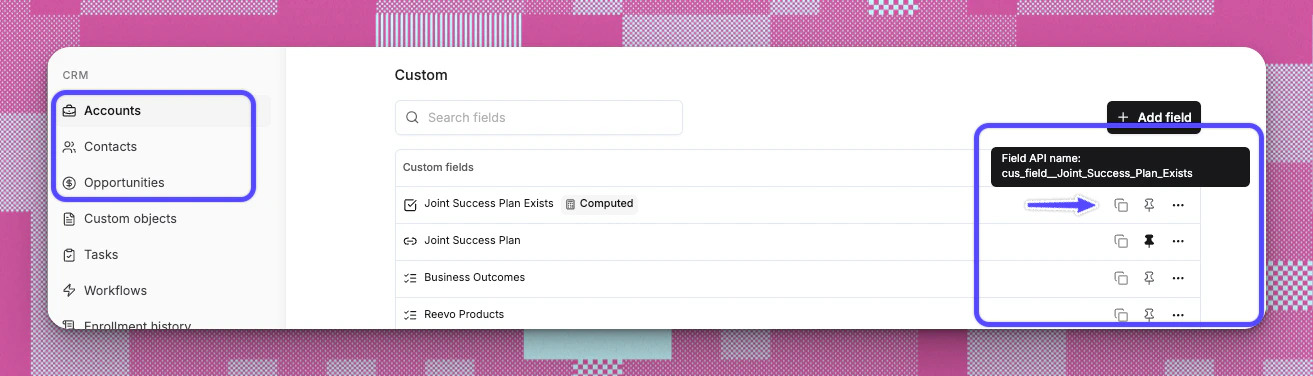
To find your custom field’s API name, go to settings where the custom field was created and hover over the field
In the JSON body, use:
Example payload:Account and Contact Retrieval
Retrieve account and contact data using one of three exact-match identifiers. Provide exactly one field per request.Supported values (provide one):Example full requests:Phone numbers must be URL-encoded. The+sign becomes%2B. Example:+14151234567becomes%2B14151234567. - If
- Publish and run the test to confirm the data is correctly sent to Reevo
Troubleshooting / FAQs
Why can't I create an API key?
Why can't I create an API key?
Only workspace admins can create API keys. If you need access, ask an admin to either grant you admin permissions or create the key for you.
I lost my API key. Can I retrieve it?
I lost my API key. Can I retrieve it?
No. For security reasons, API keys are only shown once when created. If you lose a key, you must expire the old one and generate a new one.
What happens if I use an expired key?
What happens if I use an expired key?
Requests using an expired key will be rejected with an “API key has expired” error. You’ll need to generate a new key and update your integration.
Can I use one API key for multiple integrations?
Can I use one API key for multiple integrations?
Yes, as long as the key has all the permissions needed by each integration. However, for better security and tracking, consider creating separate keys for each integration.
What does "write permission grants read permission" mean?
What does "write permission grants read permission" mean?
If your key has write access to a resource (like Contacts Write), it automatically includes read access too (Contacts Read). You don’t need to select both.
I'm seeing a quota warning. What does that mean?
I'm seeing a quota warning. What does that mean?
Your organization has limits on public requests. If you’re approaching or exceeding your quota, contact your account manager to discuss increasing your limits.
Still have questions? Sign in and use AskReevo for instant answers or to raise a support ticket.